![CSS-CMYK-logo-2015-2.png]](https://go.christiansteven.com/hs-fs/hubfs/social-suggested-images/CSS-CMYK-logo-2015-2.png?height=40&name=CSS-CMYK-logo-2015-2.png)
Office 365 accounts are used for Email, OneDrive, SharePoint, and Teams.
Office 365 - Azure AD
Associating your Office 365 account gives ATRS access to deliver scheduled reports to your Office 365 accounts such as OneDrive, SharePoint, Email and Teams.
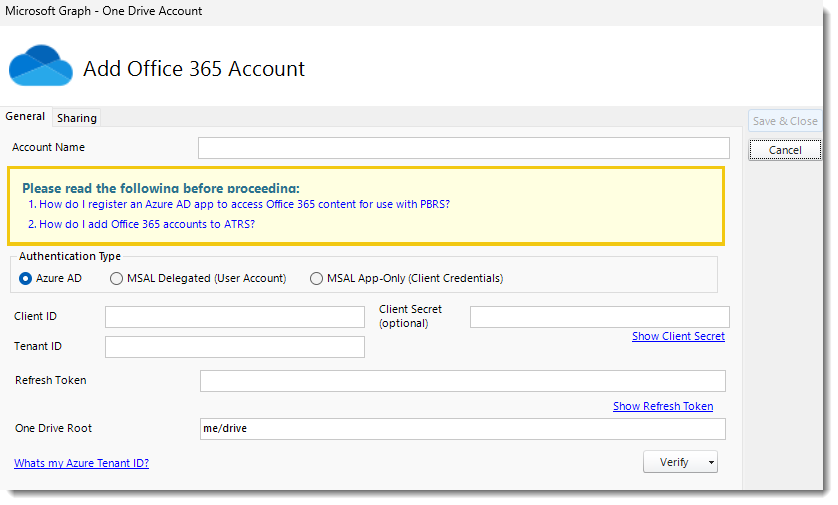
- Go to Integrations.
- Select Office 365.

- Click Add.
- Account name: Enter the account credentials.
- Client ID: Enter the client ID.
- Tenant ID: Enter the tenant ID.
- Click Verify.
-
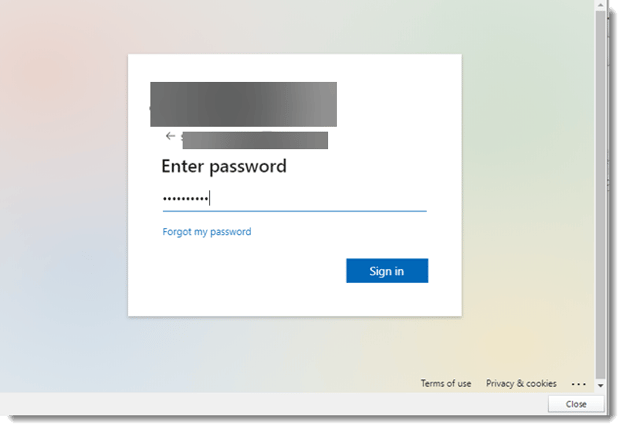
- Upon clicking Verify, a window will prompt you to log in with your Windows credentials and require some form of multifactor authentication (if it’s required by your organization).
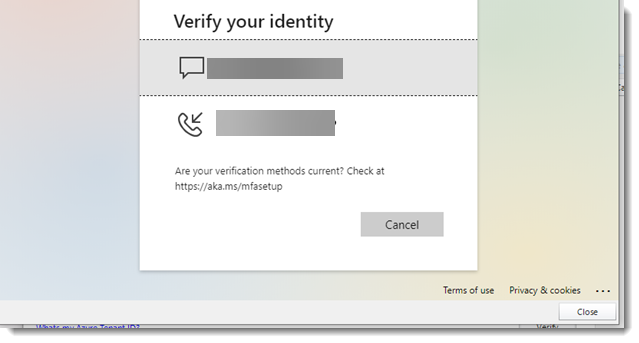
- Enter the code that was sent to your phone.
- Click Verify.
- You should see a message pop-up that indicates your account was added successfully.
- Upon clicking Verify, a window will prompt you to log in with your Windows credentials and require some form of multifactor authentication (if it’s required by your organization).

-
Your Office 365 account is ready to go.
Adding an account via a MSAL Device Code Login Flow
MSAL Delegated (User Account)
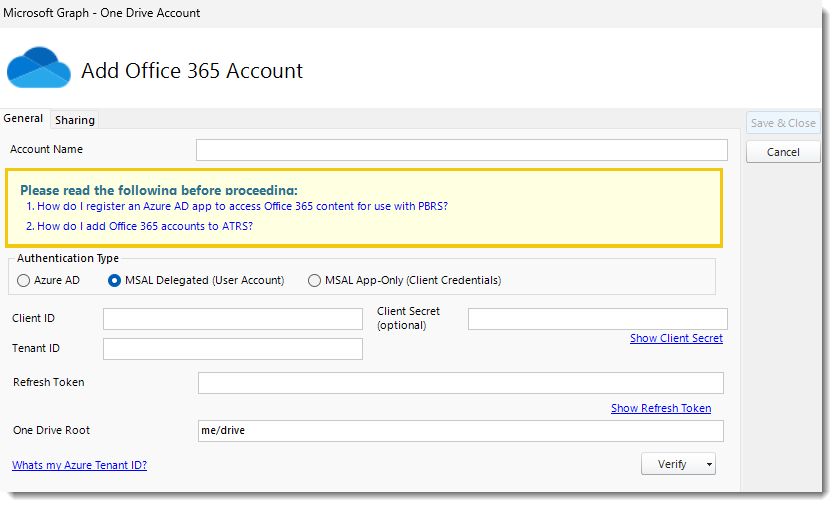
- Step 1: Click on MSAL Delegated (User Account).
- Step 2: Enter in your Client ID, Client Secret, and Tenant ID.
- Step 3: Click Verify.
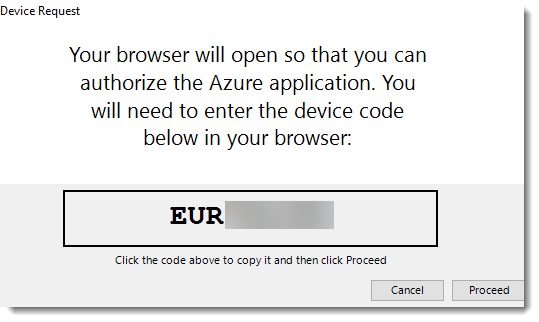
- Step 4: Copy the provided code and click Proceed.
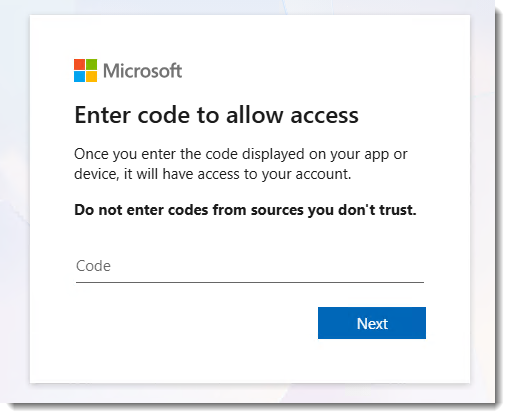
- Step 5: Paste the code and click Next.
- Step 6: Select your account and click Continue.
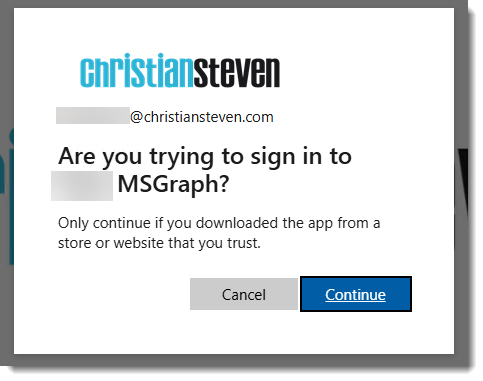
- Click Continue
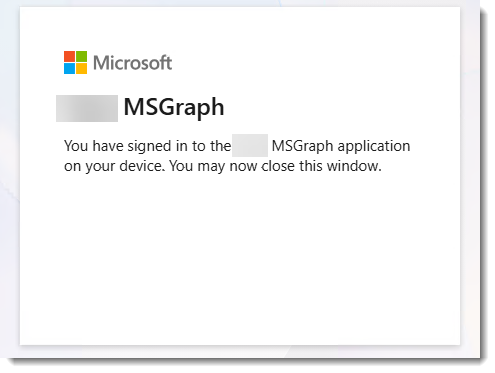
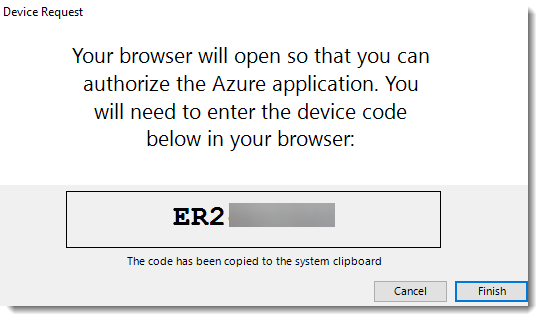
- Step 7: Click Finish.
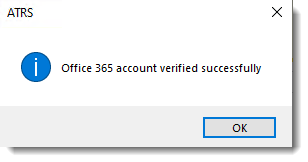
OR you can Verify the MSAL App-Only (Client Credentials) Authentication Type
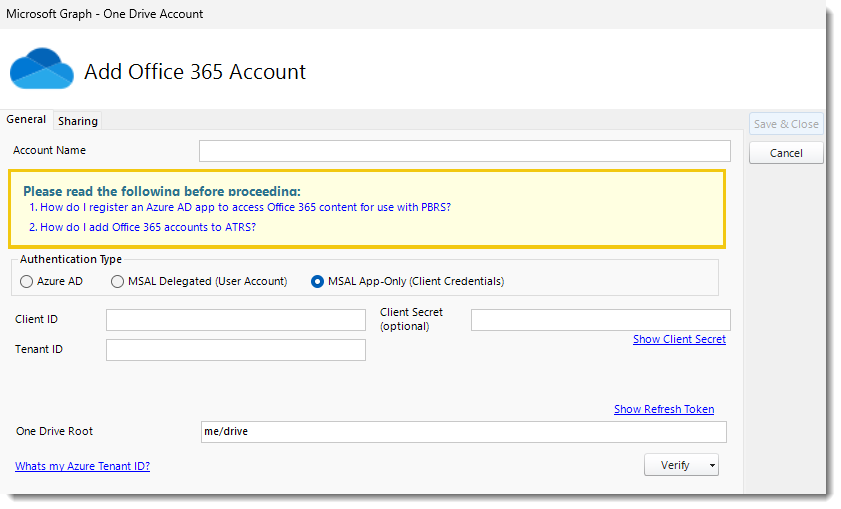
- Step 1: Click on MSAL App-Only (Client Credentials).
- Step 2: Enter in your Client ID, Client Secret, and Tenant ID.
- Step 3: Click Verify.
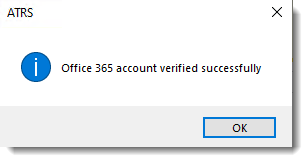
- Step 4: Click OK.
- Step 5: Click Save & Close.
- The Office 365 account is added to ATRS.
- For more information on setting up ATRS to use Office 365 for email please read Configuring ATRS to use my email server.