![CSS-CMYK-logo-2015-2.png]](https://go.christiansteven.com/hs-fs/hubfs/social-suggested-images/CSS-CMYK-logo-2015-2.png?height=40&name=CSS-CMYK-logo-2015-2.png)
Before You Begin
Before creating a Data-Driven SSRS Schedule, make sure:
- You have access to the PBRS Web Application and permission to create schedules.
- The SSRS report you want to schedule is available to PBRS.
- The required SSRS account has already been configured.
- You have access to the data source that will be used by the Data Driver.
- You know the query required to return the data that will drive the schedule.
- You know which returned data values will be used for report parameters or delivery information.
- Any destinations required by the schedule are available and correctly configured.
Tip: Before building the schedule, verify that your Data Driver query returns the expected records and values. These values will be used when PBRS processes the data-driven schedule.
Create a Data-Driven SSRS Schedule
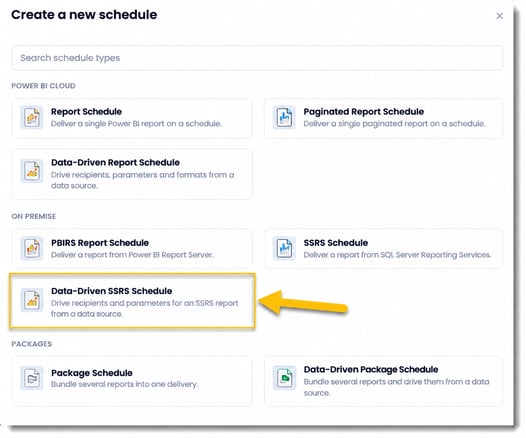
The first screenshot on page 1 shows the user starting from the Schedules page, selecting New, and then choosing Data-Driven SSRS Schedule from the On Premise schedule types.
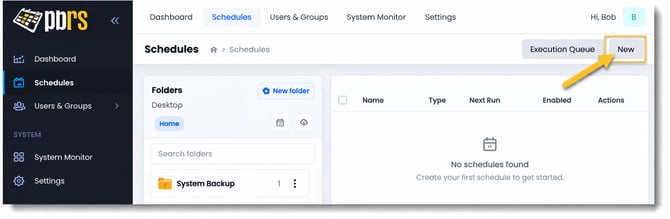
- Sign in to the PBRS Web Application.
- Open Schedules.
- Select New in the upper-right corner.
- The Create a new schedule window opens.
- Under On Premise, select Data-Driven SSRS Schedule.
- The Data-Driven SSRS Report Schedule wizard opens.
Configure the General Settings
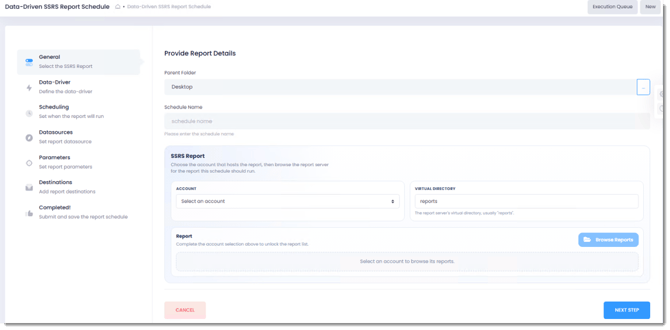
After selecting Data-Driven SSRS Schedule, the schedule wizard opens on the General section.
- In Report Folder, select the PBRS folder where the schedule should be saved.
- In Schedule Name, enter a descriptive name for the schedule.
- Under SSRS Report, select the Account used to connect to SQL Server Reporting Services.
- Confirm or enter the Virtual Directory for the SSRS report server.
- In the Report section, select Browse Reports.
- Browse the available SSRS reports and select the report you want the schedule to process.
- Confirm that the selected report appears in the Report section.
- Select Next Step.
Important: The SSRS account must already be configured and have access to the report you want to schedule. If the report cannot be located, verify the selected account, virtual directory, and access to the SSRS report server.
Configure the Data Driver
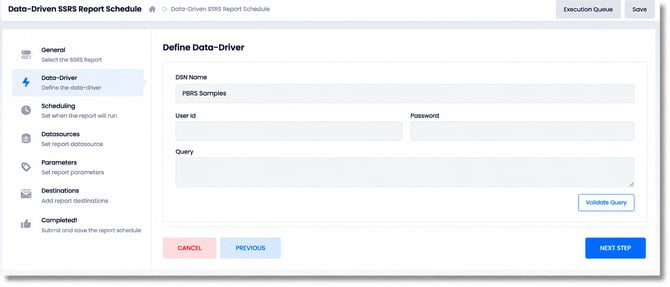
The Data-Driver section defines the data source and query that PBRS will use to drive the schedule. The values returned by the query can then be used elsewhere in the schedule, including report parameters and destination settings.
- Select or enter the DSN Name for the database connection the Data Driver will use.
- If the connection requires authentication, enter the User ID and Password.
- In Query, enter the SQL query that will return the records required by the schedule.
- Select Validate Query to confirm that PBRS can connect to the data source and successfully execute the query.
- Confirm that the query validates successfully before continuing.
- Select Next Step.
Important: The query should return all of the fields you intend to use dynamically later in the schedule. For example, this may include values used for SSRS parameters or destination information.
Tip: Validate the query before proceeding. This helps identify connection, credential, or query problems before you configure the remaining schedule settings.
Configure When the Schedule Runs
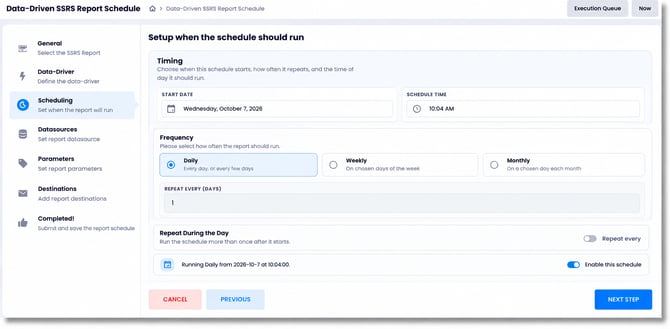
The Scheduling section determines when the Data-Driven SSRS Schedule starts, how frequently it runs, and whether the schedule is enabled.
- Set the Start Date for the schedule.
- Set the Schedule Time when the schedule should begin running.
- Under Frequency, select how often the schedule should run:
- Daily — Run the schedule based on a daily interval.
- Weekly — Run the schedule on selected days of the week.
- Monthly — Run the schedule on selected days each month.
- Configure the additional frequency settings displayed for the option you select. For example, when Daily is selected, specify the number of days in Repeat every (days).
- If the schedule needs to run more than once during the day, configure Repeat During the Day.
- Review the schedule summary displayed at the bottom of the section to confirm the configured run pattern.
- Use Enable this schedule to determine whether the schedule should begin running automatically.
- Select Next Step.
Important: If Enable this schedule is turned off, the schedule can be saved but will not execute automatically according to its configured recurrence
Configure the Report Datasource
The Datasources section displays the datasource used by the selected SSRS report.
- Review the Datasource Name displayed for the selected SSRS report.
- Confirm that the expected datasource is shown.
- Select Next Step to continue.
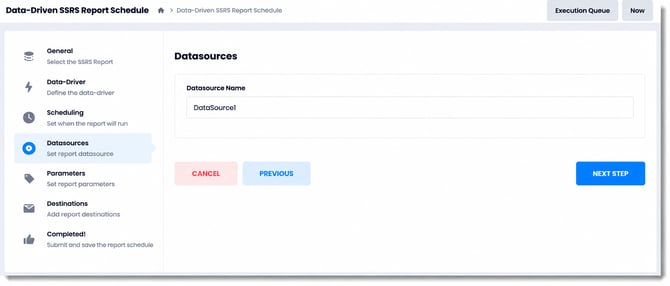
Note: The datasource displayed here is associated with the SSRS report selected in the General section. If the expected datasource is not shown, return to the previous steps and confirm that the correct SSRS report was selected.
Configure Report Parameters
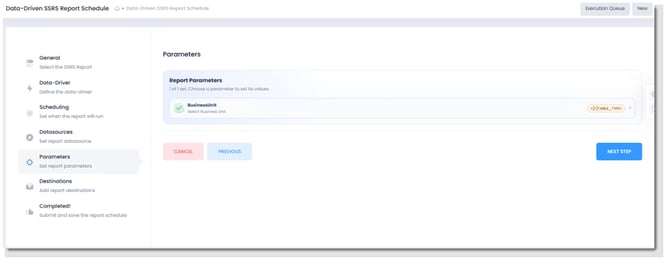
The Parameters section displays the parameters available for the selected SSRS report. Parameters can be populated with fixed values or, for a Data-Driven schedule, with values returned by the Data Driver.
- Review the parameters displayed under Report Parameters.
- Select the parameter you want to configure. In this example, the SSRS report contains the BusinessUnit parameter.
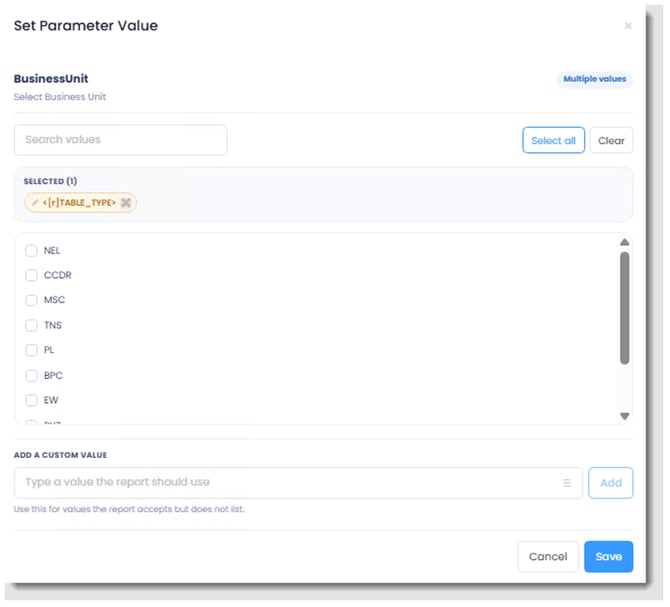
- The Set Parameter Value window opens.
- Select the value or values that should be passed to the SSRS report.
Use a Data Driver Value for a Parameter
For a Data-Driven SSRS Schedule, a value returned by the Data Driver can be used as the value of an SSRS report parameter.
In the Set Parameter Value window:
- Use Search values to locate a value from the SSRS parameter's available values, if required.
- For parameters that accept multiple values, select the required values from the list.
- To use a value returned by the Data Driver, select the appropriate Data Driver field. The selected field is displayed as a Data Driver token, such as
{[TABLE_TYPE]}. - If the report accepts a value that is not displayed in the available list, use Add a Custom Value to enter it.
- Select Save.
- Confirm that the configured value is displayed against the parameter on the Parameters screen.
- Select Save.
Important: When a Data Driver field is assigned to a parameter, PBRS substitutes the value returned by that field when the schedule is processed. Ensure that the Data Driver query returns values that the corresponding SSRS parameter accepts.
Configure the Destination
The Destinations section determines how and where the generated SSRS report will be delivered.
- In the Destinations section, select Add Destination.
- The Add Destination window opens.
- Enter a descriptive Destination Name.
- Select the required Destination Type. The available configuration options are displayed based on the destination selected.
- Select the Output Format for the generated SSRS report.
- Complete the settings required for the selected destination.
- Select Save Destination.
- The destination is added to the schedule.
- Add any additional destinations required for the schedule.
- When the destination configuration is complete, select Next Step.
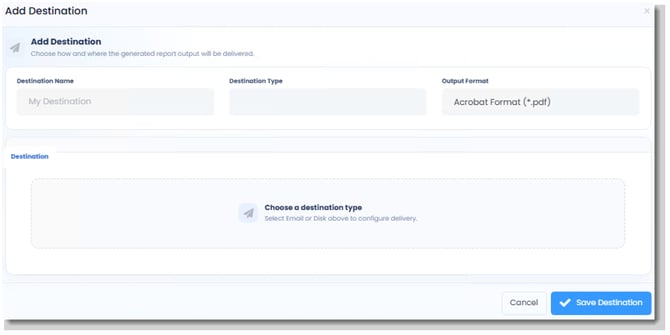
Note: The settings available in the Destination section depend on the selected Destination Type. Configure the required delivery information before saving the destination.
Review and Create the Schedule
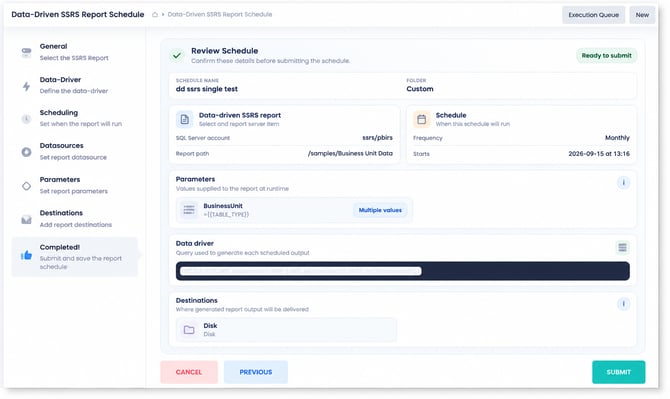
The Completed! section provides a summary of the Data-Driven SSRS Schedule before it is created.
Review the configuration carefully before submitting the schedule.
- Review the Schedule Name and Folder.
- Under Data-Driven SSRS Report, confirm the selected SSRS account and report.
- Under Schedule, confirm the frequency and start information.
- Under Parameters, confirm that the correct report parameters and Data Driver values have been configured.
- Under Data Driver, review the configured query.
- Under Destinations, confirm that all required delivery destinations are listed.
- If any information is incorrect, select Previous and return to the appropriate section to make changes.
- When the schedule configuration is correct and the status displays Ready to submit, select Submit.
Confirm the Schedule Was Created
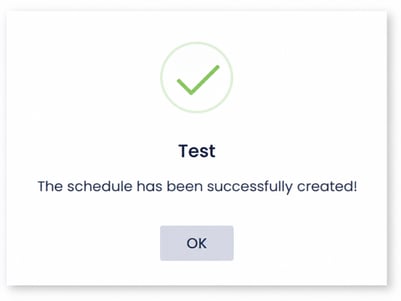
After PBRS creates the schedule successfully, a confirmation message is displayed.
- Confirm that the message states The schedule has been successfully created!
- Select OK to close the confirmation message.
- Verify that the new schedule appears in the appropriate folder in the PBRS Web Application.
Troubleshooting
The Data Driver Query Does Not Validate
Possible cause:
PBRS cannot connect to the selected DSN, the database credentials are incorrect, or the query cannot be executed against the configured data source.
Resolution:
- Confirm that the correct DSN Name is selected.
- Verify the User ID and Password, if authentication is required.
- Confirm that the DSN can connect to the database from the PBRS server.
- Test the query directly against the source database.
- Check the query for syntax errors.
- Confirm that the database account has permission to access the tables, views, or stored procedures referenced by the query.
- Select Validate Query again after making any changes.
If the query works in another database tool but does not validate in PBRS, check the PBRS Error Log for the exact connection or query error.
The Required DSN Is Not Available
Possible cause:
The DSN required by the Data Driver has not been configured correctly or is not available to PBRS.
Resolution:
- Confirm that the required DSN exists on the PBRS server.
- Verify that the DSN uses the appropriate database driver.
- Test the DSN connection outside PBRS.
- Confirm that PBRS can access the DSN using the account under which the relevant PBRS services are running.
- Return to the Data-Driver section and try the connection again.
The SSRS Report Requires a Parameter Value
You may receive an error indicating that the report requires a default or user-defined value for a parameter.
Possible cause:
One or more required SSRS parameters have not been mapped correctly in the PBRS schedule, or the Data Driver does not return a usable value for the parameter.
Resolution:
- Open the Parameters section of the schedule.
- Confirm that every required SSRS parameter has a value.
- If the parameter is driven by the Data Driver, verify that the correct Data Driver field is assigned.
- Confirm that the Data Driver query returns that field for every applicable record.
- Check for
NULL, blank, or unexpected values in the returned data. - Confirm that the value returned by the Data Driver is valid for the corresponding SSRS parameter.
- Save the parameter configuration and test the schedule again.
A Data Driver Parameter Produces Unexpected Report Results
Possible cause:
The value returned by the Data Driver does not match a value accepted by the SSRS parameter.
This is particularly important for SSRS parameters whose available values are populated from a dataset.
Resolution:
- Run the Data Driver query and inspect the value being returned.
- Compare it with the values accepted by the SSRS parameter.
- Check for differences in spelling, formatting, spaces, data types, or case where relevant.
- Confirm that date values use a format accepted by the report.
- Test the value directly in SSRS to verify the expected result.
Important: Do not assume that an invalid parameter value will always cause the SSRS report to fail. Depending on how the SSRS report and its parameter defaults are configured, SSRS may fall back to a default or otherwise produce an unexpected result. Validate Data Driver values against the values expected by the report.
A Multi-Value SSRS Parameter Does Not Return the Expected Results
Possible cause:
A Data Driver field containing several values may be passed to SSRS as a single value rather than automatically being interpreted as multiple parameter selections.
For example, a returned value containing:
16943,85299
may not necessarily be interpreted as two separate values by the SSRS parameter.
Resolution:
- Confirm that the SSRS parameter is configured to accept multiple values.
- Review the value returned by the Data Driver.
- Do not assume that a delimited string will automatically be separated into individual SSRS parameter values.
- Test the parameter mapping with controlled values before using the schedule in production.
- If the schedule requires dynamically varying numbers of values for a multi-value parameter and the expected result cannot be achieved, contact ChristianSteven Support for guidance on the configuration supported by your PBRS build.
I think that last wording is important. The support history confirms that multi-value Data Driver parameters have caused problems, but it does not give us a sufficiently verified universal fix, so we shouldn't invent one.
Need Additional Help?
If you cannot validate the Data Driver, connect to the required DSN, map an SSRS parameter, or successfully create and test the Data-Driven SSRS Schedule, check the PBRS Error Log for additional information.
Before contacting ChristianSteven Support, collect the following information: the PBRS build number, SSRS report and parameter configuration, Data Driver query, DSN type, parameter mappings, the value returned by the Data Driver, the exact error message, and relevant PBRS Error Log entries.
Remove passwords, credentials, and other sensitive information before providing screenshots or configuration details.