![CSS-CMYK-logo-2015-2.png]](https://go.christiansteven.com/hs-fs/hubfs/social-suggested-images/CSS-CMYK-logo-2015-2.png?height=40&name=CSS-CMYK-logo-2015-2.png)
Before You Begin
Before creating a Data-Driven Paginated Package Schedule, make sure the required connections and resources are available in PBRS.
You should have:
- A Power BI account configured in PBRS with access to the Paginated Reports you want to schedule.
- A database connection or DSN configured for the data source that will drive the schedule.
- A database query that returns the records and values you want to use when processing the schedule.
- The necessary permissions to access the required Power BI workspaces and Paginated Reports.
- Any required report parameters and corresponding values available for configuration.
- Any required delivery destinations configured and accessible.
Tip: Before building the schedule, verify that both the Power BI account and database connection are working correctly. Also test your Data-Driver query to confirm that it returns the expected records and fields. This can help identify connection, permission, or query issues before configuring the complete schedule.
Create a Data-Driven Paginated Package Schedule
To begin creating the schedule:
- Log in to the PBRS Web Application.
- Select Schedules from the main menu.
- Select New in the upper-right corner.
- From the schedule type menu, select Data-Driven Package Schedule.
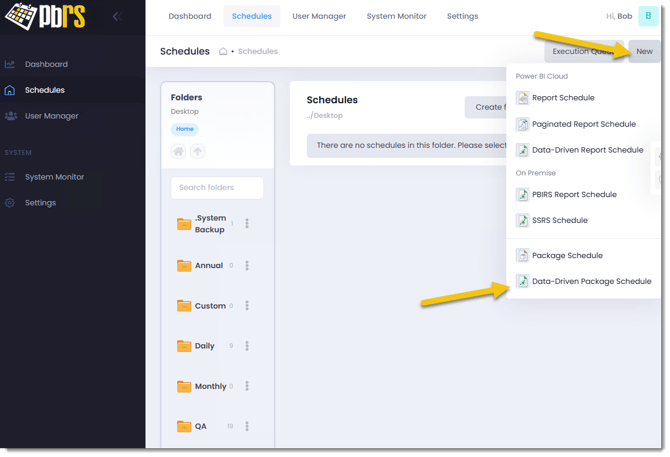
The Data-Driven Package Schedule Wizard opens, where you can configure the general schedule settings, Data Driver, scheduling options, reports, and delivery destinations.
Note: In the PBRS Web Application, select Data-Driven Package Schedule from the New menu to create this type of schedule.
Configure the General Settings
Use the General tab to define where the Data-Driven Package Schedule will be stored and how it will be identified in PBRS.
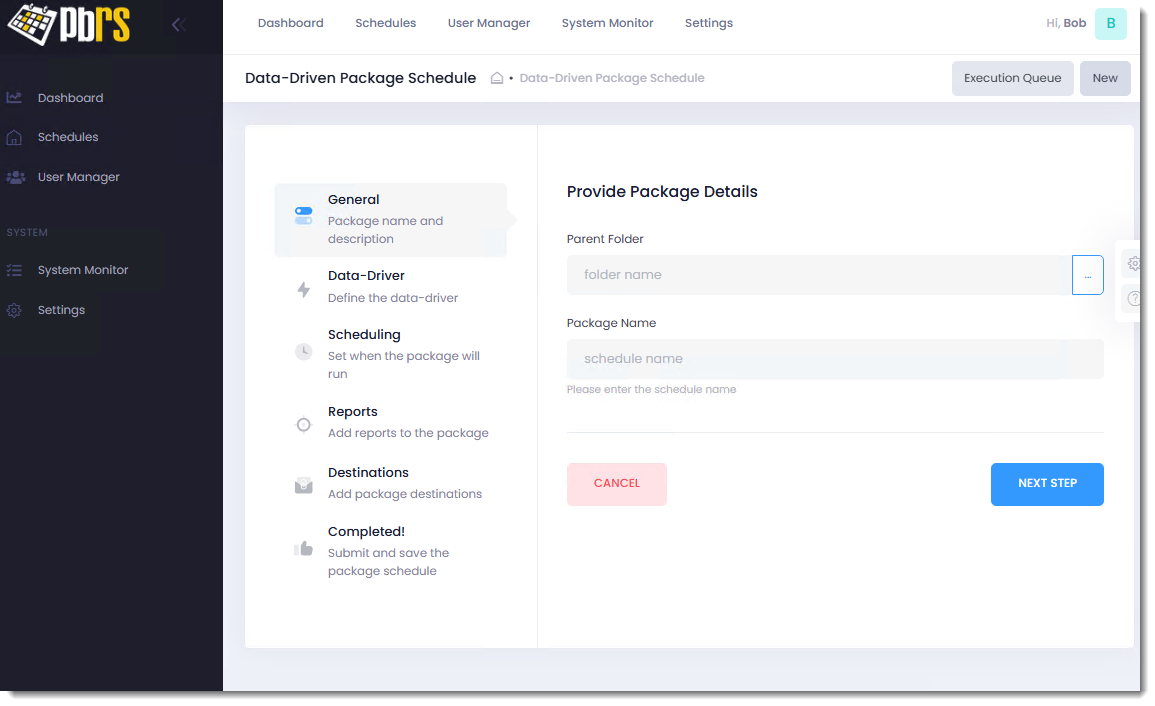
- Next to Parent Folder, select the (...) button.
- Browse to and select the folder where you want the schedule to be stored.
- In Package Name, enter a descriptive name for the schedule.
- Select Next Step to continue to the Data-Driver tab.
General Settings
- Parent Folder: Specifies the PBRS folder where the Data-Driven Package Schedule will be stored.
- Package Name: Specifies the name used to identify the package schedule in PBRS.
Tip: Use a descriptive package name that clearly identifies the purpose of the schedule. This makes it easier to locate and manage the schedule when you have multiple Data-Driven Package Schedules.
Configure the Data Driver
Use the Data-Driver tab to define the database connection and query that will provide the data used to drive the package schedule.
Each record returned by the query can provide values that PBRS uses when processing reports and delivering the package.
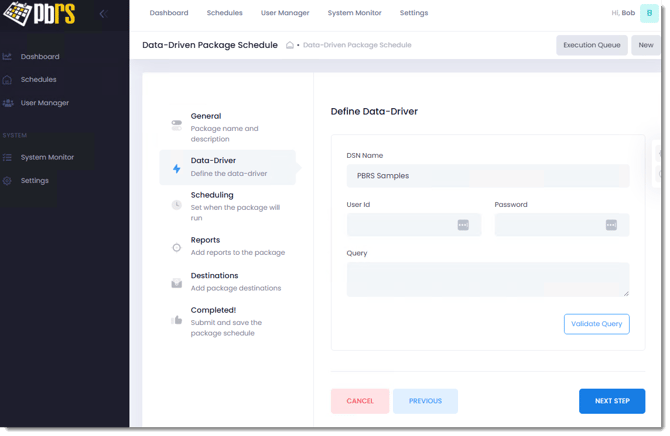
- From DSN Name, select the DSN for the database containing the data you want to use.
- If the database connection requires authentication, enter the appropriate User ID and Password.
- In Query, enter the SQL query that will retrieve the records and fields required by the schedule.
- Select Validate Query to test the database connection and confirm that PBRS can successfully execute the query.
-
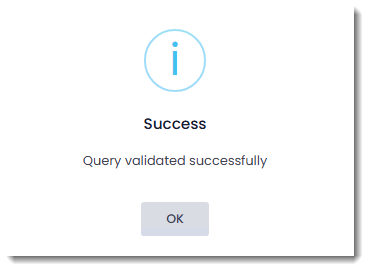
When the query has been successfully validated, PBRS displays a Success – Query validated successfully message. Select OK to close the message.
-
Review the query and connection settings, then select Next Step to continue to the Scheduling tab.
Important: Always validate the query before continuing. A successful validation confirms that PBRS can execute the query, but you should also make sure the query returns the expected records and fields required by the schedule.
Data-Driver Settings
- DSN Name: Specifies the configured database connection PBRS will use to retrieve the data.
- User ID: Specifies the username required to connect to the selected data source, if applicable.
- Password: Specifies the password associated with the database user, if applicable.
- Query: Defines the SQL query PBRS executes to retrieve the records used to drive the schedule.
- Validate Query: Tests the database connection and query before you continue configuring the schedule.
How the Data Driver Is Used
The fields returned by the query become available later in the schedule configuration. These database values can be used to dynamically control items such as report parameters, output information, recipients, and destination settings.
For example, a query could return:
CustomerID | CustomerName | EmailAddress | ReportDate
As PBRS processes each record, the corresponding values can be used to generate and deliver a customized report package for that record.
Configure the Schedule Timing
Use the Scheduling tab to define when the Data-Driven Package Schedule should run.
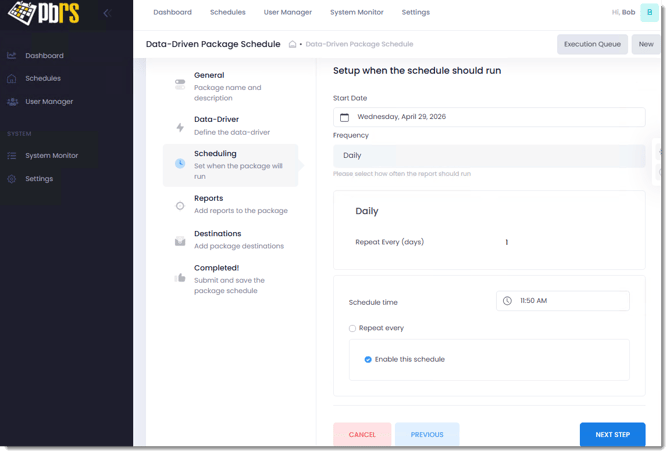
- Select the Start Date for the schedule.
- From Frequency, select how often the schedule should run.
- Configure the options displayed for the selected frequency. For example, for a Daily schedule, use Repeat Every (days) to specify the number of days between executions.
- Set the Schedule Time.
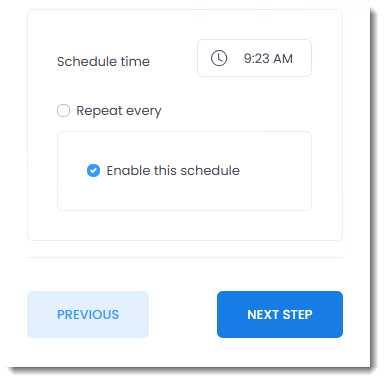
-
Note: Leave Enable this schedule unchecked if you want to save and test the schedule before allowing it to execute automatically. A disabled schedule remains available in PBRS but will not run automatically until it is enabled.
- Select Next Step to save the scheduling configuration and continue to the Reports tab.
Note: Leave Enable this schedule unchecked if you want to save and test the schedule before allowing it to execute automatically. A disabled schedule remains available in PBRS but will not run automatically until it is enabled.
Scheduling Settings
- Start Date: Specifies the date from which PBRS should begin running the schedule.
- Frequency: Determines how often the schedule runs. Additional settings are displayed based on the frequency selected.
- Schedule Time: Specifies the time at which PBRS should execute the schedule.
- Repeat every: Allows the schedule to execute repeatedly at a specified interval when multiple executions are required.
- Enable this schedule: Controls whether PBRS executes the schedule automatically.
Add Power BI Paginated Reports
Use the Reports tab to add the Power BI Paginated Reports that PBRS will process as part of the Data-Driven Package.
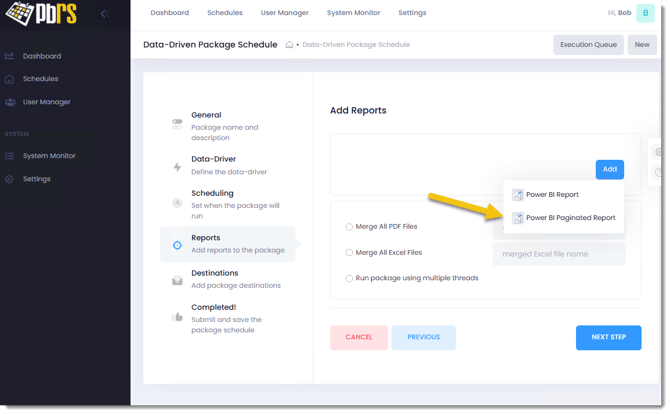
- Select Add.
- Select Power BI Paginated Report.
The report configuration window opens, where you can select and configure the Paginated Report you want to include in the package.
Repeat this process for each Paginated Report you want to add to the package.
Configure Package Output Options
The Reports tab also provides options for controlling how multiple report outputs are processed.
- Merge All PDF Files: Combines PDF files generated by the reports in the package into a single PDF file.
- Merge All Excel Files: Combines Excel files generated by the package. When selected, enter the required merged Excel file name.
- Run package using multiple threads: Allows PBRS to process reports in the package concurrently rather than processing each report sequentially.
Note: Merge options apply only when the reports are being exported in the corresponding file format.
Select the Power BI Paginated Report
After selecting Power BI Paginated Report, the Add Report wizard opens.
On the General tab, select the Power BI Paginated Report you want to include in the package.
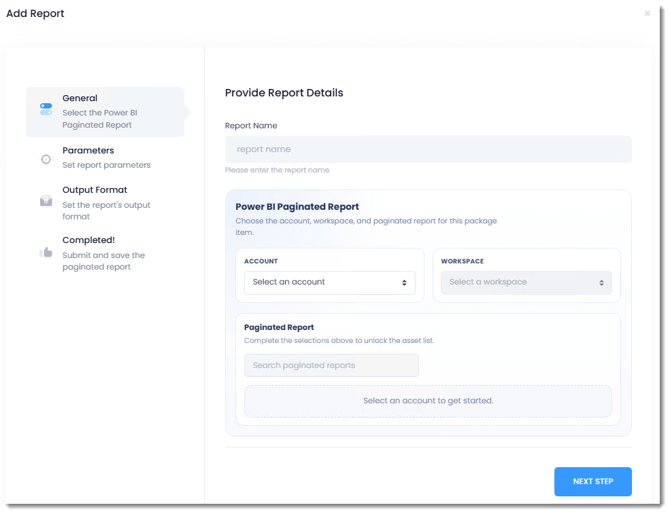
- In Report Name, enter a descriptive name for the report.
- From Account, select the Power BI account that PBRS should use to access the report.
- From Workspace, select the workspace containing the Paginated Report.
- The available Paginated Reports are displayed in the Paginated Report section. Use Search paginated reports if necessary to locate the required report.
- Select the Paginated Report you want to add to the package.
- Select Next Step to continue to Parameters.
Note: You must select an Account and Workspace before the available Paginated Reports can be displayed. The reports available will depend on the permissions associated with the selected Power BI account.
Configure Report Parameters
Use the Parameters tab to define the parameter values PBRS should pass to the Power BI Paginated Report when it is processed.
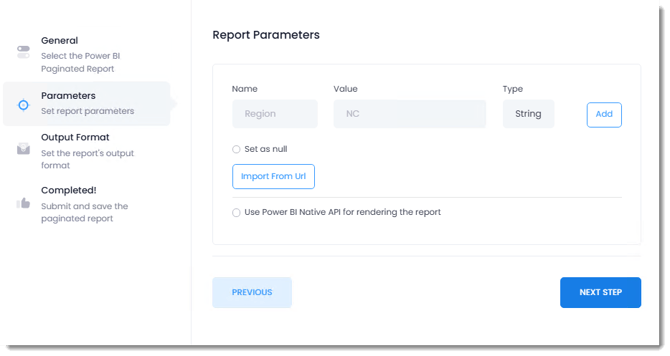
To add a parameter:
- In Name, enter the name of the parameter as it appears in the Paginated Report.
- In Value, enter the value that should be passed to the parameter.
- Select the appropriate Type for the parameter value.
- Select Add.
- Repeat these steps for each parameter required by the report.
Set a Parameter to Null
Select Set as null when the parameter should be passed to the report without a value.
This is useful for report parameters that accept a null value rather than requiring a specific value.
Import Parameters From a URL
Select Import From Url to populate report parameters from a Power BI Paginated Report URL that already contains parameter values.
This can be useful when you already have a working report URL with the required parameters applied and want PBRS to use those parameter settings rather than entering each parameter manually.
Use Data-Driven Parameter Values
Because this is a Data-Driven Package Schedule, parameter values can be driven by fields returned by the Data-Driver query.
For example, if your query returns a field called Region, you can use the value associated with the current database record when populating the corresponding report parameter.
This allows the same Paginated Report to be processed repeatedly with different parameter values as PBRS works through the records returned by the Data-Driver query.
For example:
Region = NC
could generate the report for North Carolina, while the next record could supply a different Region value.
Important: The parameter Name and Type must correspond to the parameter defined in the Paginated Report. Incorrect parameter names, values, or data types may cause the report to fail or return unexpected results.
Use the Power BI Native API for Rendering
Select Use Power BI Native API for rendering the report if you want PBRS to use the Power BI API to render the Paginated Report.
Once all required parameters and rendering options have been configured, select Next Step to continue to Output Format.
Configure the Output Format
Use the Output Format tab to define the file format and file name PBRS should use when generating the Paginated Report.
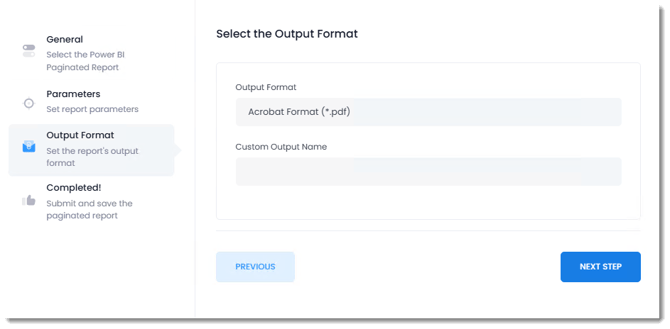
- From Output Format, select the format in which the report should be exported.
- If required, enter a Custom Output Name for the generated report file.
- Select Next Step to continue to Completed!
Output Format
The Output Format determines the file type PBRS generates when the Paginated Report is processed.
For example, select Acrobat Format (*.pdf) to generate the report as a PDF file.
The available output formats may vary depending on the report and rendering method being used.
Custom Output Name
Use Custom Output Name to specify a custom name for the generated report file.
A descriptive output name can make reports easier to identify when multiple reports are generated as part of the same package.
Use Data-Driven Output Names
For a Data-Driven Package Schedule, you can use values returned by the Data-Driver query to create dynamic output names where supported.
For example, if the query returns customer or region information, the output name can identify the record for which the report was generated, producing files such as:
Sales_Report_North_Carolina.pdf
Sales_Report_South_Carolina.pdf
This is particularly useful when the same Paginated Report is generated multiple times using different Data-Driver records.
Tip: When generating multiple versions of the same report, use a unique value in the output name where possible. This makes individual report files easier to identify and helps prevent similarly named outputs from being confused.
Review and Add the Paginated Report
Use the Completed! tab to review the Paginated Report configuration before adding it to the Data-Driven Package.
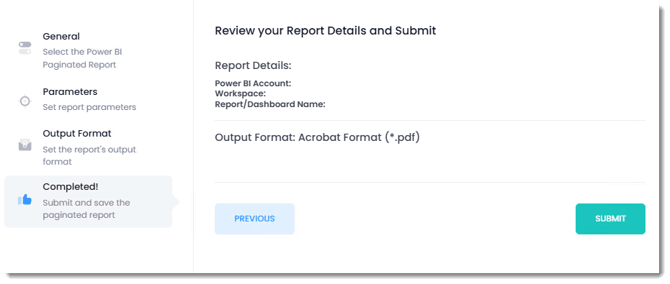
Review the displayed Report Details and confirm that the following information is correct:
- Power BI Account
- Workspace
- Report/Dashboard Name
- Output Format
If you need to make changes, select Previous to return to an earlier step in the Add Report wizard.
When the report configuration is correct, select Submit.
PBRS adds the Paginated Report to the package and returns you to the Reports tab.
Add Additional Reports
To include additional Paginated Reports in the same package, select Add again and repeat the report configuration process.
Each report can have its own parameters, output format, and output name, allowing you to build a package containing multiple individually configured Paginated Reports.
Review the Reports and Configure Package Options
After submitting a report, PBRS returns you to the Reports tab. Each report that has been added to the package is displayed in the report list.
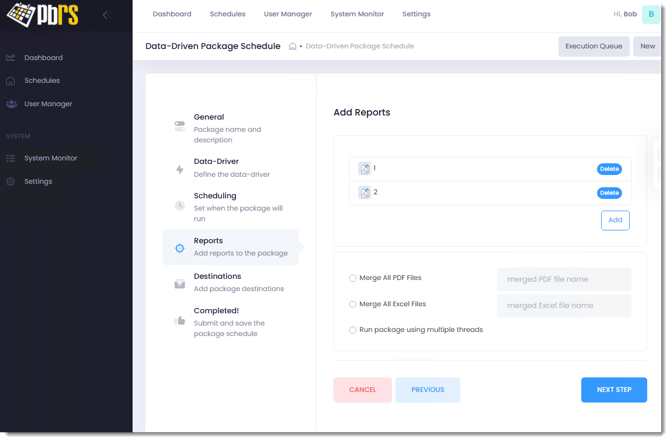
From this screen, you can:
- Select Add to add another report to the package.
- Select Delete next to a report to remove it from the package.
- Configure options for combining report outputs.
- Choose whether PBRS should process the package using multiple threads.
Merge PDF Files
Select Merge All PDF Files to combine the PDF reports generated by the package into a single PDF file.
Enter a name for the combined file in merged PDF file name.
This option is useful when the package contains multiple reports that should be delivered as one PDF rather than as individual files.
Merge Excel Files
Select Merge All Excel Files to combine Excel outputs generated by the package.
Enter a name for the combined file in merged Excel file name.
Use this option when multiple reports in the package are exported to Excel and should be delivered as a combined Excel output.
Note: The merge options apply to reports generated in the corresponding output format. For example, Merge All PDF Files applies to PDF outputs.
Run the Package Using Multiple Threads
Select Run package using multiple threads to allow PBRS to process multiple reports concurrently.
This can help reduce the overall processing time for packages containing multiple reports.
Note: Processing reports concurrently may increase the resources used on the PBRS server while the package is running. If system resources are limited or the reports are particularly resource-intensive, consider leaving this option unchecked.
Continue to Destinations
Once all required reports have been added and the package options have been configured, select Next Step to continue to the Destinations tab.
Configure Package Destinations
Use the Destinations tab to define where PBRS should deliver the completed report package.
A package can be delivered to one or more destinations, allowing the reports generated during each Data-Driver iteration to be distributed to the required recipients or locations.
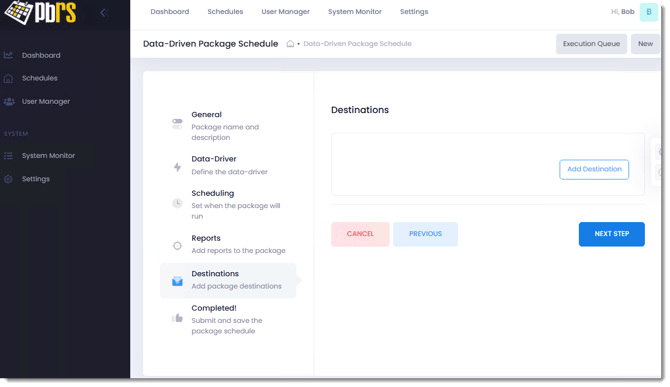
Add a Destination
Select Add Destination to configure how the completed package should be delivered.
In the Add Destination window:
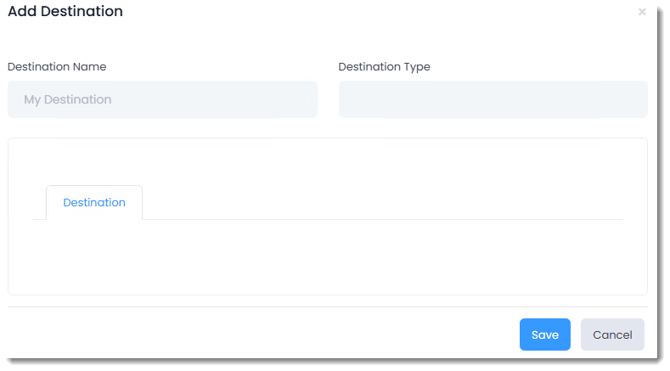
- Enter a descriptive Destination Name.
- Select the required Destination Type:
- Email – Deliver the package by email.
- Disk – Save the package to a specified file location.
- Configure the settings required for the selected destination.
- Select Save to add the destination to the package.
Use Data-Driven Destination Values
Because this is a Data-Driven Package Schedule, values returned by the Data-Driver query can be used in supported destination fields.
For example, if your query returns fields such as:
EmailAddress | CustomerName | FolderPath
these values can be used to dynamically determine where each package is delivered as PBRS processes the records returned by the query.
This allows a single schedule to deliver customized report packages to different recipients or locations without requiring a separate schedule for each one.
Repeat the process to add additional destinations if required.
Once all required destinations have been configured, select Next Step to continue to Completed!
Note: The settings available will vary depending on the Destination Type selected.
Review and Submit the Package Schedule
Use the Completed! tab to review the Data-Driven Package Schedule before saving it.
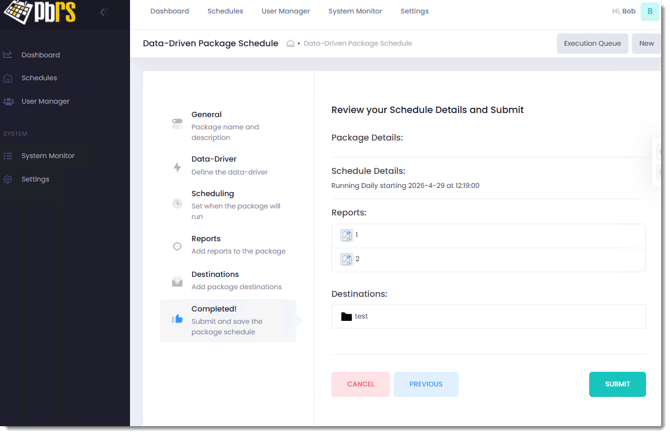
Review the information displayed on the screen, including:
- Package Details – Confirm that the correct package has been configured.
- Schedule Details – Verify when and how often the package will run.
- Reports – Confirm that all required Paginated Reports have been added to the package.
- Destinations – Verify that the required delivery destinations have been configured.
If you need to make changes, select Previous to return to an earlier step in the Schedule Wizard.
When you are satisfied with the configuration, select Submit to save the Data-Driven Package Schedule.
If Enable this schedule was selected on the Scheduling tab, PBRS will run the package automatically according to the configured schedule. If it was left unchecked, the schedule will be saved but will not execute automatically until it is enabled.
Tip: Before enabling a new Data-Driven Package Schedule for automatic execution, consider testing it with a small number of Data-Driver records. Confirm that the correct reports are generated, parameter values are applied as expected, and each package is delivered to the correct destination.
After selecting Submit, PBRS creates the Data-Driven Package Schedule.
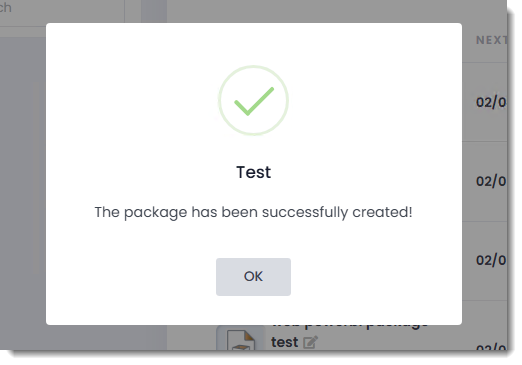
When the The package has been successfully created! message appears, select OK.
PBRS returns you to the Schedules screen, where the newly created package is available for review, testing, and management.
Note: If the schedule was enabled during setup, it will run automatically according to the configured schedule. If it was left disabled, you can test the package before enabling automatic execution.
Troubleshooting
If your Data-Driven Paginated Package Schedule does not run or produce the expected results, use the following guidance to identify and resolve common issues.
The Data-Driver Query Does Not Validate
Possible cause: The database connection, credentials, or SQL query may be incorrect.
Resolution:
- Confirm that the correct DSN Name is selected.
- Verify the User ID and Password, if authentication is required.
- Review the SQL query for errors.
- Select Validate Query to test the connection and query again.
- Confirm that the database is accessible from the PBRS server.
The Data-Driver Query Returns Unexpected Records
Possible cause: The query may not be returning the records or fields required by the schedule.
Resolution:
- Run the query against the source database and review the results.
- Confirm that all fields required for report parameters, output names, recipients, and destinations are included.
- Check any conditions or filters included in the query.
- Test the schedule with a small number of records while troubleshooting.
A Power BI Paginated Report Cannot Be Selected
Possible cause: The Power BI account may not have access to the required workspace or report.
Resolution:
- Confirm that the correct Power BI Account is selected.
- Verify that the account has permission to access the required workspace.
- Confirm that the Paginated Report is still available in the selected workspace.
- Verify that the Power BI account connection in PBRS is working correctly.
A Paginated Report Fails or Returns Unexpected Data
Possible cause: One or more report parameters may be configured incorrectly.
Resolution:
- Review the parameters configured for the report.
- Confirm that each parameter Name matches the parameter defined in the Paginated Report.
- Verify that the correct Type has been selected.
- Confirm that the parameter value is valid for the report.
- If Data-Driver values are being used, verify that the correct database fields are mapped to the report parameters.
- Test the report using known parameter values to determine whether the problem is related to the Data-Driver data.
Report Files Are Not Generated as Expected
Possible cause: The output format, custom output name, or package merge settings may be configured incorrectly.
Resolution:
- Verify the Output Format configured for each report.
- Review any Custom Output Name settings.
- If multiple files are being generated, make sure output names can be uniquely identified.
- Review Merge All PDF Files or Merge All Excel Files if reports should be combined.
- Confirm that all reports being merged use the appropriate output format.
The Package Is Delivered to the Wrong Recipient or Location
Possible cause: The destination may be configured incorrectly, or the wrong Data-Driver field may be used for dynamic delivery information.
Resolution:
- Review the settings on the Destinations tab.
- Confirm that the correct destination type has been selected.
- Verify that any Data-Driver fields used for recipients or destination paths reference the correct query columns.
- Review the Data-Driver results to confirm that each record contains the expected delivery information.
The Package Does Not Run Automatically
Possible cause: The schedule may be disabled or the scheduling settings may be incorrect.
Resolution:
- Confirm that Enable this schedule is selected.
- Review the Start Date, frequency, and schedule time.
- Confirm that the PBRS scheduling services are running.
- Verify that the schedule has not subsequently been disabled.
The Package Takes Too Long to Process
Possible cause: The package may contain multiple complex reports or process a large number of Data-Driver records.
Resolution:
- Test the Data-Driver query with fewer records to determine whether processing volume is contributing to the issue.
- Review the processing time of individual Paginated Reports.
- Consider selecting Run package using multiple threads if appropriate for your environment.
- Monitor server resources while the package is executing.
The Issue Persists
If the schedule still does not execute or produce the expected results, check the PBRS Error Log for additional information.
The error details can help identify whether the issue is related to the database connection, Data-Driver query, Power BI connection, report parameters, report processing, scheduling, or delivery.
Need Additional Help?
If you are unable to resolve the issue using the steps in this article, our Support team can help.
When submitting a support request, include as much information as possible, including any error messages, screenshots, Data-Driver query details, and relevant PBRS logs. Providing these details will help our team investigate the issue more efficiently.