![CSS-CMYK-logo-2015-2.png]](https://go.christiansteven.com/hs-fs/hubfs/social-suggested-images/CSS-CMYK-logo-2015-2.png?height=40&name=CSS-CMYK-logo-2015-2.png)
Before You Begin
Before creating a Data-Driven Power BI Package Schedule, make sure the required connections and resources are available in PBRS.
You should have:
- A Power BI account configured in PBRS with access to the reports and dashboards you want to schedule.
- A database connection or DSN configured for the data source that will drive the schedule.
- A database query that returns the records and values you want to use to control report processing and delivery.
- The necessary Power BI permissions to access the required workspaces, reports, and datasets.
- Any required delivery destinations, such as email, network folders, FTP/SFTP, SharePoint, or other supported destinations, configured and accessible.
Tip: Before building the Data-Driven Package Schedule, verify that both the Power BI account and database connection are working correctly. This can help identify connection or permission issues before configuring the schedule.
Create a Data-Driven Package Schedule
To begin creating the schedule:
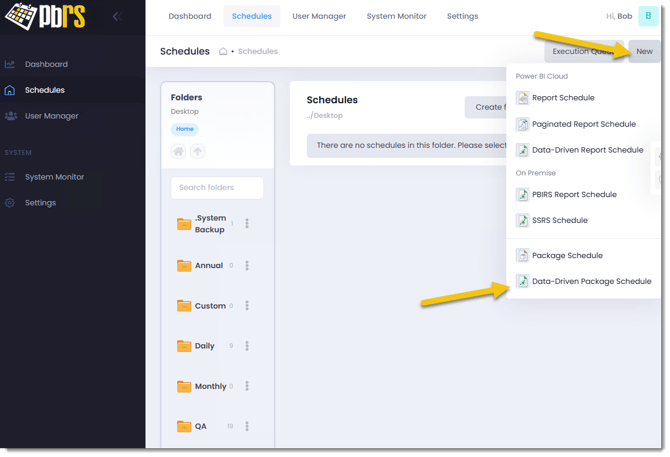
- Select the New Schedule drop-down menu.
- Select Data-Driven Package Schedule.
The schedule setup wizard opens, allowing you to configure the settings required for the Data-Driven Package Schedule.
Configure the General Settings
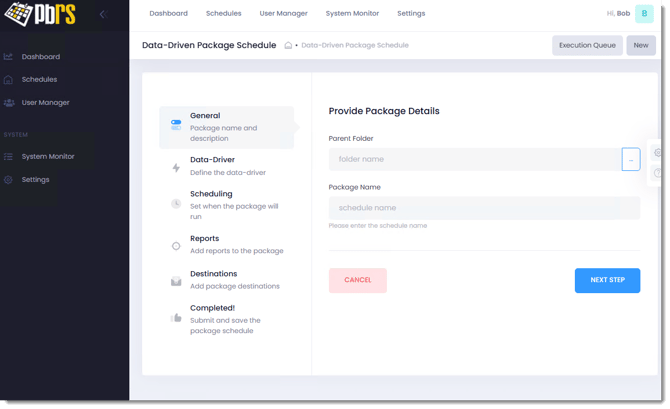
On the General tab:
- Under Parent Folder, select the (...) button.
- Select the folder where you want the schedule to be stored.
- Enter a descriptive Schedule Name that will make the schedule easy to identify in PBRS.
- Select Next Step to continue to the Data-Driver tab.
Tip: Use a schedule name that clearly identifies the purpose of the package, particularly if you manage multiple Data-Driven schedules.
You will then be able to configure the schedule's settings.
Configure the Data Driver
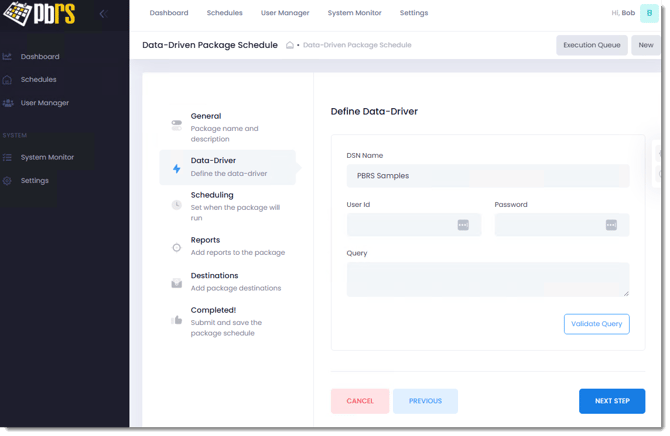
The Data-Driver tab defines the database connection and query that PBRS will use to retrieve the records that drive the schedule.
- From the DSN Name drop-down, select the DSN for the database you want to use.
- If authentication is required, enter the appropriate User ID and Password.
- Enter the database query that will retrieve the data used to drive the schedule.
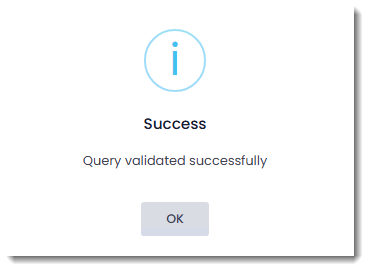
- Click Validate Query to confirm that PBRS can successfully execute the query.
- Once the query has been validated, click OK.
- Select the appropriate Key Column from the query results.
- Click Next Step to continue to the Scheduling tab.
Important: The Key Column should identify each record returned by the query. PBRS uses the data returned by the query when processing the individual records in the Data-Driven schedule.
Configure the Schedule Timing
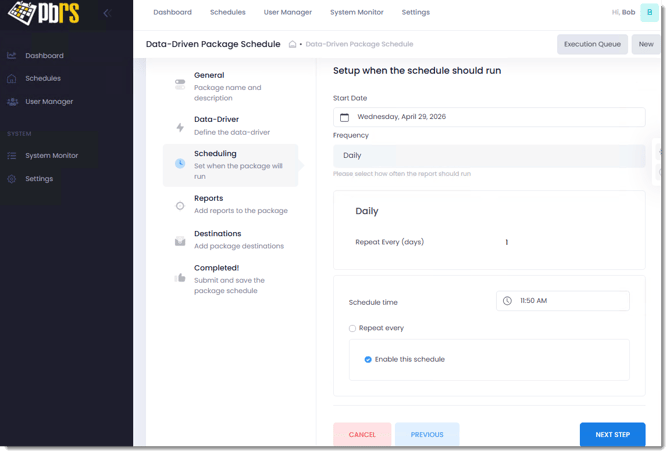
Use the Scheduling tab to define when the Data-Driven Package Schedule should run.
- In Setup when the schedule should run, select the Start Date for the schedule.
- Select the required Frequency to determine how often the schedule runs, such as daily, weekly, or monthly.
- Set the Schedule Time for when the schedule should execute.
- If the schedule needs to run multiple times during the day, select Repeat Every and configure the required interval.
- Check Enable this Schedule when you are ready for the schedule to run automatically.
- Select Next Step to continue to the Reports tab.
Note: You can leave Enable this Schedule unchecked while you finish configuring or testing the schedule. A disabled schedule is saved but will not execute automatically. Enable it when you are ready for automatic scheduling to begin.
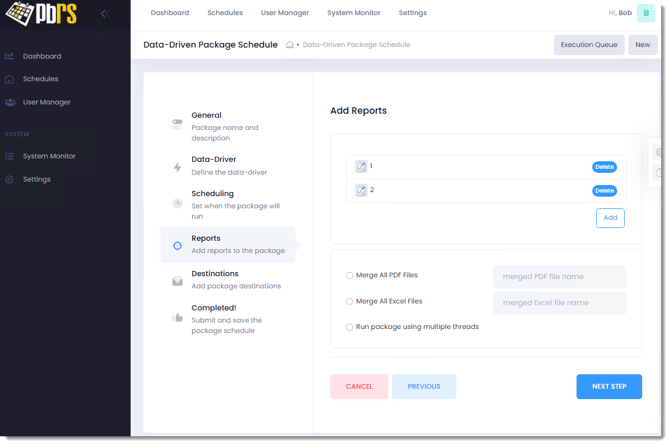
Add Reports to the Package
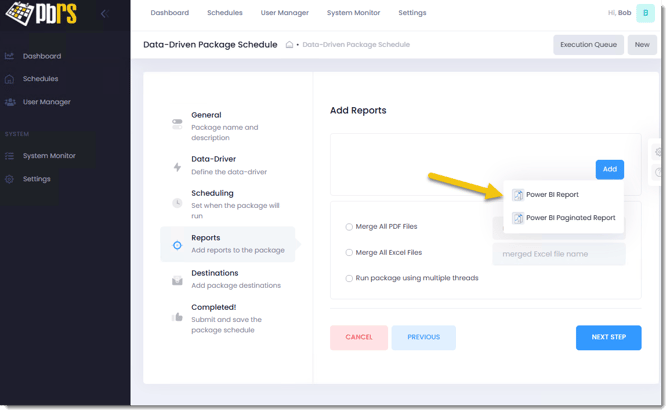
Use the Reports tab to select the Power BI reports you want to include in the Data-Driven Package.
- Click Add to add a report to the package.
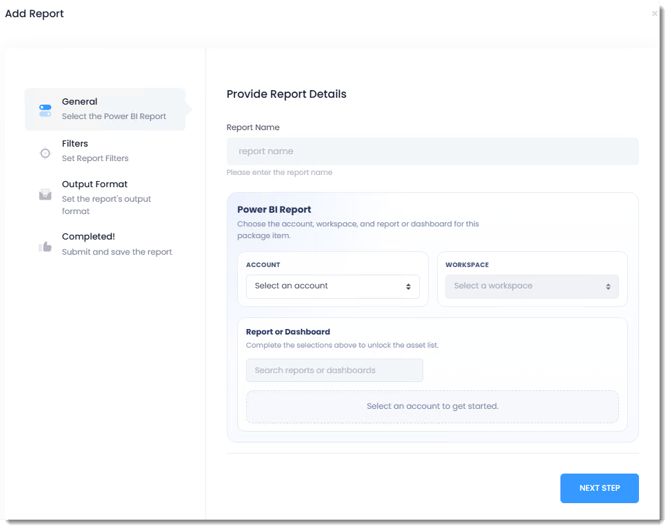
- Select the Power BI Account that contains the report.
- Select the required Workspace.
- Select the Report you want to include.
- Configure the required report settings, including any filters or other options that should be applied when the report is generated.
- Click OK to add the report to the package.
- Repeat these steps for each additional report you want to include.
The reports added to this section are processed as part of the same package each time the Data-Driven Schedule runs.
Using Data-Driven Values
Values returned by the Data-Driver query can be used to dynamically configure the reports in the package.
Instead of entering the same static value for every record, select the appropriate database field returned by your query. PBRS substitutes the value from the current database record as each row is processed.
For example, if your query returns a CustomerID column, that value can be used as a report filter so that each customer receives a version of the report containing only the information relevant to them.
This is the key difference between a standard Package Schedule and a Data-Driven Package Schedule: the same schedule can generate different report results for each record returned by the Data-Driver query.
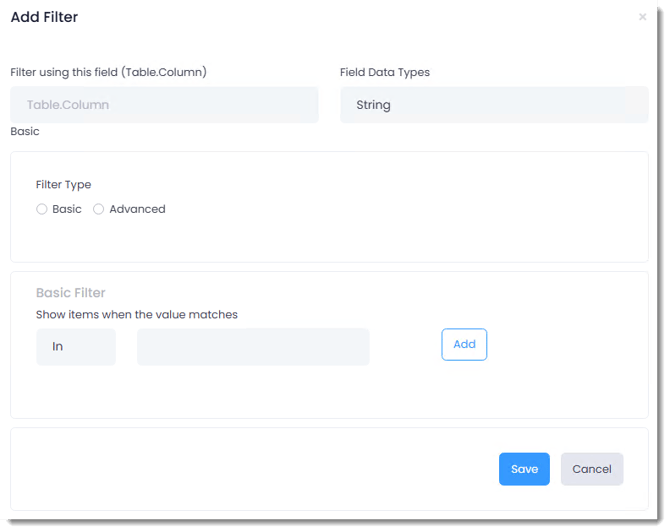
Configure Report Filters
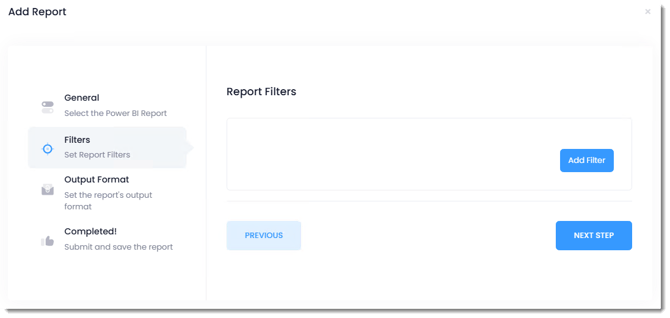
Use Filters to control the data displayed in each Power BI report. In a Data-Driven Package Schedule, filter values can be populated dynamically using fields returned by the Data-Driver query.
- Select the report you want to configure.
- Open the Filters configuration.
- Select the Power BI field you want to filter.
- Configure the required filter operator.
- For the filter value, select the appropriate field returned by the Data-Driver query.
- Add additional filters if required.
- Save the filter configuration.
When the schedule runs, PBRS processes each row returned by the Data-Driver query and substitutes the corresponding database value into the report filter.
For example, if the Data-Driver query returns a column named Region, that field can be mapped to the corresponding Region field in the Power BI report. Each record is then processed using its own Region value.
Important: Make sure the values returned by your Data-Driver query correspond to valid values in the Power BI field being filtered. If they do not match, the resulting report may contain no data.
Configure Report Output
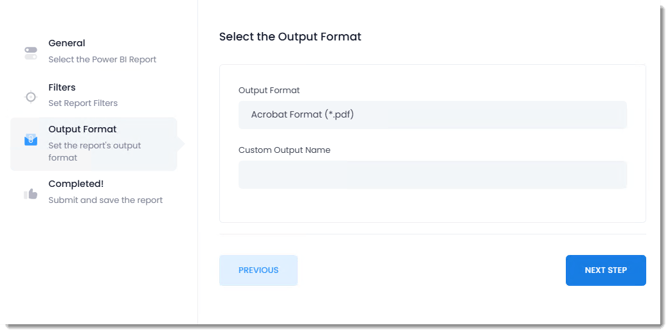
After adding a report to the package, configure how PBRS should export the report when the schedule runs.
- Select the required Output Format for the report.
- Configure any additional output options available for the selected format.
- Enter the Output File Name.
- Where appropriate, use values returned by the Data-Driver query to dynamically build the file name.
- Complete any additional report configuration required for the selected Power BI report.
- Save the report configuration to return to the package.
Use Dynamic File Names
Data-Driven values can be incorporated into the output file name so that each file generated by the schedule can be uniquely identified.
For example, if your Data-Driver query returns a CustomerName or CustomerID field, you can include that value in the file name. As PBRS processes each database record, the corresponding value is substituted automatically.
This can produce files such as:
Sales_Report_Customer123.pdf
Sales_Report_Customer456.pdf
Using dynamic file names is particularly useful when the schedule processes multiple recipients or generates several versions of the same report during a single execution
Repeat these steps until you have added all reports to the package.
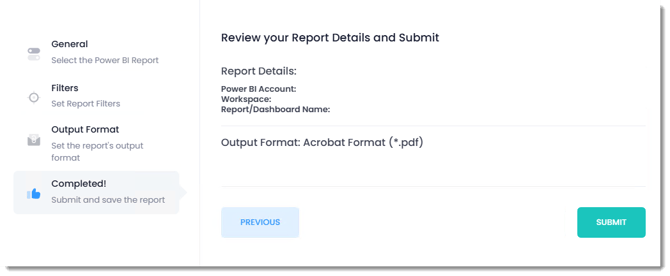
Once the package is complete e summary of the report details will be displayed for you to review.
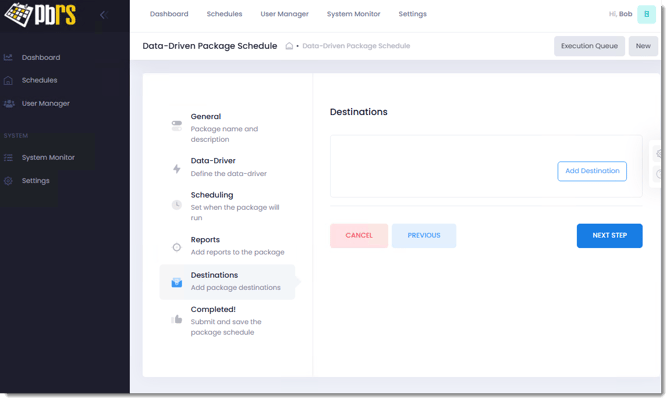
Configure the Destination
Use the Destinations tab to define where the completed Power BI package will be delivered when the schedule runs.
- Select Add to create a destination.
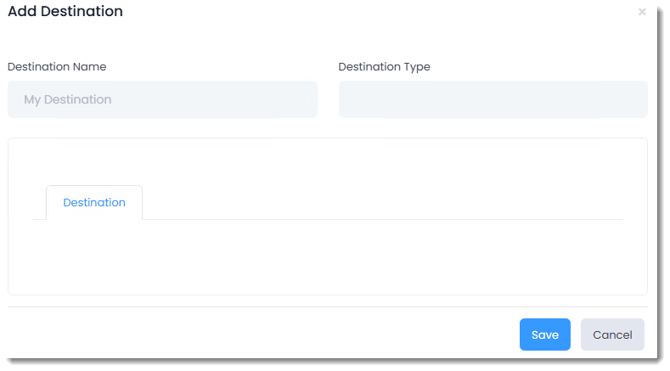
- Select the required Destination Type.
- Configure the settings for the selected destination.
- Where supported, use fields returned by the Data-Driver query to dynamically populate destination settings.
- Save the destination.
- Repeat these steps if the package needs to be delivered to additional destinations.
For example, when using an Email destination, a database field containing an email address can be used as the recipient. As PBRS processes each row returned by the Data-Driver query, the package can be delivered to the email address associated with that record.
This allows a single Data-Driven Package Schedule to generate customized Power BI content and automatically deliver it to different recipients or locations.
Note: The options available will vary depending on the destination type selected.
Configuring an Email Destination
If Email is selected as the destination, configure the email settings to determine who receives the package and how the message is delivered.
- Enter the required To, CC, and BCC recipients.
- Enter the Subject for the email.
- Configure the Email Body with the message you want recipients to receive.
- Use fields returned by the Data-Driver query where recipient or message information needs to change for each record.
- Configure any additional email options required for the delivery.
- Save the destination when the configuration is complete.
Use Data-Driven Email Values
Database fields can be used to dynamically populate email settings for each record processed by the schedule.
For example, if your Data-Driver query returns columns for EmailAddress, CustomerName, or other recipient-specific information, these values can be used in the email destination. PBRS replaces the fields with the corresponding values from each database record as the schedule runs.
This allows the same schedule to send personalized reports to multiple recipients without creating a separate schedule for each recipient.
Review and Complete the Schedule
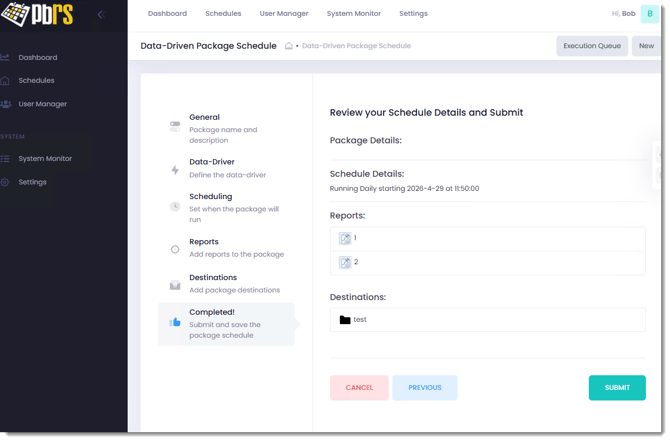
Once the reports and destinations have been configured, review the Data-Driven Package Schedule before saving it.
- Review the schedule settings to make sure the Data Driver, Scheduling, Reports, and Destinations are configured correctly.
- Confirm that any database fields used for filters, file names, recipients, or other dynamic values are mapped correctly.
- Select Finish to save the schedule.
If Enable this Schedule was selected during the Scheduling step, the schedule will run automatically according to the configured frequency and time.
If the schedule was left disabled, you can review and test it before enabling automatic execution.
Test the Schedule
Before relying on the schedule for automated delivery, run it manually to confirm that:
- The Data-Driver query returns the expected records.
- The correct Power BI reports are generated.
- Data-driven filters are applied correctly.
- Output files are created using the expected names and formats.
- Reports are delivered to the correct recipients or destinations.
If the schedule does not produce the expected results, review the schedule configuration and check the PBRS error log for additional information.
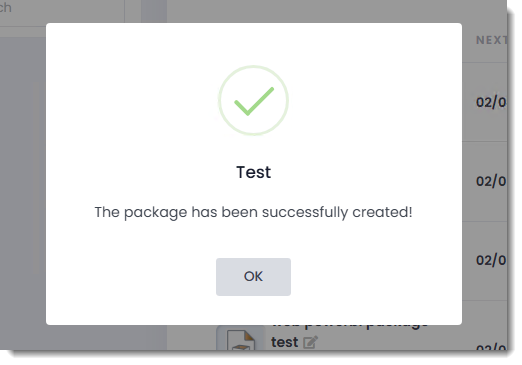
Once the Schedule has been created the following screen will be displayed.
Troubleshooting
If your Data-Driven Power BI Package does not run or produce the expected results, use the following guidance to identify and resolve common issues.
The Data-Driver Query Does Not Return Results
Possible cause: The database connection, credentials, or query may be incorrect.
Resolution:
- Verify that the correct DSN is selected.
- Confirm that the database credentials are valid.
- Use Validate Query to test the query.
- Confirm that the query returns the expected columns and records.
The Power BI Report Does Not Generate
Possible cause: PBRS may be unable to access the Power BI report or workspace.
Resolution:
- Verify that the Power BI account configured in PBRS is connected.
- Confirm that the account has permission to access the required workspace and report.
- Verify that the report selected in the schedule is still available in Power BI.
The Report Is Blank or Contains Unexpected Data
Possible cause: A Data-Driver value used as a report filter may not match the values available in the Power BI report.
Resolution:
- Review the fields returned by the Data-Driver query.
- Confirm that the correct database field is mapped to the Power BI filter.
- Verify that the values returned by the query match valid values in the Power BI report.
- Test the schedule with a known value to confirm that the filter returns data.
Reports Are Sent to the Wrong Recipient or Destination
Possible cause: A Data-Driver field may be mapped incorrectly in the destination settings.
Resolution:
- Review the Destination configuration.
- Confirm that dynamic recipient, folder, or destination values reference the correct Data-Driver columns.
- Check the query results to make sure each record contains the expected destination information.
The Schedule Does Not Run Automatically
Possible cause: The schedule may be disabled, or its scheduling settings may be incorrect.
Resolution:
- Confirm that Enable this Schedule is selected.
- Review the configured start date, frequency, and execution time.
- Verify that the PBRS scheduling service is running.
The Schedule Fails During Execution
If the issue cannot be identified from the schedule configuration, check the PBRS Error Log.
The Error Log can provide additional information about database connections, Power BI authentication, report processing, filters, and destination failures.
Use the error details to identify which part of the schedule failed and review the corresponding configuration.