![CSS-CMYK-logo-2015-2.png]](https://go.christiansteven.com/hs-fs/hubfs/social-suggested-images/CSS-CMYK-logo-2015-2.png?height=40&name=CSS-CMYK-logo-2015-2.png)
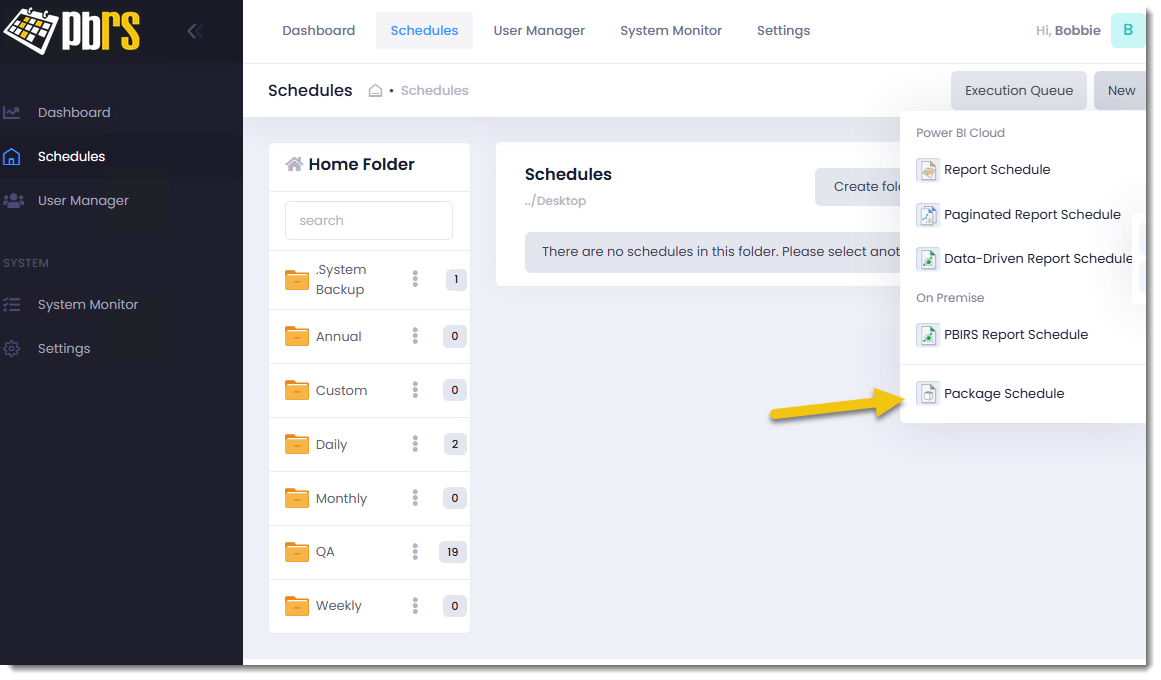
Step 1 - To create a new schedule for a Power BI Package in the Web Application, begin by selecting the "New schedule" drop-down menu. From there, choose the option for "Package Schedule".
You will then see the Scheduling Screen where you can configure the schedule's settings.
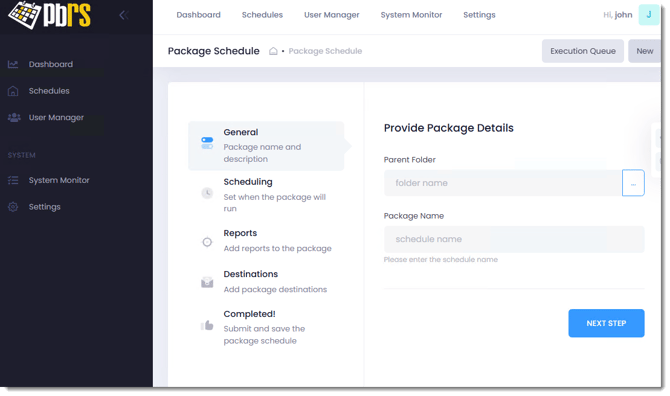
Step 2 - In the "Parent Folder" section, click on the (...) option and select your Parent Folder from the list provided and give the Schedule a Name to easily identify it.
Step 3 - Proceed to the Scheduling Tab by clicking the "Next Step" button.
Scheduling Tab
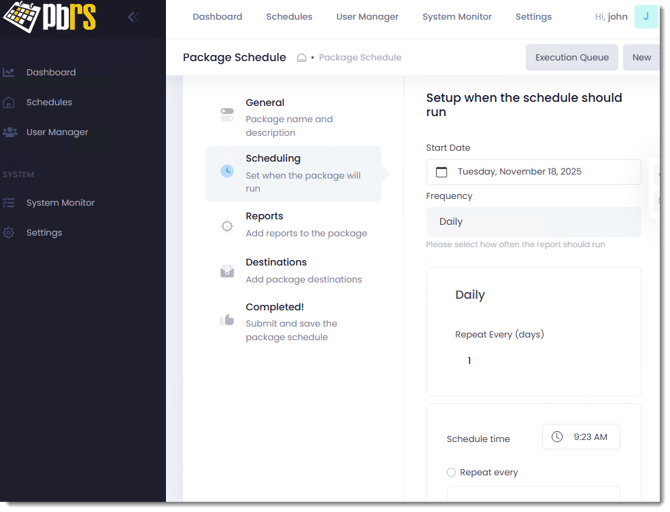
Step 4 - In the "Setup when the schedule should run" section, you can select the start date for your schedule by clicking on the calendar icon. Choose the specific date when you want the schedule to begin running. Set the Frequency for the schedule, whether it's daily, weekly, or monthly. This frequency setting determines how often the schedule will run.
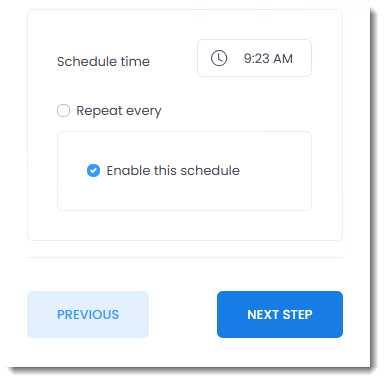
Step 5 - Select a Schedule Time for when the schedule should execute. If you need this schedule to repeat multiple times throughout the day, you can select the "Repeat Every" option.
Step 6 - Check Enable this Schedule, to ensure that the schedule will run when it is supposed to in the future.
Step 7 - Proceed to the Report Parameters Tab by clicking the "Next Step" button.
Reports
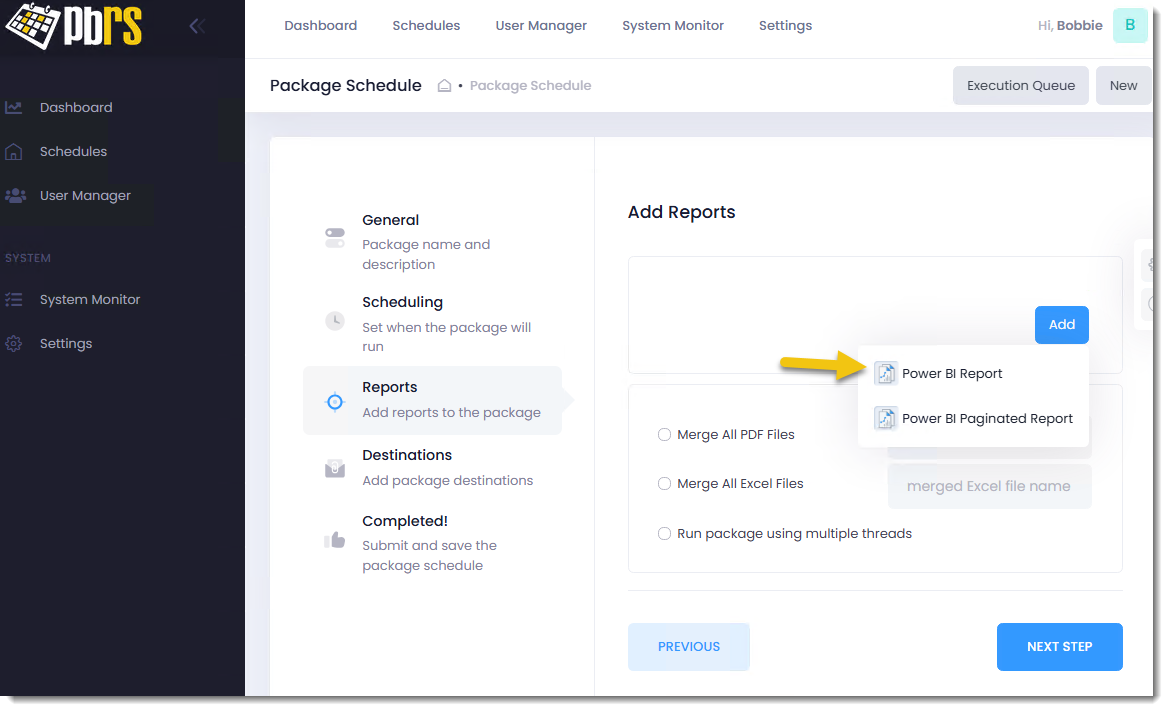
Step 8 - In the Reports section, click Add and then Power BI Report to add a Power BI report to the package schedule.
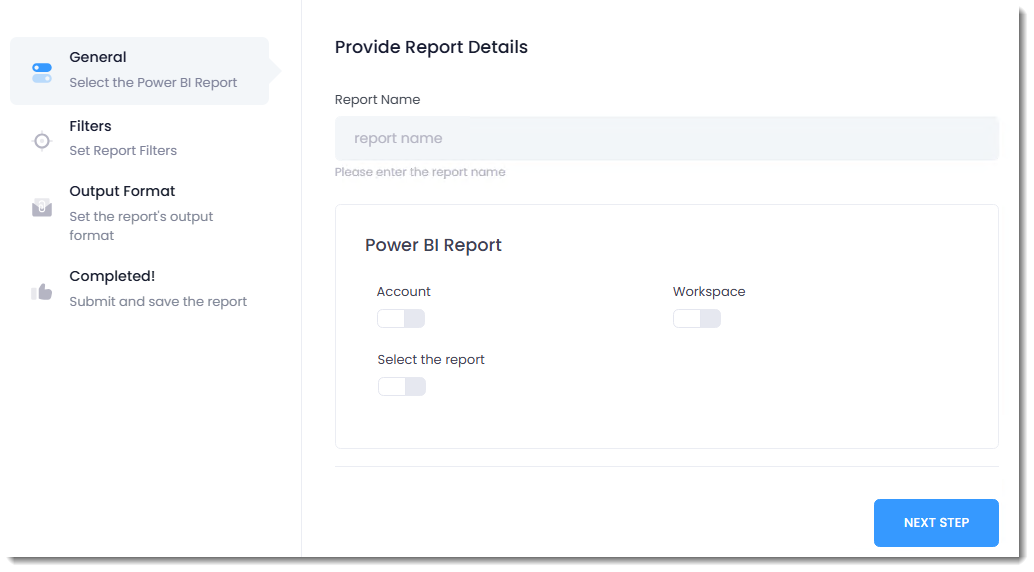
Step 9 - Under Provide Report Details, fill in the required information to set up your report.
-Report Name: Give the report a name.
-Account: Provide the account with which you are going to pull the report from.
-Workspace: Select the workspace.
-Select the report: Choose the specific report you are wanting to use for the schedule.
-Click Next Step.
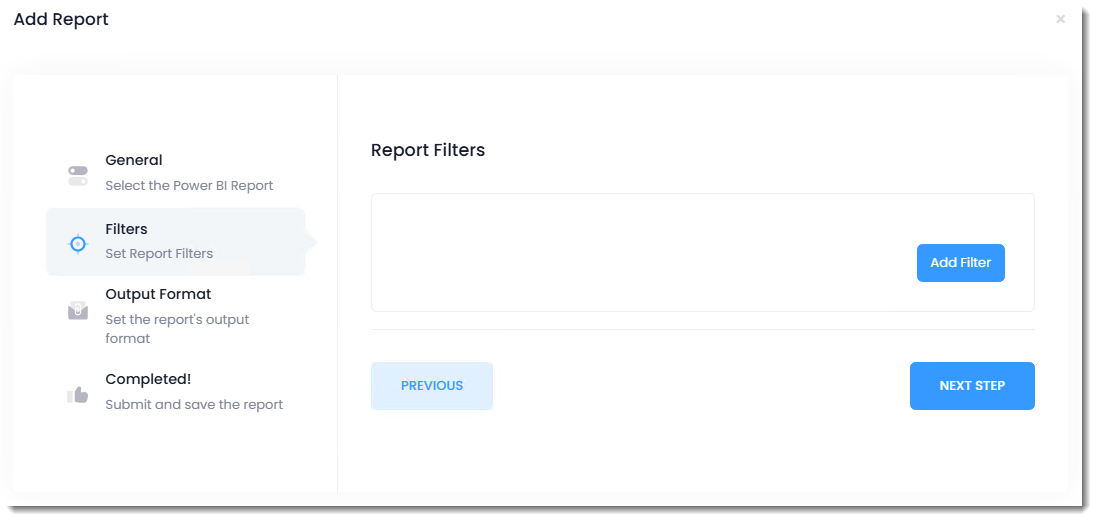
Step 10 - Under Report Filters, click Add Filter. Then, fill in the necessary parameters for this report.
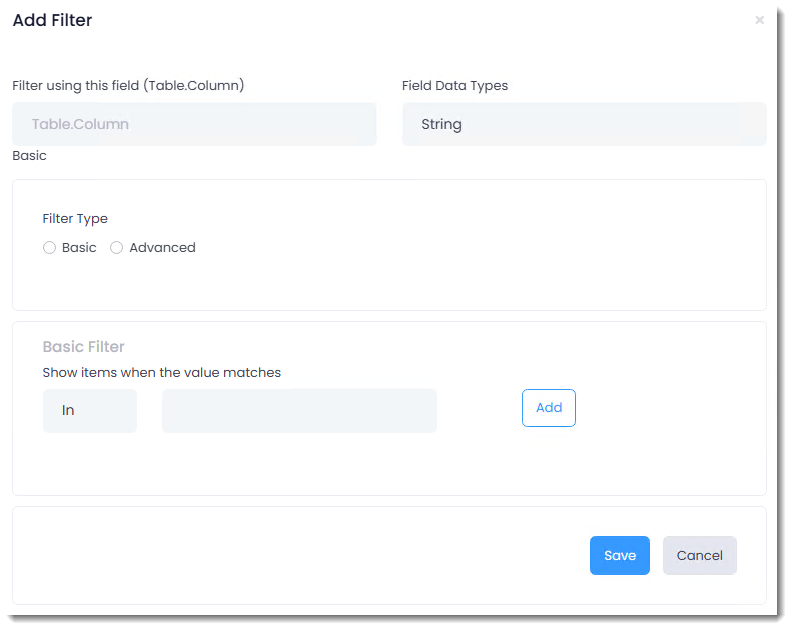
-Filter using this field: Enter the Table.Column.
-Field Data Types: Select the data type from the drop down..
-Filter Type: Select Basic or Advanced.
-Basic Filter: Select In or NotIn then enter the filter value.
-Click Add.
-Click Save.
-Click Next Step.
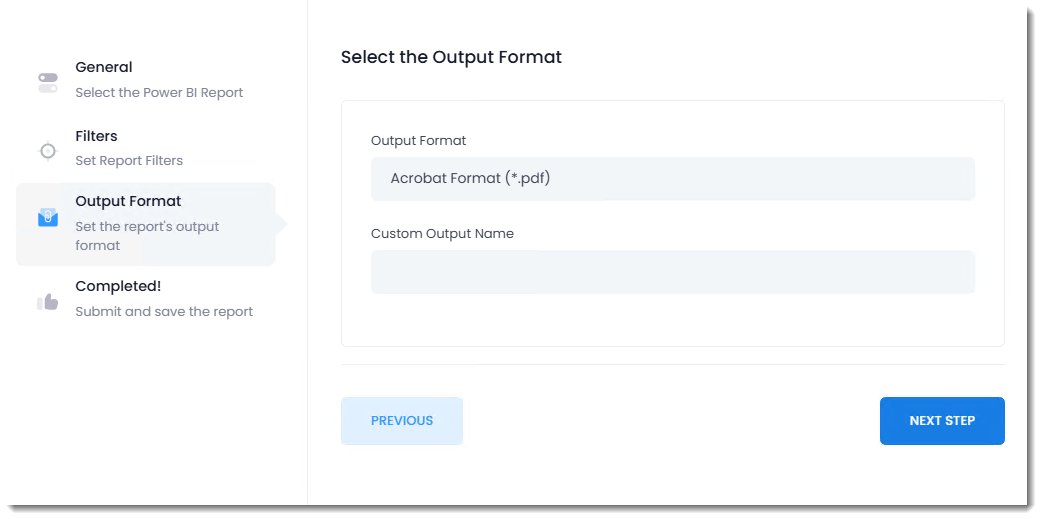
Step 11 - Under Select the Output Format, choose the desired output format for the report.
-Custom Output Name: Provide a custom output name to use if desired.
-Click Next Step.
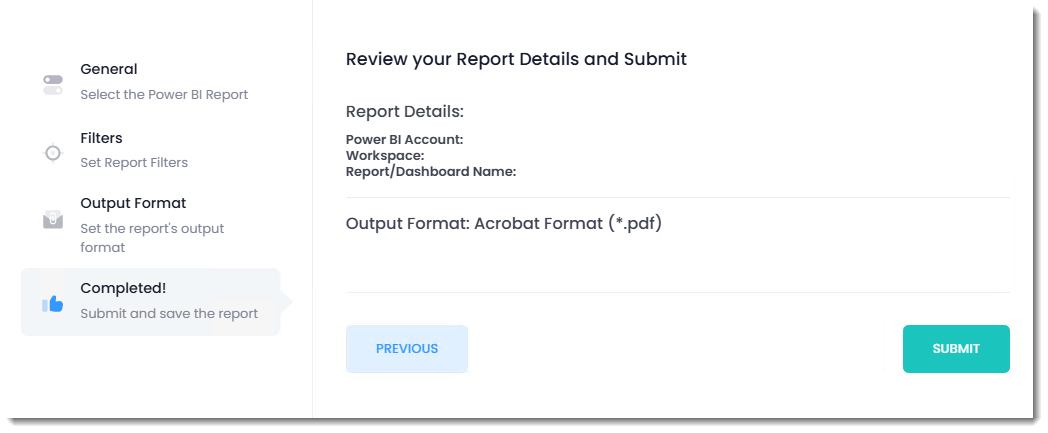
Step 12 - Click Submit. Your report is now saved.
Step 13 - Repeat for any other reports you want to add to the package schedule.
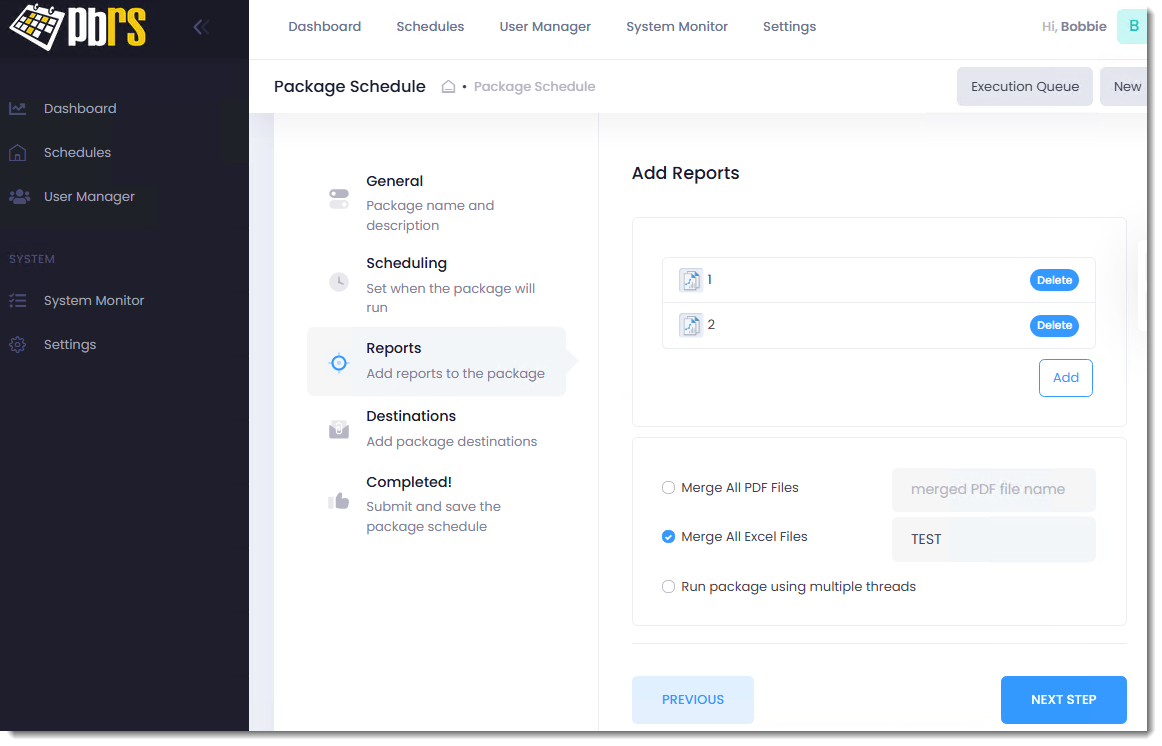
-Click Merge All Files and enter a merged file name if desired.
Step 14 - Click Next Step.
Destinations Tab
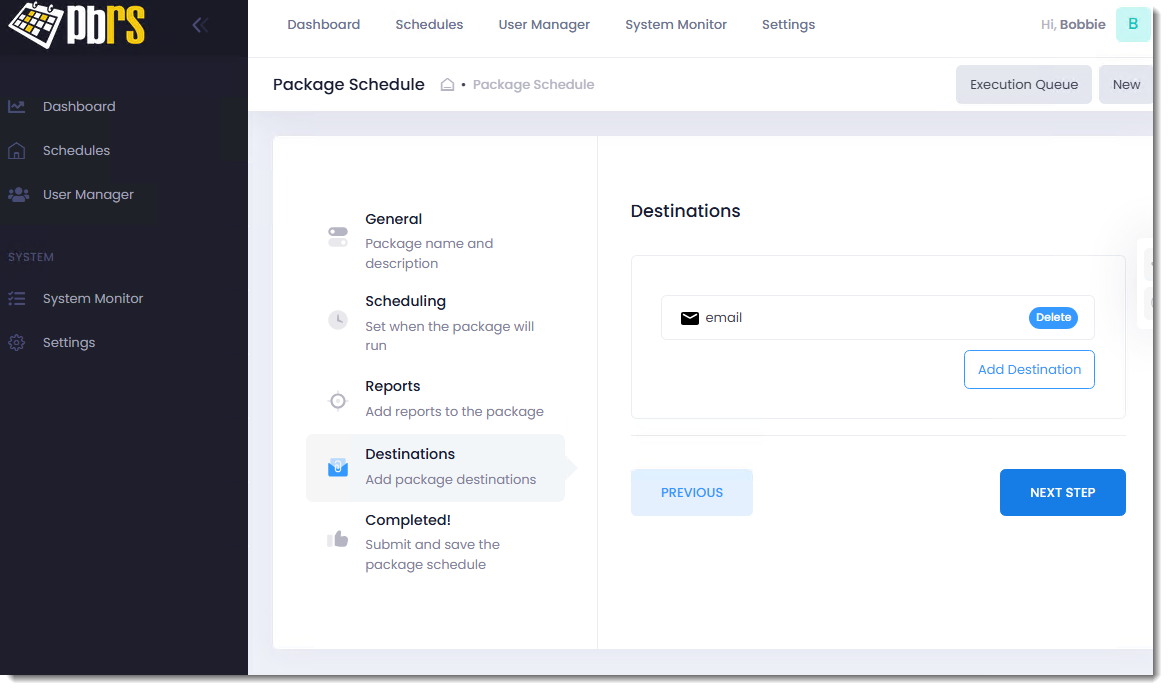
Step 15 - In the Destinations Section, click Add Destination to add a destination for the schedule. The following Screen will be displayed.
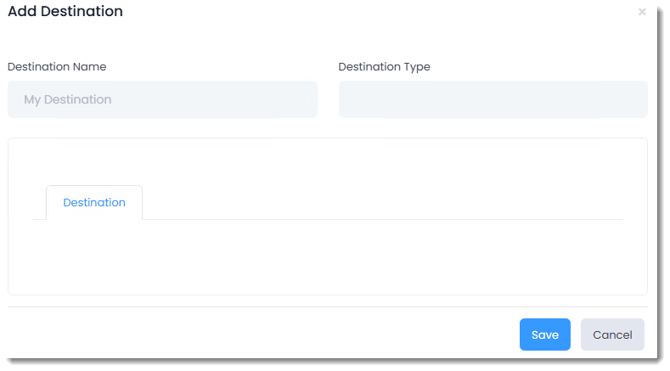
Step 16 - Provide a Destination Name and choose between an Email or Disk Destination.
Step 17 - Once the required information is filled out, you can save your destination by clicking on the Save button.
Step 18 - Proceed to the Completed Tab by clicking the "Next Step" button.
Completed Tab
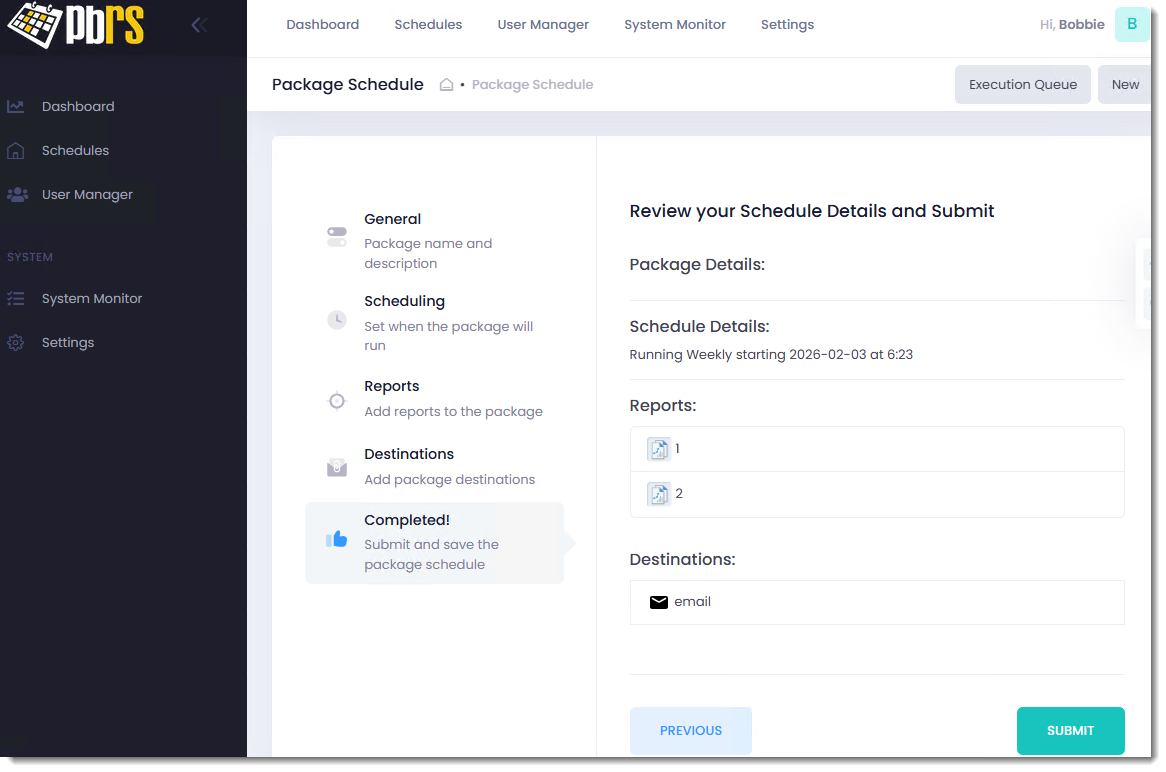
Step 19 - After reviewing the schedule setup and confirming that no changes are needed, simply click on the Submit button to save the schedule.
Once the Schedule has been created the following screen will be displayed.
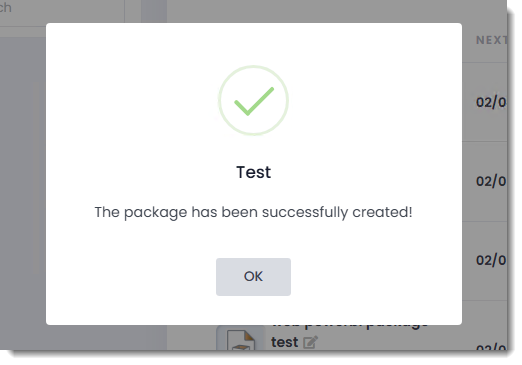
You have now successfully created a Power BI Package schedule in the PBRS Web Application.