![CSS-CMYK-logo-2015-2.png]](https://go.christiansteven.com/hs-fs/hubfs/social-suggested-images/CSS-CMYK-logo-2015-2.png?height=40&name=CSS-CMYK-logo-2015-2.png)
Before You Begin
Before creating a Single Schedule for a Power BI on-premises report, make sure the required connections and resources are available in PBRS.
You should have:
- A Power BI Report Server account configured in PBRS with access to the report you want to schedule.
- Access to the required Power BI on-premises report.
- The necessary permissions to access and export the report.
- Any required report parameters and values available for configuration.
- Any required delivery destinations, such as email, network folders, FTP/SFTP, or other supported destinations, configured and accessible.
Tip: Before creating the schedule, verify that the Power BI Report Server connection is working correctly and that PBRS can access the required report. This can help identify connection, authentication, or permission issues before you configure the schedule.
Create the Power BI Report Schedule
To begin creating the schedule:
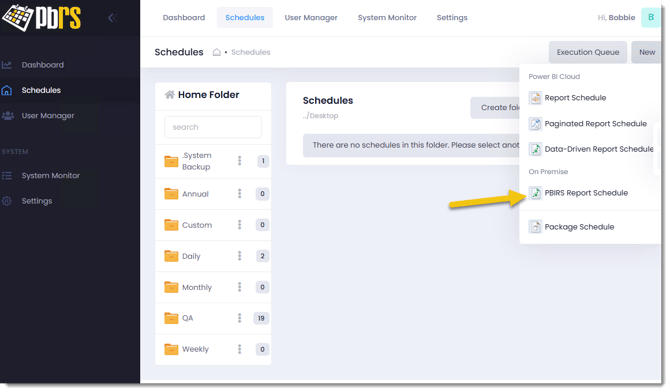
- Select the New Schedule drop-down menu.
- Select PBIRS Report Schedule.
The Scheduling screen opens, where you can configure the report, schedule timing, report settings, filters, and delivery destination.
Configure the General Settings
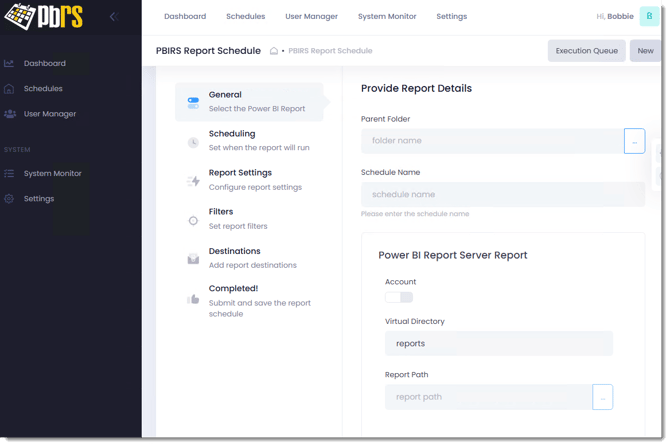
On the General tab, configure the basic details for the schedule.
- In the Provide Report Details section, select the (...) button next to Parent Folder.
- Select the folder where you want the schedule to be stored.
- Enter a descriptive Schedule Name that makes the schedule easy to identify.
Select the Power BI On-Premises Report
In the Power BI Report section:
- Select the Power BI Account that PBRS should use to access the report.
- Enter
reportsin the Virtual Directory field. - Select the (...) button next to Report Path.
- Browse to and select the Power BI on-premises report you want to schedule.
- Select Next Step to continue to the Scheduling tab.
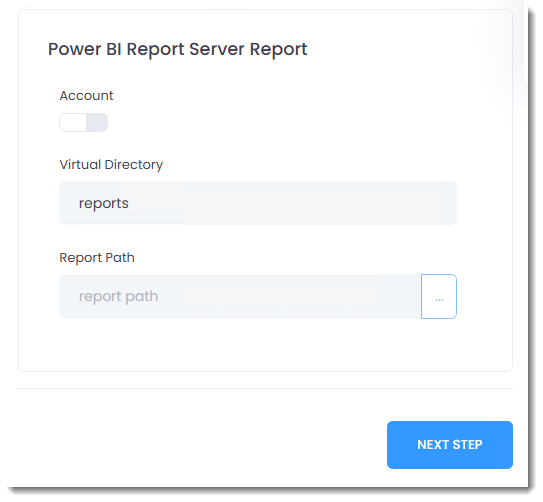
Note: The selected Power BI account must have permission to access the report and its location on Power BI Report Server.
Configure the Schedule Timing
Use the Scheduling tab to define when the Power BI on-premises report should run.
- Select the Start Date for the schedule.
- Select the required Frequency to determine how often the schedule runs.
- Set the Schedule Time for when the report should be processed.
- If required, configure additional scheduling options to control when and how often the schedule repeats.
- Check Enable this Schedule when you are ready for the schedule to run automatically.
- Select Next Step to continue.
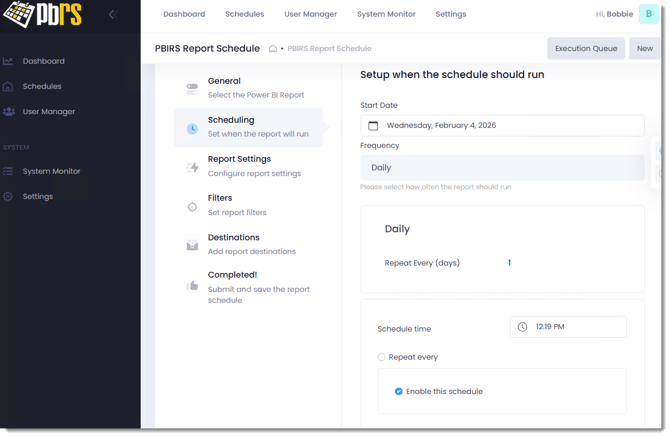
Note: Leave Enable this Schedule unchecked if you want to save and test the schedule before allowing it to execute automatically. A disabled schedule is not deleted and can be enabled later when you are ready for automatic scheduling to begin
Configure the Report Settings
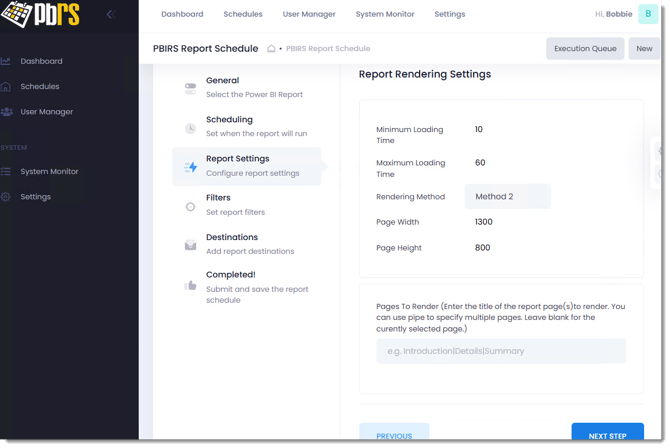
Use the Report Settings tab to configure how PBRS renders the selected Power BI on-premises report.
Report Rendering Settings
Configure the following options as required:
- Minimum Loading Time: Specifies the minimum amount of time, in seconds, that PBRS allows the report to load before rendering begins. Increase this value if the report requires additional time to load its data or visuals.
- Maximum Loading Time: Specifies the maximum amount of time, in seconds, that PBRS will allow the report to load. This can help prevent PBRS from waiting indefinitely for a report that cannot complete loading.
- Rendering Method: Selects the method PBRS uses to render the Power BI report. If the report does not render correctly using the current method, an alternative rendering method may provide better results.
- Page Width: Specifies the width, in pixels, used when rendering the report.
- Page Height: Specifies the height, in pixels, used when rendering the report.
Tip: The default rendering settings are suitable for most reports. Adjust these settings when a report requires additional loading time or when the dimensions of the rendered output need to be changed.
Select Pages to Render
Use Pages To Render to specify which report pages PBRS should include in the output.
Enter the title of the report page you want to render. To render multiple pages, separate the page titles using a pipe (|).
For example:
Introduction|Details|Summary
Leave this field blank to render the currently selected report page.
Once the report rendering settings have been configured, select Next Step to continue to the Filters tab.
Configure Report Filters
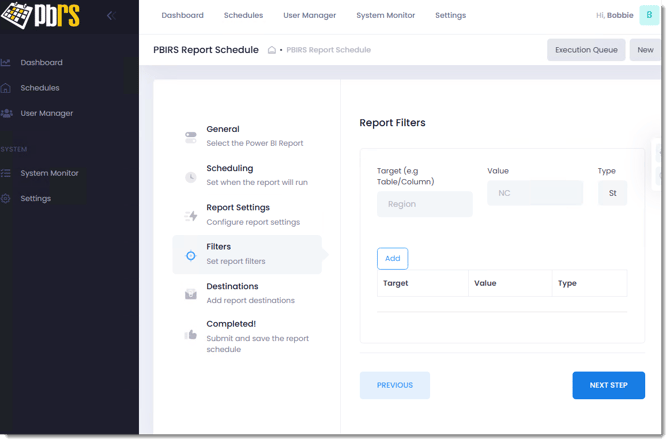
Use the Filters tab to apply filters to the Power BI on-premises report before it is rendered.
Report filters allow you to control which data is included in the report when the schedule runs.
To add a filter:
- In Target, enter the report field you want to filter using the format:
Table/ColumnFor example:Sales/Region - In Value, enter the value you want PBRS to apply to the filter. For example, if the target is
Sales/Region, you could enter:North America - Select the appropriate Type for the filter value.
- Select Add.
The filter is added to the table below the filter fields.
Repeat these steps to add additional filters as required.
Filter Settings
- Target: Identifies the Power BI table and column to which the filter should be applied. Enter the value in
Table/Columnformat. - Value: Specifies the value PBRS should use to filter the report.
- Type: Specifies the data type of the filter value.
Important: Make sure the Target, Value, and Type correspond to the field and data available in the Power BI report. Incorrect values may cause the report to return unexpected results or no data.
When all required filters have been added, select Next Step to continue to the Destinations tab.
Configure the Destination
Use the Destinations tab to specify where the completed Power BI on-premises report should be delivered.
Select Add Destination to begin configuring a delivery destination.
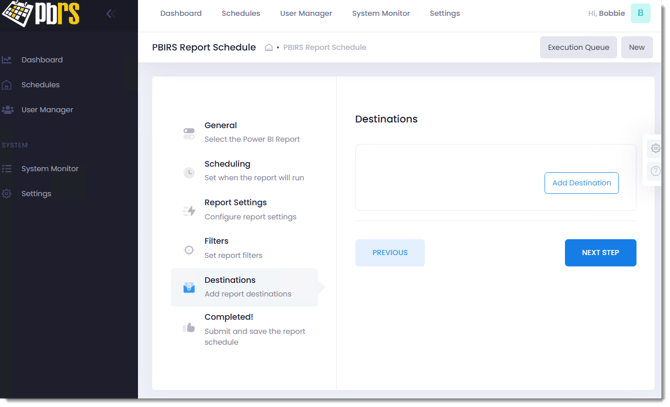
The Add Destination window opens.
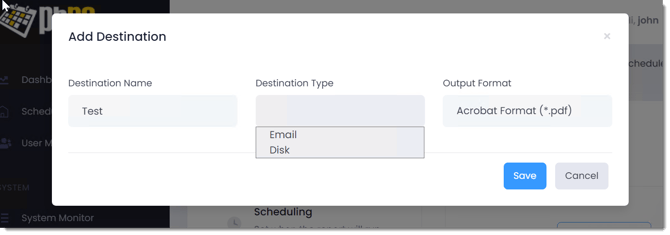
Configure the following:
- Destination Name: Enter a descriptive name that makes the destination easy to identify.
- Destination Type: Select how the report should be delivered:
- Email – Deliver the report by email.
- Disk – Save the report to a specified file location.
- Output Format: Select the format in which the Power BI report should be exported, such as Acrobat Format (*.pdf). The output format is configured individually for each destination. This allows you to add multiple destinations to the same schedule and, where required, select the appropriate output format for each destination.
Select Save to create the destination.
PBRS will then display the configuration options associated with the selected destination type. Complete the required settings to determine how and where the report will be delivered.
Repeat the process if the report needs to be delivered to additional destinations.
Once all required destinations have been configured, select Next Step to continue to Completed!
Review and Submit the Schedule
Use the Completed! tab to review the schedule configuration before saving it.
The summary displays the key settings configured during the Schedule Wizard, including:
- Report Details – Confirm that the correct account and Power BI on-premises report have been selected.
- Schedule Details – Review when and how often the schedule will run.
- Destinations – Confirm that the required delivery destinations have been added.
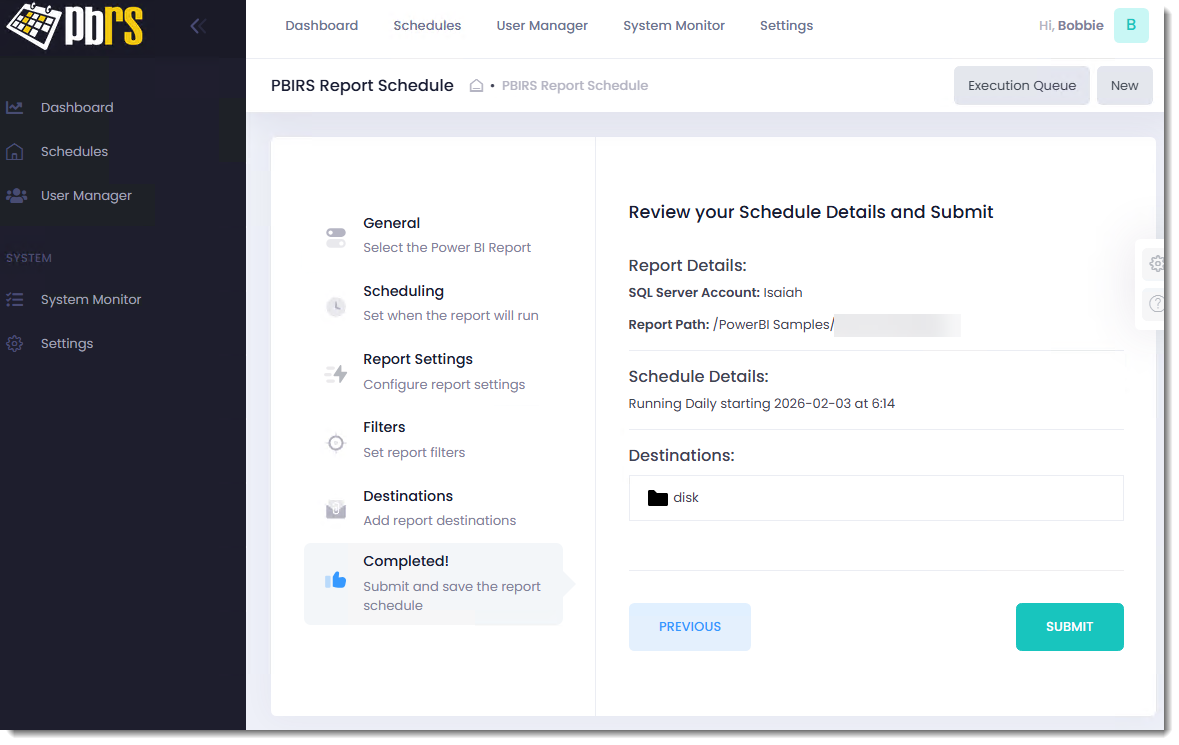
If you need to make changes, select Previous to return to the earlier steps in the Schedule Wizard.
When you are satisfied with the configuration, select Submit to save the schedule.
If the schedule was enabled during the Scheduling step, it will run automatically according to the configured schedule. If it was left disabled, it will be saved without running automatically until you enable it.
Tip: Before enabling a new schedule for automatic execution, consider testing it manually to confirm that the report renders correctly, the required filters are applied, and the report is delivered to the expected destination.
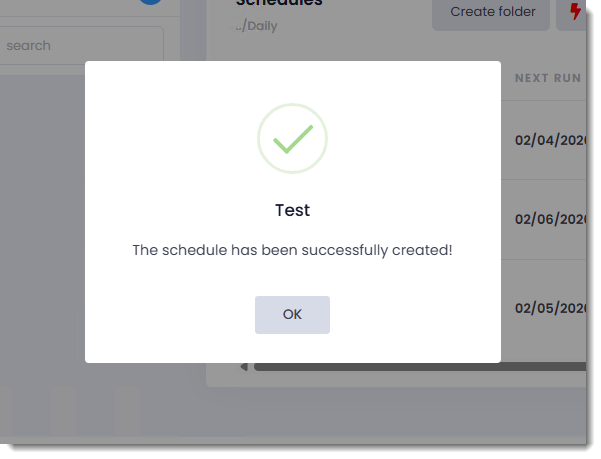
Once the Schedule has been created the following screen will be displayed.
Troubleshooting
If your Power BI on-premises report schedule does not run or produce the expected results, use the following guidance to identify and resolve common issues.
The Power BI Report Cannot Be Selected or Accessed
Possible cause: The Power BI Report Server account may be configured incorrectly, or the account may not have permission to access the report.
Resolution:
- Verify that the correct Power BI Report Server account is selected.
- Confirm that the account has permission to access the required report and report location.
- Verify that the Virtual Directory and Report Path are correct.
- Confirm that the report is still available on Power BI Report Server.
The Report Does Not Render Correctly
Possible cause: The report may require additional loading time, or the selected rendering settings may not be suitable for the report.
Resolution:
- Review the Minimum Loading Time and Maximum Loading Time under Report Settings.
- Increase the loading time if the report contains complex visuals or requires additional time to retrieve data.
- Try an alternative Rendering Method.
- Review the configured Page Width and Page Height.
- Confirm that any report pages specified under Pages To Render are entered correctly.
The Report Is Blank or Contains Unexpected Data
Possible cause: A report filter may be configured incorrectly or may reference a value that does not exist in the report.
Resolution:
- Review the filters configured on the Filters tab.
- Confirm that the Target uses the correct
Table/Columnformat. - Verify that the filter Value exists in the report data.
- Confirm that the correct Type has been selected for the filter value.
- Test the report without filters to determine whether a configured filter is causing the issue.
The Report Is Not Delivered
Possible cause: The destination may be configured incorrectly or PBRS may be unable to access the selected delivery method.
Resolution:
- Review the destination configured on the Destinations tab.
- Confirm that the correct Destination Type and Output Format are selected.
- For an Email destination, verify the recipient and email delivery settings.
- For a Disk destination, confirm that the destination location is accessible and that PBRS has permission to write to it.
- Test the destination independently where possible.
The Schedule Does Not Run Automatically
Possible cause: The schedule may be disabled or the scheduling settings may be incorrect.
Resolution:
- Confirm that Enable this Schedule is selected.
- Review the configured Start Date, frequency, and execution time.
- Confirm that the PBRS scheduling services are running.
- Verify that the schedule has not been disabled since it was created.
The Issue Persists
If the schedule still does not execute or the report does not render or deliver correctly, check the PBRS Error Log for additional information.
The error details can help identify whether the issue is related to Power BI Report Server connectivity, report rendering, filters, scheduling, or delivery.
Need Additional Help?
If you are unable to resolve the issue using the steps in this article, our Support team can help.
When submitting a support request, include as much information as possible, including any error messages, screenshots, and relevant PBRS logs. Providing these details will help our team investigate the issue more efficiently.