![CSS-CMYK-logo-2015-2.png]](https://go.christiansteven.com/hs-fs/hubfs/social-suggested-images/CSS-CMYK-logo-2015-2.png?height=40&name=CSS-CMYK-logo-2015-2.png)
Before You Begin
Before creating an SSRS Schedule, make sure the required connections and resources are available in PBRS.
You should have:
- An SSRS account configured in PBRS with access to the report you want to schedule.
- Access to the required SSRS report on the report server.
- The necessary permissions to access and export the report.
- Any required report parameters and values available for configuration.
- Any required delivery destinations, such as Email or Disk, configured and accessible.
Tip: Before creating the schedule, verify that the SSRS connection is working correctly and that PBRS can access the required report. This can help identify connection, authentication, or permission issues before you configure the complete schedule.
Create an SSRS Schedule
To begin creating the schedule:
- Log in to the PBRS Web Application.
- Select Schedules from the main menu.
- Select New in the upper-right corner.
- Under On Premise, select SSRS Schedule.
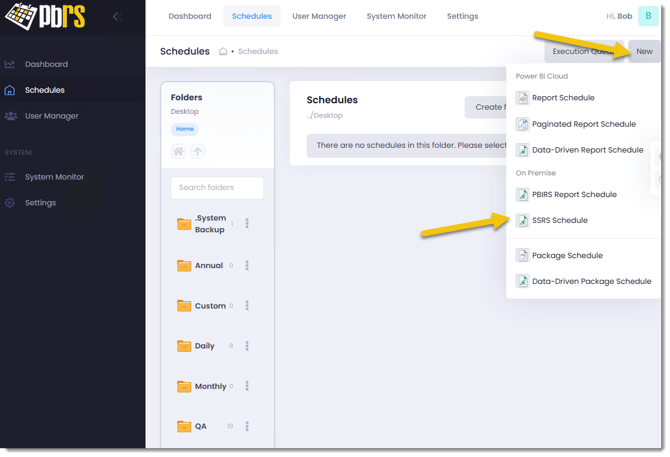
The SSRS Schedule Wizard opens, where you can select the SSRS report and configure the schedule timing, report parameters, output, and delivery destination.
Note: Although the PBRS Web Application currently displays On Premise in the menu, we will use the grammatically correct term on-premises throughout the Knowledge Base article.
Configure the General Settings
Use the General tab to specify where the schedule will be stored, give the schedule a name, and select the SSRS report you want to automate.
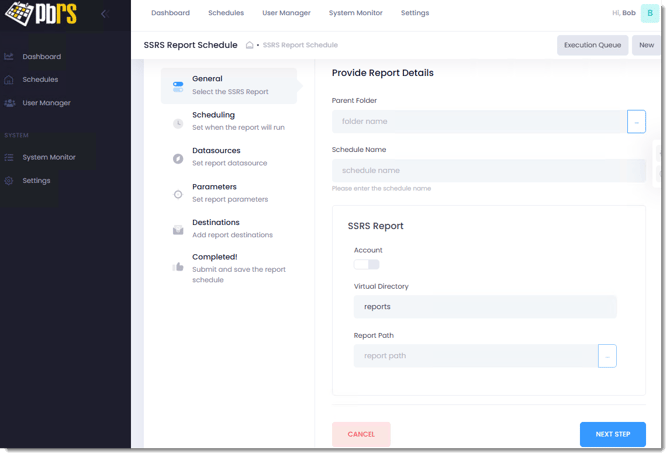
Provide Report Details
- Next to Parent Folder, select the (...) button.
- Browse to and select the PBRS folder where you want the schedule to be stored.
- In Schedule Name, enter a descriptive name for the schedule.
Select the SSRS Report
Use the SSRS Report section to specify the report PBRS should process when the schedule runs.
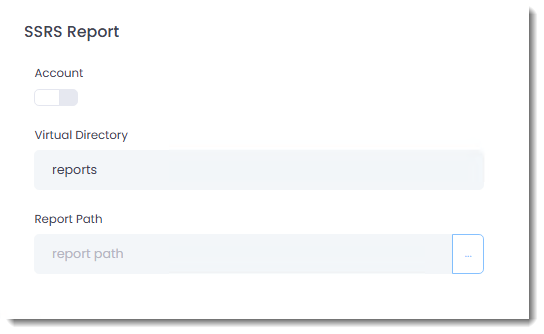
- From Account, select the SSRS account PBRS should use to connect to the report server.
- In Virtual Directory, enter the SSRS virtual directory. The default is typically
reports. - Next to Report Path, select the (...) button.
- Browse to and select the SSRS report you want to schedule.
The Report Path is populated with the selected report location.
Note: The selected SSRS account must have permission to access the report and its location on the SSRS Report Server.
Once the schedule details and SSRS report have been configured, select Next Step to continue to Scheduling.
Configure the Schedule Timing
Use the Scheduling tab to define when the SSRS report should run.
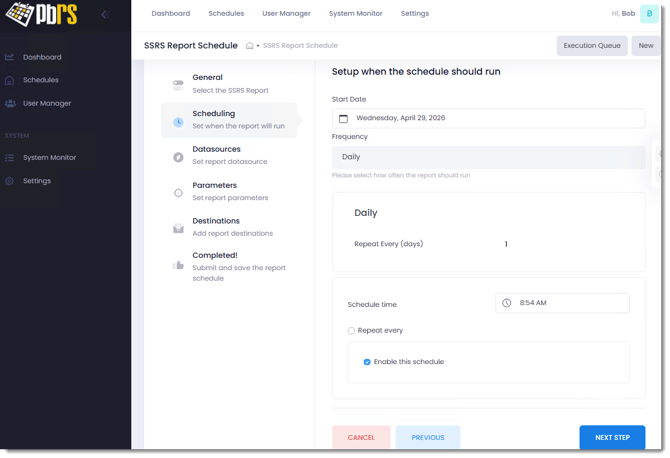
- Select the Start Date for the schedule.
- From Frequency, select how often the report should run.
- Configure the options displayed for the selected frequency. For example, for a Daily schedule, use Repeat Every (days) to specify the number of days between executions.
- Set the Schedule Time for when PBRS should process the report.
- If the report needs to run multiple times during the day, select Repeat every and configure the required interval.
- Check Enable this schedule when you are ready for the schedule to run automatically.
- Select Next Step to continue to the Datasources tab.
Note: Leave Enable this schedule unchecked if you want to save and test the schedule before allowing it to execute automatically. A disabled schedule remains available in PBRS but will not run automatically until it is enabled.
Configure the Report Datasource
Use the Datasources tab to review the datasource used by the selected SSRS report and, where required, provide the credentials PBRS should use to access it.
PBRS displays the datasource or datasources associated with the selected report.
- Select the required Datasource Name.
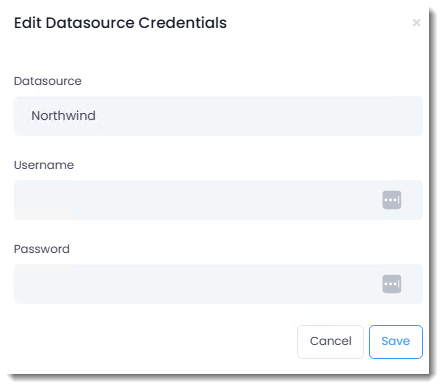
- The Edit Datasource Credentials window opens.
Place the Edit Datasource Credentials screenshot here.
- Review the Datasource name to confirm that you are configuring the correct datasource.
- In Username, enter the username PBRS should use to connect to the datasource.
- In Password, enter the password associated with the account.
- Select Save to save the datasource credentials.
Repeat these steps if the report uses additional datasources that require credentials.
Datasource Credentials
The credentials entered here allow PBRS to access the datasource when the SSRS report is processed.
If the report already has access to its datasource and does not require additional credentials, you may not need to enter a username and password.
Important: The account used for the datasource must have the permissions required to retrieve the data used by the SSRS report. Incorrect or insufficient credentials may cause the report to fail when the schedule runs.
Once all required datasource credentials have been reviewed or configured, select Next Step to continue to the Parameters tab.
Review the Report Datasources
Use the Datasources tab to review the datasource associated with the selected SSRS report.
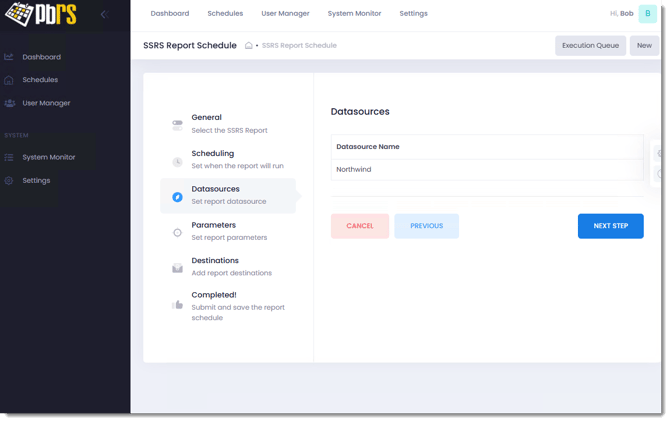
PBRS displays the Datasource Name used by the report. In this example, the report uses the Northwind datasource.
Review the datasource information and confirm that the expected datasource is displayed.
Note: The datasource is determined by the configuration of the selected SSRS report. There are no datasource settings to configure on this screen.
Select Next Step to continue to the Parameters tab.
Configure Report Parameters
Use the Parameters tab to review and configure the parameters required by the selected SSRS report.
PBRS retrieves the parameters defined in the report and displays them automatically.
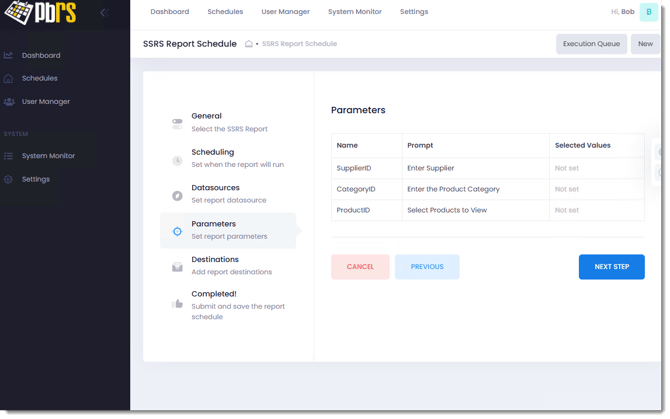
The parameter list displays:
- Name: The parameter name defined in the SSRS report.
- Prompt: The description or prompt associated with the parameter.
- Selected Values: Shows the value currently configured for the parameter. Not set indicates that a value has not yet been selected.
To configure a parameter:
- Select the parameter you want to configure.
- Specify the required parameter value in the parameter configuration window.
- Save the parameter configuration.
- Repeat these steps for each parameter required by the report.
Important: Parameter requirements are determined by the selected SSRS report. Make sure all required parameters have appropriate values before completing the schedule. Missing or invalid parameter values may prevent the report from processing correctly.
Set Parameter Values
Select a parameter from the Parameters tab to open the Set Parameter Value window.
The options displayed depend on how the parameter is configured in the SSRS report.
Configure a Single-Value Parameter
For a parameter that accepts a single value:
Place the SupplierID parameter screenshot here.
- Under Select Value, select the value you want to use.
- Select OK to confirm the selected value.
- Select Save to apply the parameter setting and return to the Parameters tab.
The selected value will then appear in the Selected Values column.
Configure a Multi-Value Parameter
Some SSRS parameters allow multiple values to be passed to the report.
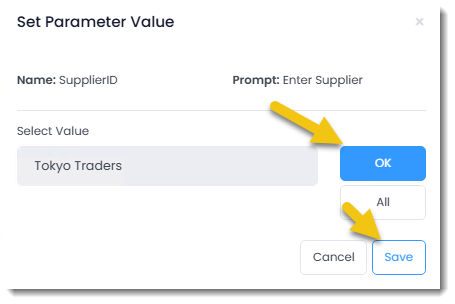
To configure a multi-value parameter:
- Under Select Value, select a value.
- Select OK to add it to Confirmed Values.
- Repeat the process for each additional value you want to include.
The Confirmed Values table displays the selections that will be passed to the report.
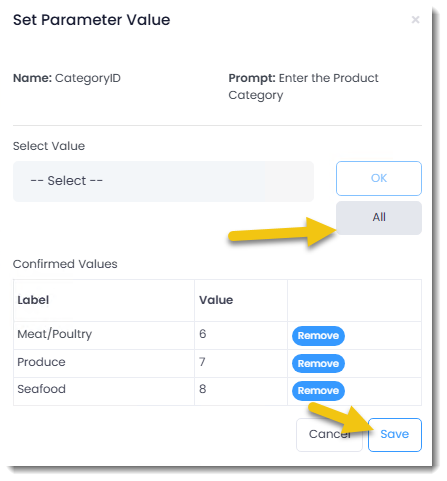
For each selection, PBRS displays:
- Label: The user-friendly value displayed by the SSRS report.
- Value: The underlying value that will be passed to the report.
Select Remove next to a value if you no longer want it included.
Select All Available Values
Select All to add all available values for a parameter.
This is useful when the report should include every available value rather than requiring each value to be selected individually.
Note: Whether a parameter supports one or multiple values is determined by the configuration of the SSRS report.
Save the Parameter
After confirming the required parameter value or values, select Save.
PBRS returns you to the Parameters tab, where the configured values are displayed under Selected Values.
Repeat this process for each required report parameter.
Once all required parameters have been configured, select Next Step to continue to Destinations.
Configure the Destination
Use the Destinations tab to specify how and where PBRS should deliver the completed SSRS report.
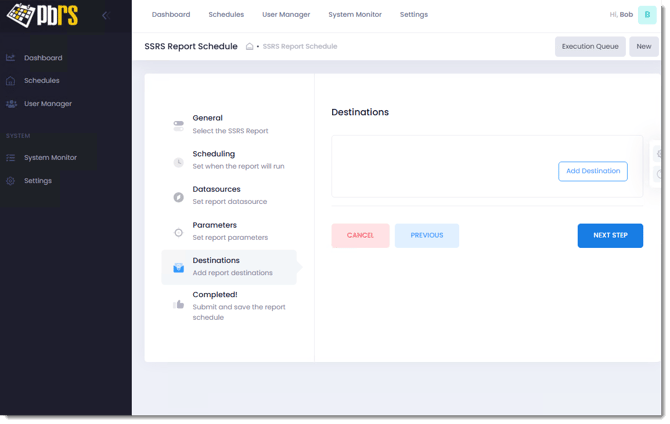
Select Add Destination to open the destination configuration window.
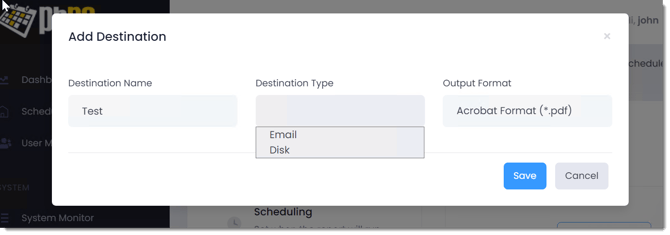
Configure the following:
- Destination Name: Enter a descriptive name that makes the destination easy to identify.
- Destination Type: Select how the report should be delivered:
- Email – Deliver the report by email.
- Disk – Save the report to a specified file location.
- Output Format: Select the format in which the SSRS report should be generated, such as Acrobat Format (*.pdf).
Select Save to add the destination to the schedule.
PBRS will display the configuration options associated with the selected destination type. Complete the required settings to determine how and where the report will be delivered.
Repeat the process if the report needs to be delivered to additional destinations.
Configure an Email Destination
When Email is selected as the Destination Type, configure the email that PBRS will send when the SSRS schedule runs.
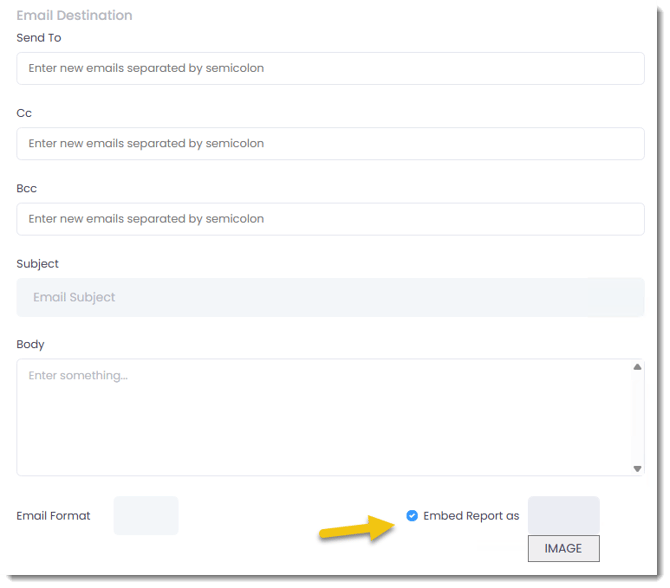
Configure the following:
- Send To: Enter the email address of each primary recipient. Separate multiple email addresses with a semicolon.
- Cc: Enter any recipients who should receive a copy of the email. Separate multiple addresses with a semicolon.
- Bcc: Enter any recipients who should receive a blind copy of the email. Separate multiple addresses with a semicolon.
- Subject: Enter the subject line for the email.
- Body: Enter the message you want to include in the email body.
- Email Format: Select the format PBRS should use for the email body.
Embed the Report in the Email Body
Select Embed Report as if you want the rendered SSRS report to appear within the email body rather than being delivered only as an attachment.
Select the required embedded format from the drop-down menu.
For an SSRS report, supported embedded formats can include Text, HTML, Image, or Web Archive, depending on the report and configuration.
Note: By default, the exported report is delivered as an attachment. Embedding the report allows recipients to view report content directly in the email body while still using the configured report delivery settings.
Once the email settings have been configured, save the destination.
Output Format
The output format is configured individually for each destination. This allows you to add multiple destinations to the same schedule and select the appropriate output format for each one.
For example, the same SSRS report could be configured for different destinations and output formats based on your reporting requirements.
Note: The available output formats and configuration options may vary depending on the selected destination type.
Once all required destinations have been configured, select Next Step to continue to Completed!
Review and Submit the SSRS Schedule
Use the Completed! tab to review the SSRS Schedule before saving it.
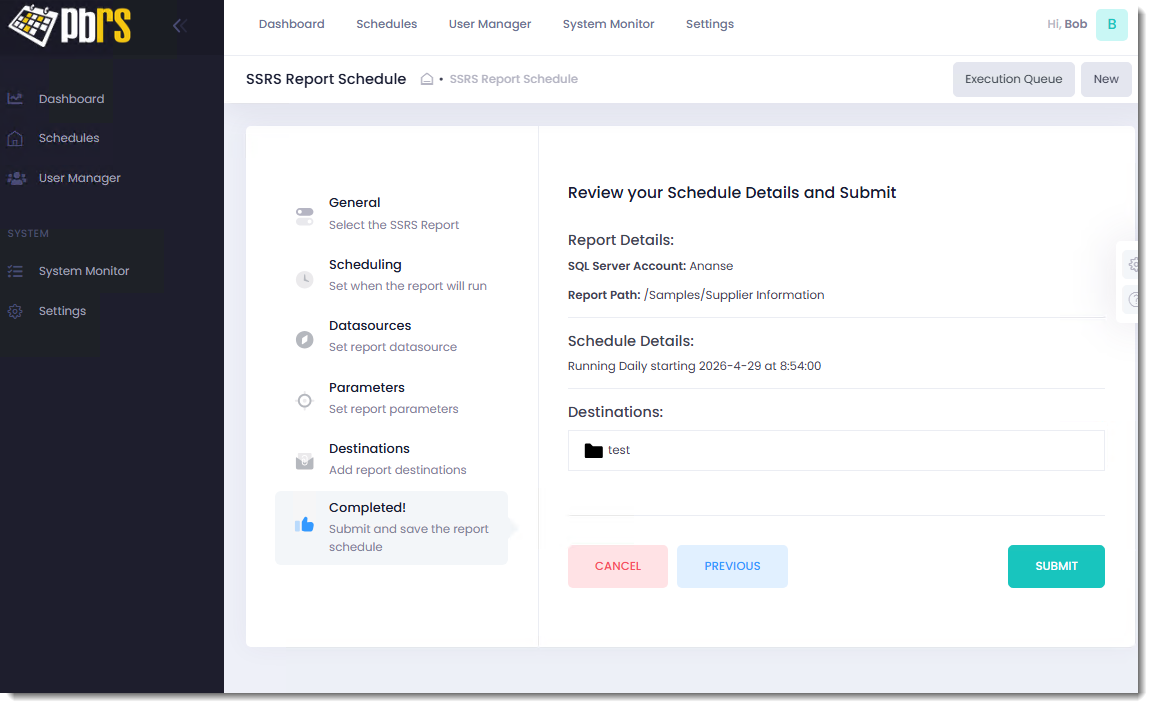
Review the information displayed on the screen, including:
- Report Details: Confirm that the correct SQL Server account and SSRS report path are displayed.
- Schedule Details: Verify when and how often the report will run.
- Destinations: Confirm that all required delivery destinations have been configured.
If you need to make changes, select Previous to return to an earlier step in the Schedule Wizard.
When you are satisfied with the configuration, select Submit to save the SSRS Schedule.
If Enable this schedule was selected on the Scheduling tab, PBRS will run the report automatically according to the configured schedule. If it was left unchecked, the schedule will be saved but will not execute automatically until it is enabled.
Tip: Before relying on a new SSRS Schedule for automated delivery, consider testing it manually. Confirm that the report connects successfully to its datasource, the correct parameter values are applied, the report renders as expected, and it is delivered to the correct destination.
After selecting Submit, PBRS creates the SSRS Schedule.
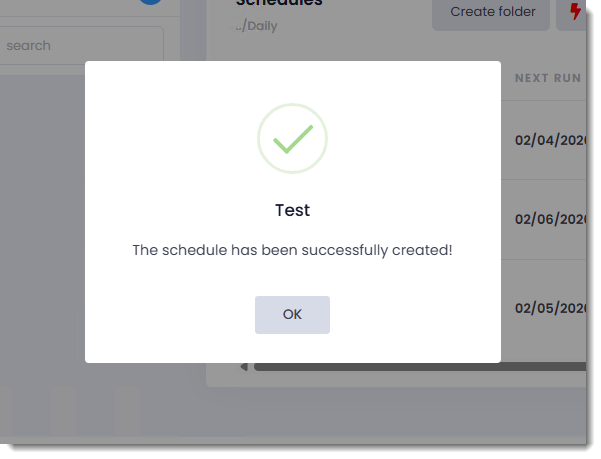
When the The schedule has been successfully created! message appears, select OK.
PBRS returns you to the Schedules screen, where the newly created SSRS Schedule is available for review, testing, and management.
Note: If the schedule was enabled during setup, it will run automatically according to the configured schedule. If it was left disabled, you can test the schedule before enabling automatic execution.
Troubleshooting
If your SSRS Schedule does not run or produce the expected results, use the following guidance to identify and resolve common issues.
The SSRS Report Cannot Be Selected or Accessed
Possible cause: The SSRS account may be configured incorrectly or may not have permission to access the required report.
Resolution:
- Confirm that the correct SSRS Account is selected.
- Verify that the Virtual Directory is correct.
- Confirm that the Report Path points to the required SSRS report.
- Verify that the selected account has permission to access the report and its location on the report server.
- Confirm that the report is still available on the SSRS Report Server.
The Report Cannot Connect to Its Datasource
Possible cause: The datasource credentials may be missing, incorrect, or have insufficient permissions.
Resolution:
- Review the datasource displayed on the Datasources tab.
- Open Edit Datasource Credentials and verify the Username and Password.
- Confirm that the account has permission to access the datasource.
- Verify that the datasource itself is available and accessible from the report server.
- Save the credentials and test the schedule again.
The Report Fails or Contains Unexpected Data
Possible cause: One or more report parameters may be missing or configured incorrectly.
Resolution:
- Review the parameters on the Parameters tab.
- Confirm that all required parameters have values.
- Verify that the correct value or values have been selected for each parameter.
- For multi-value parameters, review the Confirmed Values and remove any values that should not be included.
- Run the report directly in SSRS using the same parameter values to confirm that it produces the expected results.
The Report Is Not Delivered
Possible cause: The destination may be configured incorrectly or PBRS may be unable to access the selected delivery method.
Resolution:
- Review the settings on the Destinations tab.
- Confirm that the correct Destination Type and Output Format are selected.
- For an Email destination, verify the recipient addresses, subject, email body, and other delivery settings.
- For a Disk destination, confirm that the destination location is accessible and that PBRS has permission to write to it.
- Test the destination again after verifying the settings.
The Embedded Report Does Not Display Correctly in the Email
Possible cause: The selected embedded format may not be suitable for the report or email client.
Resolution:
- Review the Embed Report as setting in the Email destination.
- Try another supported embedded format where appropriate.
- Confirm that the SSRS report renders correctly outside the email.
- If embedding continues to cause problems, deliver the exported report as an attachment instead.
The Schedule Does Not Run Automatically
Possible cause: The schedule may be disabled or its scheduling settings may be incorrect.
Resolution:
- Confirm that Enable this schedule is selected.
- Review the configured Start Date, frequency, and schedule time.
- Confirm that the PBRS scheduling services are running.
- Verify that the schedule has not subsequently been disabled.
The Issue Persists
If the SSRS Schedule still does not execute, render, or deliver the report correctly, check the PBRS Error Log for additional information.
The error details can help identify whether the issue is related to the SSRS connection, datasource credentials, report parameters, report processing, scheduling, or delivery.
Need Additional Help?
If you are unable to resolve the issue using the steps in this article, our Support team can help.
When submitting a support request, include as much information as possible, including any error messages, screenshots, and relevant PBRS logs. Providing these details will help our team investigate the issue more efficiently.