![CSS-CMYK-logo-2015-2.png]](https://go.christiansteven.com/hs-fs/hubfs/social-suggested-images/CSS-CMYK-logo-2015-2.png?height=40&name=CSS-CMYK-logo-2015-2.png)
Before You Begin
Before exporting and migrating a PBRS schedule definition, make sure:
- PBRS is installed and accessible on both the source and destination environments.
- The PBRS API is configured and running on the destination environment.
- You have the connection information required to access the destination PBRS API.
- You have access to the schedule you want to migrate.
- Any resources used by the schedule, such as Power BI accounts, database connections, destinations, or other environment-specific settings, are available and correctly configured on the destination PBRS installation.
Important: Exporting a schedule transfers the schedule definition. Environment-specific resources and configuration referenced by the schedule may need to be configured separately on the destination PBRS installation.
Note: Schedules are exported individually. If you need to migrate multiple schedules, repeat the export process for each schedule.
Export the Schedule Definition
To export a schedule definition from PBRS:
- Open PBRS.
- From the main menu, select the System tab.

- Select Export Schedules.
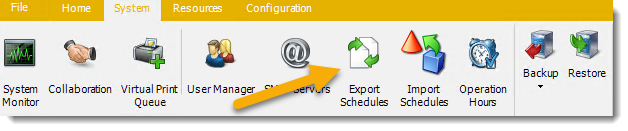
- The Export Schedules window opens. Use this window to configure the schedule export and migration.
The REST API option allows PBRS to send the selected schedule definition to another PBRS installation.
Note: Only the selected schedule is exported. To migrate additional schedules, repeat this process for each schedule.
Select the Schedule to Migrate
The Select Schedules screen displays the schedules available in the source PBRS installation. Use this screen to select the schedule definitions you want to migrate.
- Browse the folder structure on the left to locate the schedule you want to migrate.
- Select the required schedule.
- Select the right arrow to move the schedule to the selection panel on the right.
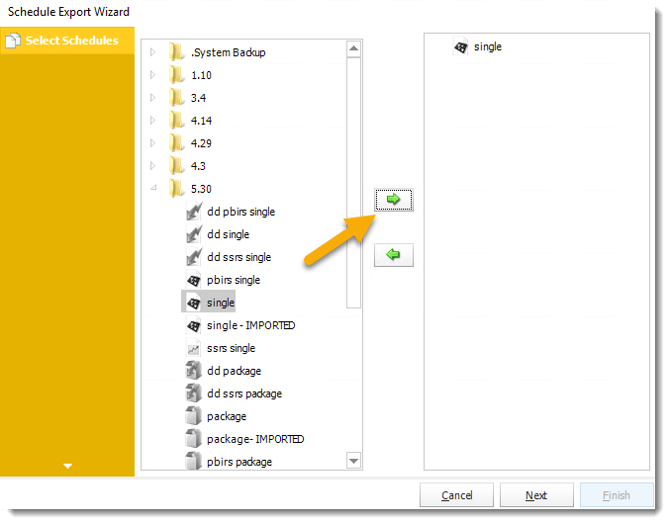
- Review the schedules displayed in the right panel to make sure you have selected the correct schedules.
- To remove a schedule from the selection, select it in the right panel and select the left arrow.
- Select Next to continue.
Important: When migrating schedules using the REST API, only one schedule can be exported at a time. To migrate additional schedules, complete the export process and then repeat the procedure for each additional schedule.
Configure the Destination System
On the Destination System screen, specify how PBRS will connect to the destination environment. To migrate the selected schedule directly to another PBRS installation, use the REST API option.
- Under Select the destination system's connection type, select Use REST API for Export.
- In the PBRS API section, enter the connection details for the destination system:
- Client Address — Enter the address of the destination CRD API.
- Client ID — Enter the Client ID used to authenticate with the destination API.
- Client Secret — Enter the Client Secret associated with the Client ID.
- Select Retrieve Token.
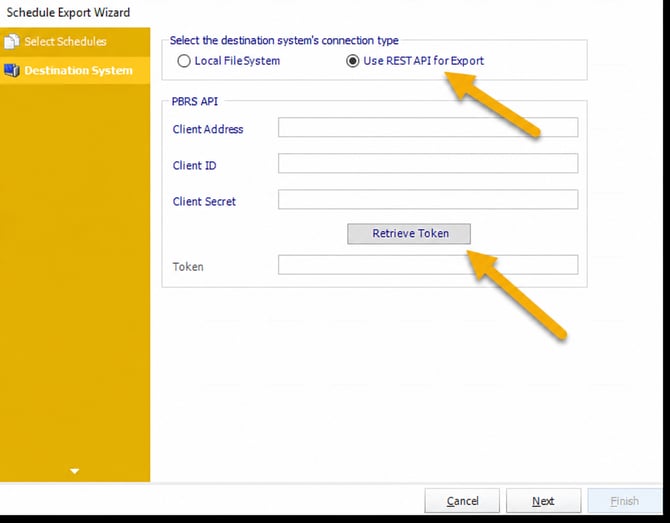
- PBRS uses the supplied credentials to request an authentication token from the destination system.
- Confirm that a value appears in the Token field.
- Select Next to continue.
Important: The PBRS API must be configured and accessible on the destination system, and the Client ID and Client Secret must be valid before PBRS can retrieve a token.
Export the Schedule
The Do Export screen confirms that PBRS is ready to export the selected schedule to the destination system.
- Review the previous selections and connection information if necessary.
- Select Finish to begin the export process.
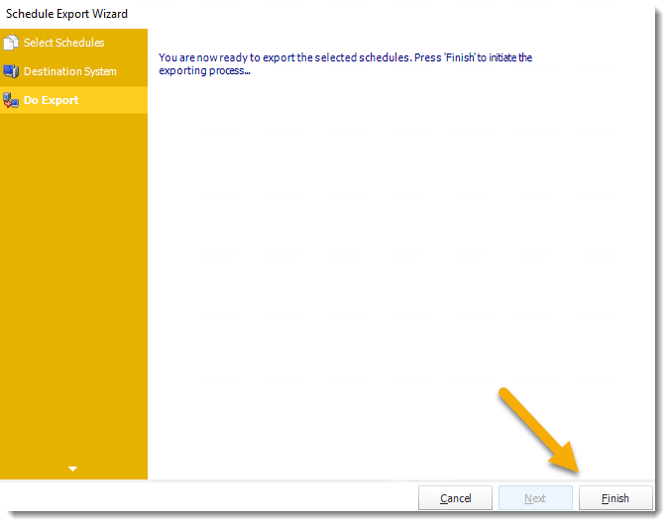
- PBRS exports the selected schedule definition to the destination PBRS installation using the REST API.
- Wait for the export process to complete.
Important: Selecting Finish initiates the migration. Make sure the correct schedule and destination system have been selected before proceeding.
Confirm the Schedule Export
When the migration completes successfully, PBRS displays a confirmation message showing the number of schedules exported.
- Confirm that the message “1 schedules exported successfully” appears.
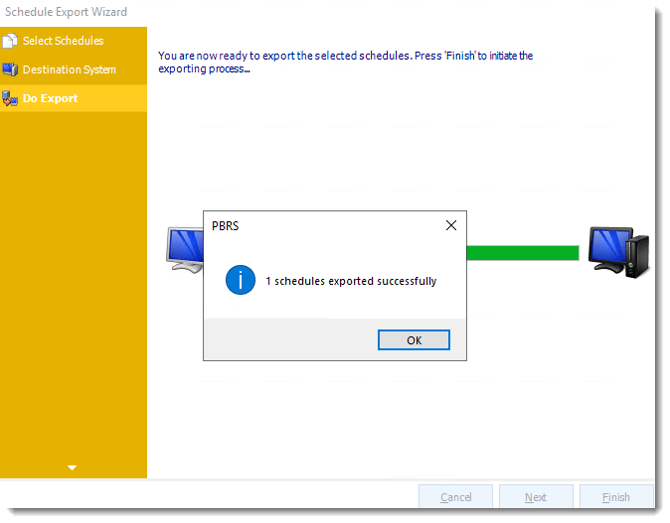
- Select OK to close the confirmation message.
- Close the Schedule Export Wizard when complete.
Because REST API migration supports only one schedule at a time, the successful export should report 1 schedule exported successfully.
The schedule definition has now been exported. Before using it in another environment, review the dependencies and validation steps below.
Scope and Limitations
This workflow supports all PBRS schedule types, but when using the REST API, schedules must be exported individually. The REST API workflow does not provide a bulk-export operation.
To migrate multiple schedules, repeat the export process for each schedule.
Before Migrating to Another PBRS Environment
Before migrating a schedule, review the destination PBRS environment and:
- Confirm that the required Power BI, Power BI Report Server, or SSRS accounts exist in the destination environment, as applicable.
- Confirm that the required destination folders and delivery accounts are configured.
- Identify any environment-specific URLs, credentials, recipients, file paths, and server assignments.
- Record the PBRS build used by the source and destination environments.
- Use controlled recipients and destinations for the first execution after migration.
Important: Exporting a schedule transfers the schedule definition. Environment-specific resources or configuration referenced by the schedule may need to be configured or updated separately in the destination PBRS environment.
Validate the Migrated Schedule
After the export completes successfully, verify the migrated schedule in the destination PBRS environment.
- Open the migrated schedule in the destination PBRS environment.
- Confirm its folder, name, schedule type, enabled state, recurrence, report, filters, parameters, rendering settings, outputs, and destinations, as applicable.
- Replace any environment-specific values and credentials that need to be changed for the destination environment.
- Run the schedule using controlled data, recipients, and destinations.
- Verify that the expected report content is generated and delivered to the correct location.
- Record the migration result and any manual corrections made to the schedule.
Tip: For a newly migrated schedule, manually Execute and verify it before relying on its automatic scheduling.
Detailed API documentation
For complete export and migration guidance, see:
Import and Migrate Schedule Definitions
Troubleshooting
Unable to Retrieve a Token
Possible cause:
The PBRS API service on the destination server is not running.
Resolution:
- Confirm that the PBRS API service is running on the destination server.
- If the service is stopped, start or restart it.
- Return to the Destination System screen and select Retrieve Token again.
- If the service will not start, review the Windows account configured to run the PBRS API service.
PBRS API Service Will Not Start
Possible cause:
The Windows account configured to run the PBRS API service may no longer be able to start the service. For example, the account password may have expired or changed.
Resolution:
- Make sure only one instance of PBRS is running on the server.
- In PBRS, go to Options > REST API.
- Uninstall the REST API.
- Reopen Options > REST API and reinstall the REST API.
- Select the appropriate Windows account to run the service.
- Confirm that the PBRS API service starts successfully.
- Retry Retrieve Token.
Note: Existing API Clients, Client IDs, and Client Secrets can remain in place when reinstalling the REST API.
Connection Is Refused or Reset
Possible cause:
PBRS cannot establish a connection to the REST API service. This may result in connection refused, connection reset, or closed connection errors.
Resolution:
- Confirm that the PBRS API service is running.
- Verify the Client Address entered in the Schedule Export Wizard.
- Confirm that the configured REST API port is accessible between the source and destination environments.
- Check firewall and network rules that could block the connection.
- Test API connectivity independently before attempting the migration again.
Token Cannot Be Retrieved Using the Client Credentials
Possible cause:
The Client ID or Client Secret entered in the Schedule Export Wizard does not match a valid API Client on the destination PBRS environment.
Resolution:
- Recheck the Client Address, Client ID, and Client Secret.
- Confirm that the API Client exists on the destination PBRS environment.
- Re-enter the credentials to eliminate copying or whitespace errors.
- Confirm that the PBRS API service is running.
- Select Retrieve Token again.
The Schedule Exports but Does Not Work Correctly in the Destination Environment
Possible cause:
The schedule definition migrated successfully, but one or more resources referenced by the schedule are specific to the source environment.
Resolution:
- Open the migrated schedule and review its configuration.
- Verify the report or report server.
- Verify the required Power BI, Power BI Report Server, or SSRS accounts, as applicable.
- Check database connections and credentials.
- Review filters and parameters.
- Check file paths, URLs, recipients, and server assignments.
- Verify each configured destination.
- Manually Execute the migrated schedule using controlled recipients and destinations before relying on automatic scheduling.
REST API Functions Behave Differently After an Upgrade or Migration
Possible cause:
The source and destination environments may be running different PBRS builds, or REST API functionality may have changed between releases.
Resolution:
- Check the PBRS build installed on both environments.
- Where possible, use compatible/current PBRS builds on the source and destination environments.
- Review the relevant PBRS release notes for REST API changes.
- Test the REST API connection and schedule migration before migrating additional schedules.
- If necessary, update PBRS and retest the migration.
The Migrated Schedule Cannot Find Required Resources
Possible cause:
Resources referenced by the schedule do not exist in the same location or configuration in the destination PBRS environment.
Resolution:
- Review the migrated schedule using the Validate the Migrated Schedule section above.
- Confirm the report and folder locations.
- Update environment-specific paths and URLs.
- Confirm that the required accounts and credentials exist on the destination system.
- Refresh or reselect report resources where necessary.
- Check the PBRS Error Log for the specific resource or configuration that could not be found.
Need Additional Help?
If the issue continues after completing these troubleshooting steps, check the PBRS Error Log and record any error messages generated during the export or when executing the migrated schedule.
When contacting ChristianSteven Support, include the PBRS build numbers for the source and destination environments, the error message or relevant Error Log entries, whether Retrieve Token succeeds, whether the PBRS API service is running, the schedule type being migrated, whether the export completes successfully, and screenshots of the relevant Schedule Export Wizard screen where appropriate.