![CSS-CMYK-logo-2015-2.png]](https://go.christiansteven.com/hs-fs/hubfs/social-suggested-images/CSS-CMYK-logo-2015-2.png?height=40&name=CSS-CMYK-logo-2015-2.png)
CRD To IFBI - Import Schedules
In order to use this application, you must:
- Have a CRD installed and configured.
- Have an IntelliFront BI installed and configured.
- You must have an SMTP Account setup in IntelliFront BI.
- You must have an FTP Destination setup in Intellifront BI.
- You must have a Windows Account setup in IntelliFront BI.
- This application needs to be on the same CRD server.
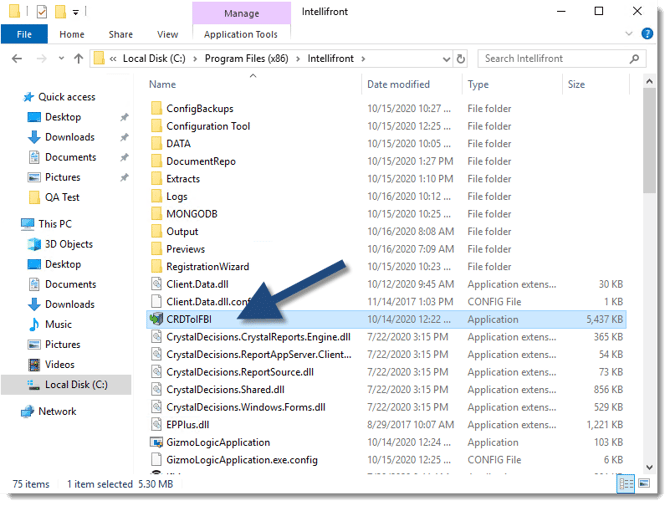
- CRD to IFBI is a separate application used to import CRD Single Schedules to IntelliFront BI Crystal Gizmos.
- Once you have updated/installed IntelliFront on your server, a CRD to IFBI application will appear in the IntelliFront folder.
How do I import CRD Single Schedules to IntelliFront BI Gizmos?
- Move the CRDToIFBI application to your CRD Server.
- Once CRDtoIFBI is in your CRD Server, double-click CRDtoIFBI.
Connect to CRD Tab
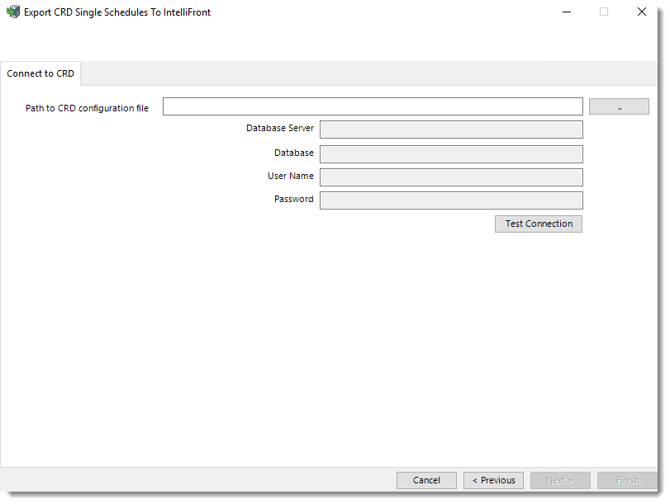
- Use (...) button to enter the path to CRD configuration file.
- Click Test Connection.
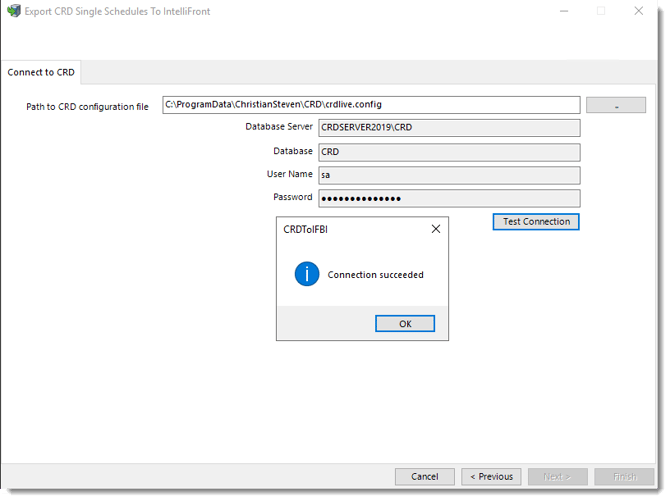
- Click OK.
- Click Next.
Connect to IntelliFront
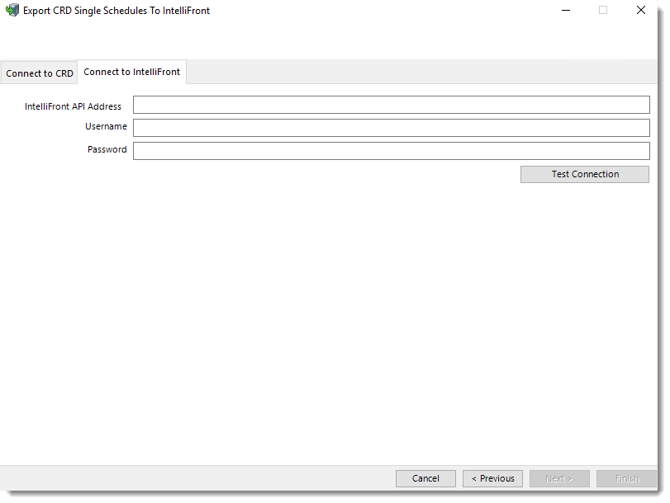
- Enter your IntelliFront API Address.
Use the API URL confirmed by your administrator, including its protocol, server name or IP address, configured port and any IIS application path. IFBI installs both its web application and API in IIS. The web application normally uses HTTPS on port 443; the API normally uses port 50255. Enter the API address here, rather than the web application address.
For an API configured for HTTPS, an example is https://bi.example.com:50255. Use the protocol and port configured for your API. See Connect to your IntelliFront installation for further connection guidance.
- Enter your admin username.
- Enter your admin password.
- Click Test Connection.
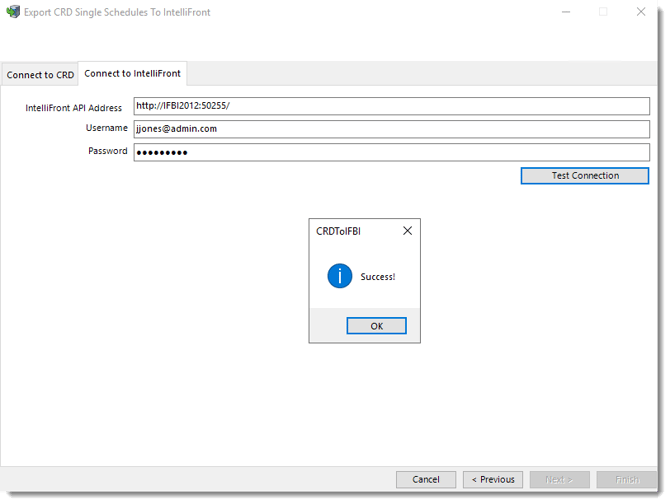
- Click OK.
- Click Next.
Select IntelliFront Accounts
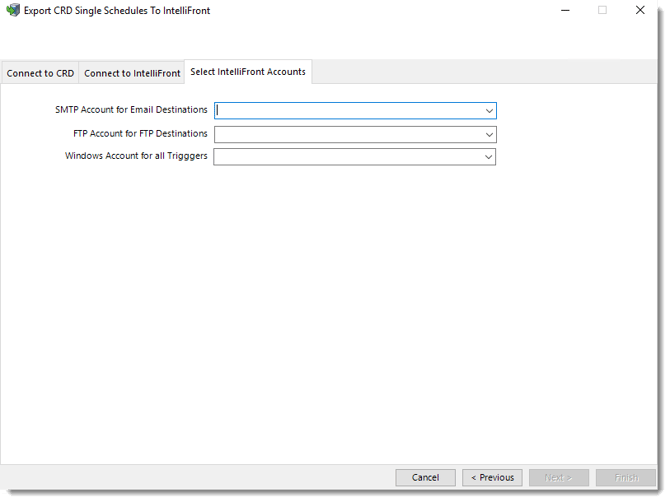
- Use the drop-down menu to select an SMTP Account for Email Destination.
- Use the drop-down menu to select an FTP account for FTP Destination.
- Use the drop-down menu to select your windows account.
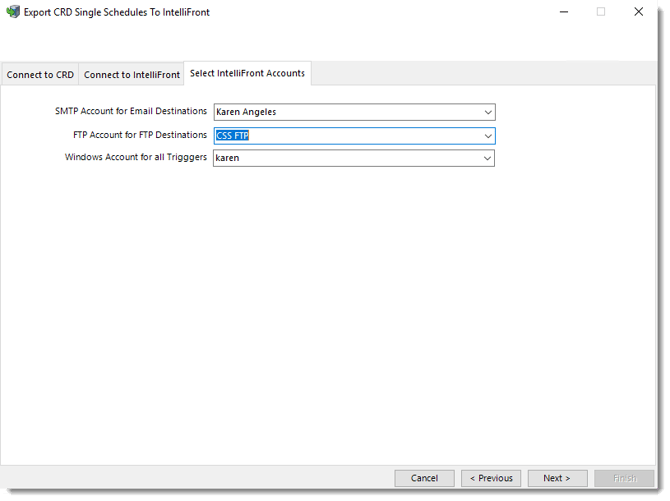
- Click Next.
Begin Schedule Import
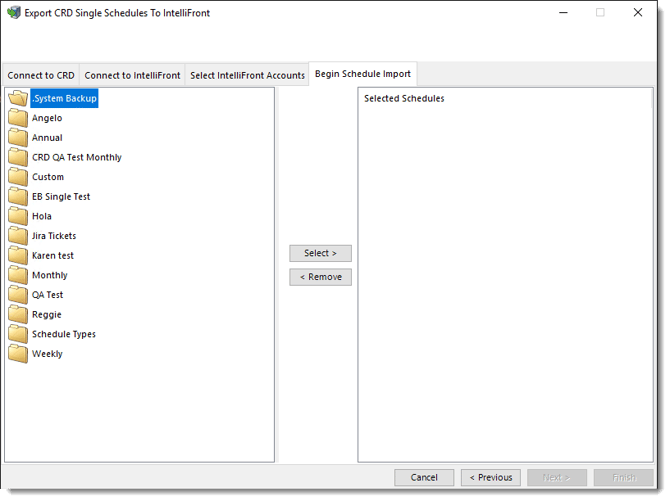
- Double-click the CRD folder and select the Single Schedule to import to IntelliFront BI.
- Click Select.
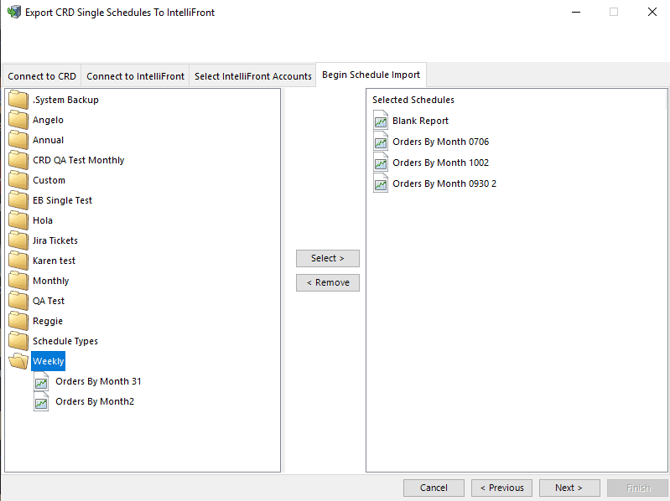
- Once you finish selecting your Single Schedule to import, click Next.
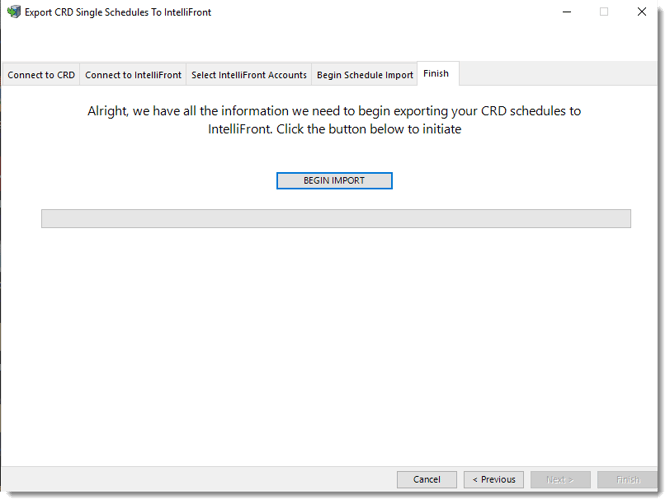
- Click Begin Import.
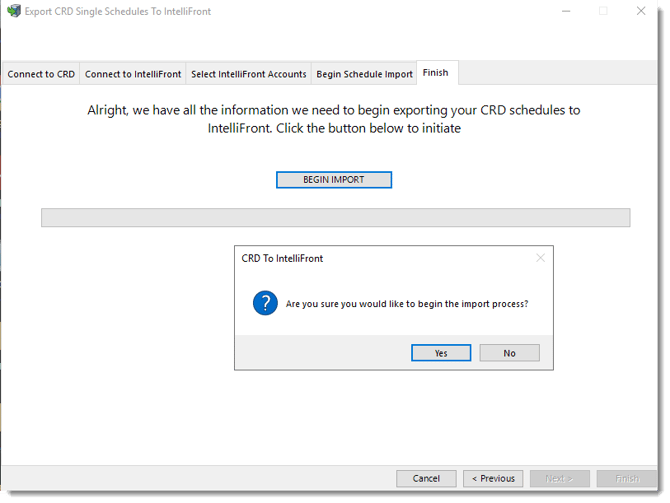
- Click Yes.
- Schedules will begin to import.
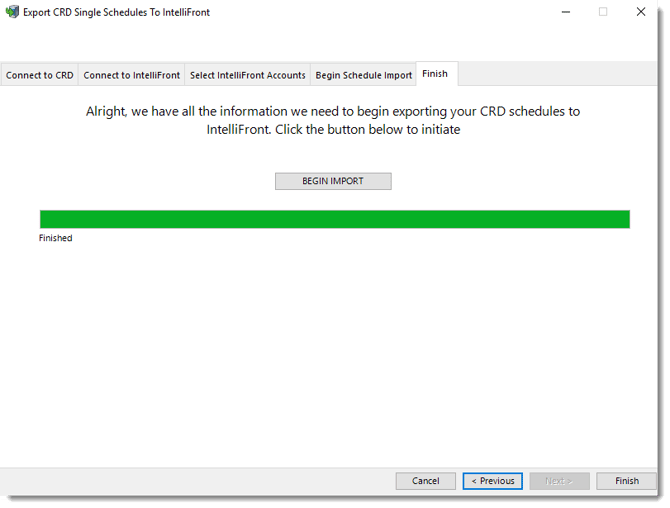
- Schedules got imported successfully.
- Click Finish.