![CSS-CMYK-logo-2015-2.png]](https://go.christiansteven.com/hs-fs/hubfs/social-suggested-images/CSS-CMYK-logo-2015-2.png?height=40&name=CSS-CMYK-logo-2015-2.png)
Before You Begin
Before using the System Monitor:
- Make sure PBRS is running and you have access to the System Monitor.
- Your PBRS user permissions may determine which System Monitor views and functions are available.
- If you are investigating a specific schedule, note the schedule name and approximate execution time to make it easier to locate the relevant activity.
- If you are troubleshooting an error, record the error message or time the issue occurred before reviewing the System Monitor.
Tip: When investigating an issue, knowing approximately when the schedule executed can make it easier to locate the relevant history, email, retry, or error records.
Open the System Monitor
- Open PBRS.
- From the PBRS main menu, select System Monitor.
- The System Monitor opens and provides access to the available monitoring and administrative views.
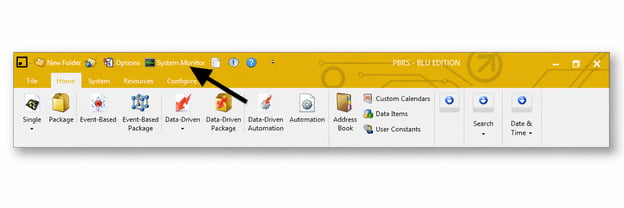
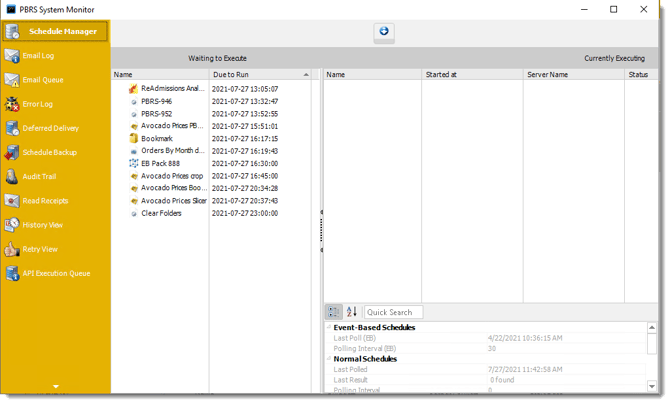
The System Monitor provides centralized access to PBRS operational activity, queues, logs, execution history, and administrative tools. Available information may depend on the current PBRS configuration and the user’s permissions.
Use the API Execution Queue to inspect executions submitted through the API. Use the other System Monitor views to examine wider scheduler, service, and system activity.
The PBRS System Monitor contains several monitoring and administrative tools. For detailed instructions on each area, see the following articles: