

How Can I Automatically Save Crystal Reports to Network Folders or SharePoint?
Use a reporting workflow that exports the Crystal Report and writes it to an authorized network folder or SharePoint library. The unattended account needs access to the chosen destination.
CRD can maintain those destinations and filenames with the reporting job, reducing repeated downloads and uploads.
The shared reportPut the review pack where colleagues already look
The shared report
Put the review pack where colleagues already look
Imagine a project coordinator downloading the weekly progress report and uploading it to a SharePoint library before every review. The report is finished, but the meeting still depends on that last upload.
Automated delivery should preserve the place colleagues recognize. Identify the actual library or shared folder, who can open it and whether the new file replaces the previous one or becomes another dated copy.
For this example, the project manager wants Friday’s PDF in the review library. A successful export on the reporting server does not complete that handoff.
Start at the receiving end
Ask the project manager to show you the folder or library they use. A similar-looking location can belong to a different audience.
Your options
Save Crystal Reports to SharePoint for the weekly review
SAP Crystal Server supports configured file-system destinations, which may cover an existing shared-folder requirement. A maintained script can export and copy files, provided its owner manages access and failures.
CRD offers Disk and SharePoint destinations. A SharePoint URL is not interchangeable with a Windows network path; it requires the appropriate connection and library permissions.
The SharePoint destination guide documents connection choices, library selection, inserted folder values and metadata. Verify the authentication route against the current CRD build and your Microsoft 365 configuration.
Keep publishing rights narrow
The reporting identity needs the intended delivery access. Review the library audience separately from the account that uploads the file.
Set it up
Deliver the weekly PDF to the review location
Configure the progress report and reporting period, then add the required destination. For a network folder, use an accessible path and confirm both share and file-system permissions for the execution account.
For SharePoint, configure the documented account connection, connect to the site and select the intended library and folder. Choose PDF, then give the file a name that identifies its project and period.
Use a controlled destination for the first run. Open the file from the actual receiving location, check its content, then have an authorized reader confirm they can find and open it. An upload account’s access does not establish a colleague’s access.
Run the next cycle and a same-period rerun. Verify the intended naming and replacement behavior so Friday’s upload does not unexpectedly erase the copy used in last week’s meeting.
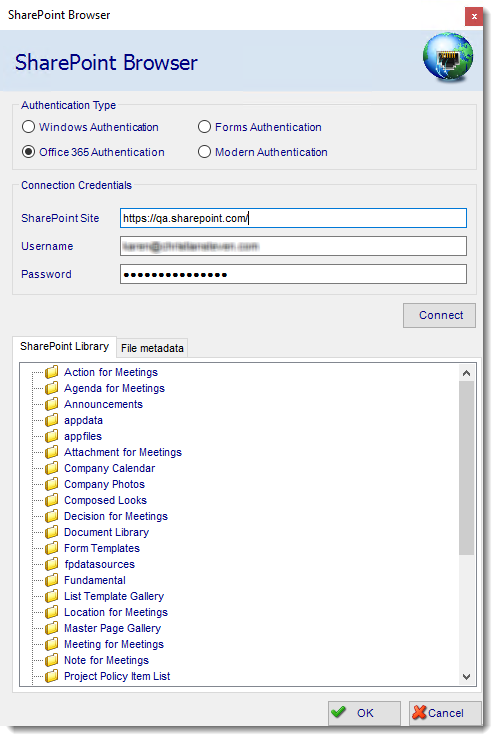
CRD documentation example. Use the report and destination settings for your own job.
Try an unattended run
A mapped drive visible on your desktop may not exist for the scheduling identity. Test with the account that will perform the recurring delivery.
Keep it dependable
Make delivery changes without losing the project history
When a project moves to another library, update the destination deliberately and verify the next output. Colleagues should not have to search two locations to discover which copy is current.
If an application requests the report, it can start the saved CRD job while the reporting owner maintains the destination.
Technical reference: paths, authentication and partial results
Validate current SharePoint authentication and consent requirements with your administrator. Do not assume a legacy app-secret example is the right route for a new Microsoft 365 configuration.
Retain the project, period, execution reference and final destination internally. If one of several destinations fails, investigate partial success before rerunning the whole job. A dated filename is useful organization, not immutable archival storage.
Check the reader’s copy
Open the uploaded file through the library colleagues use. A cached local copy can conceal a failed upload.
Your next step
Let the meeting begin with the report in place
The project manager finds Friday’s PDF in the review library without asking whether you have uploaded it. The delivery routine has become part of the report’s recurring job.
