

Power BI Excel Automation
Automate Power BI Data Exports to Excel

Automatically turn Power BI visuals and paginated reports into data-only, formatted or template-based Excel workbooks, then deliver every finished file to the right recipient and destination.
Export up to 30,000 rows of summarized or underlying data from Power BI visuals
Export up to 1,048,576 rows per worksheet from paginated reports into data-only or formatted Excel workbooks
Populate existing Excel templates with scheduled Power BI data
Export multiple visuals or multiple reports into one Excel workbook, with each visual or report placed on its own worksheet tab
The Excel Export Challenge
Why Recurring Power BI Excel Delivery Gets Complicated
Creating an Excel file is only the beginning. Reliable Power BI automation must repeatedly apply the correct data, workbook structure, formatting, security and delivery instructions for every report and recipient.
01
A Visual Export Is Not a Complete Workbook
Native Power BI can manually export summarized or underlying data from one visual. Reporting teams may instead need data from several visuals organized into one structured, multi-tab workbook.
02
Different Users Need Different Excel Outputs
Analysts may need clean data-only spreadsheets, managers may need formatted workbooks, and finance or operations teams may require data inserted into an established Excel template.
03
Paginated Reports and Recurring Delivery Add Complexity
Large paginated-report exports, formatted Excel output, recipient-specific data, password protection and automated delivery require considerably more control.
04
Multiple Reports May Need to Become One Workbook
Finance packs, board reports and customer deliverables may require several Power BI, Power BI Paginated, Power BI Report Server or SSRS reports to be generated, ordered and combined into one Excel workbook, with each report placed on its own worksheet tab.

The real requirement is not simply exporting to Excel. It is repeatedly producing the right workbook—with the correct data, structure, protection and destination.
Choosing the Right Approach
Native Power BI, Power Automate or PBRS?
Each approach can support Excel reporting, but they solve different levels of export automation, workbook construction, personalization and delivery complexity.
Best for Ad Hoc Exports
Native Power BI
A practical choice when an individual user occasionally needs data from a Power BI visual for further analysis.
Manually export summarized or underlying data from an individual visual
Useful for occasional, user-initiated analysis
Availability and export limits depend on report settings, permissions and the data model
Does not automatically assemble recurring visual exports into structured workbooks
Best for Microsoft-Centric Flows
Power Automate
Power Automate is suitable for organizations prepared to construct and maintain Microsoft-based workflows using the required actions, connectors and capacity.
Can export paginated reports to Excel in supported, licensed environments
Custom flows can query datasets and construct spreadsheet workflows using additional actions
The standard export action for regular Power BI reports does not provide XLSX output
Complexity increases with licensing, connectors, workbook logic, exception handling and maintenance
Best for Managed Automation
PBRS
Built for recurring, centrally managed Power BI reporting workflows that must produce the right workbook for every recipient.
Automate summarized or underlying data exports from Power BI visuals
Create data-only, formatted or template-based Excel workbooks
Place multiple visuals or paginated reports on separate workbook tabs
Personalize filters, filenames, passwords, recipients and destinations using data-driven rules
Before selecting an approach, confirm that its licensing, capacity, export frequency, execution time and maintenance requirements fit the workload. Requirements vary according to report type, data source, authentication and deployment configuration.
Power BI Visual Data
Export the Data Behind Power BI Visuals
PBRS can automatically extract summarized or underlying data from selected Power BI visuals and turn it into an organized Excel workbook—without requiring someone to open the report and export each visual manually.
Export Summarized or Underlying Data
Export up to 30,000 rows of summarized or underlying data from Power BI visuals, subject to the report, data model and applicable Power BI limitations.
Include the Details People Need
Add row and column totals—or calculate totals only for specified rows and columns. You can also control column headings, data types and Excel formats in the completed spreadsheet.
Export Multiple Visuals into One Workbook
Export data from multiple selected visuals into one worksheet or place each visual’s data on a separately named workbook tab.
Schedule the Entire Export Workflow
Generate and deliver the finished workbook on a recurring schedule or automatically when a qualifying business event occurs.
PBRS turns data from selected Power BI visuals into a repeatable Excel workflow—without manually exporting each visual every time.

Flexible Excel Outputs
Create the Excel Workbook Your Recipients Need
Deliver Power BI data in an Excel format that is ready for its intended purpose. PBRS can create clean data-only files, organize and format workbook content or populate an established Excel template automatically.
Produce Data-Only Workbooks
Create clean Excel files for further analysis, reconciliation, financial modeling or import into another business system.
Build Formatted Workbooks
Control column headings, data types and Excel number formats. Independently style headers, row totals, column totals, odd rows and even rows using bold text, font colors and background colors. PBRS styles can also be exported and reused to maintain consistent formatting across recurring workbooks.
Populate Existing Excel Templates
Insert Power BI data into a designated worksheet and starting cell—or place it in the next available position—inside a pre-existing Excel template.
Preserve a Consistent Workbook Structure
Reuse the same workbook layout on every scheduled run while PBRS replaces or adds the latest Power BI data.
PBRS can populate an established Excel template automatically, allowing teams to preserve familiar workbook structures while eliminating repetitive copying and pasting.

Paginated Reports to Excel
Turn Paginated Reports into Excel Workbooks
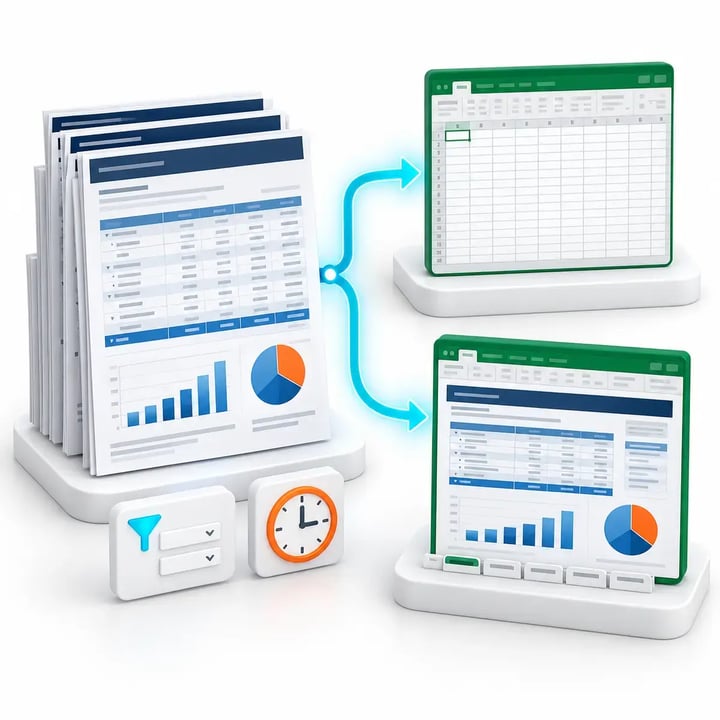
Automate Excel exports from Power BI paginated reports and SSRS reports. PBRS can produce clean data for further analysis or preserve the report’s designed layout in a formatted spreadsheet.
Export Large Paginated Report Datasets
Export up to Excel’s limit of 1,048,576 rows per worksheet, allowing recipients to work with substantially larger datasets than a standard Power BI visual export.
Choose Data-Only or Formatted Excel
Create an analysis-ready data-only spreadsheet or retain the report’s tables, grouping, headers and supported layout in a formatted workbook. For supported paginated and SSRS exports, you can export all pages or select a specific page range. Modern .xlsx output is supported, with legacy .xls available for applicable on-premises paginated reports and SSRS workflows.
Build Standard Multi-Report Excel Packages
Use a PBRS package schedule to generate multiple Power BI, Power BI Paginated, Power BI Report Server or SSRS reports from one workflow and combine the completed Excel outputs into one workbook. Place each report on its own worksheet tab, assign static or data-driven worksheet names and apply password protection to the completed workbook.
Automate Parameters, Generation and Delivery
Apply static or data-driven report parameters, generate the required workbook and deliver it automatically on a recurring schedule or qualifying business event.
PBRS supports both analysis-ready data exports and formatted paginated-report output, allowing the same automation platform to serve different Excel use cases.
Scheduled Excel Automation
Generate Excel Workbooks When Reporting Needs to Happen
Run Power BI Excel exports on recurring schedules, organization-specific calendars or automatically when a qualifying business event occurs. PBRS operates as a Windows service, keeping reporting workflows running unattended.
Run Excel Exports on Precise Schedules
Generate workbooks hourly, daily, weekly or monthly—or use business days, custom calendars, exceptions and blackout periods.
Respond Automatically to Business Events
Trigger an Excel workflow when a database record changes, a file is created or modified, an unread email arrives or data is received on a monitored port.
Combine Timing with Workflow Rules
Use schedule or event conditions together with report filters, parameters, workbook settings, security, recipients and delivery destinations.
Keep Workflows Running Unattended
PBRS runs as a Windows service, allowing scheduled jobs and event-driven workflows to execute without someone opening Power BI or manually starting an export.
PBRS can create and deliver Power BI Excel workbooks at the required time—or automatically when the underlying business process signals that the report is needed.
Data-Driven Excel Packages
Create a Different Excel Report Package for Every Recipient
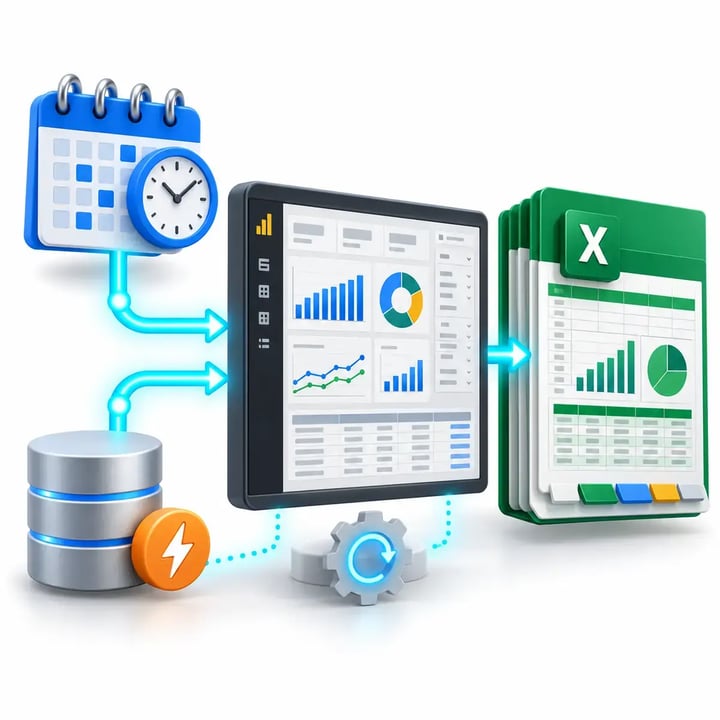
Use database or JSON data to determine the reports, visuals, filters, parameters, worksheet tabs, filenames, passwords, recipients and destinations required for each Excel package. PBRS then generates, assembles and delivers every recipient-specific workbook automatically.
Select Reports and Visuals Dynamically
Use database or JSON values to determine which Power BI, Power BI Paginated, Power BI Report Server or SSRS reports and visuals should be included in each recipient’s Excel package.
Apply Recipient-Specific Filters and Parameters
Generate a different view of each report for every customer, department, location, account or business unit using the required Power BI filters or report parameters.
Personalize Every Workbook and Delivery Detail
Control the workbook content, worksheet names, filename, password, recipient, message and delivery destination required for each personalized package.
Assemble and Deliver Each Package Automatically
Generate the required reports, combine the completed outputs into one organized Excel workbook and deliver the finished package by email, cloud storage, collaboration platform or secure folder.
One PBRS data-driven package can generate, assemble and deliver a different Excel workbook for every recipient from one centrally managed workflow.

Excel Workbook Security
Protect Every Excel Workbook Before Delivery
Protect sensitive financial, operational, HR, customer and management information before it leaves the reporting workflow. PBRS can password-protect Excel workbooks automatically and apply different passwords for individual recipients.
Password-Protect Excel Workbooks
Apply password protection to the completed Excel file before it is sent by email, uploaded to cloud storage or placed in another delivery destination.
Assign Data-Driven Passwords
Retrieve password values from a database or another data source so each recipient’s workbook can be protected with a different password.
Combine Security with Personalization
Apply the required report filters or parameters, workbook content, filename, recipient, destination and password within the same data-driven workflow.
Protect Combined Excel Workbooks
Apply password protection to a merged workbook containing outputs from multiple reports or report schedules.
PBRS can apply a unique, data-driven password to each personalized Excel workbook before automatically delivering it to the intended recipient.

Automated Excel Distribution
Deliver Every Workbook to the Right Destination
Complete the reporting workflow by delivering every generated Excel workbook to the people and locations that need it. PBRS supports email, collaboration platforms, cloud storage, secure file transfer and internal folders.
Send Workbooks by Email
Attach the completed workbook to an email and control the recipients, subject, message content, sender details and filename for each delivery.
Publish to Collaboration and Cloud Platforms
Distribute Excel files through Microsoft Teams or Slack, or deliver them to SharePoint, OneDrive, Google Drive and Dropbox.
Use Secure and Internal Destinations
Transfer workbooks through FTP or SFTP, or place them in local and network folders for internal processes and downstream systems.
Encrypt or Defer Excel Deliveries
Package a completed workbook in an encrypted, password-protected ZIP file. PBRS can also generate the workbook at its scheduled time and defer delivery until a specified later time.
Set Delivery Instructions Dynamically
Use workflow data to select a different recipient, destination, folder path or filename for every generated workbook.
PBRS generates, personalizes, protects and delivers each Excel workbook as one centrally managed reporting workflow.

Reliable Report Operations
Keep Recurring Excel Delivery Running Reliably
Generating the workbook is only part of the requirement. PBRS provides the execution history, monitoring and failure-management controls needed to operate recurring Power BI reporting workflows.
Unattended Windows Service
Run schedules continuously without requiring a user to remain signed in or manually start each Power BI export.
Execution History and Auditability
Review what ran, when it ran and whether it completed successfully, creating a clearer operational record of recurring report activity.
Failure Handling and Recovery
Configure notifications and recovery actions when a report, workbook export or delivery does not complete successfully.
Centralized Schedule Management
Manage schedules, report settings, credentials, recipients, destinations and delivery rules from one controlled environment.
PBRS gives reporting and IT teams visibility into recurring Excel workflows instead of leaving critical delivery processes dependent on manual checks.
Power BI to Excel Use Cases
Automate the Excel Workflows Your Teams Already Depend On
PBRS is designed for recurring Excel reporting processes where different users need specific data, workbook structures, security settings and delivery instructions.
01
Finance and Management Reporting
Deliver recurring budget, revenue, variance, forecasting and management workbooks using consistent formats or established Excel templates.
02
Customer and Partner Reporting
Generate separate, filtered workbooks for external recipients with individualized filenames, passwords and delivery destinations.
03
Multi-Location Operations
Create location-specific workbooks for branches, facilities, franchises or regional teams from one centrally managed workflow.
04
Detailed Data Extraction
Export summarized or underlying data from Power BI visuals—or larger datasets from paginated reports—for reconciliation, modeling and analysis.
05
Multi-Report Excel Packages
Use standard or data-driven package schedules to generate multiple Power BI, Power BI Paginated, Power BI Report Server or SSRS reports and combine the completed Excel outputs into one workbook with clearly organized worksheet tabs.
06
Downstream Business Processes
Produce predictable Excel files for import, reconciliation, archiving or continued use by other teams, applications and business processes.
PBRS is most valuable when Excel reporting must be repeated reliably across many reports, recipients, business units or delivery destinations.
Platform Compatibility
Confirm That PBRS Fits Your Power BI Environment
PBRS supports several Microsoft reporting environments, but the appropriate configuration depends on the report type, authentication method, licensing and deployment requirements.
Reporting Platforms
Supported Reporting Environments
Power BI Service reports and dashboards
Power BI paginated reports
Power BI Report Server
SQL Server Reporting Services
Power BI Service deployments using Pro or Premium Per User licensing, subject to the selected workflow and Microsoft requirements
Technical Fit
Deployment Considerations
PBRS is installed in a Windows environment and executes schedules through its Windows service.
The PBRS environment must be able to reach the required reports, data sources and delivery destinations.
Configured credentials and permissions must provide access to the reports and data required by each workflow.
Available export methods and limits vary according to the report type and Power BI configuration.
Authentication, network access and destination requirements should be confirmed before production deployment.
ChristianSteven can review your report types, Power BI environment, export requirements and delivery workflow before deployment.
Trusted Report Automation for More Than 20 Years
ChristianSteven Software has helped organizations around the world automate business intelligence reporting and dependable report delivery for more than two decades.
20+
Years of reporting automation experience
Nearly 5,000
Organizations helped worldwide
47
Countries with customer organizations
SOC 2
Security and operational controls
Questions About Automating Power BI Excel Exports
Answers to common questions about exporting, formatting, personalizing, protecting and delivering Power BI data as Excel workbooks with PBRS.
Yes. PBRS can export summarized or underlying data from selected Power BI visuals. You can control column headings, data types and Excel formats, add row and column totals, or calculate totals only for specified rows and columns where supported. Multiple visual-data exports can be placed in one worksheet or organized on separate worksheet tabs.
PBRS can export up to 30,000 rows of summarized or underlying data from a Power BI visual. DirectQuery exports may also be constrained by Power BI’s 16 MB uncompressed data limit. These visual-export limits do not apply to paginated reports.
Yes. PBRS can automatically export Power BI paginated reports and SSRS reports to data-only or formatted Excel workbooks. A worksheet can contain up to Excel’s limit of 1,048,576 rows, subject to the report design, available resources and Excel’s technical limitations. For supported exports, PBRS can process all pages or a specified page range. Modern .xlsx output is supported, with legacy .xls available for applicable on-premises paginated-report and SSRS workflows.
Yes. PBRS can create data-only spreadsheets for analysis, reconciliation or import into another system. It can also produce formatted workbooks with controlled column headings, data types, Excel number formats, row and column totals, and separate styling for headers, totals, odd rows and even rows. Formatting configurations can be exported and reused to maintain consistent styling across recurring workbook deliveries.
Yes. PBRS can insert exported Power BI data into a pre-existing Excel template. You can select the target worksheet and starting cell or place the data at the next available position, helping preserve an established workbook structure.
Yes. PBRS can create filenames using static text or data-driven values, append a date and time, adjust the filename’s date stamp by a specified number of days and customize the output extension. It can also set or update workbook properties including the title, author, company, subject, creation date and keywords or comments.
Yes. PBRS can place data from multiple selected Power BI visuals into one worksheet or organize each visual on a separate worksheet tab. Standard package schedules can also generate multiple Power BI, Power BI Paginated, Power BI Report Server or SSRS reports and combine the completed Excel outputs into one workbook. Data-driven packages can determine the included reports, filters, parameters, worksheet names, passwords, recipients and delivery destinations separately for every generated workbook.
Yes. PBRS can use data-driven filters, parameters and distribution rules to create a different Excel workbook for each customer, department, location, account or recipient. Workbook content, filenames, recipients and destinations can all be personalized.
Yes. PBRS can apply password protection to an Excel workbook automatically before it is delivered. Password protection can also be applied to a combined workbook containing outputs from multiple reports.
Yes. PBRS can retrieve password values from a database or another data source at runtime. This allows each recipient’s personalized workbook to be protected with a different password as part of the same automated workflow.
PBRS can deliver Excel workbooks by email or through destinations including Microsoft Teams, Slack, SharePoint, OneDrive, Google Drive, Dropbox, FTP, SFTP, and local or network folders. Available destinations depend on the configured environment and workflow.
Yes. PBRS can compress a completed Excel workbook into a ZIP file and apply ZIP encryption and password protection before distribution. It can also generate the workbook at its scheduled time and defer delivery for a specified number of hours. These controls can be combined with email, cloud, file-transfer and folder destinations supported by the configured workflow.
Yes. PBRS can run exports hourly, daily, weekly, monthly, on business days or according to custom calendars. Workflows can also be triggered when database records change, files appear or are modified, unread emails arrive, or data is received on a monitored port.
Native Power BI is useful when a user occasionally needs to export data manually from an individual visual. PBRS is designed for recurring, unattended workflows that may require multiple visual exports, structured workbooks, templates, recipient-specific data, passwords and automated delivery.
Power Automate can support Excel-related workflows, including paginated-report exports in supported licensed environments and custom flows that query data or build spreadsheets. PBRS provides purpose-built scheduling, workbook construction, data-driven personalization, security, delivery, monitoring and failure-handling capabilities in one centrally managed application.
PBRS supports Power BI Service reports and dashboards, Power BI paginated reports, Power BI Report Server and SQL Server Reporting Services. It can support Power BI Service environments using Pro or Premium Per User licensing, subject to the report type, authentication method and Microsoft requirements.
PBRS is installed within your organization’s Windows environment and runs schedules through its Windows service. Your reports, datasets and exported files remain under your organization’s control; ChristianSteven does not store them in a ChristianSteven cloud reporting service.
Start Automating Power BI to Excel
Ready to Automate Your Power BI Excel Workflows?

Start with a free 30-day trial, or book a demonstration to see how PBRS can automate Power BI data extraction, workbook creation, personalization, protection and delivery.
Free 30-day trial with no credit card required
Deploy PBRS within your own environment
Recipients of exported workbooks do not need Power BI access