POWER BI QUESTIONS

How Do You Schedule Power BI Reports by Email?

You can schedule report emails with a Power BI subscription. For recurring files, customer-specific reports or a monthly report pack, PBRS, ChristianSteven’s report scheduling software, can manage the preparation and delivery together.

Supported Power BI Pro and Premium Per User (PPU) workflows can use PBRS without adding capacity, which supplies computing resources for a workspace.

  
THE DIRECT ANSWER

How to Schedule Power BI Reports by Email

To schedule a Power BI report email, open the report in the Power BI service and select Subscribe. Choose the recipients, frequency and time, then save the subscription. Your administrator must have enabled subscriptions, and your account and workspace must meet the requirements.

A subscription is a good fit when your colleagues need a regular report-page preview and link. If you also prepare files, choose a different view for each customer or assemble several reports, PBRS can take over that recurring work. You configure the report, output and delivery in one schedule.

Start with what should arrive in the inbox

Imagine a distributor who needs yesterday’s sales figures each morning. A PDF lets the partner read and keep the report without signing in to Power BI. In PBRS, you can select the report pages, apply the date filter and email that file on a schedule. Go to the PBRS setup to follow this example, or continue below for the native subscription steps.

For a subscription to your own inbox, you need access to the report and either a Pro or PPU license, or access to a paid Premium-capacity workspace. To subscribe other people, you also need Pro or PPU, a Contributor, Member or Admin workspace role, and membership in the organization. Guest users cannot subscribe others. Microsoft’s subscription guide explains these requirements.

Set up the native subscription

  1. Open the report and select Subscribe > Create a subscription. Give it a name you’ll recognize later.
  2. Add eligible recipients. Choose the frequency, time zone and delivery time, and review the start and end dates.
  3. Select the preview, report link and any eligible attachment. Add a subject and message that tell the reader what has arrived.
  4. Save, then select Run now to check the email. This sends the current report; it doesn’t update its underlying data.

A full PDF or PowerPoint attachment requires a Premium-capacity or PPU workspace for a standard Power BI report. An email and an interactive report also have different access requirements. If you have sufficient permissions, the subscription can grant viewing access, but the recipient still needs the appropriate license.

If you prefer to build the process yourself, Power Automate can export and email a report through a flow. Its standard-report Export to File for Power BI Reports action requires capacity; PPU alone doesn’t qualify. Microsoft’s flow walkthrough describes that route. PBRS offers supported Pro and PPU file-delivery workflows using other rendering methods, as explained in the PBRS licensing guidance.

Choose the output your reader needs

A quick update: Use a report-page preview when the reader needs to glance at the figures inside the email.

An interactive report: Include a link when the reader needs to explore Power BI. Check their report access and license.

A document to keep: Choose PDF when the reader needs a file they can save or share through an approved process.

Rows to work with: Choose an available Excel or CSV visual-data export for further analysis. It contains exported data rather than a spreadsheet copy of the full report layout.

  
REQUIREMENTS AND LIMITATIONS

Compare Native Email Delivery with PBRS

The partner PDF changes the question from “When should the email go out?” to “Who prepares the file each morning?” PBRS can generate and send it from one schedule. When the requirement grows, that schedule can also handle the recipient’s report view or a collection of reports.

The comparison below covers standard Power BI reports in the Power BI service. Paginated reports, which are designed for page-based documents, have different subscription and export options.

Pro and Premium Per User (PPU) are licenses for individual users. Capacity provides computing resources for a workspace. A user license and capacity are different purchases.

What you need Native Power BI or a flow How PBRS handles the job
A full-report attachment PDF or PowerPoint needs Premium capacity or PPU. Microsoft’s setup guidance specifies no more than 20 pages and less than 25 MB. Generate a PDF on a supported Pro or PPU setup without adding capacity. This alternative route has its own report and mail limits, rather than native subscription attachment limits.
Files for outside partners External subscriptions need paid non-PPU capacity. PPU and trial-capacity workspaces don’t support them. Email the generated files to approved partners, who can read them without Power BI access.
A different view for each store Dynamic subscriptions apply recipient-specific filters. They require Premium or Fabric capacity and a separate model containing recipient instructions. Read each store’s filter, format, filename and message from your data. Supported workflows can run without capacity.
Excel or CSV by email Standard full-report subscriptions offer PDF or PowerPoint. Paginated reports have other output options. Schedule available summary or underlying visual-data exports. Export permissions and data limits still apply.
Several reports in one email Standard subscriptions don’t assemble report packs. A flow or code can add a packaging process. Deliver separate attachments, a ZIP, an ordered PDF with bookmarks or an Excel workbook with separate tabs.
Delivery after fresh data After-refresh subscriptions send after the first scheduled refresh of the day, rather than every refresh. Microsoft measures that day in UTC (Coordinated Universal Time). Refresh before generating the file. Enable refresh-failure errors and notifications. Test that the workflow withholds delivery if the required refresh fails.
Business dates or events Subscriptions provide ordinary recurrence. Power Automate can add timing and event logic through a flow you maintain. Use custom calendars or supported database, file, email and system triggers in the reporting workflow.
Many delivery variations Standard subscriptions allow up to 24 per report or dashboard. Individual variations have separate settings to update. Maintain recipient instructions in the data used by a data-driven schedule, within your PBRS license and operating limits.
A report-export flow Power Automate’s standard-report Export to File action needs a capacity-backed workspace. PPU alone is insufficient. Use a supported Pro or PPU PBRS rendering route for file generation and delivery instead of that action.

For example, a store manager may need their own figures and a different filename from the finance team. Microsoft’s dynamic subscriptions can vary report filters. PBRS can use the same recipient record to choose those filters and the file and delivery details, so you maintain the instructions together.

See Microsoft’s dynamic subscription guide, the native subscription requirements, PBRS data-driven setup and package options for the routes in the table.

Your report account still needs access to the source, and refresh quotas and mail-provider limits remain. For Excel or CSV, check the PBRS visual-data restrictions for the chosen output. A partner can read a delivered file without a Power BI license; interactive report access is a separate choice.

Match the delivery to your environment

Account and workspace: Check both your license and workspace type. Pro, PPU and capacity-backed workspaces have different native subscription options.

The recipient’s view: Row-level security (RLS) controls which rows a user may see. A standard subscription’s static preview uses its owner’s data view; the recipient’s interactive RLS rules don’t automatically change that image.

File protection: Native sensitivity labels apply to attachments, not the message or preview. Configure the required protection separately for a PBRS file.

The size of the job: Check pages, exported rows, file sizes and recipient volume against your output method, PBRS license and email service.

Microsoft’s subscription and security guidance explains the native distinctions.

  
END-USER WORKFLOWS

Email the Right Report to Each Recipient

In our example, the distributor needs a sales PDF each morning. The reporting owner would otherwise open Power BI, choose yesterday’s figures, export the pages and send the file. With PBRS, those choices become a schedule you can reuse.

PBRS runs in your Windows environment. Before setting up the job, connect a Power BI account with access to the report and configure the sending account. The installation prerequisites and scheduling service guide cover deployment and unattended execution.

Build the daily partner email in PBRS

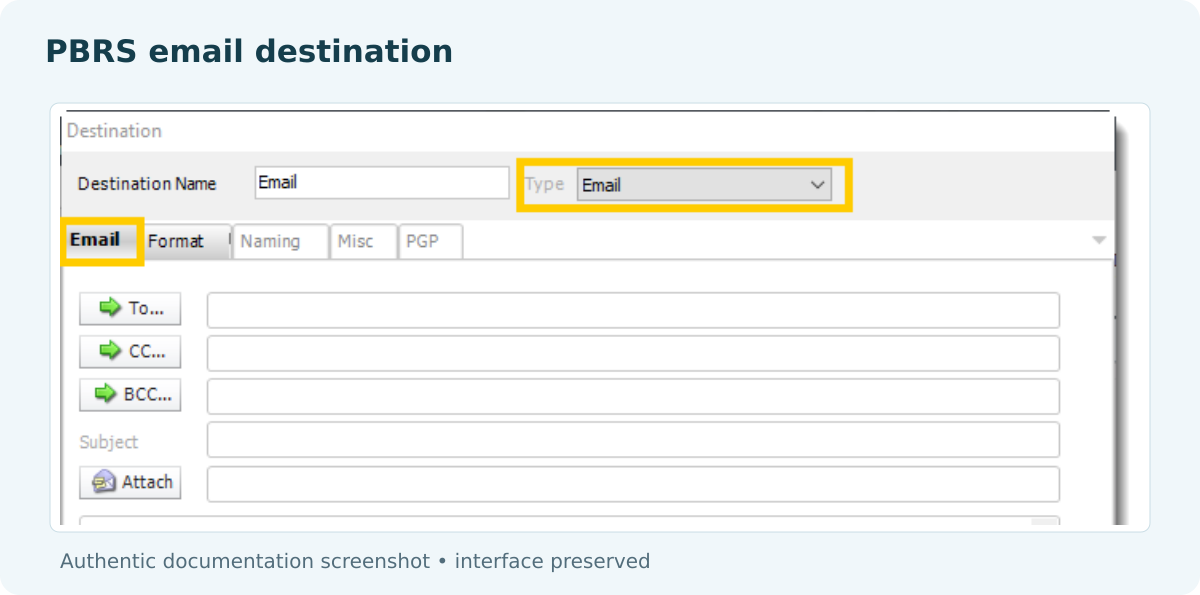
PBRS Email destination controls for To, CC, BCC, subject and attachments.

Documentation example: set the article’s recipient and PDF format in your own job.

  1. Choose the report. Create a Single Report Schedule for Power BI Service Reports & Dashboards. Select the account, workspace and sales report. Give the job a name such as “Daily partner sales”.
  2. Choose the partner’s view. Set the pages and filters for the approved partner and reporting date. Use a date filter that advances with each run, as described below. Preview the result so you can see the file you’re preparing.
  3. Prepare the attachment and message. Add an Email destination, enter the recipients and select PDF as its output format. Configure a recognizable filename, subject and message. PBRS attaches the generated report by default.
  4. Set the timing. Choose the daily run time and dates. If the file needs newly refreshed data, add the required data models (the data behind the report) to Refresh Datasets. Configure refresh-failure handling, retries and notifications before saving.
  5. Check a delivery. Keep automatic execution disabled while testing. Select Execute with approved test recipients, open the received PDF and compare its date and figures with the intended report. Enable the schedule once the output and delivery are correct.

The Single Report Schedule guide explains the wizard, and the Email destination guide covers the message and attachment settings.

Filters choose the report view; they are not a data-security boundary. Where partners must have access to different data, use the appropriate source permissions and configured RLS for your report and account. The Single Report Schedule guide explains that distinction. Check each partner’s output before enabling delivery.

Let the reporting date move with each run

For a sales field containing dates without a time, use PBRS’s Yesterday Insert as the filter value rather than selecting a fixed calendar date. An Insert supplies a value when the job runs, so the date advances automatically. If the field contains timestamps, use a matching start-and-end range for the reporting day. Confirm that the range matches your reporting time zone.

The report filter guide explains where to place an Insert. The PBRS Inserts guide lists Yesterday and other date values.

Use that reporting date in the filename and message too. For example, a run on 8 October could deliver PartnerSales-2026-10-07.pdf with the subject Sales report — 7 October 2026. A dated file is easier to recognize if it arrives late or is resent later.

The email can stay brief and courteous: “Hello, attached is your sales report for 7 October 2026. The summary is on the first page, followed by the detailed figures. Please let us know if you have any questions.” Configure the date in that message to update with the report, then check two consecutive daily outputs.

Wait for fresh data before sending

A later run time alone doesn’t tell you whether the data finished updating. PBRS can refresh the required data models before generating the report. Enable Raise an error if the dataset refresh fails and a failure notification for the reporting owner. Set the relevant wait interval and retry rules for your job.

Before enabling automatic delivery, test a failed refresh and confirm that the workflow withholds the email when fresh data is required. The refresh guide explains those settings.

Adapt the approach for stores and report packs

If each store needs its own sales figures, use a data-driven schedule: a schedule that reads who receives what from your data. Each store’s record can supply its filter, email address, format, filename and message. Updating that record updates the delivery instructions, rather than leaving you with separate settings for every store. This changes the report for each recipient; a time or event trigger decides when the job starts.

For a monthly management pack, add sales, inventory and finance reports to a package schedule. PBRS can send the files as separate attachments, a ZIP, a PDF with bookmarks or an Excel workbook with separate tabs. The same job prepares the collection and delivers it.

Follow the data-driven schedule guide or the data-driven package guide for the appropriate configuration. You can also explore personalized delivery and report packs.

Prepare for the requests that come later

Choose the required PDF password and encryption settings as part of the output. Configure what PBRS should do if a report has no data or an export fails. Retaining report outputs also lets you resend an earlier file when someone asks for the same figures again. The package and snapshot guide covers retained outputs, and PDF delivery and protection explains the wider workflow.

Make the first delivery a useful check

The right figures: For personalized delivery, compare two recipients’ files with their approved data. Confirm both the filter result and what each person is allowed to receive.

A usable file: Open the actual attachment. Check the pages or spreadsheet rows, layout and file size as the recipient will see them.

The right protection: Approve the destination and apply the required file protection. A downloaded file has its own protection settings, separate from interactive Power BI access.

A clear fallback: Decide what happens if refresh fails, no data is returned or delivery fails, and who gets the notification.

  
DEVELOPER AND API WORKFLOWS

Schedule Report Emails from Your Application

If you’re setting up delivery in PBRS itself, you can skip to your next step. This chapter is for developers who want an application to start or manage the reporting job.

A business application can ask PBRS to run the same reporting job. For example, a customer portal could send a month-end report after billing finishes. The application checks that the customer may receive it; PBRS then generates and delivers the configured file or package.

The PBRS REST API lets your backend manage schedules, report filters or paginated-report parameters, recipients and execution. Parameters are inputs such as customer and month. This route reuses the reporting setup instead of making each application feature assemble its own export and email process.

Follow the customer’s request

  1. Authorize it. Check the customer, permitted report, filters and email destination on your server.
  2. Prepare the job. Use an approved customer-specific schedule, or update it through the operation for that report source.
  3. Start it. Authenticate from the backend and submit the schedule when billing is complete.
  4. Record the outcome. Keep the execution identifier, check the result and confirm delivery to the intended destination.

Run an existing schedule

The following authenticated request starts schedule 101 without waiting for the whole job to finish. Use your own approved schedule ID and the authentication required by your installed API version.

POST /api/Schedule/ExecuteScheduleAsync
Content-Type: application/json

{
  "ScheduleType": "report",
  "uniqueid": 101,
  "RunBy": "API"
}

PBRS returns an ExecutionId, which identifies the submitted run. Use it to ask how that run is progressing:

GET /api/Schedule/GetExecutionStatus?ExecutionId=YOUR_EXECUTION_ID

Check Status, then parse ResultJson, which contains the execution result as JSON text. Completed means processing has finished; inspect the result for successful generation and delivery. Confirm receipt at the destination as well. The schedule lifecycle reference explains the response and status checks.

Keep updates safe for the next run

A full schedule update needs the complete intended definition. Preserve the filters, destinations and destination IDs you still need, then retrieve the schedule to check the saved changes. Use the operation for the report source and its current write schema; a read response may omit settings or mask credentials. The create and update guide covers those rules.

Keep credentials and access tokens on the backend. See the developer portal for authentication and version-specific schemas, and the PBRS Report Automation API overview for the application route.

Keep track of each application request

Approved access: Allow only the reports, filters and destinations the requesting customer is entitled to use.

Separate requests: Use customer-specific schedules or a designed data-driven workflow to prevent overlapping requests from overwriting each other.

A record you can follow: Store the application request ID with the PBRS execution ID and reporting outcome.

Careful retries: Limit how often and how long you poll for status. Check the existing execution before starting another run that could email the same report twice.

  
CHOOSE YOUR NEXT STEP

Why Choose PBRS for Report Emails?

Choose PBRS when you want the file preparation and email delivery managed as one recurring job. Set the instructions once, then reuse them for each scheduled delivery.

A native subscription remains a good choice for an eligible internal preview or attachment. A Power Automate flow can fit if you have the required capacity and want to maintain that process. PBRS is the direction to explore when the recurring work includes producing, personalizing, packaging or protecting the files as well as sending them.

Supported Pro and PPU workflows can use PBRS without adding capacity for those jobs. Confirm the report source, authentication, deployment and PBRS license for your chosen output; the source permissions, export rules and refresh limits still apply.

Start with one report you currently prepare by hand. Set up the partner PDF, check the received file and compare the ongoing work with your current routine. That gives you a practical basis for deciding whether to extend the schedule to more recipients or reports.

Explore PBRS report email automation to plan your first delivery. If the request starts in an application, explore the PBRS API route.

Technical sources reviewed: 8 October 2026.

Considering PBRS for scheduled report emails? Share the guide with your colleagues to review deployment, licensing, security and your delivery requirements.

Download the PBRS Internal Evaluation Guide

Contributors:

Christian Ofori-Boateng

Christian Ofori-Boateng

CEO, ChristianSteven Software