Password-Protected ZIP Files
Compress completed report exports into one archive and apply a password before attaching it.
Tableau Report Delivery

Automate Tableau report delivery with branded emails, personalized files and complete reporting packs. Set the recipients, formats and destinations in ATRS, then run the delivery job on your schedule.
Send an inline report with an attachment, or deliver several report exports in one email.
Deliver password-protected PDFs and Excel workbooks, plus ZIP- or PGP-protected report files, by email or to file destinations.
Use company-branded HTML messages, corporate mail accounts and data-driven delivery instructions.
Review each destination’s result and configure recovery or receipt follow-up.
The Reporting Challenge
A manual download can produce a file. A recurring delivery operation also needs the right recipients, message, filename, destination and a way to inspect what happened.
A hotel owner needs an occupancy snapshot with a PDF attachment. A vendor needs a correctly formatted CSV in its receiving folder. Each delivery serves a different job.
Maintain recipient addresses, filter values, filenames and destinations with the operation instead of rebuilding each delivery by hand.
Sending a file is one step. Teams also need destination results, a response to missing attachments and follow-up when an expected receipt does not arrive.
Choosing the Right Approach
Choose ATRS Tableau report automation when recurring delivery needs branded email, personalized files and reporting packs. Compare the required file formats, package preparation, mail settings and delivery controls for your reporting job.
| Reporting requirement | What alternatives document | Why choose ATRS |
|---|---|---|
| Native snapshots and changing recipients | Tableau subscriptions can send a PNG image, a PDF attachment, or both to permitted Tableau users. Newly added group members require subscription maintenance. | Use branded email, data-driven recipient instructions, additional file formats and delivery destinations. |
| Tableau data in an Excel template | InfoBurst’s documented Excel Template option is limited to Database Query items. | Populate your existing Excel template from Tableau data, with worksheet placement, totals and formatting. |
| Personalized delivery and follow-up | APOS PowerBurst documents personalized Tableau outputs, email-body delivery, monitoring, retries and receipt/viewing confirmation. | Choose ATRS for a configured reporting-pack workflow with ordered PDF or combined Excel outputs, file protection and Exchange receipt follow-up. |
| Branded emails and attachments | PushMetrics documents HTML email design, data-driven recipients and attachments, company-domain sending and secure download links for oversized attachments. | Choose ATRS when you need report exports prepared as a merged PDF, combined Excel workbook or protected ZIP and delivered through your configured mail account. |
Comparison sources: Tableau subscriptions · InfoBurst formats · APOS PowerBurst · PushMetrics email. Checked 12 October 2026.
A concrete ATRS fit: Your finance team needs Tableau data in its existing Excel template, an ordered PDF pack and a branded monthly email. Configure that recurring job together in ATRS.
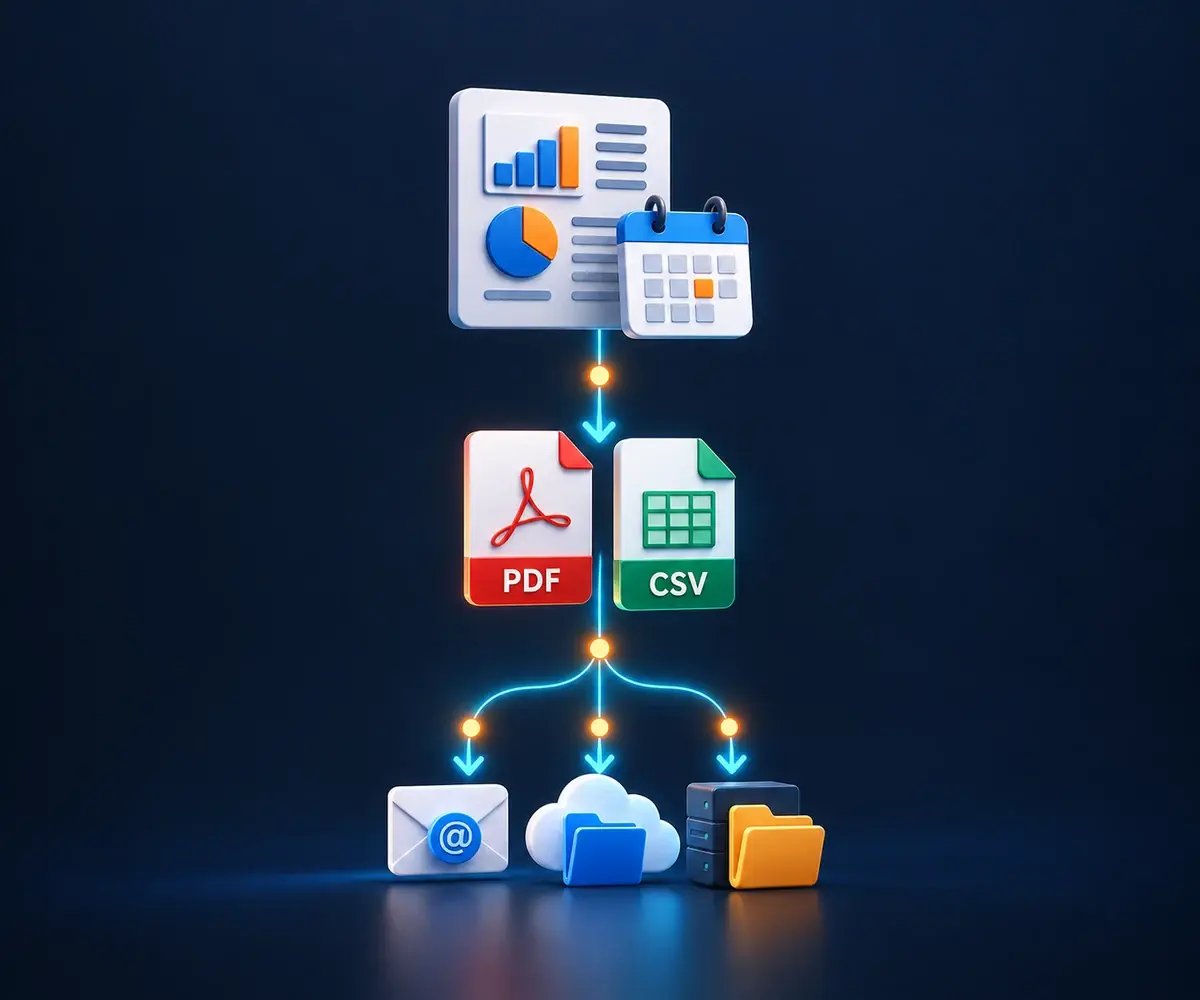
Configure recurring delivery in five steps: define when the operation runs, select the report, apply required parameter values, choose the file format and set the destination.
Choose a date/time schedule or a supported event condition. Review recurring dates and exceptions. For timing options, see the Tableau report scheduler software page.
Connect to Tableau and select the workbook or view for this reporting job.
Set filters and parameters directly, or obtain them from the data source used by the schedule.
Choose PDF, Excel, CSV, image, Word or PowerPoint output to match the file your recipient needs.
Set the email, folder, transfer or storage destination. Run one complete delivery before enabling the recurring job.
Design a useful message, include the report your recipient needs and send it through your company mail account. Keep the presentation and delivery instructions together in ATRS.
Use a single schedule to put the report in the email body and attach a PDF or another export for the recipient to keep.
Use HTML and CSS styling, company logos, images, links, tables and formatted instructions. Set consistent default typography for your report messages.
Connect SMTP or Office 365, choose the account and set message priority. Configure backup SMTP servers for an unavailable primary server.
Set To, CC and BCC, or populate recipients, subjects, messages and filenames from data. Route replies through a static or data-driven SMTP reply-to address.
Put several report exports in one email, or prepare a merged PDF, combined Excel workbook or protected ZIP for delivery.
With Exchange receipt settings, set a deadline and run a follow-up task once or repeatedly until a receipt arrives.
Deliver a usable file to the place your audience works. Set its format, name and destination to match the receiving team or business system.
Send an inline report with an attachment, or a message carrying several exports or a merged reporting pack.
Email Destination Guide →Set CSV separators, delimiters and header options for the vendor feed. Use a reporting-date filename, and select the FTP ASCII transfer-mode and upload-retry options when required.
FTP Destination Guide →Deliver recurring files to an Amazon S3 bucket and folder or an Azure storage destination. Keep the storage route with the report’s file and recipient instructions.
Amazon S3 Destination Guide →Route department files to local or network folders, Microsoft Teams or SharePoint. Configure SharePoint file metadata where the receiving workflow needs it.
Browse Destination Guides →Reporting Packs and Attachments
Bring the reports your recipient needs together in one delivery. Send separate exports in the same email, combine selected reports into an ordered PDF or Excel workbook, or prepare a protected ZIP.
Run multiple reports from one schedule and configure each report’s filters, parameters, format, filename and processing order independently.
Use a data source to personalize the configured reports, filters and delivery instructions for each recipient’s attachment-based pack.
Data-driven packages deliver attachments and cannot embed reports in the email body. Review data-driven package configuration.
Protected Report Delivery
Prepare and protect the finished files as part of the reporting job. Choose the controls that suit the PDF, workbook or archive your recipient needs.
Compress completed report exports into one archive and apply a password before attaching it.
Set a PDF password, permissions and a text or graphic watermark, such as a confidentiality stamp.
Apply workbook-password settings to the spreadsheet that forms part of your reporting pack.
Use the configured PGP workflow when the recipient’s file-delivery process requires encrypted output.
Choose follow-on tasks after successful report production or successful delivery to match the workflow. Give recipients the agreed instructions for opening protected outputs.
Static and Data-Driven Delivery
Use static instructions for a stable delivery job. When recipients or routing change regularly, maintain the supported instruction fields in a data-driven schedule.
Set the recipients, report values, format and destination directly in the schedule for a stable delivery job.
Read recipients, filters, parameters and formats from a maintained data source when the workflow runs.
Use data inserts for filenames, subjects, messages and destinations, keeping those instructions with the recipient’s reporting requirements.
Group data-driven packages by email address or mapped directory within the email/disk destination options.
Retail example: Keep each regional manager’s report filters, format, filename and address or folder mapping in the maintained instruction source. See data-driven schedule setup.
Review each destination’s result, keep the files needed for recovery and define the action for a delivery exception.
A run can succeed at one destination and fail at another. Expand its History View entry to identify the report or destination needing attention.
Review SMTP messages in ATRS Email Log and Exchange or Office 365 messages in the sending account’s Sent Items folder.
Set retained-output and housekeeping rules for recovery. Correct the failed destination and review successful deliveries before resending.
Use the email custom task’s missing-attachment control. Prepare merged or protected files before the sending task runs.
Illustrative Reporting Workflows
Use these reporting patterns to match a recipient, finished file and recurring delivery process.
Send the owner an occupancy snapshot in a branded email, attach the detailed PDF and include clear reporting-period instructions.
Send selected management reports in one email as an ordered PDF pack and protected Excel workbook. Populate the finance team’s existing Excel template with Tableau data.
Deliver a vendor CSV using its required separator, header convention and reporting-date filename. Configure the FTP destination and upload-failure handling.
Send a company-branded HTML email with client-specific instructions and protected attachments. Route replies to the servicing team through the SMTP reply-to settings.
Bring a representative report and the required finished file to your ATRS evaluation.
Start with the finished file and the team that needs it. Set up the mail or storage destination, source account and Windows service, then size the job for its busiest reporting day.
ChristianSteven Software has helped organizations automate business intelligence reporting and delivery for more than two decades.
Answers about branded email, attachments, reporting packs, protected files and recurring Tableau delivery with ATRS.
Yes. Single schedules can embed a report in the email body and include an attachment. SMTP supports HTML embedding; MAPI embedding is text-only. Data-driven packages use attachments and cannot embed. Grouping single data-driven outputs by email address also disables embedding.
Yes. Use HTML, company logos, images, links, tables and formatted instructions, with default font and size settings for consistent report messages.
Yes. Configure SMTP, Office 365 or the documented Exchange/Outlook mail options. Standalone Outlook requires a logged-in session with Outlook open; choose the mail setup appropriate to unattended delivery.
Yes. Select a configured mail account for each schedule. You can configure backup SMTP servers to use when the primary SMTP server is unavailable.
Yes. A maintained data source can supply recipients, filters, formats, filenames, subjects, messages and destination instructions when the schedule runs.
Yes. A package schedule runs selected reports and sends their exported files together in one email. Set each report’s format, filename and processing order.
Yes. Merge selected report outputs into an ordered PDF or a combined Excel workbook as part of the reporting-pack workflow.
Yes. Prepare completed report files as a ZIP archive and apply password protection before email delivery.
Set PDF passwords, permissions and text or graphic watermarks. Other options include Excel workbook passwords and configured PGP encryption for the file-delivery workflow.
Use a static or data-driven reply-to address for SMTP email. SMTP and Office 365 delivery also support email priority settings.
With Exchange email settings, set a receipt deadline and a task for a missing receipt, such as an SMS or another schedule. Receipt availability depends on the recipient’s mail client; a returned receipt does not prove an attachment was read.
ATRS Email Log records SMTP messages. For Exchange or Office 365, check the sending account’s Sent Items folder. Use schedule History View to review report and destination results.
Yes. Use the missing-attachment control in the email custom task. Prepare the merged or protected files before the sending task runs.
Yes. Set separators, delimiters and header options for the receiving system. Use the filename timestamp and date-offset settings to label files with the required reporting date.
Set the package-email size option for your mail setup and test representative reporting packs. Include a missing file and an unavailable destination, then review individual destination results and the selected recovery actions.
Delivery options include email, local and network folders, FTP/SFTP, Microsoft Teams, SharePoint, Amazon S3 and Azure storage. Choose the destination and account required by the reporting job.
Recipients can read delivered files without opening Tableau. The exporting account needs the appropriate Tableau permissions and licensing; recipient and filter mappings do not replace those access controls.
Install ATRS on a supported Windows host and configure its unattended service with the source and destination credentials needed by the reporting job. The browser-based client provides access to supported schedule controls.
For a static single schedule, use a data count of one. Calculate driver records × enabled reports × enabled delivery destinations/formats for each schedule run. Add the runs expected on the busiest reporting day and use the report-output calculation guide to size the requirement.
Update the affected schedule’s workbook or view reference and test its output and delivery. Involve ATRS support when migration or package references need further adjustment.

Bring the report file, destination and recipient instructions you want to automate. Start a free 30-day ATRS trial or book a demonstration to review the complete delivery operation.