Hospitality: Owner Updates
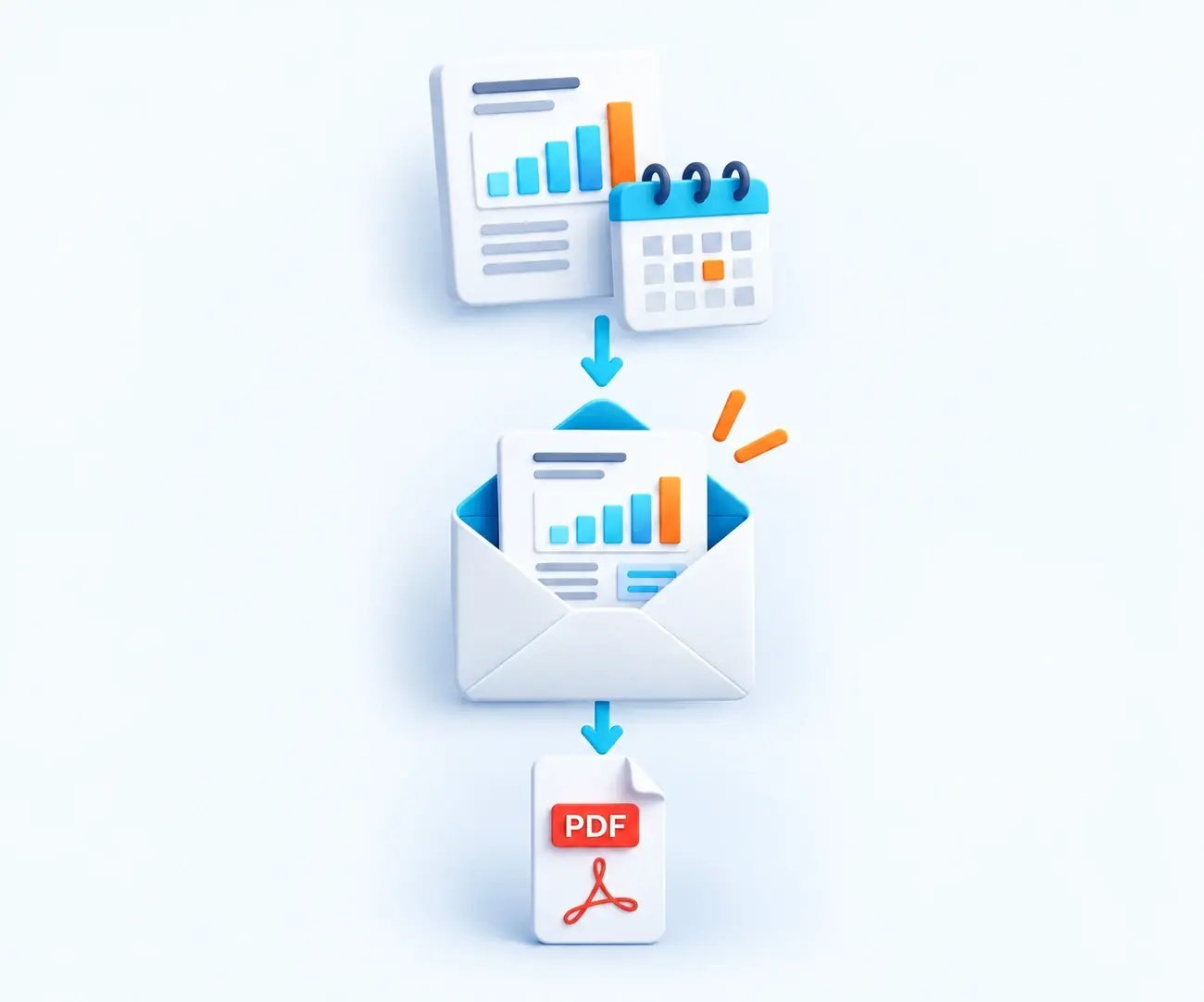
Send a weekly occupancy update to the hotel owner. Use a single schedule for the inline snapshot and detailed PDF attachment, with the week identified in the subject and filename.
Tableau Email Report Automation

Send Tableau reports in branded emails with the files and instructions each recipient needs. Embed a report snapshot, attach individual exports or deliver a complete reporting pack.
Design company-branded HTML emails with report snapshots, links and clear instructions.
Send through your configured SMTP or Office 365 account, with backup SMTP servers where needed.
Maintain recipients, subjects, messages and attachment names using data and reusable defaults.
Deliver protected attachments and configure Exchange receipt deadlines and follow-up tasks.
The Reporting Challenge
A useful report email gives the recipient more than a file. It makes the reporting period clear, explains what to review and provides the detail they need to take the next step.
Match the company’s email design and include the reporting period, a useful explanation and the right contact for questions.
An owner may need a quick snapshot and a PDF; a finance reviewer may need several exports or an Excel workbook in the same email.
Send from a familiar company account and plan the follow-up, so each recurring report email supports the way your business works.
Choosing the Right Approach
Native subscriptions are useful when a scheduled image or PDF meets the requirement. Choose ATRS for Tableau email report automation when you need to configure the message, sending account, report files and follow-up together.
Swipe to compare all columns.
| Solution | What alternatives document | Why choose ATRS |
|---|---|---|
| Native Tableau subscriptions | Scheduled PNG images, PDF attachments or both, with custom subjects and messages, for Tableau users with the required permissions. | Add company HTML design, Excel/CSV attachments and data-driven delivery instructions to your recurring report emails. |
| MailScheduler email design | MailScheduler supports customized headers, bodies and footers, reusable templates, inline dashboard images and bundled report exports. | Assemble client report packs with PDF permissions and watermarks, Excel workbook passwords, protected ZIP files or PGP encryption. |
| PushMetrics email workflows | PushMetrics supports HTML design, data-driven recipients and attachments, custom SMTP, company-domain sending and secure download links for oversized attachments. | Deliver protected attachment packs through per-schedule mail accounts, with backup SMTP servers if the primary server is unavailable. |
| APOS PowerBurst distribution | APOS documents personalized report emails, body and attachment delivery, monitoring and receipt/viewing confirmation. | Set an Exchange receipt deadline that triggers an SMS or another schedule, once or repeatedly until the receipt arrives. |
Comparison sources: Tableau subscriptions · MailScheduler features · PushMetrics email · APOS PowerBurst. Checked 13 October 2026.
Bring your company’s familiar look to each report email. With HTML and CSS styling, you can combine the report with a short explanation and clear next steps.
Add your logo, images, tables, links and formatted instructions. Automatic embedding of related HTML images lets you include company artwork in the message.
Create default subjects, messages, signatures and attachments once, then insert them into the schedules that need them.
Choose a default font and size that match your company design, so recurring messages feel consistent.

For help with the wording, use the built-in ChatGPT tool with your configured API account to draft email-body text, then edit and save it in the email editor. Read the ATRS email destination guide.
Send from the company account your recipients recognize, and direct replies to the people who can help. Failed-send retries and SMTP invalid-address checking help you manage delivery.
Connect your SMTP server and select the mail account for the schedule.
Send through your Office 365 account using modern authentication, with the option to authenticate from another device.
Set up company mail accounts, then select the sender for each schedule.
Add backup SMTP servers to use when the primary SMTP server is unavailable.
Set message priority for SMTP or Office 365 emails to indicate their importance to recipients.
Use a static or data-driven reply-to address for SMTP so report questions reach the responsible team.
Setup resources: SMTP and Office 365 · Accounts, priority and reply-to · Backup SMTP servers.
Report Attachments and Protection
Keep related reports together, so your recipient has the files needed for review or further work.
Send several report exports in the same email, or combine selected outputs into a PDF or Excel workbook.
Protect the files your recipient receives with the controls suited to each format.
Single schedules can embed a report; data-driven packages deliver attachments. See ATRS report-package configuration for assembly options.
For file-specific settings, see Tableau PDF automation, Excel output options and CSV output options.
Recipient and Message Instructions
Set stable email details directly in the schedule. Use maintained data when recipients, report values or message instructions change regularly.
Use typed addresses, address-book groups, a database source or a text-file mailing list to define the recipients.
Insert the recipient’s name, reporting period and relevant instructions from the data used by the schedule.
Use data inserts and date naming to identify the report, customer or period in each attachment’s filename.
Use values from the data driver to apply the Tableau filters and parameters for each recipient’s report.
Keep recurring report emails on track with a planned follow-up and a clear record of each run.
With Exchange email settings, set a deadline and run a follow-up task once or repeatedly until a receipt arrives. Tasks can send an SMS or run another schedule.
Stop the Internet email custom task from sending when an attachment is missing. Prepare merged or protected files before the task runs.
Review SMTP messages in ATRS Email Log and investigate destination results in schedule history, also available in the ATRS Web Application.
Setup resources: Exchange receipt follow-up · Internet email custom tasks.
For folder, transfer and storage routes, see the Tableau report delivery overview.

Example Email Workflows
Match the message, report files and follow-up to the person who needs the information.
Send a weekly occupancy update to the hotel owner. Use a single schedule for the inline snapshot and detailed PDF attachment, with the week identified in the subject and filename.
Send each client a monthly, company-branded HTML update with their protected performance reports attached. Use the client-service mail account and route SMTP replies to the servicing team.
Email a daily operational report to the shift supervisor through Exchange. Set a receipt deadline before handover and run an SMS reminder or another schedule if the receipt has not arrived.
Email the finance director a monthly management pack as an ordered PDF and a password-protected Excel workbook. Identify the month in the filenames and explain the review instructions in the message.
Start with one representative report email. Bring its message, files and sending account together, then check the result before making delivery recurring.
Choose a single schedule for an inline report or a package to deliver several reports together. Set the required reporting schedule.
Apply the company design, add reporting instructions and insert the recipient or period values the message needs.
Select the SMTP or Office 365 account and test its connection.
Inspect the delivered message and attachments in the recipient’s email client before enabling recurring delivery.
Before your first automated run, confirm the environment and access below. ATRS needs a supported Windows host with the required Tableau and mail-account permissions. For Excel workflows, check the Office installation requirements in the Excel output guide.
Test two authorized recipients with different report values and confirm that each message and attachment contains the intended information.
ChristianSteven Software has helped organizations automate business intelligence reporting and delivery for more than two decades.
Answers about branded messages, inline reports, attachments, sending accounts and email follow-up with ATRS.
Single schedules can embed a report in the email body and include an attachment. SMTP supports HTML embedding; MAPI embedding is text-only. Data-driven packages deliver attachments and cannot embed. Grouping single data-driven outputs by email address also disables embedding.
Yes. Design the message in HTML and CSS, add your company artwork and set the default font and size. Automatic embedding includes related HTML images in the message. Choose the character encoding needed for multilingual emails.
Yes. Define default subjects, messages, signatures and attachments in User Defaults, then insert those defaults into the schedules that need them. You can edit the message for an individual schedule.
Yes. Send through SMTP or connect an Office 365 account using modern authentication. Office 365 supports MSAL Device Code flow, which lets you authenticate the account from another device.
Yes. Choose a sending account for each schedule and add backup SMTP servers to use if the primary SMTP server is unavailable.
Yes. Use data and inserts to populate recipients, report parameters, subjects, messages and output filenames. To, CC and BCC can use individual addresses, address-book groups, a database source or a text-file mailing list.
Yes. A package schedule can send several exported reports together. Keep the files separate, merge selected PDF outputs in package order or combine Excel outputs into one workbook.
Yes. Protect attachments with PDF passwords, permissions and watermarks, Excel workbook passwords, password-protected ZIP files or PGP encryption.
With Exchange email settings, set a receipt deadline and run a follow-up task, such as an SMS or another schedule, once or repeatedly until a receipt arrives. Follow-up depends on receipts returned by the recipient’s mail client.
Yes. The Internet email custom task includes an option to throw an error and stop the email if an attachment is missing.
Set the package-email size ceiling in MB and test representative attachments against the sending server’s limits. Open the message in the recipient’s email client and check its design, links and attachments. For a single schedule that embeds a report, check the inline rendering too.
Use ATRS Email Log for SMTP messages. For Exchange or Office 365, check the sending account’s Sent Items. Use schedule History View to investigate report and destination results. Schedule history is also available in the ATRS Web Application.

Bring one representative email design, its report files and the approved sending account to the evaluation. Start a free 30-day ATRS trial or book a demonstration.