Tableau PDF Report Automation

Automate, Protect and Deliver Tableau PDF Reports

ATRS Tableau Report Scheduler

Give your readers a PDF that brings the right reports together. Use ATRS for Tableau PDF report automation to assemble recurring packs, apply document protection and deliver the finished files.

Schedule a single Tableau PDF or assemble selected reports into an ordered pack.

Set PDF passwords, document permissions and a confidentiality watermark before delivery.

Apply each recipient’s report filters, filename and delivery instructions from maintained data.

Send the finished PDF by email or to an approved folder, transfer or cloud destination.
Download the ATRS Internal Evaluation Guide START FREE TRIAL
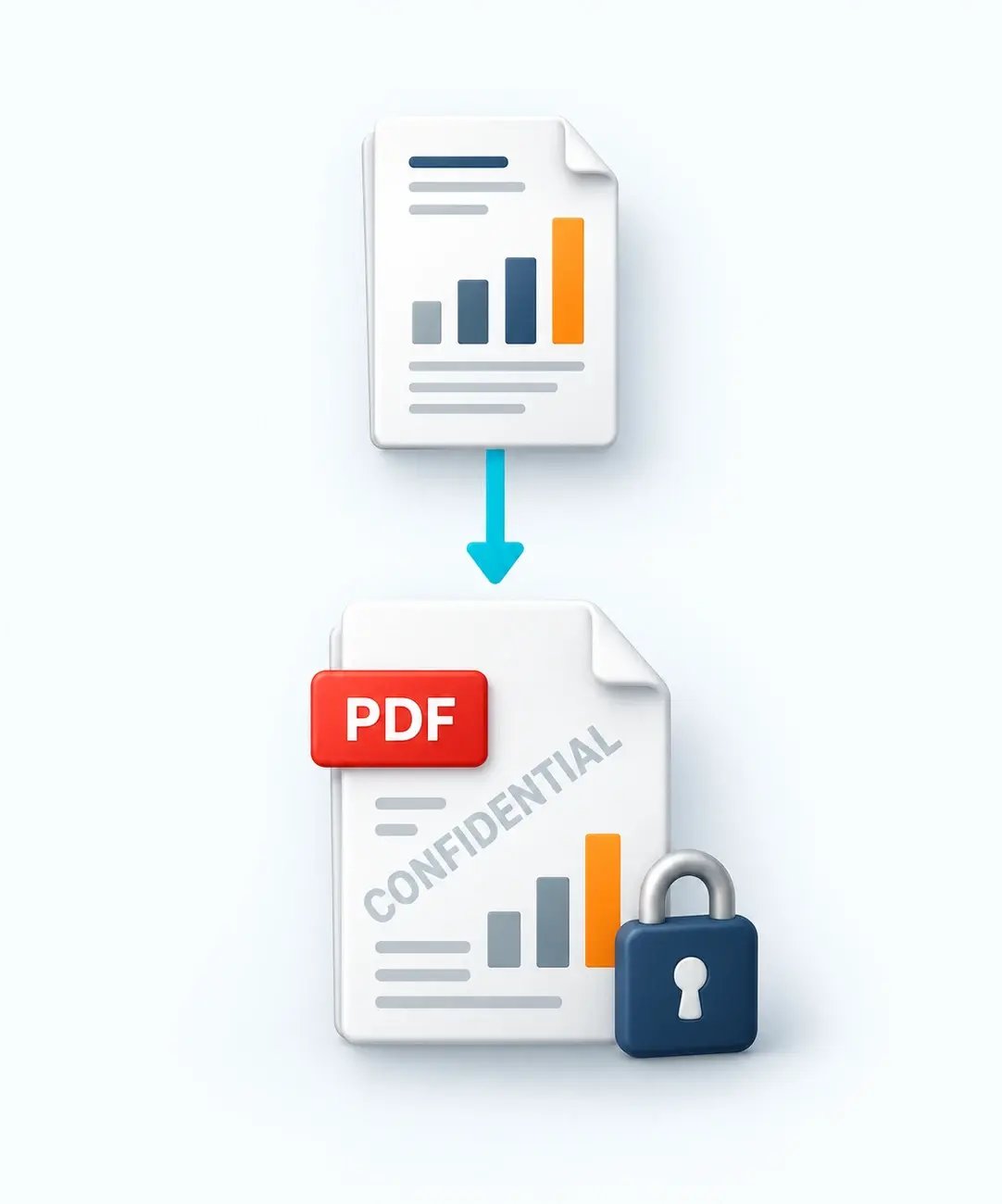
Selected report outputs merge into a protected PDF for email or folder delivery.

The Reporting Challenge

A PDF Reporting Job Goes Beyond the Export

The recipient needs a document they can review, share internally or keep for the reporting period. Producing that document often means bringing several reports, protection settings and delivery instructions together.

Several Reports Need One Clear Order

A management pack needs its summary, financial review and operational detail in a predictable sequence, rather than a collection of separate attachments.

Sensitive Files Need Appropriate Controls

A client PDF may need an opening password, restricted printing or a confidentiality stamp before it leaves your reporting environment.

Each Recipient Needs Their Own Content

A hotel owner needs their property’s results. A regional manager needs the results for their locations. The report values and delivery details must stay together.

Choosing the Right Approach

Choose ATRS for the Complete PDF Delivery Job

Native Tableau subscriptions can email PDF snapshots to users with the required permissions. Choose ATRS for Tableau PDF report automation when you need selected reports assembled, protected and routed as one recurring reporting job.

Native Tableau subscriptions

Use Native Subscriptions for a PDF Snapshot

A PDF of the subscribed view or workbook meets the requirement.

A schedule or supported after-refresh subscription fits the timing.

Recipients are Tableau users with the necessary view and download permissions.

Email is the required destination.

Saved custom views and Tableau permissions or row-level security meet the personalization and access needs.

You do not need additional PDF merging or file processing.

ATRS

Choose ATRS for Assembly, Protection and Routing

Select reports from your reporting job and merge their PDF outputs in order.

Add opening and owner passwords, document permissions and watermarks.

Apply recipient-specific Tableau filters and parameters.

Maintain recipients, filenames, messages and delivery routes in data.

Send PDFs through company mail accounts or to file and storage destinations.

Inspect schedule results and configure retries or actions for failed or blank reports.

Start with the finished document. If your recipient needs an ordered, protected report pack at a specific destination, ATRS lets you configure that recurring job around the PDF they will actually use. Tableau subscription guidance.

How PDF Reporting Alternatives Compare

Several tools can assemble PDFs. Compare the document and delivery job you need, then choose the approach that fits.

01

InfoBurst: Grouped Documents

InfoBurst groups PDFs by burst, shared values or recipient, with bookmarks, a table of contents and page numbering. It also supports PDF passwords and password-protected ZIP delivery. ATRS combines ordered Tableau packages with opening and owner passwords, document permissions, watermarks and custom tasks for processing existing PDFs. InfoBurst grouping · PDF and ZIP options.

02

PushMetrics: Email and File Delivery

PushMetrics merges PDFs, supports file destinations and provides secure download links for oversized email attachments. ATRS lets you set PDF passwords, printing and editing permissions, and watermarks as part of the reporting job, then deliver the finished file through your configured mail or storage account. PushMetrics email · Merged PDF storage delivery.

03

MailScheduler: Bundled Report Exports

MailScheduler supports inline dashboard images, ordered PDF merging and local storage. ATRS also provides tasks for PDFs that already exist: combine files from folders, add headers or footers, update document properties and apply PDF protection. MailScheduler features · PDF task options.

04

Pixel Perfect: Paginated Report Design

Pixel Perfect emphasizes template-based, paginated report design as well as scheduling and delivery. Prefer ATRS for automating the PDF exports of your existing Tableau reports; consider Pixel Perfect when designing the document layout is the primary task. Pixel Perfect.

Choose ATRS when your recurring PDF job needs selected Tableau reports, recipient-specific values, document controls and file-processing tasks brought together in one schedule.

Bring Selected Reports Into One PDF

Give the reader one document to work through. A package schedule can export several Tableau reports and merge their PDFs into a reporting pack.

✓

Select the reports for the pack

Add the required reports to the package and set each report’s filters and parameters. Keep the selection focused on what the recipient needs to review.

✓

Set the reading order

Place the overview before supporting detail and arrange the reports in package order.

✓

Deliver the finished document

Choose the destination and reporting cadence for the pack. Send a single merged PDF or keep individual exports together in the same delivery.

Use Tableau report scheduling for the timing and the package configuration guide for report selection and assembly.


START FREE TRIALBOOK A DEMO
Selected report files assemble into one ordered PDF pack.

Prepare the PDF for Its Reader

Set the document controls once as part of the recurring job. Give the PDF a clear identity and the protection your recipient needs.

01

Opening and Owner Passwords

Use an opening password for access to the PDF and an owner password for its permission settings. Set values directly or use supported inserts and database values.

02

Document Permissions

Choose the PDF’s printing, editing and copying permissions for the intended use. The recipient’s PDF reader determines how those restrictions are honored.

03

Watermarks and Stamps

Add a text stamp such as “Confidential” or a graphic watermark. Configure its appearance, angle and placement to suit the document.

04

File Names and Reporting Dates

Identify the customer, property or reporting period in the filename. Append a date or time when each reporting run needs its own file.

05

Document Properties

Set the PDF’s file-summary properties so the document carries the title, subject or author information you need.

06

ZIP and PGP Options

Compress the output into a password-protected ZIP or configure PGP encryption when the receiving process requires it.

Configuration resources: PDF output and protection settings · File naming.

PDF FINISHING TASKS

Finish Existing PDFs Before Delivery

A package assembles reports exported by the schedule. Files & Folders custom tasks can also work with PDFs that already exist, so you can combine and finish those files before sending them.

01

Merge Existing PDF Files

Bring existing PDFs together into a document for your reader.

Select individual files, files from different folders or all PDFs in one folder
Apply the chosen PDF security and watermark settings
Set the destination filename and whether to replace an existing file
02

Add Headers, Footers and Document Details

Give an exported PDF the finishing details your reader needs.

Add a header, footer or text to the PDF body
Update its title, subject or author in the file-summary properties
Save a version with the added text as a new file

Configuration resources: Use the PDF file-task guide for processing existing files.

RECIPIENT-SPECIFIC PDFS

Give Each Recipient Their Own PDF

Keep the report content and delivery instructions together. A data-driven schedule uses your recipient data to supply the report values and destination for each customer, property or location.

Apply the Recipient’s Report Values

Use the recipient’s customer, property or region values for the configured Tableau filters and parameters.

Generate the Required PDF

Produce the filtered report or the configured collection of package reports for that recipient.

Identify and Route the File

Use your recipient data to supply the email address or folder, filename and message instructions.

Keep Access and Routing Aligned

Use an authorized Tableau export account and an approved recipient map. A filter or email address supplies instructions; it does not grant source permissions.

Build the recipient map: Follow the data-driven schedule guide for the data source and report values.

START FREE TRIALBOOK A DEMO
ATRS applies configured Tableau filters and recipient instructions to create personalized report files.

Send the PDF Where It Will Be Used

Deliver the finished document through the route your recipient uses, with the reporting period and any review instructions clearly identified.

✓

Send a Recognizable Report Email

Attach the PDF to a company-branded HTML message sent through your configured SMTP or Office 365 account. Include a useful subject and the action the recipient should take.

✓

Deliver to a Folder or Storage Destination

Place the PDF in a network folder, SharePoint library, FTP destination or Amazon S3 location.

✓

Pair a Quick Snapshot with the Detail

Use a single schedule with SMTP for an inline report snapshot and PDF attachment. Data-driven packages deliver their reports as attachments.

Email design: See Tableau email report automation for message and sending-account options.

File destinations: See the Tableau report delivery overview for folder, transfer and cloud routes.

START FREE TRIALBOOK A DEMO
Exported PDF, Excel, CSV and report snapshots delivered to email, a network folder or cloud storage.

EXAMPLE PDF REPORTING JOBS

PDF Reports for the People Who Need Them

Here are four reporting scenarios that show how the document, recipient and delivery choice come together.

Finance: Monthly Management Review

Send the finance director an ordered monthly PDF with the business-unit summary, financial results and supporting operational reports. Apply a confidentiality stamp and deliver it to the management mailbox.

Hospitality: Owner Updates

Give the hotel owner a weekly occupancy update they can read in the email, with the property-filtered PDF attached for a closer review. Identify the week in the filename so the owner can keep each update.

Property Services: Client Reporting

Prepare a monthly PDF for each property owner using the correct property values and recipient details. Apply the agreed opening password and send the file to the owner’s reporting address.

Supply Chain: Operational Packets

Give the regional operations manager a daily PDF packet containing the selected stock, dispatch and exception views. Keep their reading order consistent and place the file in the team’s network folder.

Set Up the PDF Job and Check the Finished File

Start with the report selection and order, then set the PDF controls, destination and schedule. Run the schedule with representative reports, then inspect the finished PDF’s content, page breaks and behavior in the recipient’s PDF reader.

ATRS runs on a supported Windows host connected to Tableau Server or Tableau Cloud. Follow the installation prerequisites and the Web Application setup guide for browser-based management.

Configure retries and blank-report actions, and use schedule history to identify a failed report or destination.

If your recipient needs an editable workbook, see ATRS Excel output options.

✓ Source selection and permissions
✓ Report order and merged output
✓ Long and scrolling content
✓ Password and permission behavior
✓ Filename and destination
✓ Blank reports and retry actions

Trusted Report Automation for More Than 20 Years

ChristianSteven Software has helped organizations automate business intelligence reporting and delivery for more than two decades.

20+
Years of reporting automation experience
Nearly 5,000
Organizations helped worldwide
47
Countries with customer organizations
SOC 2 Type II
Independent assurance over security and operational controls
Visit Our Trust Center →
Technical Support
Get help with ATRS setup and configuration
Current Capabilities
Follow ATRS release announcements and product guides
Enhancements
Discuss your reporting requirements with the ATRS team
TABLEAU PDF REPORT FAQ

Questions About Tableau PDF Automation

Answers about report packs, protection, recipient-specific PDFs, source layouts and delivery recovery.

Can I combine several Tableau reports into one PDF?

Yes. Add the reports to a package schedule, set their processing order and select PDF merging. You can also deliver the exports as separate attachments when the recipient needs individual files.

Can different PDFs use different passwords?

Yes. Set owner and user passwords directly, or use supported variables and database values to supply them at run time. The user password controls opening the PDF; the owner password governs its permission settings.

Can I control printing, editing and copying?

Yes. ATRS provides PDF permission settings for printing, editing and copying. Their enforcement depends on the PDF reader used by the recipient.

Can I add a confidentiality stamp or graphic watermark?

Yes. Add text such as “Confidential” or use a graphic watermark. The watermark settings include appearance, angle and horizontal and vertical placement.

Can I ZIP or PGP-encrypt the PDF before delivery?

Yes. ATRS can compress output into a password-protected ZIP and offers configured PGP encryption. Set up the required PGP identity, key files and components for that delivery process.

Will a long or scrolling dashboard export completely?

ATRS works with the PDFs Tableau exports, so completeness depends on the source view and export layout. Check a representative long or scrolling report for clipped or missing content. Merging cannot restore content absent from the exports.

Tableau PDF exports omit web page objects and do not render extensions or Pulse objects. See Tableau’s export guidance for the source-output limitations.

Can I create a PDF for each customer or property?

Yes. Data-driven schedules can apply each recipient’s Tableau filters and parameters and supply filenames and delivery instructions from a maintained data source.

Can an email contain a report snapshot and the PDF attachment?

Yes. Use a single schedule with SMTP to embed an HTML report snapshot and include the PDF attachment. Data-driven packages cannot embed reports. Grouping single data-driven outputs by email address also disables embedding.

Where can ATRS deliver the PDFs?

ATRS supports email and configured file destinations, including network folders, FTP, SharePoint and Amazon S3.

What happens if a report is blank or one destination fails?

Set the blank-report action and retry or failure tasks in exception handling. A schedule can be marked Partial Success when one destination fails; expand its history to identify the affected report or destination.

Can I deliver the original PDF again without regenerating it?

Yes, if you have kept the PDF. Attach that saved file using a Send Email custom task instead of running the Tableau export again. For a merged pack, retain the final merged PDF you need to send again.

Where is ATRS installed?

Install ATRS on a supported Windows host and connect it to Tableau Server or Tableau Cloud. Configure the source account, scheduling service identity and destination access. The ATRS Web Application provides browser-based management after setup.

READY TO AUTOMATE TABLEAU PDF REPORTS?

Automate Your Next Tableau PDF Reporting Job

ATRS Tableau Report Scheduler

Bring a representative PDF, the reports it should contain and the delivery you want to automate. Start a free 30-day ATRS trial or book a demonstration to work through your reporting job.  

START FREE TRIAL BOOK A DEMO
Free 30-day trial with no credit card required
Deploy ATRS within your own environment
Static-file recipients do not need interactive Tableau access