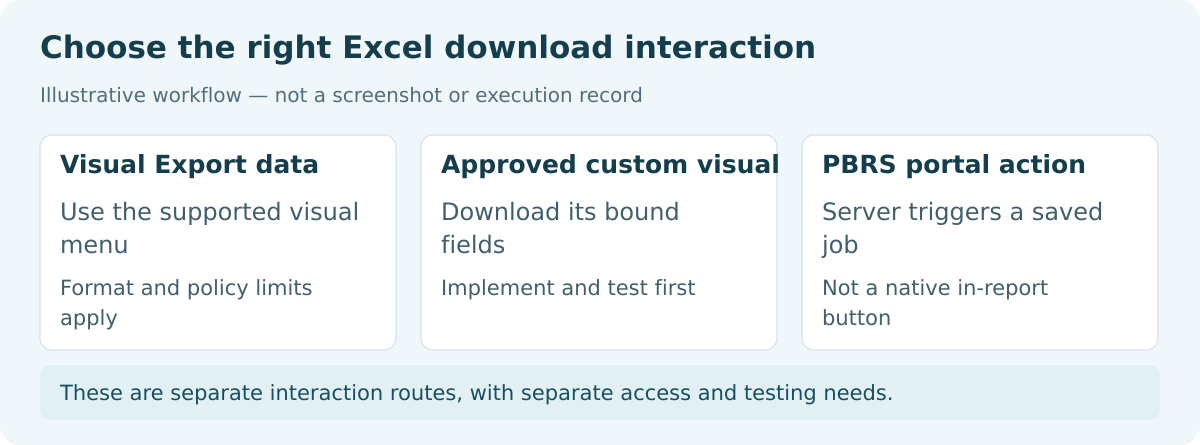
Create the custom-visual project using Microsoft’s development tutorial. Preserve its generated license comments, metadata and configuration. Set a compatible API version of at least 5.3 in pbiviz.json and install an approved XLSX serialization dependency. The local checks used Power BI visuals API 5.3.0, TypeScript 5.9.3 and SheetJS 0.20.3, with strict TypeScript checking and skipLibCheck for SDK declarations. Follow SheetJS’s official installation guidance and your dependency/version policy.
Add this configuration using the capabilities and data-view mapping guidance. The example requests up to 1,000 rows but refuses a view at that boundary to avoid accepting possible truncation.
{
  "privileges": [{"name": "ExportContent", "essential": true}],
  "dataRoles": [{"name": "fields", "displayName": "Export fields", "kind": "GroupingOrMeasure"}],
  "dataViewMappings": [{"table": {"rows": {"for": {"in": "fields"}, "dataReductionAlgorithm": {"top": {"count": 1000}}}}}],
  "objects": {}
}
Place the following Visual class in src/visual.ts, retaining the generated license notice. It copies the current rows before asynchronous permission checks, prevents overlapping clicks and serializes an actual XLSX. This focused example is not a complete deployment package: the project still needs its configuration, approved dependencies, field agreement and environment-specific tests.
import powerbi from "powerbi-visuals-api";
import * as XLSX from "xlsx";
import IVisual = powerbi.extensibility.visual.IVisual;
import VisualConstructorOptions = powerbi.extensibility.visual.VisualConstructorOptions;
import VisualUpdateOptions = powerbi.extensibility.visual.VisualUpdateOptions;

// Illustrative bounded export. This exports this visual's bound data view.
// It does not certify that the data view contains every source record.
export class Visual implements IVisual {
    private service: powerbi.extensibility.IDownloadService;
    private button: HTMLButtonElement;
    private message: HTMLParagraphElement;
    private view?: powerbi.DataView;
    private busy = false;

    constructor(options: VisualConstructorOptions) {
        this.service = options.host.downloadService;
        this.button = document.createElement("button");
        this.message = document.createElement("p");
        this.message.setAttribute("role", "status");
        this.button.textContent = "Export current rows to Excel";
        this.button.disabled = true;
        this.button.addEventListener("click", () => { void this.download(); });
        options.element.append(this.button, this.message);
    }

    public update(options: VisualUpdateOptions): void {
        this.view = options.dataViews?.[0];
        this.button.disabled = this.busy || !this.view?.table?.rows?.length;
        if (!this.busy) {
            this.message.textContent = `${this.view?.table?.rows?.length ?? 0} current visual rows. Validate the scope before exporting.`;
        }
    }

    private async download(): Promise<void> {
        if (this.busy) return;
        this.busy = true;
        this.button.disabled = true;
        try {
            // Freeze the click-time data before awaiting permission or consent.
            const view = this.view;
            const table = view?.table;
            if (!table?.rows?.length) throw new Error("No current rows to export.");
            if (view?.metadata.segment || table.rows!.length >= 1000) {
                throw new Error("This bounded example refuses segmented or 1,000-row data views.");
            }
            const headers = table.columns.map(c => c.displayName);
            if (headers.join("|") !== "OrderId|Region|Amount") {
                throw new Error("Bind OrderId, Region and Amount in that order.");
            }
            const rows = table.rows!.map(row => [...row]);
            const keys = new Set<string>();
            for (const row of rows) {
                if (row.length !== 3 || typeof row[0] !== "string" || !row[0] ||
                    typeof row[1] !== "string" || typeof row[2] !== "number" ||
                    !Number.isFinite(row[2]) || keys.has(row[0])) {
                    throw new Error("Check the required types and unique OrderId values.");
                }
                keys.add(row[0]);
            }
            const status = await this.service.exportStatus();
            if (status !== powerbi.PrivilegeStatus.Allowed) {
                throw new Error("Custom-visual download permission is unavailable.");
            }
            const workbook = XLSX.utils.book_new();
            const sheet = XLSX.utils.aoa_to_sheet([headers, ...rows]);
            XLSX.utils.book_append_sheet(workbook, sheet, "CurrentRows");
            const content = XLSX.write(workbook, {bookType: "xlsx", type: "base64"});
            // A conservative 29,000,000-byte ceiling below the host's 30 MB limit.
            const padding = content.endsWith("==") ? 2 : content.endsWith("=") ? 1 : 0;
            if (content.length * 3 / 4 - padding > 29000000) {
                throw new Error("Workbook exceeds this example's size ceiling.");
            }
            const result = await this.service.exportVisualsContentExtended(
                content, "Current-Visual-Rows.xlsx", "base64", "Current visual rows"
            );
            this.message.textContent = result.downloadCompleted
                ? `Download completed for ${rows.length} click-time rows. Validate the workbook before use.`
                : "Download was not completed. No successful export is recorded.";
        } catch (error) {
            this.message.textContent = error instanceof Error ? error.message : "Export failed.";
        } finally {
            this.busy = false;
            this.button.disabled = !this.view?.table?.rows?.length;
        }
    }
}
The local test decoded the workbook and recovered the two North rows with their text IDs. It covered denied permission, cancellation, segmented data, the 1,000-row boundary, duplicate keys, a numeric key, empty data and a host exception. A delayed permission response also tested an overlapping click and a filter change.
That overlapping request made one download call containing the original North rows. It verifies the click-time snapshot in the mocked test, but not real filter propagation, consent, tenant policy or downloads. Grouping, aggregation, filters and security can alter the data before the code receives it. Even a view below the ceiling needs comparison with an independent source baseline.
A different button in your application
If the user needs an approved reporting job rather than this visual’s immediate download, your portal can offer a “Prepare North sales workbook” action. Your backend checks the user’s permission, maps North to an isolated approved PBRS configuration, and calls the schedule. PBRS visual-data Excel settings define the selected visuals and workbook destination.
Use ExecuteScheduleAsync to start the job and return an application tracking reference. Retain PBRS’s ExecutionId, inspect its result, and confirm the workbook at the configured destination before showing it as ready. The PBRS execution guide gives the requests.
This is a separate server-side workflow. It does not add a native Excel-export action to an ordinary Power BI button, automatically inherit the viewer’s current custom-visual rows, or return XLSX bytes from the execution request. Authorise and map the report scope on the backend; keep users’ configurations separate so another request cannot change North’s output.