How Do You Send Power BI Reports to a Distribution List?
Send one Power BI report to the group’s email address, and let your mail system deliver it to the members.
For a weekly PDF, PBRS brings the report export and email into one repeatable schedule. Keep one group address in the job while the group owner keeps its membership current.
- THE DIRECT ANSWER Choose How the Group Will Receive the Report
- REQUIREMENTS AND LIMITATIONS Compare Group Subscriptions with PBRS File Delivery
- END-USER WORKFLOWS Set Up and Test a Shared Report Delivery
- DEVELOPER AND API WORKFLOWS Trigger an Approved Group Delivery from Your Application
- CHOOSE YOUR NEXT STEP Use PBRS for Recurring Group Report Delivery
Choose How the Group Will Receive the Report
Yes. Send the report to the distribution list’s email address, and your mail system passes it to the group’s members. Everyone receives the same report.
Picture a weekly operations PDF sent to operations-reports@example.com. When a manager joins the team, the group owner updates the mailing list. The report schedule keeps the same address. The example address is illustrative.
PBRS, ChristianSteven’s report automation software, makes that weekly routine easier to manage. It generates the report file and emails it from your configured account on the schedule you choose. You set up the report, output and delivery together, instead of exporting and emailing the PDF each week. Jump to the PBRS setup if that is the job you need to automate.
When a native Power BI subscription is enough
Use a native subscription when the group needs a report preview or link and your workspace and group are eligible. In a Premium-capacity workspace, Power BI supports distribution groups, dynamic distribution groups and mail-enabled security groups. Microsoft 365 groups and ordinary security groups are not supported group aliases.
A Premium Per User (PPU) workspace does not support subscribing group aliases. To subscribe other people, you also need a Power BI Pro or PPU licence, a Contributor, Member or Admin workspace role, and your organisation’s subscription settings enabled. Guests cannot subscribe other people.
- Open the report, select Subscribe, and create a subscription.
- Add the eligible group email address, choose the report view and set the frequency.
- Choose the preview, link or eligible attachment, save the subscription and test it with the group.
External recipients need an eligible paid capacity that is not PPU. Trial capacity does not qualify. Check Microsoft’s subscription requirements before choosing this route.
When the group needs a recurring file
Use a PBRS Email destination to send the exported report to the group address. Native Power BI group-alias rules apply to native subscriptions; PBRS uses your configured mail account for delivery. The report still needs the right source-account permissions, licences and rendering setup.
Power Automate is another option if you already maintain an export-and-email flow. Microsoft’s export-and-email example uses reserved capacity for the standard Power BI report export. Emailing a file that already exists does not remove the requirements for generating it.
Agree on one shared report
Choose the reporting period, pages and file format before building the schedule. For the operations team, that might be one weekly PDF everyone can discuss together.
Choose a file or a live link
A PDF gives readers a copy to open and keep. A report link takes them to Power BI, where each reader still needs access to the report.
Separate different audiences
If East and West managers need different figures, one shared attachment will not do. Create separate outputs or use personalised delivery, as explained in the next chapter.
Give membership a clear owner
The group owner keeps the mailing list current. The report owner looks after the content and schedule. Naming both makes later changes easier.
Compare Group Subscriptions with PBRS File Delivery
The group address answers who gets the email. It does not decide how Power BI generates the report, or whether every member may see its contents. Choose the delivery route around the report your team actually needs.
| Your need | Power BI or a flow | PBRS |
|---|---|---|
| Send to one group | The workspace and group must meet native subscription rules. | Add the group address to an Email destination. Your mail server must accept the message. |
| Attach a report file | For standard reports, full PDF or PowerPoint attachments require Premium capacity or PPU; they are limited to 20 pages and less than 25 MB. PPU still does not allow group aliases. | Choose an available report output format and file name. Supported formats depend on the report type. |
| Use an approved sender | A flow uses its configured connection account. Group delivery rules still apply. | Select an approved email account or SMTP server. Changing the displayed From address does not grant permission to send. |
| Send different content | Dynamic subscriptions can use recipient-specific filters on eligible Premium or Fabric capacity. | Data-driven schedules can set filters, recipients, formats and messages from your data. |
| Keep membership current | The group owner maintains membership and delivery policies in Exchange. | Keep one group address in the schedule. The mail system expands it into its members. |
| Check who received it | Exchange message trace can show group expansion and delivery events. | Combine the PBRS execution record with mail trace and checks in intended recipients’ inboxes. |
A changing mailing list is not a personalised report
A dynamic distribution group chooses members using mail-directory details such as department. The mailing list can change automatically, but everyone still receives the same attachment.
Personalised reporting changes the report itself. An East manager might receive East figures, while a West manager receives West figures. PBRS data-driven schedules can use each data row to supply the recipient and report instructions. Microsoft also offers dynamic subscriptions for eligible setups.
For our weekly operations example, a shared PDF is appropriate only if every member should see the same information. Native subscription previews use the subscription owner’s data context; they do not create a separate view for each group member.
Paginated reports, designed for a fixed page layout, have their own formats and parameter options. Check the settings for your actual report, rather than applying a standard-report limit to every report type.
For configuration details, see PBRS Email destination settings, Microsoft dynamic subscriptions and PBRS data-driven schedules.
Know whose data is in the file
The account generating the report determines the data it can export. Check the actual attachment before sending it to a wider group.
Check the whole audience
A mailing list can include nested groups and external contacts. Ask its owner to confirm who will receive the report and whether that audience is approved.
Protect the copy you send
An attachment can be saved or forwarded. Decide what protection the file needs; Power BI access rules for a live report do not automatically protect an emailed copy.
Use a sender the group accepts
Some groups allow only specified senders or require a moderator’s approval. Agree on the sender and the person to contact if delivery is held.
Set Up and Test a Shared Report Delivery
Let’s turn the weekly operations PDF into a repeatable PBRS job. Follow the example with your own report and an approved test audience.
First, ask the group owner for its primary email address, group type and current membership, including nested groups. Send a simple test email from the intended sender to confirm that the group accepts it.
Build the report-and-email job in PBRS
- Choose the report. Create a Single Report Schedule. Select the account PBRS uses to access the report, then the workspace and report. Confirm that the account can access and generate the required output.
- Set the weekly timing and report pages. Agree on the day and time with the team. Keep the schedule disabled while you prepare and test it.
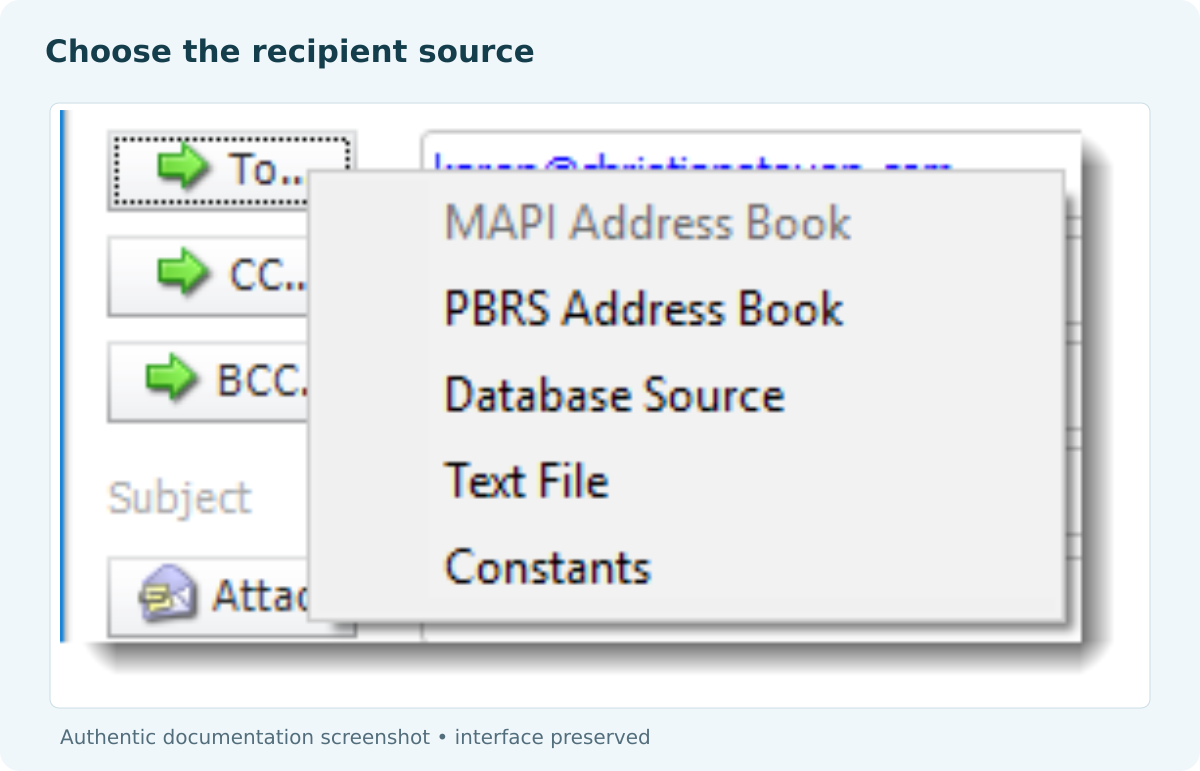
- Add the group destination. In Destinations, select Add > Email. Enter the group address in To and select the approved email account or SMTP mail server. SMTP is the protocol used to send email.
Use the approved group address; its membership remains in the mail directory.
- Make the email easy to recognise. In the report output Format and Naming settings, choose PDF and a clear file name. Add the reporting period to the subject and a short message explaining the attachment. The email body’s Format setting is separate from the report file format.
- Plan for fresh data and failed runs. Configure any required refresh dependency, exceptions and failure notifications. Test what happens when a refresh fails before relying on the schedule.
- Test, then enable. Use a test inbox first. Check the file, then run an approved test to the actual group. Enable recurring delivery once the content and member delivery are correct.
Use the PBRS Single Report Schedule guide and Email destination guide for the controls in your installed version.
Give readers a useful email
For example, a subject could read “Weekly operations report — period ending 9 October 2026”. The message might say: “Your weekly operations PDF is attached. It covers the period ending 9 October. Please contact the report owner if you need help with a figure.”
Use the actual reporting period in the subject, file name and message. A dated file helps a busy manager find the right copy without opening several attachments.
Open the file received in the inbox. Check its period, pages and figures, rather than judging it from the email preview. Confirm receipt with intended members. Include external members in testing only where their access and delivery are authorised.
If the report does not reach everyone
- No report file was generated: check the PBRS execution details and Error Log first.
- The sender was rejected: ask the mail administrator to check the actual sending account and the rejection details against the group’s allowed-sender rules.
- The email is waiting: check whether moderation approval or a mail-server delay is holding it.
- Only some members received it: check membership, nested groups and quarantine, then trace delivery to the affected addresses.
- The email arrived but its report link fails: check that reader’s Power BI access separately.
In the Exchange admin centre, go to Recipients > Groups > Distribution list > Settings to review delivery management. A moderator may also need to approve the message. Ask the administrator to resolve the specific restriction; opening the group to all Internet senders is not a necessary fix. See Exchange distribution-list management.
For a delivery investigation, use Mail flow > Message trace. Match the sender, group address and time window, then check the member-level records. Keep the PBRS run time and message ID so the administrator can match the same email. Microsoft’s message-trace guide explains the trace results.
Before resending to the whole group, establish who already received the report. A second send can give those readers a duplicate.
Check the delivered attachment
Open the PDF in the recipient’s email and confirm the expected period and pages. A successful run is useful evidence; the received file is the final content check.
Check delivery beyond the group address
Ask intended members to confirm receipt. A trace showing that the group expanded into members does not, by itself, prove that every inbox received the email.
Test a membership change
With a controlled test group, ask its owner to add or remove an approved test member. Confirm the next delivery follows the updated list without changing the PBRS destination.
Leave a simple recovery note
Record who receives failure alerts, who owns the group and how to decide whether a resend is needed. Check for earlier deliveries before sending again.
Trigger an Approved Group Delivery from Your Application
You can give an authorised manager a “Send weekly operations report” action in your application. Behind that action, your server calls the PBRS API to run an approved schedule. The manager does not need to rebuild the report-and-email job.
This section is for the developer implementing that action. If you only need scheduled weekly delivery, continue to the next step.
Keep the group address in the approved schedule
In EmailDestinations, configure an Email destination with a To array such as ["operations-reports@example.com"]. That is one field example, not a complete create-or-update request. The mail directory controls group membership; PBRS controls the report instructions.
When updating a schedule, preserve its destination IDs, filters and other intended settings. Do not send only a replacement To field or assume a retrieved object is a valid write payload. Follow Create and Update Single Schedules, then retrieve the schedule to verify the saved configuration.
Execute the schedule and follow its result
Keep the access token on your server and use HTTPS with your installation’s API base URL. Authorise the caller and map the action to an approved schedule. In this illustrative request, 101 is a placeholder schedule ID:
POST /api/Schedule/ExecuteScheduleAsync
Authorization: bearer YOUR_ACCESS_TOKEN
Content-Type: application/json
Accept: application/json
{
"ScheduleType": "report",
"uniqueid": 101,
"RunBy": "API"
}
Keep the returned execution ID and use it to check the run:
GET /api/Schedule/GetExecutionStatus?ExecutionId=YOUR_EXECUTION_ID
Authorization: bearer YOUR_ACCESS_TOKEN
Accept: application/json
Poll with a time limit. Follow Schedule Lifecycle Reference for status and result handling. An accepted or queued request does not mean the email arrived. Inspect Status and parse the string-valued ResultJson separately, even when the status is Completed. An empty result is not success. Combine the execution result with mail trace and recipient checks when investigating delivery.
Make repeated requests predictable
Use separate approved configurations, or controlled isolation, when departments need different recipients or filters. Changing one shared schedule while other requests use it can send the wrong content to the wrong audience.
Record the application request, schedule ID, execution ID, destination and report period. If the application times out, reconcile that execution before retrying. Repeated clicks or retries can send the same report again.
Authorise the report action
Check that the caller may run this report for this audience. Knowing a group address is not permission to send to it. Keep arbitrary recipient input out of the approved action.
Keep concurrent runs separate
Two departments can request reports at the same time. Keep their configurations isolated so one request cannot overwrite another’s recipients or filters.
Keep a trail you can follow
Store the request, schedule and execution IDs with the destination and reporting period. They help connect an application action to the PBRS run and the mail records.
Resolve uncertainty before retrying
A timeout may occur after delivery has begun. Check the existing execution and mail evidence before starting another run, and prevent repeated button clicks from launching duplicates.
Use PBRS for Recurring Group Report Delivery
If an eligible native subscription already gives your group the preview or file it needs, it may be enough. A maintained Power Automate flow can also serve an established export-and-email process.
Choose PBRS when the recurring report job needs more coordination. Bring report selection, output, timing, approved sender and exception handling into one schedule. Your group owner maintains membership; your analyst maintains the report workflow. The weekly export and email become a repeatable job.
Start with one report and a controlled group. Check the file’s data and member delivery before enabling the production schedule. If recipients need different views, choose data-driven delivery instead of sending a combined attachment.
See how PBRS can automate your report distribution. If an application will trigger the job, explore the PBRS report automation API.
For the wider options, visit Power BI Report Automation.
Requirements reviewed: 8 October 2026. Confirm the settings for your report type, workspace and installed PBRS version.
Considering PBRS for recurring delivery to a distribution list? Share the guide with your colleagues to review deployment, licensing, security and your reporting requirements.
Contributors:
Christian Ofori-Boateng
CEO, ChristianSteven Software