POWER BI QUESTIONS

Troubleshooting Power BI Report Server Email Delivery

When a Report Server email is missing, identify the sending route first, then check whether the schedule ran, the file rendered, the mail server accepted it and the mailbox received it. Native subscriptions support paginated reports, not PBIX. A PBRS job has its own scheduler and mail configuration.

Start with the failed run’s timestamp and exact error. PBRS History View and destination results can help you locate a failed report or send within a larger job. Use that evidence to correct the failed stage before retrying and risking another copy.

  
THE DIRECT ANSWER

Find the Stage That Failed

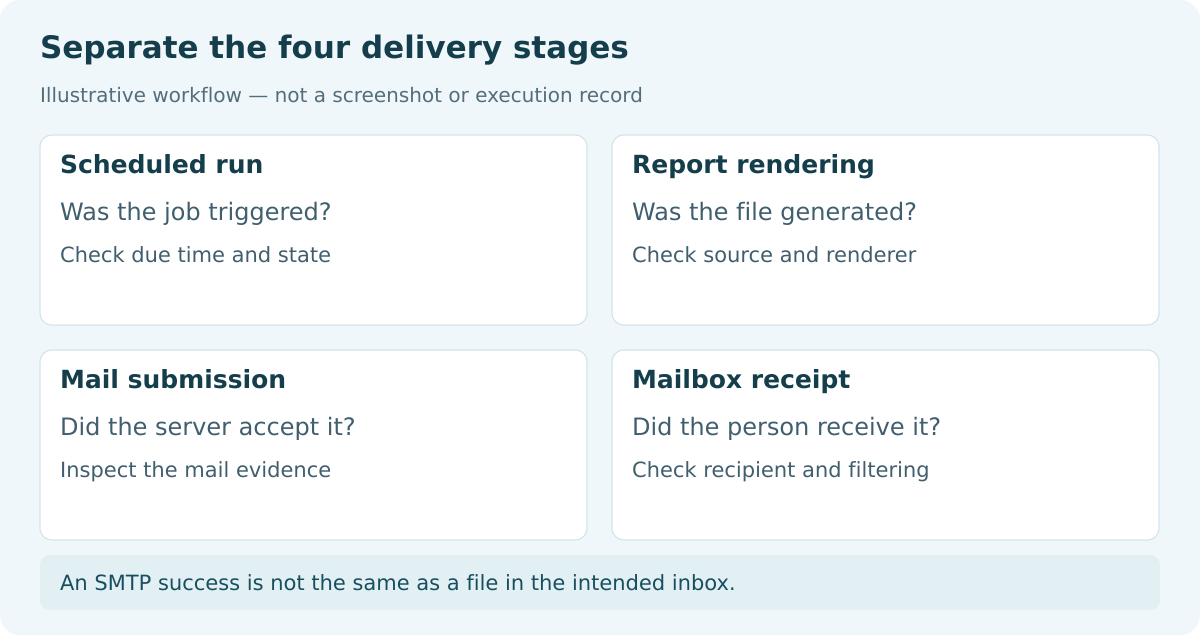
Four stages to investigate in Report Server email delivery: scheduling, rendering, mail submission and mailbox receipt.

An SMTP success is not the same as a file in the intended inbox.

Start with the failed run and identify whether scheduling, rendering, mail submission or mailbox delivery stopped it. The correction belongs to that stage; changing the whole reporting job can obscure a fault that needs one specific repair.

Suppose the daily operations PDF has not arrived. The schedule might never have started, rendering might have failed, or the mail server might have rejected the message. Even an accepted message can be absent from the inbox because of quarantine or a downstream delivery problem.

If there is no execution near the due time, inspect enabled state, the schedule window and scheduler services. If the run began but no file exists, inspect the native Result and trace log or PBRS report history, then check unattended credentials, source access and parameter values.

If the file exists but the send failed, use the exact mail error and actual sending account to check relay access, authentication and sender permission. If the sender reports success but the mailbox has no file, follow that run through recipient details, mail trace and quarantine before sending another copy.

The Report Server comparison confirms the native report-type boundary. SMTP configuration cannot create a PBIX subscription. If the operations PDF is a PBRS export, follow its own settings and results.

Record the exact failed run

Keep report type and path, scheduled time and time zone, format, recipient and exact error together. An old successful status can otherwise look like evidence for today’s missing email.

Compare with the last working configuration

Check whether the report definition, account or parameters changed. A changed credential or parameter can stop an otherwise unchanged schedule.

Use browser rendering as a baseline

A working report in your browser proves an interactive result. It does not prove the unattended account has access. Use the same period and scope as the failed job when comparing output.

Change the stage indicated by evidence

A rendering failure needs a report check; a rejected sender needs a mail check. Keep working settings intact while correcting the identified cause, then run one controlled retest.

  
REQUIREMENTS AND LIMITATIONS

Separate Schedule Problems from Unattended Rendering Problems

The operations PDF needs both a working report and a working delivery route. Compare where each route records a problem so you can use the right evidence without confusing Report Server and PBRS settings.

Your requirement Microsoft option and boundary What PBRS adds
Identify the supported report route Native subscriptions deliver paginated RDL reports; PBIX email subscriptions are unavailable. An on-premises PBIRS schedule can render and email PBIX output. Investigate it through PBRS’s own results.
Find why a run did not start Check the subscription’s active state, expiration, Report Server and SQL Server Agent. Check enabled state, schedule windows, blackout times and Options > Scheduler. Background mode stops on Windows logoff; service mode needs its own resource access.
Locate a rendering or destination failure Read the native Result and trace exception; check source credentials and parameter values. Use History View and expand Partial Success for the failed report or destination; the Error Log supplies error detail.
Resolve mail submission Maintain the Report Server email extension’s authorised sender, relay and authentication. Maintain PBRS’s own email settings or schedule-specific account. A working native relay does not establish PBRS’s configuration.
Establish receipt A successful server handoff still needs mailbox trace or received-message evidence. Inspect the destination result and the received file. PBRS execution history does not prove the recipient opened it.

For a native paginated subscription, open Manage > Subscriptions and read Result. Check active status and schedule expiration, then confirm Report Server and SQL Server Agent are running. The portal guide shows the controls and Run now.

If execution began but no file was produced, inspect data-source credentials and parameter values. Changing stored credentials to integrated or prompted credentials can cause failure. Renaming a parameter or changing its type after republishing can invalidate the subscription. See the native troubleshooting guide.

Separate no trigger from failed execution

Look for evidence that the due run began. For a snapshot-triggered subscription, check the snapshot refresh schedule too. An expired schedule or stopped scheduler needs attention before report filters do.

Check the runtime identity

Verify access through the account used by the unattended job. Your own successful sign-in does not establish its database or report permissions.

Measure the actual file

If the output exceeds the mail path’s limit, measure the file in the chosen format and check that deployment’s limit. Reduce content only if the reporting need still fits, or choose an approved file-share route. Cloud Power BI attachment limits do not define your on-premises mail limit.

Check the delivery extension

An uninstalled or disabled extension is separate from a rendering failure. Restore the approved delivery configuration rather than changing report scope to solve that symptom.

  
END-USER WORKFLOWS

Check the Native or PBRS Mail Route

Repair a native report or parameter failure

  1. Open the report with the same parameters and reporting period as the failed run.
  2. Render the same format, such as PDF, and inspect required identifiers, totals and page sequence.
  3. Check unattended access with the configured account and supported credential arrangement.
  4. Correct the identified credential or parameter problem, then run one controlled subscription and inspect its result.

Repair the mail path that failed

For a native mail-submission failure, read the detailed trace exception. Sender rejection, authentication failure, connection timeout and an unavailable server need different checks:

  1. Open Report Server Configuration Manager for the affected instance and review E-mail Settings.
  2. Confirm the approved SMTP server or relay, sender address and authentication method currently accepted by the mail service.
  3. Verify sender permission, including Send As where applicable. Have the mail administrator confirm the gateway and connection policy.
  4. After the correction, run one controlled subscription. Read Result and confirm the message and intended attachment in the approved mailbox.

The native configuration guide describes these controls. Resolve a permission rejection with an authorized sender and supported authentication; unrestricted anonymous relay is not a necessary fix.

For PBRS, start in System Monitor > History View. Expand Partial Success to find the failed report or destination, then use System Monitor > Error Log to search the relevant error and copy its detail. The History View guide explains the per-destination result.

If manual execution works but recurrence fails, review Options > Scheduler, its running mode and account, enabled schedules and blackout times. A background scheduling application stops when its Windows user logs off. The Windows Service can run without that session, but its account still needs access to the job’s resources. Check the scheduler guide.

If a file renders but PBRS cannot email it, open Options > Messaging > Email Settings and use Test Settings with an approved mailbox. The mail guide includes the Office 365 modern-authentication route. Stand-Alone Outlook requires the user logged in with Outlook open, even when PBRS runs as a service.

Work through an operations PDF that stops after logoff

Here is an illustrative case: the operations PDF arrives when you execute the PBRS job manually, but the next scheduled copy is missing after you log off Windows. First confirm that no due execution appears in History View and that the scheduler uses background application mode. That evidence points to the scheduler, so keep the working report and destination settings.

  1. Ask the administrator to prepare the Windows Service account with the rights and report, network and mail access required by your installation.
  2. In Options > Scheduler, select Use Windows Service, enter that account through the protected controls, apply the configuration and start the service. Follow the scheduler guide for its prerequisites.
  3. Run a controlled scheduled test with the user logged off. Confirm a new execution in History View, then open the PDF received by the test mailbox and inspect its reporting period and operations pages.

The expected result is a new run and the intended received PDF without relying on that interactive session. This example has not been executed here. If the job uses Stand-Alone Outlook, that destination still requires a logged-in user with Outlook open; changing the scheduler alone does not remove its separate requirement.


Verify the schedule’s actual sender

PBRS may use a schedule-specific SMTP account. Test that route, not only the default mail settings. An unpermitted customized sender can be rejected; the SMTP account guide explains using a configured permitted account.

Follow accepted mail to the mailbox

A native successful result means processing produced no error and connected to the mail server. It does not establish receipt or opening. The monitoring guide also notes that a later mailbox undeliverable response is absent from the Report Server trace.

Ask for downstream evidence

If handoff succeeds but no message arrives, have the mail administrator check the actual recipient, trace and quarantine for that run. Match those records to the timestamp and sending account.

Open the required attachment

If only a native link arrives, inspect Include Report and Render Format. Finish by opening the received file and checking its period and scope. The right mailbox can still receive an outdated or incomplete report.

  
DEVELOPER AND API WORKFLOWS

Correlate Evidence for the Failed Run

Optional technical section. Correlate the subscription result, renderer and mail evidence around one run. Use the installed server’s log location rather than copying a path for another version.

Report Server trace documentation identifies timestamped ReportServerService logs. Its documented trace timestamp is UTC; retain the time zone when matching it to a portal result.

Illustrative incident record — fill from the actual run
reportType: RDL or PBIX
reportPath: exact deployed path
scheduledTime: timestamp with time zone
executionTime: actual timestamp with time zone
renderResult: output file or exact rendering error
mailResult: submission status and exact exception
senderAndRecipient: approved identities
mailboxEvidence: receipt, quarantine or undeliverable response
changeApplied: one identified correction
retest: run result plus inspected received attachment

Fill this illustrative incident record from the actual job. No customer Report Server, PBRS or mail delivery was executed for this example.

Correlate exact timestamps

Keep scheduled and actual execution times with their time zones. Match the report and destination errors to that run before applying a correction.

Inspect the failed destination

For PBRS Partial Success, expand the result to find the failed report or destination. Inspect its generated file too. A successful destination elsewhere in the job cannot establish that this one worked.

Use the applicable sending evidence

The PBRS Email Log applies to SMTP sends. For Exchange or Office 365, successful sending evidence is in the sending account’s Sent Items. Keep both distinct from mailbox receipt.

Review uncertain sends before retrying

Check existing file and mail evidence before another execution. Retain the correction and replacement result together so a retry does not silently duplicate an already delivered report.

  
CHOOSE YOUR NEXT STEP

Retest the Correction and Keep a Known Working Run

Keep a native paginated subscription when it already produces the required RDL document and email. Repair the recorded credential, parameter or mail fault there; replacing it with PBRS is not a substitute for restoring source or sender access.

Consider PBRS when the requirement is a scheduled PBIX PDF from Report Server, or a recurring reporting job that needs additional configured destinations and per-destination history. It brings those reporting and delivery settings together, while each source and mail connection still needs authorised access.

Retest the correction with the same reporting period, parameter or filter scope and format. Confirm that the job triggers, renders the intended file, submits mail and reaches the approved mailbox.

Keep the exact error, corrected configuration reference, timestamp and inspected attachment as the new baseline. For a PBRS job with multiple destinations, verify the failed destination individually and review uncertain deliveries before enabling retries.

Explore Power BI Report Automation. Technical sources reviewed: 9 October 2026.

If you are evaluating a different delivery workflow after troubleshooting Report Server email, share the guide with your colleagues to review deployment, licensing, security and your reporting requirements.

Download the PBRS Internal Evaluation Guide

Contributors:

Christian Ofori-Boateng

Christian Ofori-Boateng

CEO, ChristianSteven Software