

POWER BI QUESTIONS

How to Export Multiple Power BI Report Pages to PDF

To put several Power BI report pages into one PDF, export the full report or select the pages through your automation tool. If you need the same selection every month, PBRS can save it with the PDF settings, delivery destination and schedule.

Suppose your manager wants Summary, Sales and Operations for the monthly review, but the internal diagnostic page should stay out. PBRS’s Pages To Render setting lets you prepare that management pack once and reuse it, instead of assembling the same pages before every meeting.

  
THE DIRECT ANSWER

Build the pack around what your manager needs

A useful management pack tells a story in the order its reader needs it. Summary gives the overall position, Sales explains the commercial results, and Operations shows the work behind those results. Sending every page can make that story harder to follow, especially when the report also contains pages used only by its author.

Begin with the three pages your manager actually wants. Look at them together for the same reporting month and decide whether the sequence makes sense. This is also a good moment to notice a label that is too small on paper or a chart that needs more context outside the interactive report.

Page selection and filtering do different jobs. Selecting Sales decides which page goes into the PDF; choosing a month decides which figures appear on it. Save both choices so the manager receives a coherent pack.

If a table scrolls on screen, including its report page does not make the hidden rows flow onto extra PDF pages. For a document that must list every transaction, consider a paginated report or the appropriate visual-data output instead.

Think like the reader

Put the overall result before the detail. A short, well-ordered pack is easier to discuss than a complete export of every page the author uses.

  
REQUIREMENTS AND LIMITATIONS

Choose the right way to select pages

For an occasional copy of the whole report, the native PDF export may be enough. Leave Only export current page unselected and review the available hidden-page options. Open the PDF to see which pages the export has included.

For the recurring management pack, a saved selection is more convenient. PBRS keeps the required pages in the reporting job, along with the output format and destination. An application using Microsoft’s export API can also specify pages, but the developer must maintain the page identifiers and the rest of the export-and-delivery process.

Your situationHow to handle it
You need the whole report onceUse native PDF export and review the current-page and hidden-page options.
Your manager needs the same three pages each monthSave the selection in PBRS’s Pages To Render setting.
An application chooses pages for each requestUse the supported PBRS settings or explicit technical page names in Microsoft’s API.
You need to combine several separate reportsUse a report packaging workflow; selecting pages within one report is a different task.

Report changes deserve a quick review of the saved selection. If the author moves Sales from page two to page four, a selection based on page numbers may now pick different content. A familiar heading on each page makes this easy to spot.

One report or several?

Pages To Render selects within a report. If your meeting pack draws on several reports, plan the packaging step separately.

  
END-USER WORKFLOWS

Save the management pack in PBRS

Open or create a PBRS Single Report Schedule for the management report. In Settings, use Pages To Render to choose the pages for the PDF. This control applies to reports, rather than dashboards.

The Single Report Schedule guide shows ranges such as 1-5, lists such as 1,3,5, and page names. If the report really uses the names Summary, Sales and Operations, you can enter that named selection and use Preview to see the resulting pack.

  1. Choose the pages and month. Leave out the diagnostic page and retain the filters needed for the review.
  2. Preview the PDF. Check that the three sections appear in a useful order and the charts are readable.
  3. Choose delivery. Add the intended destination, select Acrobat Format (*.pdf), and give the file a recognizable management-report name.
  4. Set the recurrence. Schedule the monthly run after the figures are ready, then send a test copy before enabling it.

If you also use JSON rendering settings, follow the guide’s instructions consistently: Settings and JSON rendering configurations can overwrite one another. Choose the configuration you intend to maintain rather than making conflicting edits in both places.

Once the received PDF looks right, your manager has a repeatable monthly pack. Keep the three-page selection in mind when someone redesigns the source report.
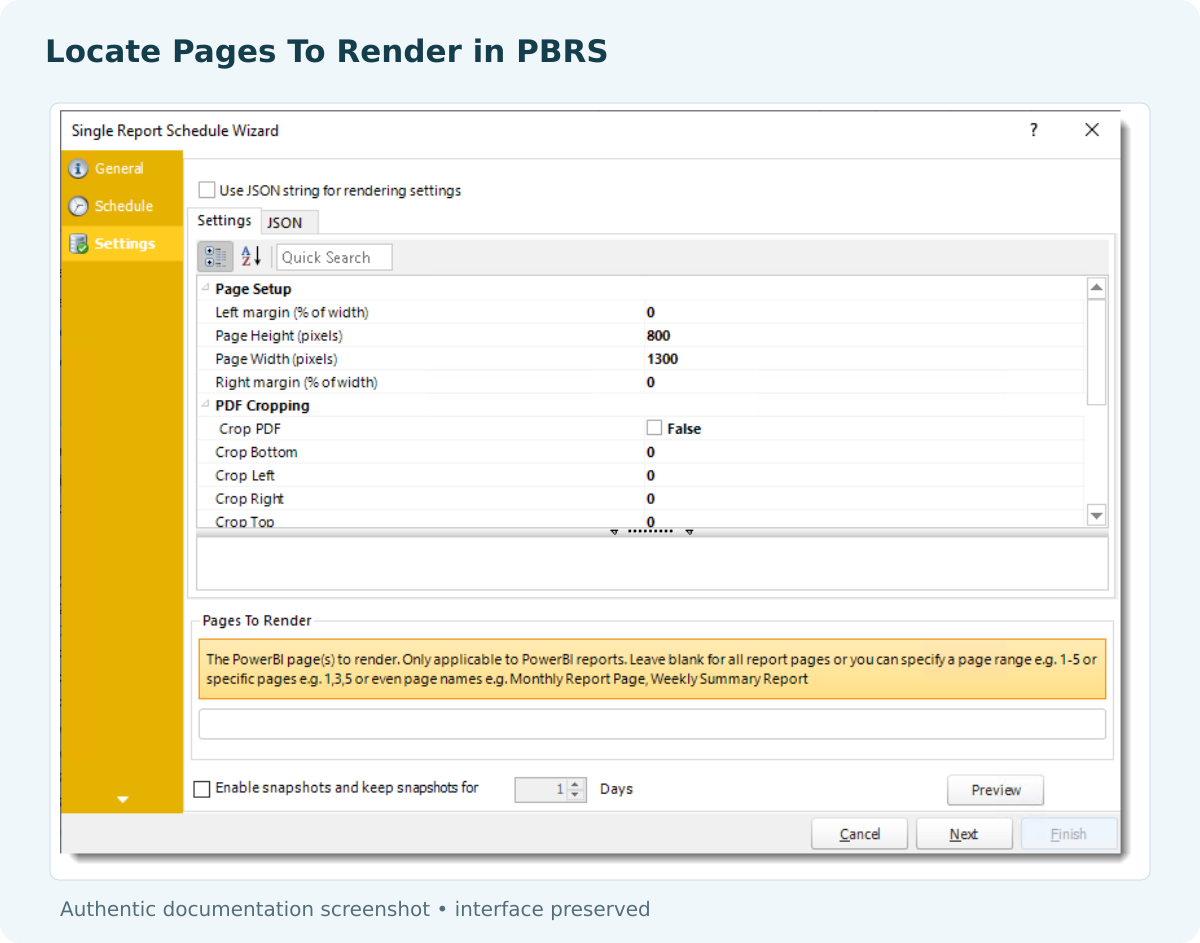

PBRS report settings wizard showing the Pages To Render field below rendering settings.

Use a recognizable file name

A name that identifies the management review and reporting month helps colleagues find the right copy when they return to it later.

  
DEVELOPER AND API WORKFLOWS

Select report pages through the API

An application can reuse the PBRS job that already produces the management pack. The report selection, PDF output and destination stay with that job; the application supplies the trigger when the month’s figures are ready.

For the supported Power BI report rendering settings, PagesToRender uses one-based page numbers. If Summary, Sales and Operations are currently pages one, two and three, the relevant fragment is:

{
  "RenderingSettings": {
    "PagesToRender": "1,2,3"
  }
}

This is a fragment to merge into the complete source-specific schedule definition. Preserve its other filters, rendering options and destination settings. An empty string selects all pages. Visual-data export indexes use a different convention, so do not reuse those indexes here.

After saving the job, execute it with ExecuteScheduleAsync and retain its ExecutionId with the reporting month. The execution guide explains how to monitor and inspect the result. When report pages are moved or replaced, review the selection before the next monthly run.

A direct Microsoft integration uses Get Pages In Group to obtain technical page names, then supplies pageName entries in its ExportTo configuration. Those technical names are different from PBRS’s numeric selection. The developer also handles export monitoring, file retrieval and delivery.

Keep selections meaningful

Page two is only useful shorthand while page two is still Sales. Include page selection in the review whenever the report’s structure changes.

  
CHOOSE YOUR NEXT STEP

Have the right pages ready for the next review

The manager’s request is simple: three useful sections, in one readable PDF, ready for the monthly review. Saving that selection in PBRS removes the repeated preparation while leaving the reporting team in control of the document.

For the wider setup, see scheduled Power BI PDF delivery and Power BI Report Automation. Start with the actual pack your manager needs, so the first scheduled copy is already something the team can use.

Download the PBRS Internal Evaluation Guide

Contributors:

Christian Ofori-Boateng

Christian Ofori-Boateng

CEO, ChristianSteven Software