Power BI Report Bursting Examples and Templates
Report bursting creates different versions of one report and sends each version to its assigned recipient or destination. A data driver connects the recipient with the report filter or parameter, output format and filename. PBRS reads those records and handles the repeated generation and routing work.
This example turns four synthetic sales records into separate North and South PDFs. You can download the source, mapping and sample outputs to see what a correct split should contain. These files illustrate report distribution; Fabric compute-capacity bursting is a separate topic.
- THE DIRECT ANSWER Follow One Report Through Two Personalized Outputs
- REQUIREMENTS AND LIMITATIONS Use a Mapping Template with Explicit Meanings
- END-USER WORKFLOWS Configure a PBRS Burst from the Reviewed Mapping
- DEVELOPER AND API WORKFLOWS Reconcile the Burst Before Calling the Batch Successful
- CHOOSE YOUR NEXT STEP Use Bursting When the Reporting Rules Belong in Data
Follow One Report Through Two Personalized Outputs
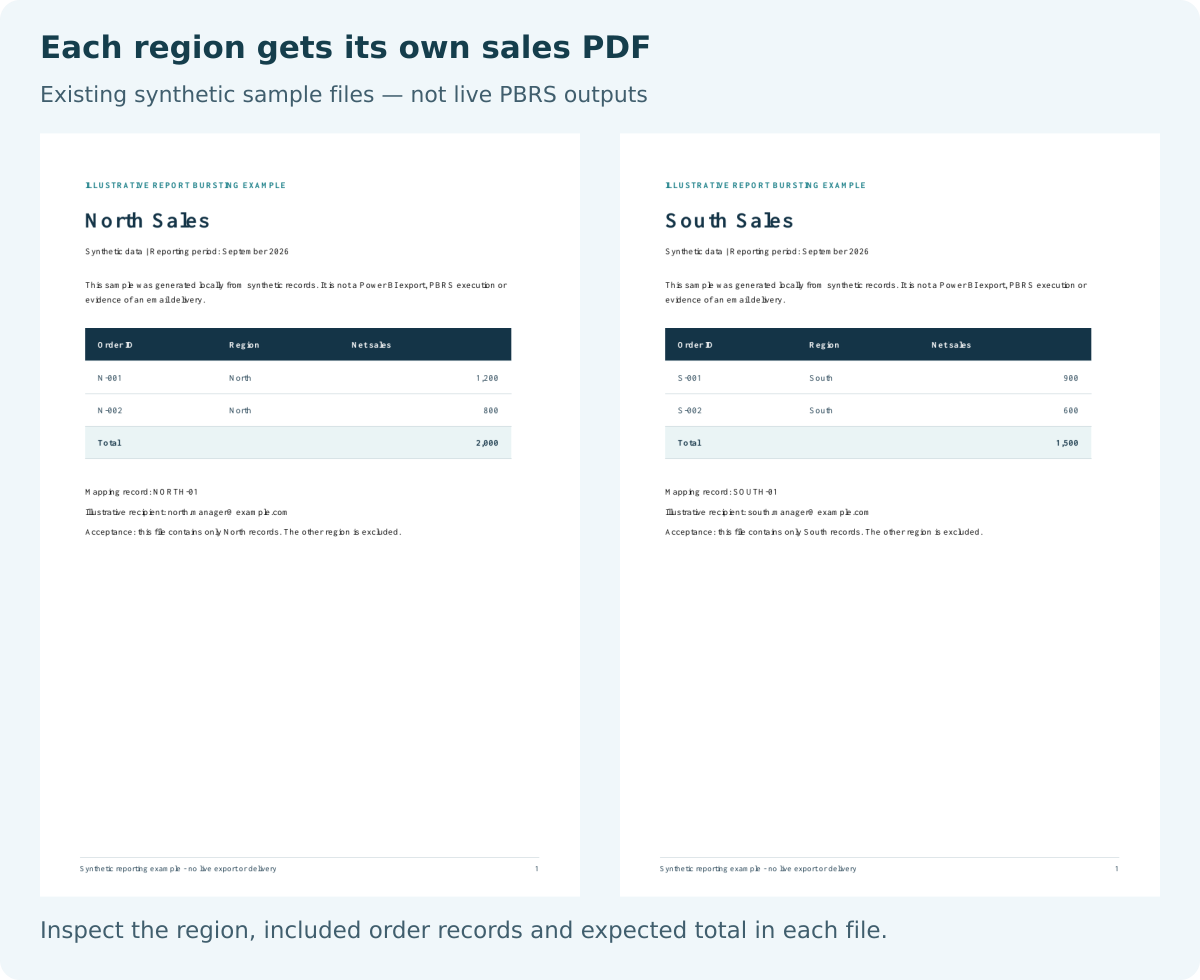
These checked sample PDFs contain North and South records separately; neither was exported or sent by PBRS.
Suppose regional managers need September 2026 sales files. North has orders N-001 and N-002, with net sales of 1,200 and 800. South has S-001 and S-002, with 900 and 600. These synthetic figures have no currency or real-business meaning.
The NORTH-01 driver record pairs north.manager@example.com with Region North and North-Sales-Sample.pdf. That file contains the two North orders, totaling 2,000. SOUTH-01 pairs the South address with Region South and South-Sales-Sample.pdf, totaling 1,500. Each file excludes the other region’s orders.
Both outputs use one report definition. In a configured PBRS bursting workflow, each driver record supplies the values used to generate and route its own output.
The example.com addresses are placeholders. The supplied PDFs were created locally from synthetic records and checked for inclusion, exclusion and totals. They are not Power BI exports, PBRS execution results or sent emails.
Maintain one shared report
A common definition keeps layout and calculation changes in one place. With separate regional copies, a change made to North can be missed in South. Update the shared report and review its affected outputs.
Make each record an instruction
The driver links the approved recipient, scope, format and name for one result. When a manager changes, review that record instead of rebuilding a set of unrelated schedules.
Keep a stable identifier
NORTH-01 identifies the instruction behind the North file. Retain that key with the run and result so you can investigate a wrong file or missing delivery without guessing which row produced it.
Separate examples from execution
The sample files show the expected split and give you something concrete to inspect. Your own report renderer and destination still need a controlled acceptance test; a local synthetic PDF does not establish that PBRS sent a report.
Use a Mapping Template with Explicit Meanings
Download the synthetic source data (CSV), recipient mapping (CSV), North sample (PDF), South sample (PDF). The mapping CSV contains RecordId, RecipientEmail, Region, OutputName and Format. Its ExampleOnly field marks the records as synthetic and not sent.
The abbreviated mapping below shows the delivery fields. Replace the illustrative values and bind your actual report fields before creating a production job.
Illustrative recipient mapping
RecordId,RecipientEmail,Region,OutputName,Format
NORTH-01,north.manager@example.com,North,North-Sales-Sample.pdf,PDF
SOUTH-01,south.manager@example.com,South,South-Sales-Sample.pdf,PDF
| Requirement | Native dynamic subscription | PBRS bursting |
|---|---|---|
| Different views | Standard reports use single-value filter mapping; paginated reports use parameters. | Use the corresponding report filter or typed parameter from each driver record. |
| Format and destination | Recipient data can supply email details and attachment choices. | Records can also drive filenames, formats and destinations such as email, disk or FTP. |
| Standard-report prerequisites | Premium or Fabric capacity, required permissions and up to 1,000 recipient rows. | Verify the source, PBRS licensing, background access and configured delivery controls. |
| Acceptance | Check each recipient’s rendered file and actual receipt. | Match every driver record with generated content and destination evidence. |
Check the native standard-report requirements when email alone fits. PBRS is useful when the same records need to control the wider reporting job.
Bind the actual report value
For a standard report, bind Region to its model field. For a paginated report, use the parameter’s actual name and type. A slicer caption, model field and parameter label have different roles.
Give outputs distinct names
The North and South filenames differ so they can share a folder. Prevent unintended overwrites when several records use one destination. If one mailbox needs several files, choose and test separate messages or a grouped package.
Configure the format
Choose an output format supported by the selected source and check the file’s contents. Renaming .pdf to .xlsx does not turn a rendered report into an editable workbook.
Approve the data entitlement
Review who may receive each region’s data independently of the driver. Presentation filters and parameters do not replace the source’s appropriate security model or approval of the delivered scope.
Configure a PBRS Burst from the Reviewed Mapping
Use the samples to understand the split, then configure your own job from approved reporting records:
- Replace the example-domain recipients and approve each record’s data scope. Keep the synthetic files separate from production data.
- Choose a Data-Driven schedule for the source. For standard Power BI Service reports, use Reports & Dashboards; for paginated reports, use the paginated schedule route.
- Build the SQL or JSON driver and inspect its records. Select a unique key or row identifier. Confirm the background service can read the driver when the configuring user is logged off.
- Select the shared report. Use the data-driven controls to bind the actual Region field for a standard report or the typed parameter for a paginated report.
- Review Ignore filter when insert values are blank for standard-report filtering. Removing a missing Region filter can broaden the output; validate required values before the run.
- Configure Email from the matching recipient record, choose the supported format and set the filename from the reviewed values. Use the available insert controls for your fields.
- Limit the first run to controlled, approved destinations. Inspect every generated file and received result for record ID, recipient, region, period, name and content.
- Reconcile the complete record set with generation and delivery evidence. Enable the approved recurring schedule only after the test passes, and retain its baseline.
The standard-report wizard and paginated wizard show the distinct report-value controls. Follow the route for your source rather than combining slicer and parameter settings.
Compare the samples with the source
Open the PDFs beside the source CSV. North should contain N-001 and N-002; South should contain S-001 and S-002. Check September 2026 and the two regional totals, which add to the source total of 3,500.
Check included and excluded data
For your actual PBRS output, look for the expected region’s rows and the other region’s absence. A correct title is not enough if the detail underneath still includes another manager’s data.
Test empty and failed records
A legitimate region with no orders differs from an export failure. Configure the required exception handling and test both cases. One successful file must not hide another record’s failure.
Confirm receipt separately
A generated file proves generation, not delivery. Check the actual destination result for each approved record and reconcile the full batch before expanding the audience.
Reconcile the Burst Before Calling the Batch Successful
Synthetic example — these files are not proof of generation or delivery.
Optional technical section. Keep an expected-output manifest—a list of what each driver record should produce. Use it to compare intended scope, generated files and destination results.
Illustrative expected-output manifest
NORTH-01
expectedFile: North-Sales-Sample.pdf
includedIds: N-001, N-002
excludedIds: S-001, S-002
expectedTotal: 2000
SOUTH-01
expectedFile: South-Sales-Sample.pdf
includedIds: S-001, S-002
excludedIds: N-001, N-002
expectedTotal: 1500
Batch source total: 3500
Delivery status: not executed for this synthetic example
The supplied synthetic PDFs were reviewed for their two expected order IDs, absence of the other region, totals and visual layout. Those checks concern the sample artifacts. Actual source rendering and delivery remain part of your own configuration’s acceptance test.
Validate records before generation
Configure validation to reject or quarantine unknown regions, unapproved recipients, blank required values and duplicate identifiers. Treat this as an explicit design requirement: PBRS installations do not all have identical handling configured for invalid records.
Check content before routing when required
Compare the actual file with its expected rows, period and totals. For layout-based outputs, inspect page identities and render errors too. A nonempty PDF or successful HTTP response does not prove personalization. Implement a content-check step explicitly if it must happen before routing; PBRS does not automatically prove the included and excluded records.
Reconcile retries with existing results
Retain separate generation, destination and mail evidence. Investigate an uncertain delivery before retrying. When replacing a failed output, reconcile the result so successful recipients do not silently get duplicates.
Review changed or overlapping scopes
Retain the approved driver when it changes and repeat the affected scope checks. The sample totals reconcile because North and South are separate. If recipients’ scopes intentionally overlap, document that overlap rather than expecting their totals to add to a disjoint source total.
Use Bursting When the Reporting Rules Belong in Data
Use bursting when many finished files share one report definition but differ by recipient rules. Keep the driver with the reporting job, assign an owner and define what should happen to invalid, empty and failed records.
Native dynamic subscriptions can suit a matching email requirement. PBRS is useful when records also need to control filenames, destinations, supported formats or recipient-specific packages.
Start with two approved records and the expected-output manifest. Verify personalized content and actual receipt independently, then scale from that checked baseline.
Explore the PBRS report-bursting workflow. Explore Power BI Report Automation. Technical sources reviewed: 9 October 2026.
Considering PBRS for report bursting? Share the guide with your colleagues to review deployment, licensing, security and your reporting requirements.
Contributors:
Christian Ofori-Boateng
CEO, ChristianSteven Software