

TABLEAU QUESTIONS

How Do You Export Tableau Reports to CSV Automatically?

The supplier is waiting for today’s open-orders file, while you are still downloading it from Tableau and moving it into the right folder. Its import cannot begin without that CSV.

Advanced Tableau Report Scheduler (ATRS) can prepare and deliver the recurring Tableau Cloud export, including the file settings the supplier needs.

  
THE PROBLEM AND ANSWER

Give the supplier a file it can actually import

Imagine your purchasing team checking an overdue delivery. The supplier has not started today’s update because its open-orders CSV is still on your desktop. You exported the right table, but the morning handoff depends on you finding time to send it.

Start with the file the supplier accepts. It needs order numbers, promised dates and outstanding quantities for the agreed period. A chart total or a different dashboard sheet will not give its import the same information.

For today, choose the relevant Tableau sheet and download its crosstab as CSV. Open it with the person responsible for the import and find a familiar order. That establishes the result worth making recurring.

ATRS can keep the Tableau Cloud report inputs, CSV settings and destination together. Tomorrow’s preparation can follow the same maintained job instead of another reminder to download the file.

Conceptual illustration: A recurring CSV file prepared for its receiving system.

Conceptual illustration: A recurring CSV file prepared for its receiving system.

Follow one order

Choose an order the supplier is expecting. It connects the report selection with the import the file must support.

  
YOUR OPTIONS

Choose the handoff that fits the recurring work

An occasional download may be enough when the supplier asks for a one-off list. A development team can also own an authorized export script and its scheduling, transfer and recovery. The useful comparison is how much of that continuing handoff your team wants to maintain.

ATRS adds preparation around the export. You can choose the separator and delimiter, give the file a recognizable name and send it to the agreed location. A database-driven job can supply different report values and destinations when other suppliers join the routine.

Ask whether the supplier expects a dated archive or one stable filename for its import. Those are different agreements, and both are easier to settle before the first unattended delivery.

CSV selection, formatting and receiving-system requirements

Tableau’s download guide distinguishes a selected sheet’s crosstab from the available summary or detail-data download. Check the required granularity; choosing CSV does not automatically provide every underlying record.

ATRS’s CSV guide documents separator, delimiter and export-mode choices, naming, date/time suffixes and related packaging options. Test commas, quotes, line breaks, non-ASCII text, leading-zero identifiers and decimal/date values with the receiving system. CSV cannot retain workbook styles or multiple worksheet tabs.

Use the agreed data-ready signal before preparing the file. A filename dated today is not evidence that the required source update finished. ATRS connects to Tableau Cloud only.

Agree the filename

A stable import name and a dated archive serve different purposes. Ask which one the supplier consumes.

  
SET IT UP

Prepare tomorrow’s open-orders delivery

Create an ATRS Single Schedule for the order-level Tableau report and supply the supplier and reporting-period inputs that report supports. Begin with a test folder so you can inspect the file before it enters the supplier’s normal import.

Choose CSV in the destination’s Format section and apply the settings from the accepted sample. Set the filename and destination together: the supplier should be able to find the expected period without guessing which download is current.

Run a populated day and let the import owner try the received file. Compare the familiar order, row count and agreed quantity total. Include a day with an unusual customer name or quoted description, so the receiving process sees more than easy sample values.

Then agree what happens when there are no orders or the export fails. Once the file and that response work for the supplier, enable the recurrence after the required data is ready.
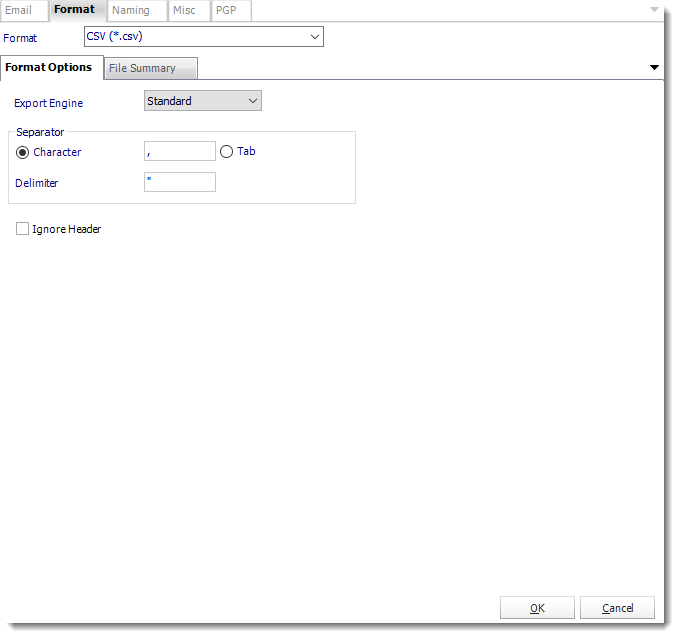
The ATRS CSV format controls let you prepare the receiving system’s agreed file. The pictured settings are examples.

The ATRS CSV format controls let you prepare the receiving system’s agreed file. The pictured settings are examples.

Delivery and protection choices

The destination guide covers email, disk/network locations, FTP and supported cloud destinations. Use the destination the receiving process can actually access.

The CSV options include ZIP output, password-protected ZIP and configured PGP. Agree those with the supplier: an import expecting a plain CSV will not consume an encrypted archive without its corresponding unpacking process.

Try a difficult description

A quote or line break in a product description can reveal an import problem before the next busy morning.

  
FOR DEVELOPERS

Let your order system request the prepared file

Your order application may already know when the supplier’s daily list is ready. It can request the saved CSV job, leaving the export settings and destination with the reporting team.

Keep the supplier and business date with the request so the team can find that particular handoff.

API example: request the saved CSV delivery

Replace 101 with the tested single-report schedule’s UniqueId and use your ATRS HTTPS address. Configure the source selection, CSV format and destination in the saved job first.

POST /api/Schedule/ExecuteScheduleAsync
Authorization: Bearer <ATRS-access-token>
Content-Type: application/json

{
  "ScheduleType": "report",
  "UniqueId": 101,
  "RunBy": "Supplier order handoff"
}

GET /api/Schedule/GetExecutionStatus?ExecutionId=<returned-id>
Authorization: Bearer <ATRS-access-token>

This request uses the saved settings; it does not supply a new CSV separator, supplier or recipient, and it returns execution tracking rather than CSV bytes.

Follow the ATRS execution guide. Keep the token on an authorized backend. Monitor within a defined deadline and decode ResultJson; Completed can contain Result=false. Check the expected files and destinations before reporting delivery. Reconcile an uncertain execution before submitting another copy.

Keep the request with the period

The business date and execution reference help a colleague find the file the supplier asked for.

  
YOUR NEXT STEP

Start the day with the supplier’s orders ready

Tomorrow, the supplier can begin its order update with the expected file already available. Purchasing can follow up on the delivery rather than chase another export.

Bring one accepted CSV and the supplier’s delivery requirement to your first trial. Use that familiar order file to explore the recurring preparation and handoff in ATRS.

Explore ATRS CSV export automation

Contributors:

Christian Ofori-Boateng

Christian Ofori-Boateng

CEO, ChristianSteven Software