

How to Preserve Layout and Formatting in Power BI Excel Exports
To preserve formatting in a Power BI Excel export, choose the route for the job: current layout for a visual’s shape, paginated XLSX for a designed report, or a workbook template for specified inputs and Excel formulas. Check the saved file’s values and behavior as well as its appearance.
For a recurring invoice workbook, PBRS can reuse a selected visual, template, destination worksheet and formatting settings. A controlled test must show that the writes preserve the calculations. The downloadable examples below demonstrate the workbook locally; they are not Power BI or PBRS export results.
- THE DIRECT ANSWER Choose Between Visual Shape, Report Layout and Workbook Behavior
- REQUIREMENTS AND LIMITATIONS Define the Columns, Types and Calculations Before Testing
- END-USER WORKFLOWS Run a Controlled Export and Inspect the Actual Workbook
- DEVELOPER AND API WORKFLOWS Use a Template Without Overwriting Its Formula Columns
- CHOOSE YOUR NEXT STEP Accept the Workbook Against Its Intended Use
Choose Between Visual Shape, Report Layout and Workbook Behavior
Ask what the recipient will do next. Reading a page, sorting invoices and changing inputs require different kinds of preservation.
| Required result | Route | Acceptance question |
|---|---|---|
| Matrix shaped like the visual | Data with current layout, where available | Are row and column categories arranged correctly? |
| Flat visual-data table | Summarized data export | Are columns, values and display formats usable? |
| Designed report in worksheets | Paginated XLSX | Does the layout support the spreadsheet task? |
| Inputs and Excel calculations | Controlled workbook template | Do writes preserve formulas and their ranges? |
Microsoft’s visual export guidance says current layout and summarized data have the same level of detail, arranged differently. Ordinary Export to Excel preserves model and visual formats according to its format table; connected tables do not. Dynamic formatting and visual-specific percent-of-grand-total formatting are exceptions, and date display can follow the exporting machine’s locale.
If the job is reading or printing a page, compare PDF with Excel. If it is sorting invoices or changing inputs, test those spreadsheet actions. A workbook that resembles the page can still be awkward to use.
Choose what needs preserving
Shape: Compare current layout with a flat table.
Exceptions: Check dynamic and visual-specific formatting.
Task: Name the recipient’s required spreadsheet actions.
PDF: Compare it when page reading or printing matters.
Define the Columns, Types and Calculations Before Testing
Our synthetic example has four invoices and six columns: InvoiceId, InvoiceDate, Amount, DiscountRate, DiscountAmount and NetAmount. The first four are inputs; the last two contain Excel formulas. Keep IDs as text, dates as date cells, amounts to two decimals and rates to two percentage decimals.
Invoice INV-0043 has Amount 1,250.50 and DiscountRate 0.0123. It displays 1.23%, calculates a rounded discount of 15.38 and a net amount of 1,235.12. Another invoice has a real zero rate. A third has a missing rate, so both calculated results stay blank. These amounts have no assigned currency.
A blank rate does not establish that no discount applies. The sample formulas require numeric amount and rate inputs. Agree the real business rule with the workbook owner before deciding how a missing exported value should behave.
The InvoiceRows table occupies A5:F9: one header row and four reserved data rows. In the template, A:D inputs start blank and E:F already contain formulas for those four rows. More records require an explicit extension of the table and formulas. This sample does not demonstrate automatic expansion.
Define the invoice workbook
Inputs: Specify the four input columns and their types.
Calculations: Keep the two formula columns separate.
Missing values: Distinguish an unknown rate from a real zero.
Range: Extend the four-row example explicitly when needed.
Run a Controlled Export and Inspect the Actual Workbook
Start with a small authorized export and a versioned copy of the template. Record the source report or visual and its approved filters. For a native visual export, use More options > Export data, then select the available shape and XLSX format. The report and your permissions determine availability.
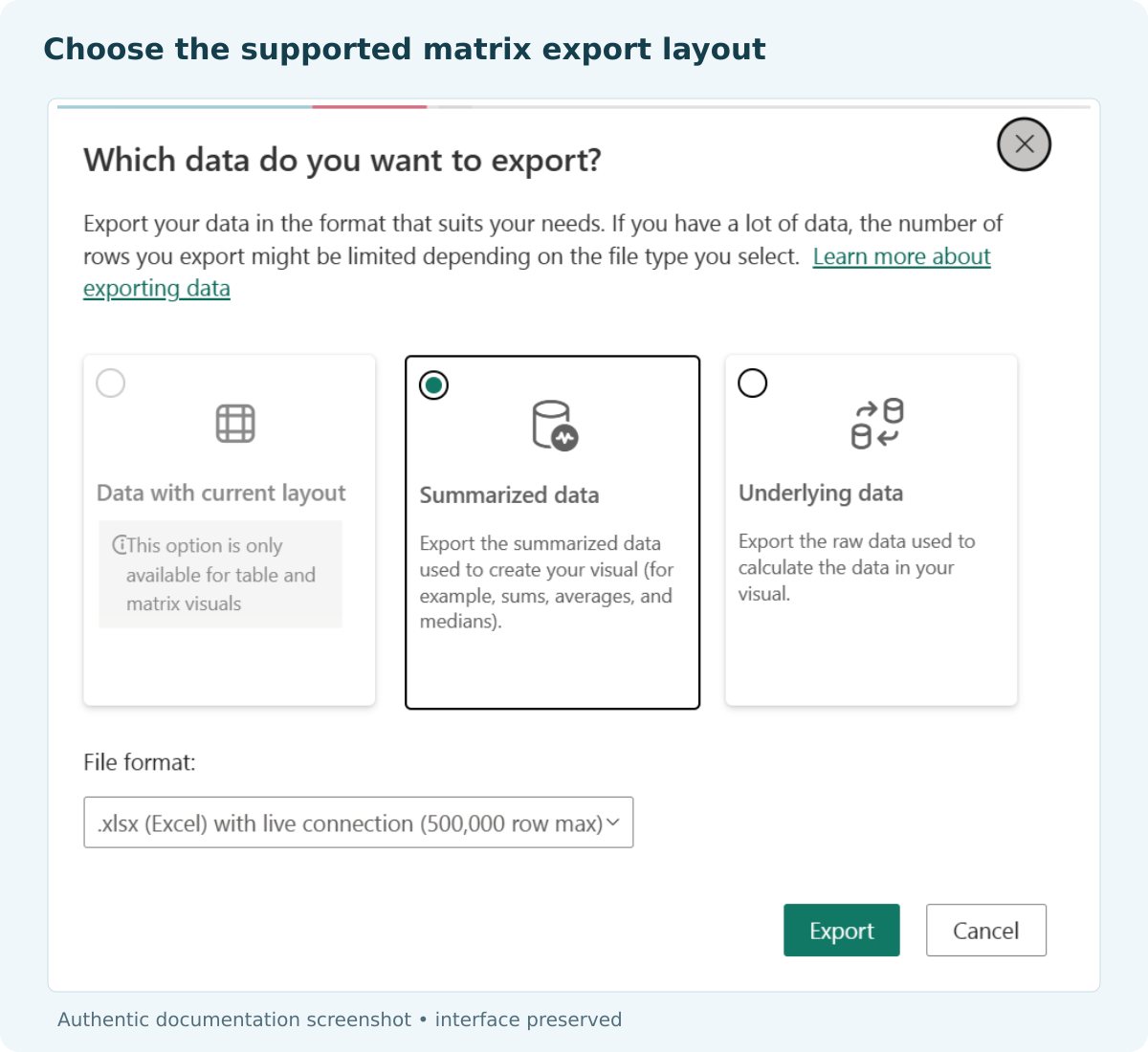
Microsoft documentation example. Current visual layout is separate from preserving Excel formulas.
For the documented Power BI Service Data Only route, the PBRS Excel guide describes these controls:
- Select the actual report page and a titled visual, then choose summarized or underlying data to match the required inputs.
- Select the Excel template and destination worksheet. Set the starting row and column, or the next available position.
- Apply the required style and column-format settings for this Service Data Only route. Do not assume every report type has these controls.
- Run a controlled export. Confirm where headers and data land and whether any write reaches a formula cell.
Open the actual output in the recipient’s Excel application, including Excel for the web or Microsoft 365 where applicable. Compare names, dates, IDs, values and formats. Inspect formulas in the formula bar, change a controlled input, recalculate against an independent expected result, then restore it. Test sorting and filtering on a copy, and check the delivered file too.
The paginated Excel renderer may merge cells to preserve layout, complicating sorting, wrapping and automatic sizing. Align report-item edges and inspect blanks in grouped labels. Report expressions are evaluated into values, not converted to Excel formulas.
Confirm access and licensing for the chosen route; Excel opening a file does not make its export free. CSV opened in Excel also does not supply a reusable workbook template with cell styles and formulas.
Test the recipient’s actual work
Output: Inspect the file produced by the selected route.
Behavior: Check types, formulas and changed-input results.
Application: Test in the Excel application the recipient uses.
Layout: Check merges, group labels, sorting and filtering.
Use a Template Without Overwriting Its Formula Columns
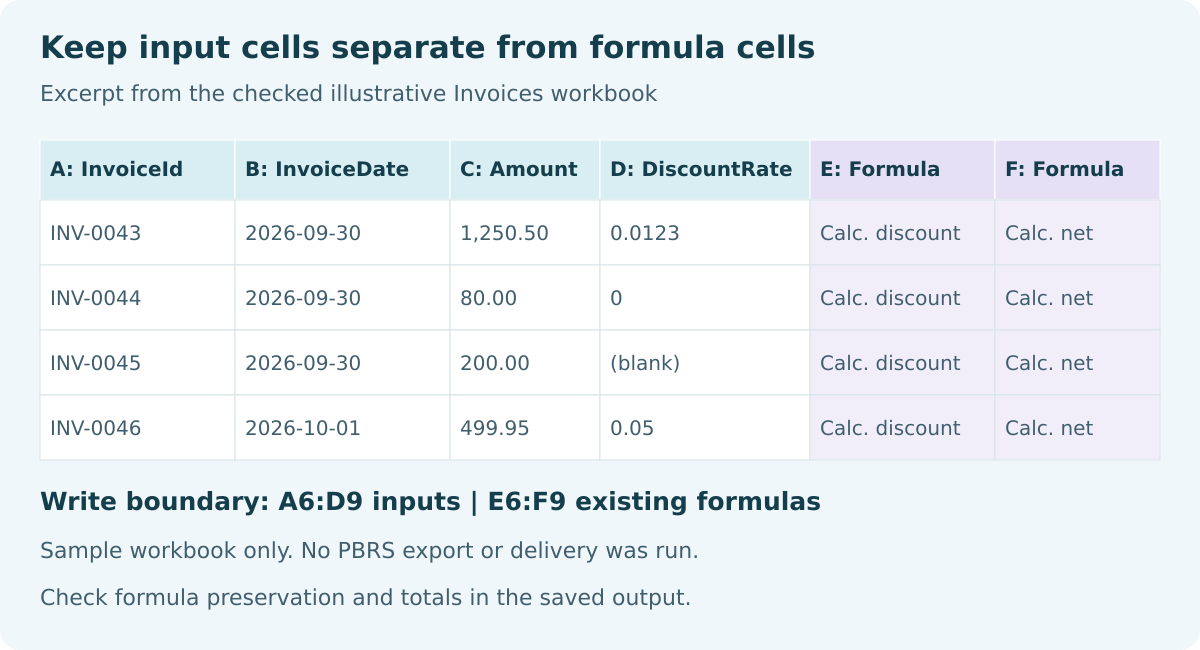
Illustrative workbook excerpt. Write only A6:D9 and check that E6:F9 formulas remain intact in the actual output.
For this test, arrange a dedicated visual with exactly the four input fields in A:D order. The first input row belongs at A6 on Invoices, leaving E:F for calculations. Verify header placement as well as the data range. These positions describe a proposed test contract, not an executed PBRS configuration.
Illustrative four-row workbook contract Worksheet: Invoices Table: InvoiceRows, A5:F9 Inputs: A6:D9 Formulas: E6:F9 E6: =IF(AND(ISNUMBER(C6),ISNUMBER(D6)),ROUND(C6*D6,2),"") F6: =IF(ISNUMBER(E6),C6-E6,"") Controlled input change: C6 = 2000; D6 = 0.0123 Expected E6 = 24.60; F6 = 1975.40
The example’s local spreadsheet check recalculated those changed-input results. The saved XLSX contains actual formulas in E6:F9, text invoice IDs and ISO date cells. The missing rate remains blank and zero remains numeric zero. This establishes the sample’s behavior; it does not establish that a PBRS write preserves formulas or expands their ranges.
Check the generated file before claiming preservation. If writes reach E:F, change their input range or use a separate input worksheet with calculations elsewhere. If record counts grow, extend and retest the controlled ranges. Keep failed output out of delivery until inputs and calculations agree.

Verify the template write
Positions: Locate headers and the first and last data cells.
Formulas: Confirm input writes leave E:F intact.
Recalculation: Change an input and compare the expected result.
Evidence: Test an actual export as well as the local sample.
Accept the Workbook Against Its Intended Use
The Illustrative Formatting Template has four blank input slots and eight formula cells. The Illustrative Formatting Expected Output contains the synthetic invoices, including zero and missing discounts. The public downloads were checked against the original files. Both were checked locally; neither substitutes for an export through your selected route.
Accept the real workbook when its columns, types, number formats and calculations pass in the recipient’s application. Record layout compromises that affect sorting, filtering or printing. Keep a native route when it passes; if you need a template, retain its version and tested input and formula ranges.
Explore PBRS report automation for repeated template-based work, or return to Power BI Questions.
Considering PBRS for formatted or template-based Excel output? Share the guide with your colleagues to review deployment, licensing, security and your reporting requirements.
Contributors:
Christian Ofori-Boateng
CEO, ChristianSteven Software

