

POWER BI QUESTIONS

How to Export Power BI Paginated Reports to SharePoint

You can export a Power BI paginated report to SharePoint with a Power Automate flow that generates the document and creates a file in the library. PBRS offers another approach: save the report, parameters, PDF output and SharePoint destination together in a recurring reporting schedule.

If colleagues expect the monthly operations PDF in their usual folder, PBRS can take care of that repeated handoff. They can find the report where they already work, without asking someone to export and upload it each month.

  
THE DIRECT ANSWER

Put the monthly report where colleagues expect it

Imagine the operations team reviewing September’s results. The report is ready in Power BI, but the team keeps its meeting documents in SharePoint. Someone still has to select September, export a PDF, find the right folder and upload it before the review.

Automating that handoff means generating the actual document and storing it in the library. A link to the Power BI report can be useful, but it does not give colleagues the dated PDF they want to keep with the meeting notes.

Choose a familiar folder and a name such as Operations-2026-09.pdf. The name identifies the reporting month, even if the report is generated in early October. In PBRS, those delivery choices stay with the report’s parameters and schedule.

Also decide what a rerun should do. Some teams want a revised copy to replace the original; others need to retain both. The file name and destination behavior should match that choice so colleagues can tell which version to use.

Name the period, not just the run

A September report may be produced in October. Use a file name and report heading that tell colleagues which month the figures describe.

  
REQUIREMENTS AND LIMITATIONS

Choose between a flow and a reporting schedule

Power Automate can handle the task with Export To File for Paginated Reports followed by SharePoint Create file. The flow maintains the recurrence, report parameters, file content and destination connection. This is a reasonable choice when someone on your team already owns that workflow.

PBRS keeps the preparation and destination in the reporting schedule. That is useful when SharePoint delivery belongs alongside other scheduled reports, rather than in a separate export-and-upload flow.

Part of the jobPower AutomatePBRS
Prepare the monthly PDFSelect the report, format and parameters in the export action.Save the paginated report, parameters and PDF format in the schedule.
Store the filePass the exported content into SharePoint Create file.Add a SharePoint destination to the reporting job.
Repeat each monthMaintain the flow’s recurrence and connections.Maintain the report’s schedule and destination together.

Whichever route you use, three people or processes may have different access: the connection exporting the report, the connection writing to SharePoint, and the colleague opening the stored file. A successful export does not grant SharePoint access to the reader.

For a Microsoft flow, check the paginated export prerequisites, including the supported capacity or limited PPU route and the two-minute report-download limitation. Changing the destination does not change the export service’s requirements.

For the detailed requirements and controls, see Microsoft’s paginated Power Automate integration guide.

Use the reader’s folder

Choose the library the team already uses for its review documents. A technically successful upload is less helpful if nobody knows where to find it.

  
END-USER WORKFLOWS

Set up SharePoint delivery in PBRS

Start with the published operations report and the month parameters. Then configure the folder where the team expects to find it.

  1. Select the report. Choose the Power BI Service paginated report in PBRS and set its operations and reporting-period parameters.
  2. Add SharePoint. In Destinations, choose Add SharePoint and configure the authentication method used in your environment.
  3. Choose the location. Connect to the site and browse to the document library and operations folder.
  4. Choose PDF and a useful name. Set the output format and naming rule, then schedule the run after the month’s data is ready.
  5. Try the handoff. Run to a test folder first and ask an intended reader to open the stored PDF. Check the month and a familiar total before enabling recurrence.

The SharePoint destination guide explains the connection and folder controls.

If you choose Power Automate instead, use Create file, with Site Address, Folder Path, File Name and the export’s binary File Content. Create item creates a list entry, rather than uploading the report document. Keep the generated content connected to the file action when changing the destination or name.
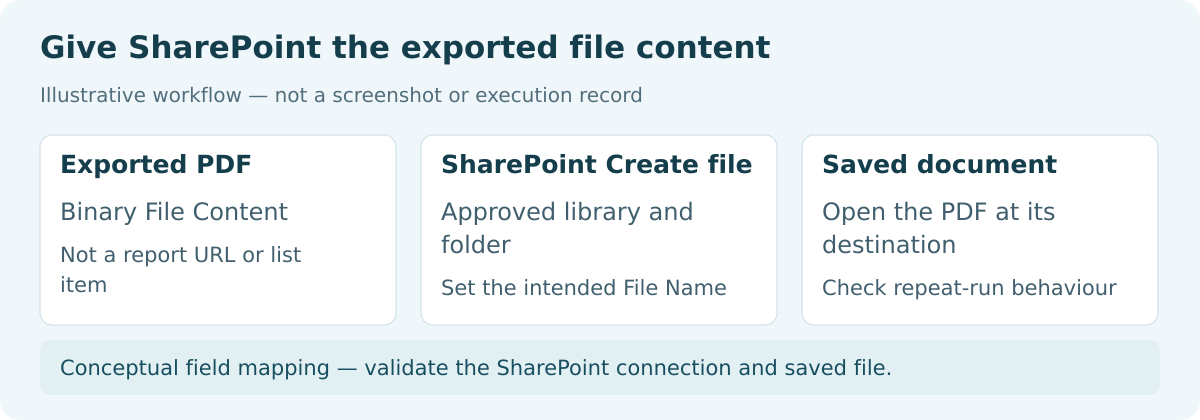
Illustrative diagram: Give SharePoint the exported file content. Exported PDF: Binary File Content. SharePoint Create file: Approved library and folder. Saved document: Open the PDF at its destination.

Try one rerun

See what happens when the file already exists. Make replacement or version retention a deliberate choice before the team depends on the folder.

  
DEVELOPER AND API WORKFLOWS

Trigger the saved SharePoint job through the API

Your application can trigger the prepared PBRS job when the reporting month is ready. PBRS then generates the PDF and sends it to the saved SharePoint destination, so the application does not need to retrieve and upload the file itself.

Configure the destination in PBRS first. The reviewed public API authoring contracts expose email and disk collections, rather than a complete SharePoint destination schema. Execute the existing job instead of inventing SharePoint fields or replacing its definition with one that omits the configured destination.

POST {pbrsBaseUrl}/api/Schedule/ExecuteScheduleAsync
Authorization: bearer {pbrsAccessToken}
Content-Type: application/json

{
  "ScheduleType": "report",
  "uniqueid": 101,
  "RunBy": "Monthly SharePoint operations PDF"
}

GET {pbrsBaseUrl}/api/Schedule/GetExecutionStatus?ExecutionId={ExecutionId}
Authorization: bearer {pbrsAccessToken}

Replace the example ID and connection values with your own. Save ExecutionId with the month and expected file name, then monitor the run and inspect its result using the PBRS execution guide.

If a timeout leaves the result uncertain, look for the existing execution and stored file before submitting another run. An authentication or folder-path error needs correction; repeatedly starting the same job will not repair the connection. Test the chosen behavior for an existing file name before relying on reruns.
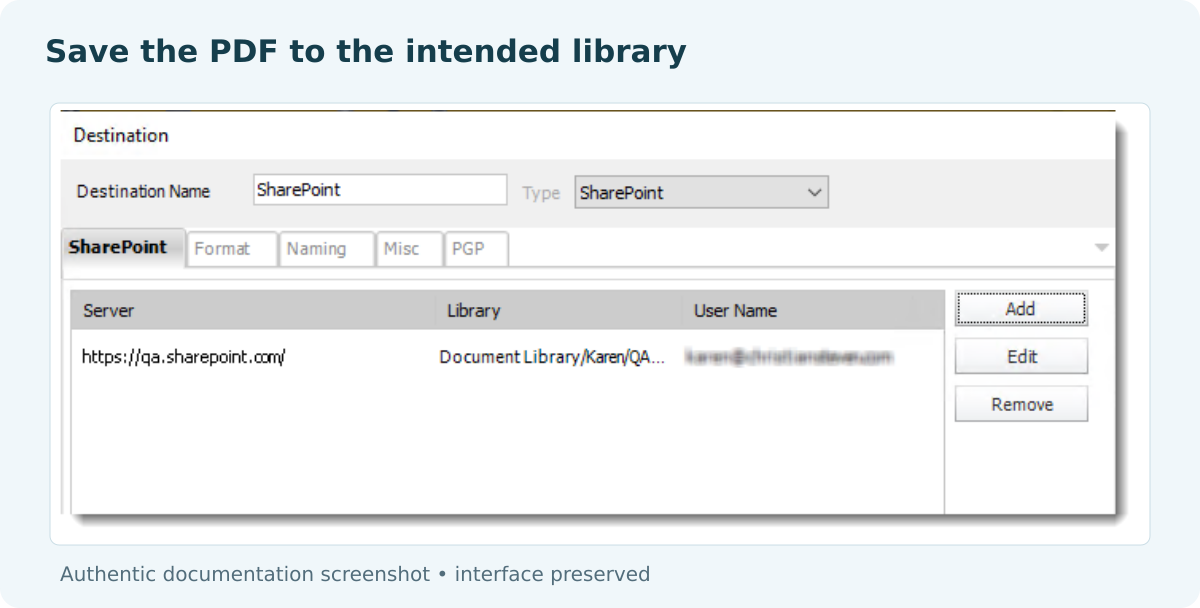

PBRS SharePoint destination example showing server, library and user fields.

Keep the job easy to trace

Recording the execution ID, reporting month and file name together makes a missing-report query much easier to investigate.

  
CHOOSE YOUR NEXT STEP

Make the folder a dependable place to find the report

The finished workflow gives the operations team a familiar place to find its monthly report. Nobody has to wait for a colleague to perform the upload, and the reporting team has one saved job to maintain.

Keep an existing Power Automate flow if it already serves that purpose well. If you want report preparation and SharePoint delivery managed together, use the PBRS destination guide to set up your first report. See Power BI Report Automation for the broader reporting options.

Download the PBRS Internal Evaluation Guide

Contributors:

Christian Ofori-Boateng

Christian Ofori-Boateng

CEO, ChristianSteven Software