

TABLEAU QUESTIONS

How Do You Send Tableau Reports to SharePoint, Teams or a Shared Folder Automatically?

The project meeting starts with a search through email attachments. The report everyone needs is still waiting for someone to upload it to the team’s shared workspace.

Advanced Tableau Report Scheduler (ATRS) can deliver the Tableau Cloud file to SharePoint, Teams or a shared folder as part of the reporting job.

  
THE PROBLEM AND ANSWER

Put the project report where the meeting happens

Picture the project coordinator opening the team workspace before the weekly review. Last week’s PDF is there. This week’s figures are in an analyst’s inbox, waiting to be downloaded and uploaded again.

The problem is the repeated handoff between a finished report and the place the team reads it. Agree the actual workspace location with the coordinator: a particular SharePoint library, a Teams destination or a network folder.

ATRS can generate the Tableau Cloud report and deliver its file through the corresponding destination. The meeting copy no longer depends on someone remembering the final upload.

Conceptual illustration: Report files routed to the people and locations that use them.

Conceptual illustration: Report files routed to the people and locations that use them.

Name the actual location

A workspace name is a starting point. Agree the library, channel or folder the meeting participants will use.

  
YOUR OPTIONS

Choose the workspace and the copy people need

A manual upload is reasonable for an occasional review. An existing integration may also meet the need if your team already owns its export, transfer and failure handling.

For the recurring project report, ATRS keeps those choices beside the report itself. The coordinator can receive a dated PDF for the meeting while finance receives a workbook through another configured destination.

Decide what people should see when they return next month. A dated file preserves the meeting record; a stable filename can represent the latest report. Give each copy a purpose instead of leaving readers to interpret a folder of similar attachments.

Workspace destinations and access

The SharePoint guide and Teams destination guide describe their respective connection and destination setup. A SharePoint source connection in Tableau is different from delivering an exported report to a SharePoint destination.

Use the approved integration and a destination accessible to the unattended job. A location visible in your browser or mapped desktop drive may not be available to the account running the schedule. Check the team’s permission to open the delivered file separately.

ATRS works with Tableau Cloud. An exported PDF or workbook is a saved file, rather than a live embedded dashboard.

Keep the meeting record

A dated copy makes it easier to return to the figures discussed at a particular review.

  
SET IT UP

Build the recurring project handoff

Begin with the project report and a test location in the intended workspace. Select the Tableau Cloud account, report and reporting period in ATRS, then add the required SharePoint, Teams or Disk destination.

Choose the file the meeting needs. Use a PDF for the reading copy or the appropriate Excel output when the team works with the cells. Give the filename a project and reporting period the coordinator recognizes.

Run the first delivery using the unattended setup and ask a project colleague to open it from the workspace. Check a familiar milestone and the reporting date together. Finding the file under an administrator’s account is not the same as making it useful to the team.

Once the location and report are right, choose the recurrence and the owner of a failed delivery. The normal weekly handoff can then include preparation, workspace delivery and any archive copy.
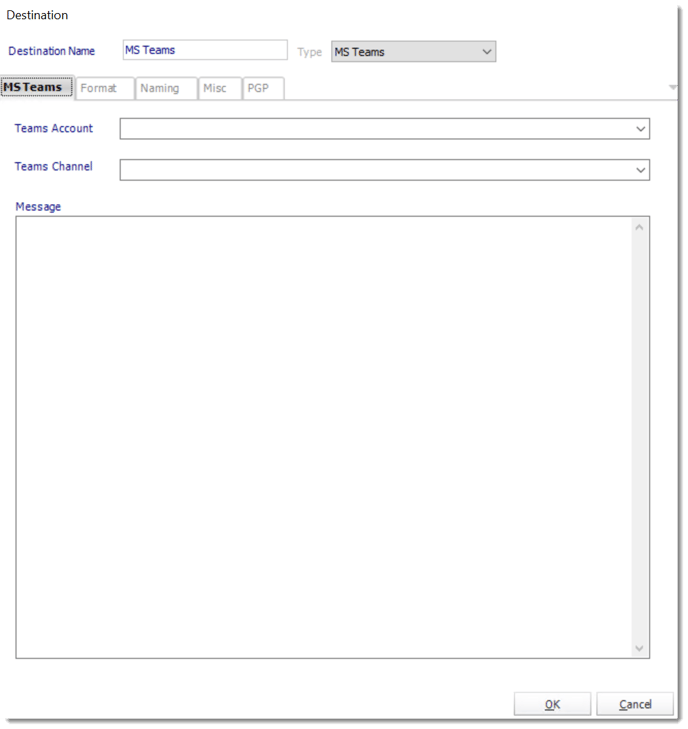
Add the workspace destination to the ATRS job and configure its approved account and location.

Add the workspace destination to the ATRS job and configure its approved account and location.

A file for each reader

ATRS destinations can be maintained together. Select the format and naming required for each destination rather than assume one attachment suits every reader.

For Excel preparation, ATRS offers Excel and Excel Data Only, with template placement and formatting controls in Data Only. A package can combine related outputs. Check actual destination-level results when part of the job succeeds and another destination fails.

Ask a colleague to open it

The first useful check is the reader’s own view of the workspace and the file.

  
FOR DEVELOPERS

Let your project application request another copy

The project application may offer a way to prepare another meeting copy. It can request the saved ATRS job without recreating the workspace upload.

The reporting owner maintains the report and destination while the application follows the requested run.

API example: run the saved workspace delivery

Use the UniqueId of the tested single-report schedule in place of 101. Configure the workspace account, path and report inputs before calling it.

POST /api/Schedule/ExecuteScheduleAsync
Authorization: Bearer <ATRS-access-token>
Content-Type: application/json

{
  "ScheduleType": "report",
  "UniqueId": 101,
  "RunBy": "Project workspace report"
}

GET /api/Schedule/GetExecutionStatus?ExecutionId=<returned-id>
Authorization: Bearer <ATRS-access-token>

The execution request uses the saved destination. It does not upload a file supplied by the application or provide an arbitrary SharePoint path override.

Follow the ATRS execution guide. Keep the token on an authorized backend. Monitor within a defined deadline and decode ResultJson; Completed can contain Result=false. Check the expected files and destinations before reporting delivery. Reconcile an uncertain execution before submitting another copy.

Trace the extra copy

Keep the project, reporting week and execution reference together when the application asks for another report.

  
YOUR NEXT STEP

Begin the review with one agreed report

At the next project review, the coordinator can open the agreed workspace and move straight to the milestones. Nobody has to search for the latest attachment and upload it while the meeting waits.

Start with that report and the exact place the team wants to find it. Use them to explore a recurring ATRS delivery.

Explore ATRS workspace delivery

Contributors:

Christian Ofori-Boateng

Christian Ofori-Boateng

CEO, ChristianSteven Software