

POWER BI QUESTIONS

How to Export Power BI Reports to PDF Automatically

When your team needs a Power BI PDF every morning, exporting and emailing it by hand soon becomes an unwelcome part of the working day. You can automate that routine with a Power BI subscription, a Power Automate flow or PBRS.

PBRS lets you save the report, selected pages, PDF settings, recipients and timing in one schedule. For a team waiting for its 8:30 operations pack, that means the report can arrive without someone opening Power BI and preparing the same attachment again.

  
THE DIRECT ANSWER

Give your team a report they can use each morning

Imagine an operations manager preparing for the morning meeting. She needs yesterday’s service figures and a list of unresolved exceptions. The full report contains other pages, but those two give her enough to decide where the team should focus.

A recurring PDF works well here because everyone can open the same dated document, including colleagues who are away from their desks. In PBRS, you can select the Summary and Exceptions pages and send them together, with a recognizable file name, each weekday.

The timing needs to follow the data. If the overnight load normally finishes at 7:45, allow time for the Power BI model to refresh and for the PDF to be generated before the 8:30 meeting. A schedule set to 8:30 starts work at that time; it does not promise an attachment in the inbox at that exact moment.

Put the reporting date on the report itself. That simple detail helps the manager distinguish yesterday’s completed figures from an older copy, without having to ask the reporting team.

Start with the meeting

Ask what the manager needs to decide at 8:30. That answer tells you which pages belong in the PDF and when the figures must be ready.

  
REQUIREMENTS AND LIMITATIONS

Choose how the PDF will reach its readers

Power BI’s built-in subscription is a useful starting point if you need an email attachment and the report qualifies. Open the report, choose Subscribe and look for the full-report attachment option. The subscription documentation explains licensing, recipient restrictions and attachment limits, including the 20-page and 25 MB limits for standard full-report attachments.

If the file also needs to go into a folder, or you want its selected pages, name and delivery managed together, PBRS gives you a dedicated reporting schedule. Power Automate is another option when your team already maintains flows and the report meets Microsoft’s export requirements.

What the team needsA suitable approach
A straightforward recurring email attachmentA native subscription, where its licensing and attachment options fit.
A recurring PDF with selected pages, a useful name and email or folder deliveryA PBRS schedule that keeps those choices together.
A PDF as one step in an existing Microsoft workflowA Power Automate export flow with separate delivery actions.
A report immediately after a business process finishesAn application can trigger a prepared PBRS job through its API.

Check eligibility before building a flow. Microsoft’s scheduled export example uses a reserved-capacity workspace. Adding the Power Automate connector does not remove that requirement. PBRS uses its own supported rendering options; try the actual report in your environment when comparing the approaches.

Sending outside your organization?

Check the recipient rules for the route you choose. Power BI’s external subscription rules differ from internal delivery, and PPU is not equivalent to paid capacity for that purpose.

  
END-USER WORKFLOWS

Set up the morning PDF in PBRS

For the operations manager, the goal is a two-page PDF in her inbox before the meeting. Here is how to turn that request into a recurring PBRS job.

  1. Choose the report. Create a Single Report Schedule, select the Power BI account, workspace and operations report, and give the schedule a name such as “Weekday operations pack.”
  2. Select the pages. In Settings, use Pages To Render for Summary and Exceptions. Set any required filters and use Preview to see the result.
  3. Choose PDF and delivery. Add an Email or Disk destination and select Acrobat Format (*.pdf). Give the attachment a name the team will recognize.
  4. Set the timing. Choose Daily or Week Days and leave enough time after the data becomes ready. Check the time zone so the run follows the team’s working day.
  5. Try the complete delivery. Run the job to a test recipient or folder before enabling recurrence. Open that copy and check its pages, reporting date and figures.

The Single Report Schedule guide walks through the controls. The PDF output guide covers the format settings.

Choose the file naming rule to suit the team. A dated copy helps someone look back at an earlier meeting. A “latest” copy can suit a shared folder where colleagues always want the current report. Remember that the date a file was generated can differ from the period its figures describe.
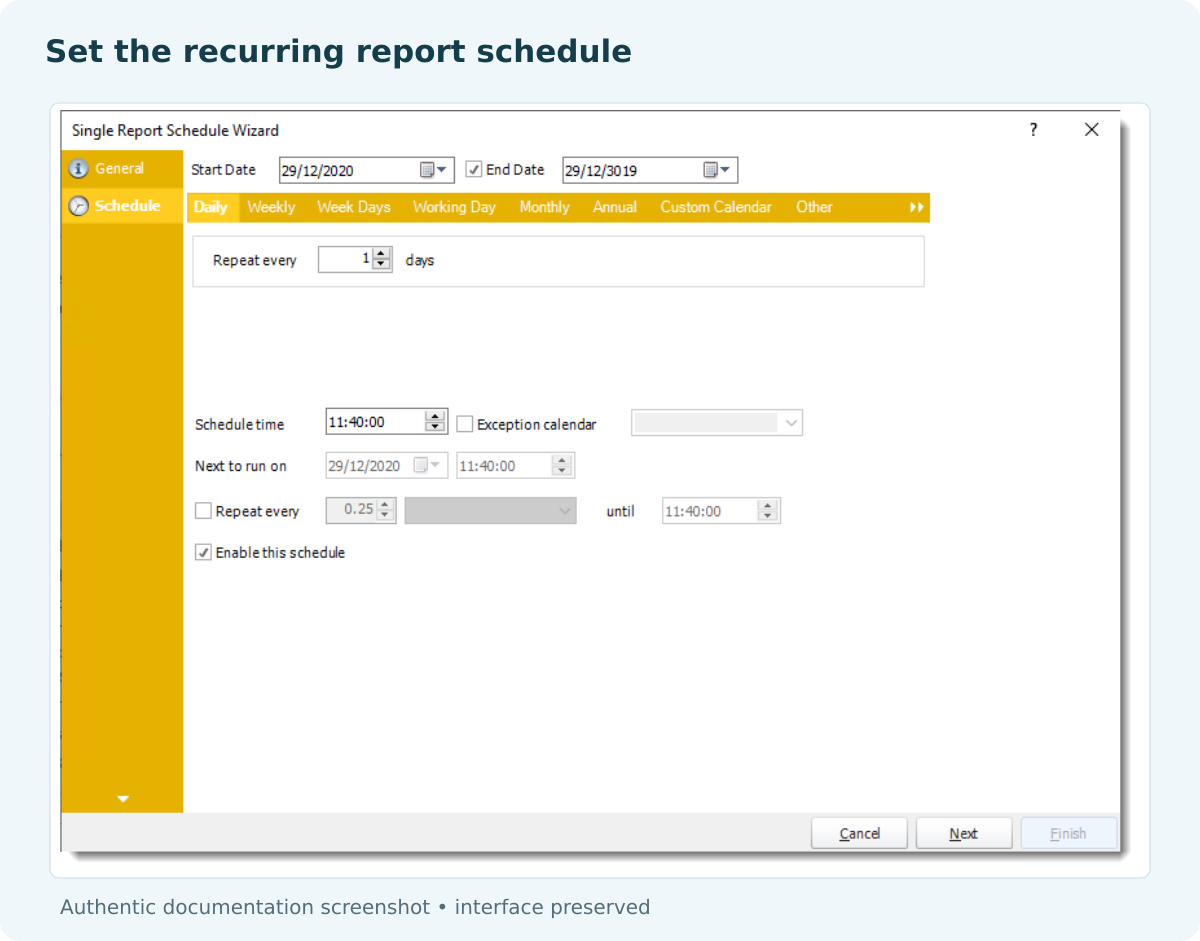

PBRS Power BI schedule wizard showing the available schedule controls.

Keep the PDF readable

A dashboard that looks comfortable on a large monitor can feel cramped on paper. Preview the selected pages at the size your colleagues will actually read.

  
DEVELOPER AND API WORKFLOWS

Let an application start the report when data is ready

Sometimes the overnight load finishes at different times. In that case, your application can tell PBRS to run the operations pack when the load is ready, instead of relying only on a clock. The saved PBRS job still contains the page selection, PDF format and destination, so those reporting choices do not have to be rebuilt in application code.

Prepare and test the schedule first. Then use the following request pattern to execute that existing job. Replace the example ID and placeholders with your installation’s values.

POST {pbrsBaseUrl}/api/Schedule/ExecuteScheduleAsync
Authorization: bearer {pbrsAccessToken}
Content-Type: application/json

{
  "ScheduleType": "report",
  "uniqueid": 101,
  "RunBy": "Morning operations pack"
}

GET {pbrsBaseUrl}/api/Schedule/GetExecutionStatus?ExecutionId={ExecutionId}
Authorization: bearer {pbrsAccessToken}

Save the returned ExecutionId alongside the reporting date, then monitor the execution and inspect its result using the PBRS execution guide. If a request times out, check the existing execution before starting another; the first run may still be producing or delivering the PDF.

Choose whether PBRS recurrence or the application starts this particular job. Using both without coordinating them can send two copies. The schedule API guide and destination guide explain how to maintain the saved configuration.

For comparison, a direct Microsoft export integration submits an export, monitors it, retrieves the file and handles delivery separately. PBRS is useful when the application should supply the trigger while the reporting job remains manageable in PBRS.

Give the support team a useful clue

Keep the reporting date with the execution ID. If someone asks where this morning’s pack went, the team can find the relevant run without guessing.

  
CHOOSE YOUR NEXT STEP

Make the morning report a routine you can rely on

Once the schedule is working, the operations manager can open the morning pack and get on with the meeting. The reporting team has a saved job to maintain, instead of a daily export-and-email task.

Start with one real report and its intended readers. If a native subscription covers the requirement, it may be all you need. If you want to manage selected pages, PDF settings, naming and delivery together, explore scheduled PDF delivery with PBRS. The Power BI Report Automation guide shows how that can grow into a wider reporting routine.

Download the PBRS Internal Evaluation Guide

Contributors:

Christian Ofori-Boateng

Christian Ofori-Boateng

CEO, ChristianSteven Software