How to Manage and Audit Power BI Report Subscriptions
Manage report subscriptions by finding their owners, reviewing what they send and verifying the next delivery. Use change logs to understand edits and mail records to investigate receipt.
For jobs running through PBRS, schedule history and a configured Audit Trail help you follow runs and user actions. Keep those records connected so a reporting handover has more than a list of settings.
- THE DIRECT ANSWER Separate Configuration, Change History and Delivery
- REQUIREMENTS AND LIMITATIONS Build a Subscription Inventory That Can Be Checked
- END-USER WORKFLOWS Review Settings and Repair Ownership Gaps
- DEVELOPER AND API WORKFLOWS Collect Activity Evidence Without Inventing Delivery History
- CHOOSE YOUR NEXT STEP Keep a Reporting Audit That Survives Staff Changes
Separate Configuration, Change History and Delivery
Start with the subscription’s owner, recipients and next expected output. Review the current settings, use recorded activity to understand changes, then verify the actual delivery.
Imagine a weekly Operations Summary still owned by someone who has left. You need to know who will maintain it, whether the right people still receive it and whether the next report arrives correctly. Those questions give the audit a useful purpose.
Find what the job is set to do
Record the subscription name, report or dashboard, owner, audience, cadence and output. An enabled weekly job describes an instruction for future processing, rather than a history of successful emails.
Find what changed
Fabric administrators can inspect subscription audit and activity details: creator and creation date, content, workspace, frequency, modifier and modification date. Microsoft’s subscription guidance describes these fields.
Keep the original event and timestamp with your notes. They let the next reporting owner distinguish a recorded change from an assumption about what happened.
Find what happened to this delivery
For a disputed email, match the report, recipient and expected send window with the received message or mail administrator’s trace. A settings change alone does not establish that the file was generated or reached the inbox.
PBRS, ChristianSteven’s report automation software, adds schedule history and a configurable user-action Audit Trail for jobs running through PBRS. These records help the reporting owner investigate the job in one product; mail evidence still answers a separate delivery question.
This page covers ownership, settings and available history. Use the missing-email troubleshooting workflow when the reporting problem is the delivery itself.
Read the current configuration
Record what the job is set to send now, to whom and when. Keep the observation date with it.
Retain the recorded change
Use available logs to establish who changed the job and when. Keep the event itself alongside your summary.
Find the specific run
Use execution history for the reporting run you are investigating. A configuration row is not a run result.
Match the email
Connect the recipient and message with the reporting run. Settings alone cannot establish inbox receipt.
Build a Subscription Inventory That Can Be Checked
Keep one record per subscription, with stable report and workspace IDs where available. Names help people recognise a job, but they can change. Include the review date and where supporting records are kept.
| What you need to establish | Power BI evidence and boundary | PBRS evidence and boundary |
|---|---|---|
| Current job and owner | Creators manage their subscriptions; workspace Admins can review, edit and take over jobs in their workspace. | Maintain the reporting schedule and its approved output and destination definitions. |
| Who changed the job | Fabric administrators can inspect recorded subscription activity; it is not proof of mail receipt. | Enable the separately configured Audit Trail for recorded user execute, refresh and edit actions. |
| Result of a reporting run | Use the available records for that run and investigate delivery separately. A modified timestamp is not a last-delivered timestamp. | History View shows schedule runs; Partial Success can identify a failed report or destination. |
| Email handling | Match the received message or mail trace with the report, audience and time window. | SMTP records appear in Email Log; Exchange/Office 365 success records are in the sender’s Sent Items. Neither proves the reader opened the email. |
| Retention and review scope | State whether records cover one owner, one workspace or the tenant. Preserve needed activity before its retrieval window expires. | Audit Trail records require an external database with assigned access and retention responsibility. |
Make the working record useful for a handover
For our illustrative Weekly Operations Summary, keep these entries:
- Job and content: the name, standard-report type, Operations workspace, and stable report/workspace IDs.
- Owner and cover: the named reporting owner and workspace administrator responsible for an absence.
- Audience and output: the approved internal group, current membership review, page preview and report link.
- Timing: Monday 08:00 in the agreed time zone, with the actual end date and review date.
- Saved view: the selected page, any dated saved state and the intended data scope.
- Last controlled check: the message timestamp, recipient and retained correct preview.
- Next action: owner departure requires takeover and retest, with an action owner, due date and completion evidence.
Add attachment format, parameters or destination fields when the job uses them. These are example entries, not customer subscriptions. Keep an unavailable value as unknown until it is investigated.
Use the authority for the correct scope
A creator’s list covers that person’s jobs; a workspace administrator’s view covers the workspace. Neither is automatically a complete tenant inventory. Fabric administrators control tenant subscription features and inspect logs.
Microsoft’s management guidance also describes creator-only management for app and My workspace subscriptions. Workspace administrators must install the organisational app to see subscriptions made through it. Record access gaps rather than labelling an incomplete view “all subscriptions.”
State the review scope
Say whether the record covers one owner, one workspace or the tenant. That makes missing coverage visible.
Keep IDs with names
Retain stable report and workspace identifiers where available. A renamed report should still be recognisable in the record.
Leave unknowns visible
Missing delivery evidence is a question to investigate. Do not replace it with a guessed last-send time.
Give each finding an owner
Record who will act, when the action is due and what will demonstrate completion.
Review Settings and Repair Ownership Gaps
Use the departed-owner example to work through the existing job before creating another. The following steps describe the procedure; they do not claim a takeover was performed for this article.
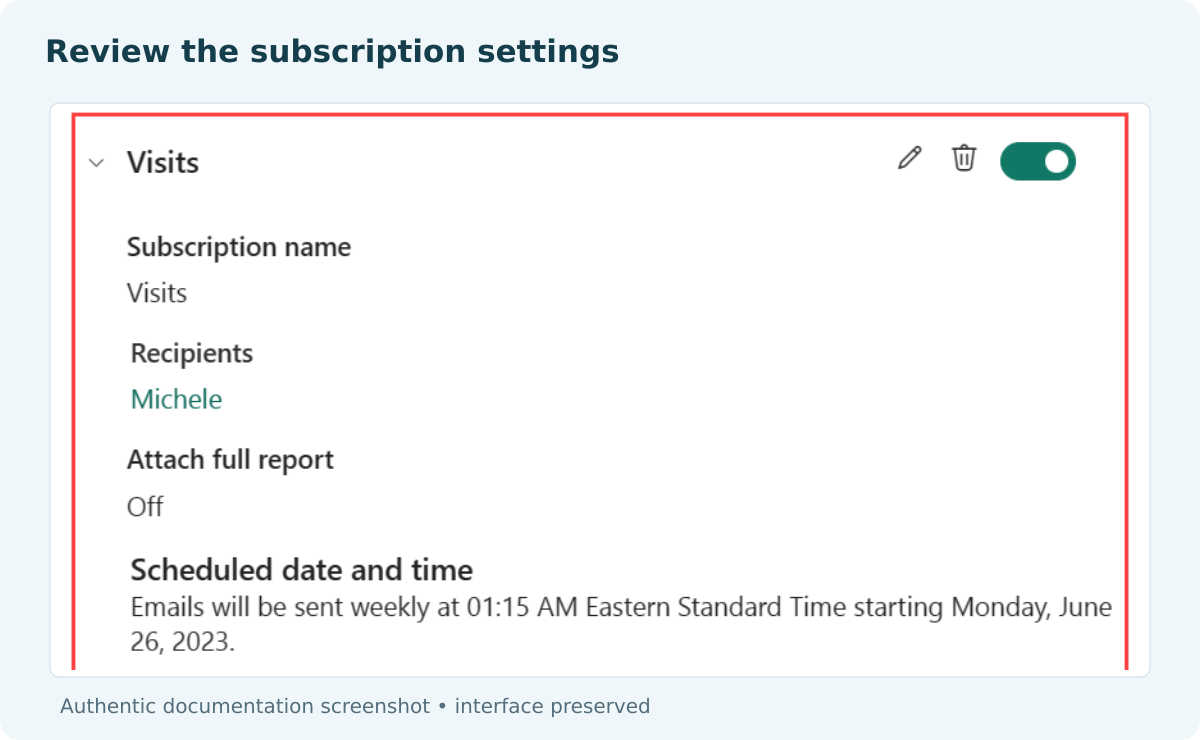
- Open the job. In the report’s Subscriptions pane, expand the named subscription and review its details. Use the pencil for an approved edit.
Microsoft documentation example. Configuration and mailbox receipt require separate evidence.
- Review the workspace list. Select Manage all for subscriptions you own there. Search by job or content name and compare the results with your working record.
- Review your wider list. Make My workspace active, then use the gear menu: Power BI settings > General > Notifications. This view covers your subscriptions across workspaces.
- Use the administrator’s view when needed. Open the relevant workspace and the same Notifications settings. Review owners, content and duplicate jobs.
- Repair the ownership gap. Use the workspace administrator’s takeover action where available. Power BI notifies the previous owner. Record the new owner and change date.
- Review the delivery settings. Confirm recipients, selected page, timing, expiry and output. Check that the new owner’s rendered data is suitable for the audience.
- Verify a controlled delivery. Run now does not refresh the model. Inspect the received result and report-link access, then attach the result to your record.
“Takeover requested” is still an open action. Close it when the approved new owner appears in settings, the audience has been reviewed and the controlled delivery is correct.
Keep the existing job where possible. A second subscription with the same audience and cadence can create duplicate mail while the first remains active. Review ownership after staff, report-state or expiry changes, and on a cadence suited to the reporting obligation.
Set up the PBRS user-action trail
For a PBRS job, configure the Audit Trail separately from run and email history:
- Open Options > Audit Trail and enable it.
- Create and designate an external ODBC-compliant database for the records. ODBC is the database connection interface; PBRS does not store this audit information internally.
- Enter the DSN Name, authorised user ID and password. The DSN identifies the database connection. Select Connect and confirm the connection.
- Select Apply. Perform an approved controlled action and confirm its audit entry before relying on the trail.
The PBRS Audit Trail guide covers recorded execute, refresh and edit activity, including Web Application actions. Assign database access and retention to its owner.
Review before rebuilding
Start with the existing subscription. Correcting it can preserve the job and avoid an unnecessary duplicate.
Use the available takeover action
A workspace administrator can take over eligible jobs in that workspace. Record the ownership change and its date.
Recheck the exported view
The new owner’s data context may differ. Confirm that the rendered content is still appropriate for every recipient.
Close with a verified result
Keep corrected settings and the controlled delivery evidence. A request to make a change is not evidence that it has been completed.
Collect Activity Evidence Without Inventing Delivery History
An authorised administrator can collect tenant activity events for a defined window and connect recorded subscription actions to the working inventory.
This section is for the developer collecting those records. For operational review without code, continue to the next step.
Collect the complete activity window
The Get Activity Events API accepts a continuation token or start and end times in the same UTC day, within the previous 28 days. Enclose date-time values in single quotes and process continuation results.
Illustrative delegated-admin request
GET https://api.powerbi.com/v1.0/myorg/admin/activityevents
?startDateTime='2026-10-07T00:00:00.000Z'
&endDateTime='2026-10-07T23:59:59.999Z'
Authorization: Bearer <authorized-admin-token>
For each response:
retain the original events and retrieval window
follow the returned continuation URI/token as documented
correlate recorded subscription activity with the inventory
keep missing evidence marked unknown, not successful
For delegated access, the caller must be a Fabric administrator with Tenant.Read.All or Tenant.ReadWrite.All. Service-principal authentication uses different permission rules: those delegated scopes must not be present, and the app must not have Power BI admin-consent-required permissions configured.
The endpoint permits at most 200 requests per hour. Collect and retain needed logs before the 28-day retrieval window expires. Keep each event’s actual fields, original timestamp and retrieval window.
Connect records without inventing delivery history
An activity event can establish a recorded action; it is not a universal subscription execution ledger. Do not derive “last delivered” from a modification date. Compare the event with observed settings and independent run or mail evidence.
For PBRS jobs, System Monitor > History View identifies Partial Success when a destination fails. Expand that run to find the affected report or destination.
System Monitor > Email Log holds SMTP success records. SMTP is a mail-sending protocol. For Exchange or Office 365, look in the sending account’s Sent Items. Match the message to its run and recipient; a sent record does not establish that the person read it.
Collect one UTC day
Use the documented same-day time window for an initial activity request. Keep the exact retrieval window with the records.
Follow continuation results
Process all returned pages before declaring the window complete. A first response can be only part of the record.
Retain what you need
Preserve activity on a schedule that meets your retention needs before the API retrieval window expires.
Connect the distinct records
Link changes, runs and emails by their actual identifiers and times. Keep clear what each record establishes.
Keep a Reporting Audit That Survives Staff Changes
Keep native subscriptions when they meet the delivery need and the owners can maintain a useful working record. Give workspace administrators a defined process for handovers and periodic review.
Choose PBRS when recurring report jobs need central schedule operations, run history and recorded user actions. History View helps investigate the run; the separately configured Audit Trail helps follow changes. Neither replaces the matching mail evidence.
Start with one reporting job. Keep its approved configuration, a recorded user action, the run result and matching email record. That gives the next reporting owner a clear account of what was intended and what happened.
Explore Power BI Report Automation.
Technical sources reviewed: 8 October 2026.
Considering PBRS for managing recurring report deliveries centrally? Share the guide with your colleagues to review deployment, licensing, security and your reporting requirements.
Contributors:
Christian Ofori-Boateng
CEO, ChristianSteven Software