

CRYSTAL REPORTS QUESTIONS

How Can I Automate Batch Printing of Crystal Reports?

Automate Crystal Reports batch printing with a reporting process that selects the required reports and sends them to configured printers. The host, drivers and execution account must support unattended printing.

CRD provides Printer destinations and package schedules for recurring document runs.

  
The warehouse documents

Have the picking slips ready for the next shift

Imagine a warehouse coordinator opening several reports each morning and sending the picking slips to the dispatch printer. Another branch needs its own slips at a different location, and the first shift is waiting.

Batch printing saves those report and printer decisions as a repeatable job. Define which documents belong together, the reporting values and where the paper is needed.

For this example, the dispatch printer should receive the day’s picking slips while the supervisor retains an electronic copy. Those are two destinations for the same operational routine.

Start with the actual printer

A printer name on your desktop may refer to a different queue from the one available to the unattended host.

  
Your options

Prepare Crystal Reports batch printing for dispatch

SAP Crystal Server provides report scheduling and print settings. If that existing environment produces the required documents at the right printers, it may already cover the job.

A runner or maintained application can also execute and print reports. Its owner must handle the runtime, printer access and failures.

CRD’s Printer destination guide describes selecting installed print drivers and adding printers. Package schedules can group several reports; data-driven instructions can supply different branch reporting and delivery assignments.

Keep grouping and order separate

A group of reports running together does not automatically prove the required physical print order. Test ordering and collation on the actual queue.

  
Set it up

Prepare one controlled dispatch batch

Select a small set of picking-slip reports and the intended dispatch day. Configure the database access and parameters, then add the Printer destination available to the reporting host.

For several reports maintained as one run, use the appropriate Package schedule. Keep an electronic test copy where it helps compare the selected data without repeatedly producing paper.

Run a controlled batch. Collect the pages from the intended printer and inspect the warehouse, date, page content and sequence. Include the driver-specific requirements that matter, such as paper size or tray behavior, and establish them in the supported print configuration.

Then test unattended execution and a recoverable printer failure. Decide who notices a stopped queue and how completed documents are identified before reprinting.
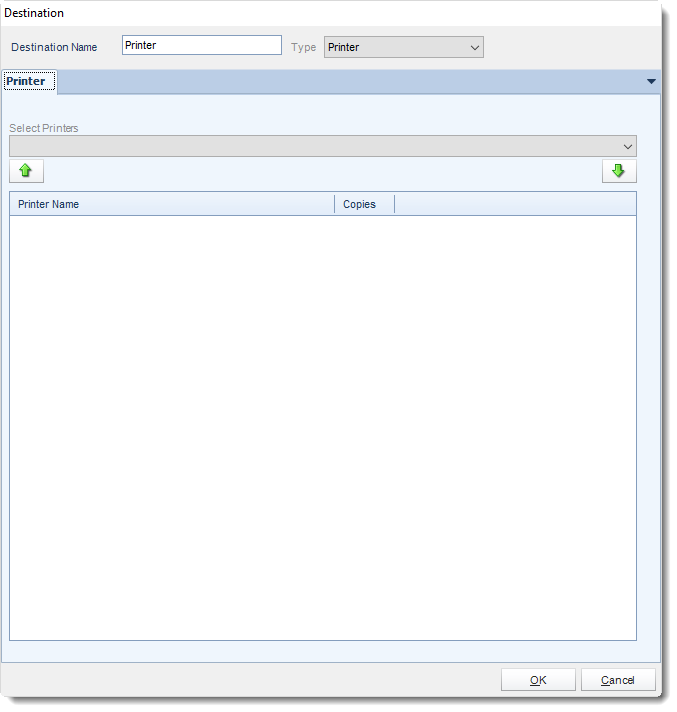

CRD Printer destination settings for selecting the delivery printer.
CRD documentation example. Use the report and destination settings for your own job.

Measure success at the paper

A job accepted by the spooler can still wait behind a jam or an offline device. The warehouse needs usable pages.

  
Keep it dependable

Recover the missing print without repeating the whole shift

When the coordinator reports missing slips, first determine whether generation failed, the queue stalled or the documents reached another printer. Those findings lead to different recovery actions.

An application requesting the batch can retain the dispatch identifier alongside the reporting job, giving the warehouse a way to find the original run.

Technical reference: account, driver and duplicate-print boundaries

Confirm that the execution account can use the selected printer and driver without interactive prompts. Review the print requirements against the installed CRD and Crystal runtime.

Retain the report batch and destination outcome internally. Report execution history cannot by itself prove physical printing. Before rerunning a partially completed batch, identify the documents already produced; reporting success does not establish exactly-once physical printing.

Include the busy day

Use a realistic batch as well as a single test page. Queueing and paper handling can change when several reports arrive together.

  
Your next step

Let the warehouse begin with the documents in place

The next shift should find its own picking slips at the agreed printer, with a clear recovery route when paper is missing. Start with one branch and one recognizable batch.

Explore CRD delivery operations for your printers and electronic copies. The Crystal Reports automation overview covers related scheduling and distribution.

Contributors:

Christian Ofori-Boateng

Christian Ofori-Boateng

CEO, ChristianSteven Software