

How Can I Schedule Crystal Reports to Export CSV Files?
Schedule Crystal Reports CSV exports by choosing CSV as the output and agreeing the receiving system’s file requirements. A generated file still needs to pass that system’s import checks.
CRD can combine CSV options, naming, timing and delivery in the recurring reporting job.
The recurring handoffGive the receiving system a file it can read
The recurring handoff
Give the receiving system a file it can read
Imagine preparing a daily stock file for a supplier. The report figures are correct, but the supplier rejects the CSV because its dates and separators do not match the import specification.
The useful deliverable is more specific than a file ending in .csv. Agree the columns, ordering, delimiter, date representation, identifiers and how the receiving system knows a new file is ready.
For this example, the supplier needs one stock row per item each morning. A printed report’s headings and totals may be useful to a person but inappropriate for that import.
Keep the import specification beside the sample
An accepted file gives you a concrete reference. A spreadsheet opening the CSV successfully does not prove the supplier will accept it.
Your options
Schedule Crystal Reports CSV exports for the supplier
Crystal Reports can export CSV, and a server schedule or maintained runner can automate that export. Begin by checking whether the source report produces the required data structure.
CRD’s CSV guide documents separator and delimiter choices, standard and legacy modes, selected formatting, custom names and appended timestamps. Configure these against the supplier’s specification.
Changing the extension to .txt can meet a naming convention, but does not change the file’s contents. If the report export cannot produce the required schema, additional transformation or a different source workflow is needed.
Keep volume claims specific
CSV is a data-oriented format, but a scheduler does not remove database, renderer or receiving-system limits. Test the expected file size.
Set it up
Prepare tomorrow’s supplier stock file
Select the stock report and the intended business-day parameters in CRD. Add the agreed destination and choose CSV. Set the separator and text delimiter, then choose the export options appropriate to the report and runtime.
Name the output according to the supplier’s convention. Include the business date where required; add a run timestamp only if the receiving process accepts versioned filenames.
Inspect the raw text as well as a spreadsheet view. Check quoted descriptions containing separators, leading zeros, empty fields and the last item. Spreadsheet software can reinterpret identifiers or dates and hide a mismatch.
Submit a controlled sample through the supplier’s test process and compare its import result. Then schedule the delivery after the stock source is ready, with a separate response for no rows and an export failure.
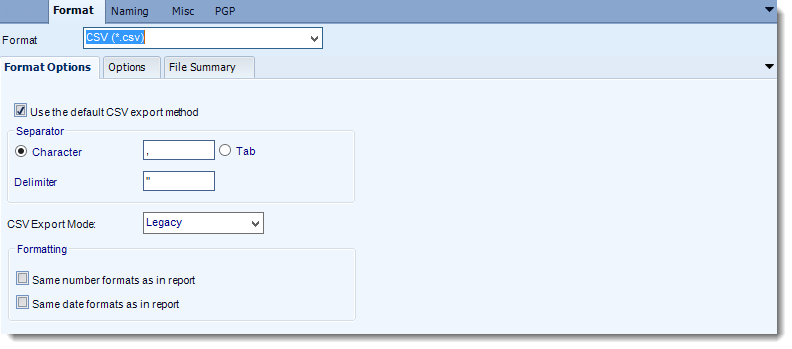
CRD documentation example. Use the report and destination settings for your own job.
Test a troublesome row
Include a description with punctuation, a zero-prefixed code and a missing optional value. Ordinary rows do not exercise the parser’s difficult cases.
Keep it dependable
Separate the export from the supplier’s acceptance
A delivered CSV is only useful once the supplier can process it. Keep the output date and import acknowledgement together so someone can investigate a rejected morning file.
An application may start the prepared job after stock processing completes. The receiving system still needs its own completion and duplicate-file rules.
Technical reference: schema and repeat files
CRD documents CSV export modes with runtime/version conditions. Validate the chosen route’s encoding, data representation and formatting against an actual sample rather than assuming every CSV option behaves identically.
Agree whether a rerun replaces a file or creates another version, and how the receiver avoids importing it twice. File delivery, import acceptance and business processing are separate outcomes.
Keep an accepted sample
Retain a sanitized accepted file and its specification. Recheck both when a source field or supplier interface changes.
Your next step
Let the morning file complete the handoff
The supplier should receive a stock file its import can use, while you have a clear way to explain a rejected or repeated delivery. Start with that accepted sample.
