

POWER BI QUESTIONS

How to Trigger and Monitor Power BI Refresh with REST API

To trigger Power BI refresh through the REST API, send a POST to the model’s refreshes endpoint and monitor the matching operation. A 202 response means the request was accepted; you still need to find out whether refresh completed.

If your real goal is a current customer PDF after a billing load, PBRS can provide a broader reporting job for your application to trigger. The job keeps its supported refresh handling, report output and delivery together, while your application decides when the billing data is ready.

  
THE DIRECT ANSWER

Follow the billing data through to the customer’s report

Imagine the billing load has finished and customers are waiting for updated statements. Starting a model refresh is one step toward that outcome. The application still needs to know that the intended load is present before it produces the report.

Keep the billing batch and reporting period with the refresh request. If the source load was late, a technically successful refresh could still contain the previous period. A known close date or newly loaded transaction gives you a practical way to recognize the right data.

The service interface calls the object a semantic model, while the REST API still uses datasets in its paths. groupId identifies the workspace and datasetId identifies the model. Use those identifiers rather than a report’s display name, which someone may change later.

When the application needs only to update a model, native refresh is a focused solution. When it needs to generate and deliver the billing document too, a prepared PBRS reporting job can reduce the reporting steps the application has to maintain itself.
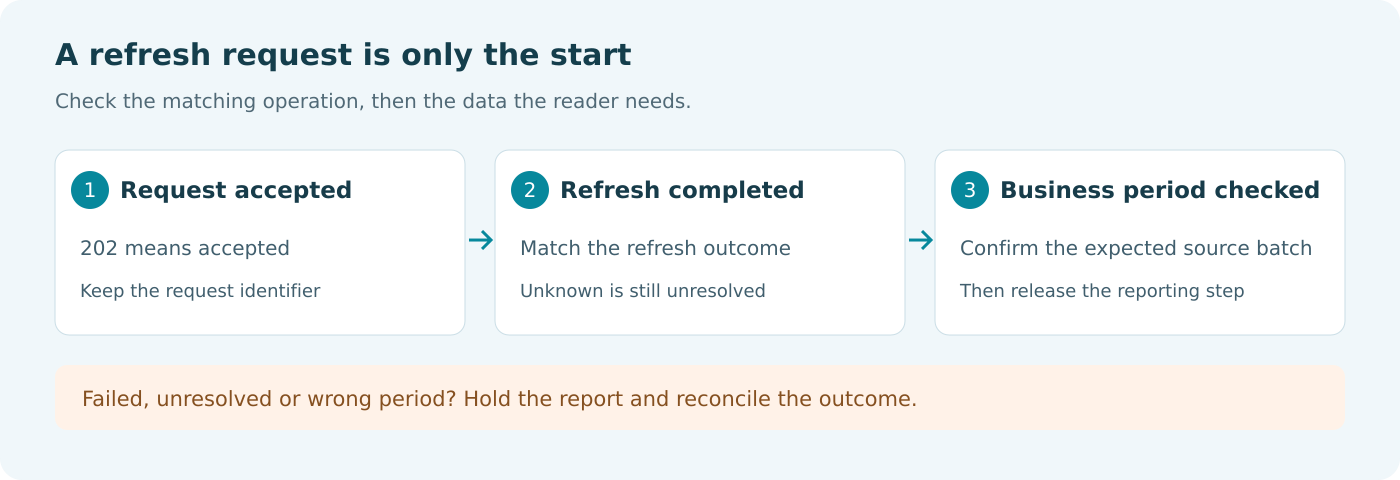
Refresh request accepted, matching refresh completed and expected billing period verified as three separate checks.

Accepted is the beginning

A 202 response tells the application that the request was accepted. Keep following the operation before telling the operator that the model is current.

  
REQUIREMENTS AND LIMITATIONS

Prepare the model and application identity

For delegated user authentication, the refresh POST requires Dataset.ReadWrite.All. Reading refresh history accepts Dataset.Read.All or Dataset.ReadWrite.All and also requires Write permission on the model. The token’s scope and the user’s access to the model are separate requirements.

A service principal uses the applicable tenant configuration and workspace access. Do not treat delegated-user permissions as its setup instructions. Keep credentials on the backend and confirm that the chosen operation supports the identity.

Refresh situationWhat it means for the application
Standard refresh on shared capacityAPI and scheduled refresh share a maximum of eight requests per day; only notifyOption is allowed in the body.
Enhanced refresh on an eligible workloadAdditional processing controls are available, with their own request and monitoring behavior.
Customer PDF after the billing loadCoordinate refresh with report generation and delivery, or trigger a configured PBRS job.

Enhanced refresh is supported for eligible Premium, PPU or Embedded models, not shared capacity. Its request uses parameters other than notifyOption, which must be omitted. Choose commit behavior deliberately: partialBatch can leave incomplete data after failure, while transactional preserves the previous data if the transaction fails.

For the detailed requirements and controls, see Microsoft’s service principal setup guide.

Choose the operation you need

A single-model refresh and a complete report-and-delivery job solve different tasks. Let the application’s purpose guide the API choice.

  
END-USER WORKFLOWS

Agree what the completed billing refresh should show

Work with the model owner before connecting the automated sequence. Run a representative refresh in the service, inspect its history and compare a known billing value with the report. This establishes what the application’s successful run should make available.

For the billing example, keep the source batch identifier and expected close date. After the matching refresh succeeds, confirm that close date in the model or report before preparing the customer PDF.

Try a few meaningful failure cases too: expired source credentials, a refresh still running at the deadline and a network interruption that leaves the POST outcome uncertain. Decide what the operator should see in each case. These are integration tests to run in your environment, not assumptions that every response means the same thing.

If you plan to use PBRS, configure the supported refresh behavior, customer selection, PDF and destination in the reporting job first. Run it from PBRS and confirm the resulting document before adding the application trigger.
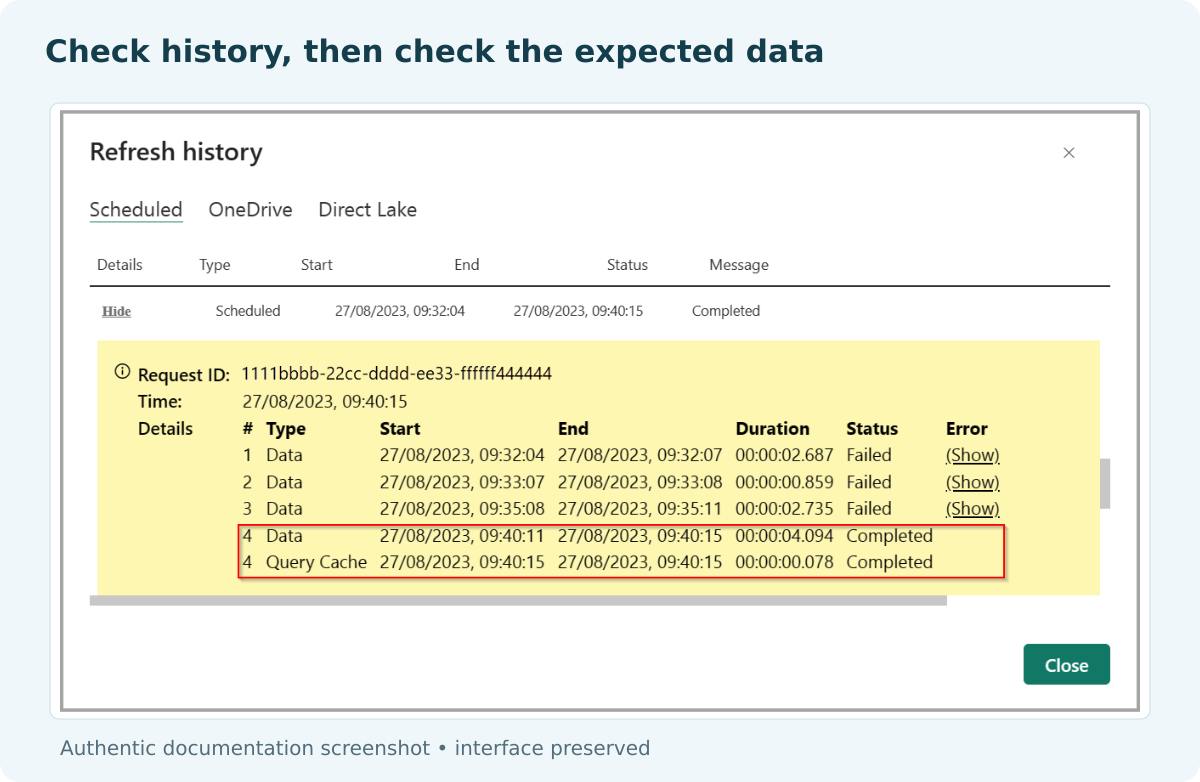

Microsoft Power BI documentation example of refresh history with a completed refresh and execution details.

Keep one recognizable billing value

The expected close date helps distinguish the intended load from a successful refresh of older source data.

  
DEVELOPER AND API WORKFLOWS

Trigger PBRS reporting or call the native refresh API

Trigger the full reporting job in PBRS

When the billing load is ready, call ExecuteScheduleAsync for the prepared PBRS job and save the returned ExecutionId with the billing batch. Monitor GetExecutionStatus and inspect the parsed execution result before reporting success. The PBRS execution guide provides the request and response details.

This runs a configured reporting workflow. It is useful when the application needs the customer document, but it is not a replacement for Microsoft’s individual model-processing controls.

Submit a native model refresh

The following outline shows a standard delegated-user request with notifications disabled. Replace the placeholders and implement response handling in your backend. notifyOption does not apply to service-principal operations.

POST https://api.powerbi.com/v1.0/myorg/groups/{groupId}/datasets/{datasetId}/refreshes
Authorization: Bearer {accessToken}
Content-Type: application/json

{"notifyOption":"NoNotification"}

GET https://api.powerbi.com/v1.0/myorg/groups/{groupId}/datasets/{datasetId}/refreshes?$top=10

Capture x-ms-request-id and Location when returned. Match the submitted requestId in history rather than assuming the first entry belongs to your billing job. Completed means refresh succeeded, Failed needs its error investigated, and Unknown does not establish completion. History excludes OneDrive refresh history.

For supported enhanced refresh tracking, GET /groups/{groupId}/datasets/{datasetId}/refreshes/{refreshId} retrieves execution details. It can return 202 while processing and 200 after completion or failure, so read the status inside the response. Do not make standard or portal-triggered monitoring depend on enhanced-only support.

Use bounded polling and a deadline. If submission times out, reconcile the existing operation before another POST so a transport retry does not start an unintended second job. Keep bearer tokens out of operational logs.

Investigate an uncertain submission

A network timeout does not prove the server ignored the request. Find the existing operation before starting another.

  
CHOOSE YOUR NEXT STEP

Tell the operator when the useful report is ready

The billing operator needs to know when the updated customer document is ready. Keep the model-refresh result connected to the billing period, and track report generation and delivery as the next steps.

Use native REST refresh when your application needs focused model control. Consider the PBRS report automation API when the recurring work includes producing and delivering the report. The Power BI Report Automation guide explains how the broader reporting routine fits together.

Download the PBRS Internal Evaluation Guide

Contributors:

Christian Ofori-Boateng

Christian Ofori-Boateng

CEO, ChristianSteven Software