

POWER BI QUESTIONS

How to Pass Parameters to Paginated Report Exports in Power Automate

In Power Automate’s Export To File for Paginated Reports action, pass each parameter’s exact internal name and an accepted value. The dropdown label may be different: a report that displays “North Retail” might actually expect CustomerID 1042.

Correcting that mapping can fix a flow that keeps exporting the default customer. If customer-and-month PDFs are a recurring reporting task, PBRS can also save the parameter choices with the report, PDF output and delivery schedule, so you maintain the preparation and sending together.

  
THE DIRECT ANSWER

Find the value behind the customer’s name

Imagine a flow that should send North Retail its monthly statement, but the exported PDF contains the report’s default customer instead. The visible dropdown looks right, yet the value passed to the report is wrong.

Open the report in Power BI Report Builder and inspect its parameters in the Report Data pane. Name is the internal parameter identifier; Prompt is the label the reader sees. Also inspect available values, which may pair a friendly customer name with a numeric key.

For this example, the internal name is CustomerID and North Retail’s accepted value is 1042. Use those values in the export action, along with the report’s actual parameter for the reporting month. Your own report may use different names and types.

Start with one fixed customer and month. When that produces the correct PDF, it becomes much easier to tell whether a later problem comes from the report definition or from the flow’s dynamic input.
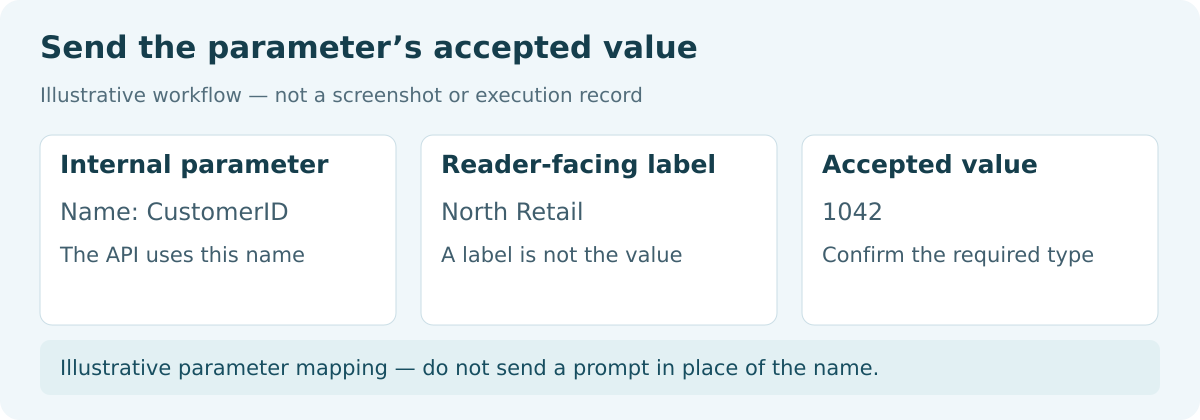

Illustrative diagram: Send the parameter’s accepted value. Internal parameter: Name: CustomerID. Reader-facing label: North Retail. Accepted value: 1042.

A friendly label may hide a key

North Retail is easy for a reader to recognize. The report may need 1042 to select its records. Check the mapping rather than guessing.

  
REQUIREMENTS AND LIMITATIONS

Match the report’s parameter rules

Choose Export To File for Paginated Reports, then select the workspace, published report and output format. Add the parameter name/value entries through the action’s inputs. Standard Power BI report filter settings use a different contract.

Parameter detailWhat to confirm
NameUse the internal name from the report, not its prompt.
ValuePass the accepted key, such as 1042, rather than assuming the displayed customer name is the value.
TypeMatch the report’s numeric, text or date requirement.
Multiple selectionsUse the collection supported by the connector or API, not an invented comma-separated string.
Blank, null or omitted inputCheck the definition and intended default; these cases can behave differently.

For dependent parameters, the child value must be valid for the parent selection. A customer-specific branch list, for example, may change when CustomerID changes.

Correct parameters do not remove export prerequisites. Power Automate’s paginated export uses eligible capacity or the limited PPU route, including the one-export-per-five-minute PPU allowance. The documented flow also has a two-minute report-download limitation. Investigate those issues separately from a rejected parameter.

For the detailed requirements and controls, see Microsoft’s Power BI connector reference.

Defaults are choices too

If you leave a parameter out, understand what the report will use. An unintended default can produce a valid PDF for the wrong customer.

  
END-USER WORKFLOWS

Test North Retail, then automate the monthly delivery

Run a test flow with CustomerID 1042 and a known reporting month. Open the resulting PDF and compare its customer heading and total with the same report run manually. Then replace the fixed customer value with the intended dynamic field and inspect what the test run actually passed.

Try a second authorized customer with a different expected result. If both files still show North Retail, look for a hard-coded value or a dynamic mapping that is not changing between runs.

Keep the monthly job in PBRS

If you prefer a reporting schedule for these deliveries, use the PBRS Parameter Wizard. Enter Parameter Name, Parameter Value and Parameter Type, then Add and Preview.

  1. Add the customer. Enter CustomerID, 1042 and the type defined by the report.
  2. Add the month. Use the report’s actual period parameter and accepted representation, including how the value will advance each month.
  3. Preview the statement. Confirm North Retail and the intended month appear.
  4. Choose output and delivery. Add the PDF format, a useful file name, destination and monthly timing.
  5. Try the received file. Run to a test destination before enabling recurrence.

PBRS keeps that parameter-based preparation with delivery. It still needs valid inputs; the benefit is maintaining the recurring reporting job in one place.

Try a different customer

A second test with visibly different figures is a simple way to catch a value that stayed fixed when you expected it to change.

  
DEVELOPER AND API WORKFLOWS

Use the correct parameter structure in each API

Update the PBRS customer job

Read an existing paginated schedule with GetPaginated?Id={uniqueid}, then use UpdateParametersPaginated with the complete intended parameter collection. For an RDL that defines CustomerID as numeric, the entry uses ParameterName “CustomerID”, ParameterValue “1042”, ParameterType 1 and IsNull false. Preserve an existing ParameterId when supplied and retain the other parameters, including the reporting month.

The PBRS parameter API guide explains the request. Read back the values, then execute the job using the execution API. Keep the customer and month with ExecutionId, and isolate concurrent customer requests so one cannot overwrite another’s selections.

Represent multiple values in Microsoft’s export API

For a report that allows several CustomerID values in one document, Microsoft’s paginated REST export represents multiple selections by repeating the parameter name. This illustrative body assumes that 1042 and 1078 are valid customer IDs and that the report defines a text parameter named ReportingMonth accepting “2026-10”:

{
  "format": "PDF",
  "paginatedReportConfiguration": {
    "parameterValues": [
      {"name": "CustomerID", "value": "1042"},
      {"name": "CustomerID", "value": "1078"},
      {"name": "ReportingMonth", "value": "2026-10"}
    ]
  }
}

Use only values and combinations accepted by your report. In a flow, use the equivalent collection exposed by the connector. A direct integration must also monitor the export and retrieve the file.

PBRS’s string-valued ParameterValue is a separate contract; do not assume Microsoft’s repeated-name collection or a JSON array can be pasted into it. Follow the representation supported by the report and PBRS setup. Parameters choose report content, while authorization and data security still determine who may receive it.

Keep each customer’s job separate

Concurrent requests should not change the same saved parameters while another customer’s report is being prepared.

  
CHOOSE YOUR NEXT STEP

Send the customer the report they were meant to receive

The customer should receive the right statement for the right month, without the reporting team checking and rebuilding every export. Once the fixed and dynamic mappings work, keep the corrected flow or save the recurring preparation and delivery in PBRS.

For the wider setup, explore PBRS paginated report scheduling and Power BI Report Automation.

Download the PBRS Internal Evaluation Guide

Contributors:

Christian Ofori-Boateng

Christian Ofori-Boateng

CEO, ChristianSteven Software