

How Do You Preserve Formatting in Tableau Excel Exports?
Start with an XLSX crosstab and check the exported workbook’s values and appearance before making it recurring. Tableau’s native Excel route exports a table; preserving the entire dashboard’s visual layout is a different requirement. When you need repeatable worksheet placement, totals and column formats, Advanced Tableau Report Scheduler (ATRS) provides configurable Excel output and data-only template controls.
For example, finance needs a weekly North sales workbook with readable dates, two-decimal sales values and space for review notes. Follow that illustrative job from its first crosstab to a prepared workbook, including the checks that prevent attractive formatting from hiding incorrect values.
- THE DIRECT ANSWER Start with an XLSX crosstab and check the values
- REQUIREMENTS AND LIMITATIONS Separate source appearance from workbook requirements
- END-USER WORKFLOWS Prepare the finance workbook in ATRS
- DEVELOPER AND API WORKFLOWS Keep export and workbook formatting separate in your application
- CHOOSE YOUR NEXT STEP Evaluate the workbook your colleague will open
Start with an XLSX crosstab and check the values
Tableau Excel export formatting starts with the chosen output and the meaning of its values. Download an XLSX crosstab from the required sheet in Tableau Cloud or Server, subject to permissions. A CSV is a text format; it can carry data into Excel but does not retain workbook cell styles.
For Tableau Desktop, use Worksheet > Export > Crosstab to Excel. Its export documentation explains that copying and formatting large exports can take time and may prompt you to exclude formatting. If you omit formatting to shorten the export, plan to style the workbook separately.
Review the source measure before blaming the file. Tableau’s number-format controls govern decimal places, units, currency and percentages in the view. In web authoring, right-click a measure and choose Format Number; in Desktop, use the Format pane or the field’s default number format. Then inspect a new export rather than assuming every display choice transfers identically.
The web-authoring number-format menu from Tableau’s documentation. Format the measure, then check the exported workbook.
For our finance example, look at a NetSales cell’s actual value as well as its two-decimal display. A value shown in thousands on the dashboard may be unsuitable for reconciliation if the reader interprets it as an unscaled amount. Agree the unit in the workbook heading and sample before automating delivery.
Decide what must survive
Values: Compare stored numbers with the source, separately from how they display.
Units: Make the currency or scale clear in the workbook.
Structure: Name the worksheet, headers and data area finance needs.
Appearance: Identify the styles that help the reader use the file.
Separate source appearance from workbook requirements
“Keep the formatting” can mean several things: keep numeric precision, repeat a header style, put data at a known cell or reproduce a chart. Those tasks need different checks. For the North workbook, finance needs an editable table and its review area; an image of the dashboard would not replace that table.
| Requirement | Native or owned export route | ATRS controls and verification |
|---|---|---|
| Readable numbers and dates | Review Tableau number formats, then inspect the downloaded XLSX. | Use data-only column formatting by header name when the finished workbook needs a maintained display rule. |
| Repeatable headers and totals | A native crosstab may meet the requirement; additional Excel work can be done manually or by an owned integration. | MS Excel Data Only offers header/total styling, selected totals and reusable styles. |
| Data begins at a specific worksheet cell | A one-off export still needs any required placement in the target workbook. | Select an Excel template, worksheet and starting row/column, or the next available location. |
| Dashboard chart layout | A crosstab is a table rather than a visual reproduction of the dashboard. | Template insertion prepares workbook data; it does not establish that dashboard charts are recreated. |
| Existing formulas and changing row counts | Verify formulas and ranges in the finished workbook rather than judging only the first visible rows. | Test template insertion with long, short and repeated samples; automatic preservation or clearing is not guaranteed. |
The ATRS Excel settings and template-workbook guide distinguish a straightforward MS Excel export from MS Excel Data Only’s Advanced controls. Both produce XLSX; “Data Only” does not mean the result must remain unformatted.
Formatting should make the figures easier to interpret. Microsoft’s custom number-format guidance explains percentage display: a decimal such as 0.0123 displays as 1.23% with a two-decimal percentage format. If the source already contains 1.23 as percentage points, applying that display rule shows 123.00%. Resolve the source representation before choosing the style.
Keep the format decision precise
XLSX: Choose a workbook when cell styles and worksheets matter.
CSV: Treat it as a data handoff requiring separate workbook preparation.
Template: Agree where data and review areas belong.
Charts: Ask for a visual output separately when the dashboard’s appearance matters.
Prepare the finance workbook in ATRS
Prepare an illustrative template named north-finance-template.xlsx. On its Operations worksheet, leave the title above row 3, reserve columns G:I for review notes and agree that the table begins at B3. The expected headers are StoreID, SalesDate, NetSales and ReturnRate; these are sample requirements to verify in the completed file.
In the ATRS destination’s Format options, select MS Excel Data Only and open Advanced. Enable the Excel template, choose the workbook and worksheet, then set starting row 3 and column 2. Choose the fixed start for this example, rather than an append position. Follow the documented Excel setup and current Office and host prerequisites.
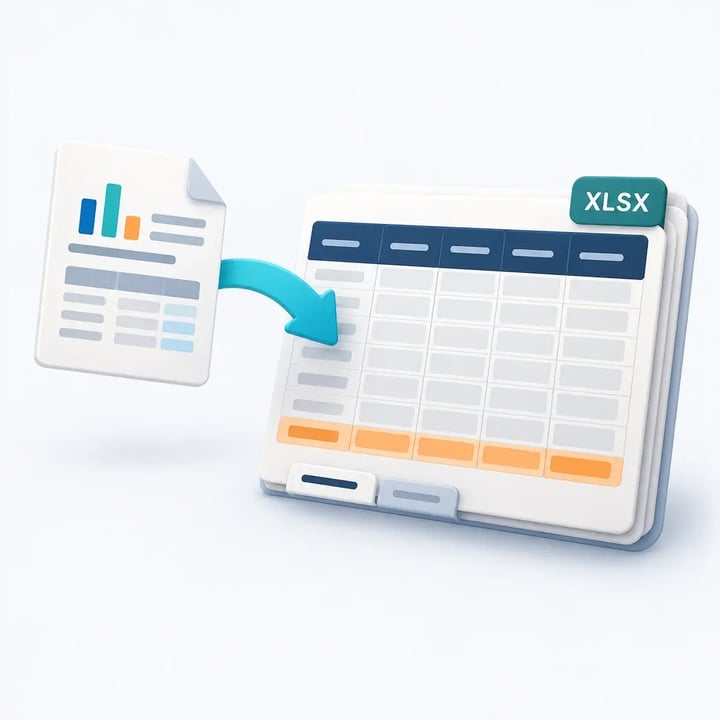
Use a prepared workbook to give recurring data a consistent place and readable structure. This is a conceptual illustration, not an ATRS screen.
Match column formats to their header names. Require SalesDate to display as yyyy-mm-dd, NetSales with two decimals and ReturnRate as 0.00% after confirming it contains decimal ratios. Keep StoreID as the required identifier: the sample “0027” must not become a different store reference. Formatting alone cannot recover digits or meaning already lost upstream.
Add a NetSales total if finance needs it; do not total identifier or date columns. Choose the header and totals styling, then generate a controlled sample. Open it in the spreadsheet application finance uses and check the actual insertion range, data types, visible values and total.
Repeat with a longer and a shorter export, including a second run. Inspect the space around the table, required formulas, notes and any values remaining from an earlier file. Confirm those results before selecting the recurring schedule and delivery destination. ATRS takes over the repeated placement and formatting choices; the sample establishes whether those choices meet this workbook’s requirement.

Check a demanding sample
Identifier: Include a store code with leading zeros.
Percentage: Compare its stored ratio and displayed rate.
Size: Use long and short data samples to inspect the insertion boundary.
Formulas: Verify actual results and ranges after the export.
Keep export and workbook formatting separate in your application
An application can retrieve Tableau’s XLSX and then prepare its own workbook, or request an existing ATRS reporting job. Keep the export decision separate from the workbook rules. The application still needs to know which view and period produced the finance table, even when the formatting is handled elsewhere.
The native Download View Crosstab Excel method retrieves summary crosstab data. For a dashboard it returns the first view, and story-dashboard downloads are unsupported. It does not accept a target Excel template, starting cell or column-style specification in this operation. The method requires API 3.9 or later; non-administrators need Read and ExportData on both the view and its workbook. Use the credentials token returned by Tableau REST sign-in in the request header.
GET /api/<api-version>/sites/<site-id>/views/<view-id>/crosstab/excel
X-Tableau-Auth: <tableau-session-token>After a successful authorized download, an owned integration must implement any required workbook processing with its chosen spreadsheet tools. Keep the template version, target worksheet, starting cell and header mappings together. Reject unexpected source columns instead of applying a date format to whichever field happens to occupy column C.
For our sample, validation needs to distinguish the stored identifier “0027,” a usable SalesDate, numeric NetSales and decimal ReturnRate from their displayed styles. Reconcile the sales total, inspect the required formulas and review area, and check changed row counts before releasing the file. A workbook that opens without an error can still contain the wrong values or overwrite a colleague’s notes.
When ATRS maintains those settings, let the application reference an approved reporting configuration instead of changing a shared destination or template for each user. Use the ATRS Developer Hub for the documented integration. Keep the application request and received workbook traceable; an accepted request is not proof of a correctly formatted delivery.
Maintain the workbook rules
Version: Track the template used for each output.
Mapping: Identify columns by the agreed headers, not an assumed order.
Isolation: Keep one request from overwriting another user’s configuration.
Release: Check the prepared file before returning or delivering it.
Evaluate the workbook your colleague will open
Keep the native crosstab when its exported table already gives finance the values and appearance it needs. Review a representative file, including a negative amount, a date and a percentage, before adding a separate preparation process.
Evaluate the ATRS Tableau report scheduler when the repeated work involves placing data in a familiar workbook, applying consistent column formats and delivering it to the agreed location. Bring the template and two source samples of different lengths. They make the decision more useful than a general promise to preserve formatting.
Explore Tableau Excel report automation and workbook templates
Considering ATRS for the finance workbook? Share the guide to review deployment, access and reporting requirements with the people maintaining the template and receiving the file.
Contributors:
Christian Ofori-Boateng
CEO, ChristianSteven Software

