

POWER BI QUESTIONS

How to Send Password Protected Power BI PDF Reports

A customer’s monthly statement should reach them as a PDF they can open safely, without someone having to protect and send every file by hand. PBRS can keep PDF password settings with the report, customer selection and delivery schedule, so those steps run together each month.

The important choice is whether the customer must enter a password to open the document. That requires a user, or document-open, password. An owner password controls permissions such as printing and copying; it serves a different purpose.

  
THE DIRECT ANSWER

Follow a customer statement from report to protected PDF

Imagine your accounts team sending a statement to each customer after month-end. The statement contains the customer’s transactions and balance, so it needs the correct customer filter as well as protection on the finished file. Neither step can stand in for the other: a password does not make the wrong customer’s transactions appropriate to send.

For a single occasional statement, you can export the PDF and protect it using your organization’s approved PDF tool. When the same task repeats for many customers, preparing the report, applying its password and attaching it to an email becomes a lot of manual work.

PBRS brings those choices into the recurring reporting job. Its PDF settings support separate user and owner passwords, and fixed or data-driven values let you configure protection for the delivery you are preparing. The useful outcome is a statement that reaches the right customer with the opening process you have agreed with them.
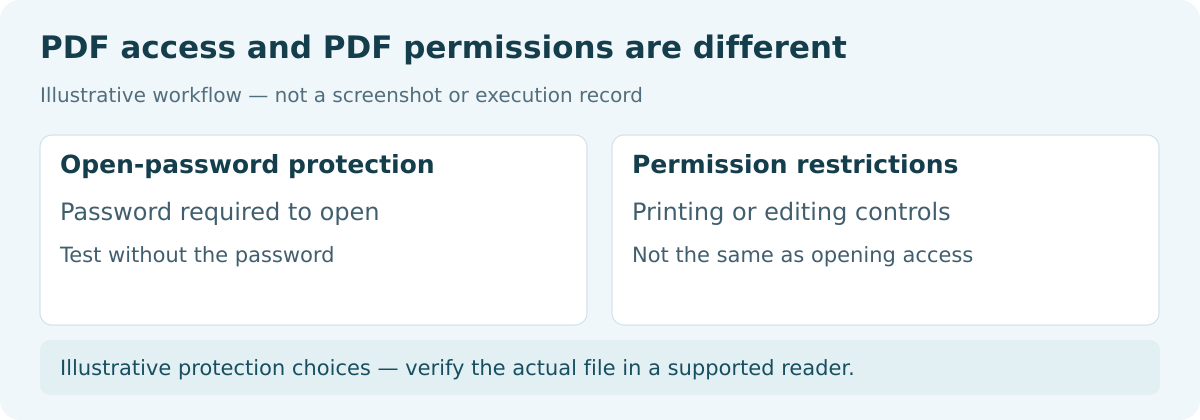
PDF open-password protection compared with printing and editing permission restrictions.

Make the opening process clear

A protected statement is only useful if the customer knows how to open it. Explain the process in plain language without putting the password in the same message as the attachment.

  
REQUIREMENTS AND LIMITATIONS

Choose the protection that suits the document

Start with how the customer will use the statement. If they must enter a password before seeing any figures, configure a document-open password. If you also need to control printing, copying or editing, review the permissions settings separately. Adobe’s password-security guidance explains that distinction.

In PBRS, the PDF format options include File Permissions, with user and owner password settings. The documented PDF encryption is 128-bit; confirm that it meets your organization’s requirements and works in the reader your customer uses.

What you want to protectWhat to consider
The contents of the PDF before it opensUse a user/document-open password.
Actions such as printing or copyingConfigure permissions and keep the owner password with the document administrator.
A ZIP containing one or more filesArchive protection is separate from passwords on the PDFs inside it.
Access tied to identity or deviceEvaluate rights-management options separately. PBRS’s optional PDF DRM requires an All-About-PDF Developer License.

These choices are not interchangeable. Agree the customer’s opening process before automating delivery, including how they will receive the password through a separate approved channel.

Keep administration separate

The customer needs the password for opening their document. They do not need the owner password used to manage its permissions.

  
END-USER WORKFLOWS

Set up recurring protected statements in PBRS

For the monthly statement, begin with the report and customer selection you already trust. Then add protection where PBRS produces the PDF.

  1. Select the statement. Choose the Power BI report and the customer’s filter or parameter values, and schedule the run after the month’s data is ready.
  2. Choose PDF output. Add the destination and select Acrobat Format (*.pdf). Open Format Options, enable PDF options, and go to File Permissions.
  3. Set the passwords and permissions. Configure the user password required to open the statement and the separate owner password. Allow the actions the customer needs, such as printing a copy for their records.
  4. Match each customer’s details. For data-driven delivery, keep the customer, report selection, destination and password values together in the recipient data.
  5. Send a test statement. Before enabling recurrence, open the actual delivered file in the intended PDF reader and check both its protection and customer details.

The PBRS PDF settings guide explains File Permissions. For the first test, try opening without a password, with an incorrect password and with the intended password. If you send personalized statements, try a second customer too; that helps reveal a mapping mistake that a single sample would miss.

Decide what should happen when a required password is missing. Configure and test the workflow to follow that policy rather than assuming an empty value will automatically stop delivery.
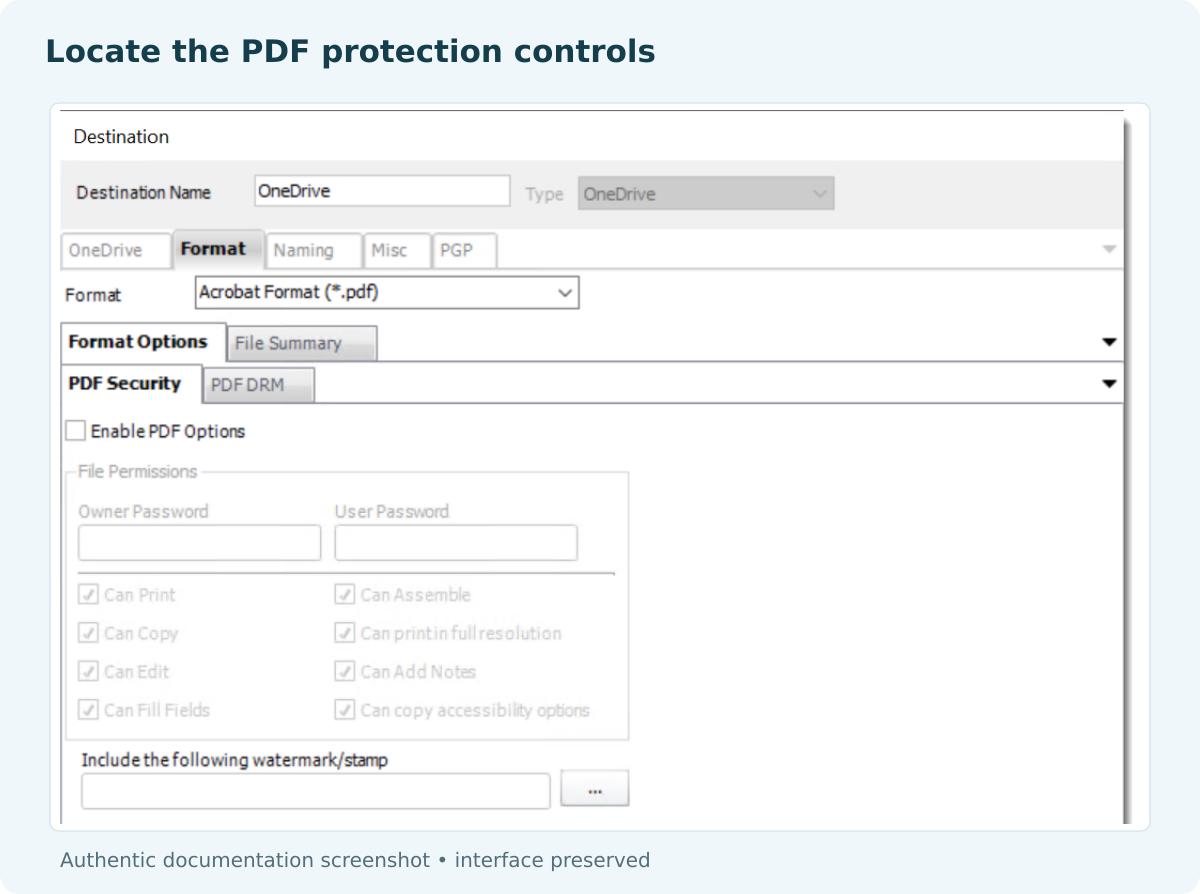

PBRS PDF Security controls with Enable PDF Options unchecked and disabled password and permission fields.

Test the customer’s experience

Use the PDF reader they are likely to use, including a mobile reader when relevant. Confirm that permitted actions, such as printing, behave as intended.

  
DEVELOPER AND API WORKFLOWS

Connect the protected job to your application

If your billing application knows when the month is closed, it can trigger the existing PBRS statement job. That lets the accounts team maintain the report and delivery settings while the application decides when the statement is ready to be produced.

Prepare the protected schedule in PBRS first, then use the execution API to start and monitor it. Keep the execution ID with the customer and statement month, so a support query can be traced to the correct run.

When changing output settings through the API, follow the source-specific destination documentation. Preserve existing destination identifiers and unrelated settings when an update requires a full schedule definition. Do not add a guessed password property to a generic export request: generating a PDF and applying PDF protection are separate operations.

Keep passwords out of request URLs, routine logs and sample code. If the application supplies secrets, use your organization’s approved secure mechanism. Test the finished attachment after changes to protection or packaging, because a successful settings update only confirms that the configuration was saved.

A custom flow is another option, but it needs an approved protection step between export and delivery. PBRS is useful when you want that recurring report preparation and sending maintained together.

Leave useful records, not secrets

Record which statement ran and whether it succeeded. Keep the password itself out of the normal execution notes.

  
CHOOSE YOUR NEXT STEP

Make monthly statements easier to send and receive

Once the monthly statement job is working, the accounts team no longer has to repeat the same export, protection and email steps for every customer. Customers receive the right document through a familiar opening process, and the team can focus on questions about the figures.

Explore PBRS PDF automation to plan recurring delivery, or see Power BI Report Automation for the broader workflow. Start with one representative statement and build from the version your customer can comfortably use.

Download the PBRS Internal Evaluation Guide

Contributors:

Christian Ofori-Boateng

Christian Ofori-Boateng

CEO, ChristianSteven Software