

TABLEAU QUESTIONS

How Do You Stop Tableau Subscriptions Sending Empty Reports?

To stop Tableau subscriptions sending empty reports, subscribe to the intended current view and select Don’t send if view is empty. Save a Custom View first if the subscription needs filters. This setting suppresses a genuinely empty view; a visible zero, an unfiltered workbook or a rendering failure needs a different check.

Suppose North receives an overdue-order snapshot every morning, including days when nobody needs to act. Start by checking what that saved view actually contains. Advanced Tableau Report Scheduler (ATRS) becomes relevant when the team also needs maintained regional file production and delivery instructions.

  
THE DIRECT ANSWER

Enable the empty-view option on the right subscription

To investigate North’s empty reports, open the overdue-order view and confirm the region and reporting date before changing its subscription. The useful question is whether that view has any actionable rows for the completed day. A large “0 overdue orders” card may be helpful information, but it is still displayed content.

Follow the native subscription steps: open the view, save a Custom View if its filters are required, and choose Watch > Subscriptions. Choose the current view and enable Don’t send if view is empty. Select the PNG or PDF output and schedule the reader needs, then save the subscription. Recipients need View and Download Image/PDF permissions.

A paper report and envelope sit beside a small golden gate that holds back an empty sheet in a teal and ivory illustration.

Suppress a verified empty exception result while retaining the report that gives the reader something to act on.

For an existing subscription, open My Content > Subscriptions, select it and use Actions to change its empty-view mode. Check that you changed the intended North subscription rather than another report with a similar subject. Keep the workbook, saved view and schedule recognizable to its owner.

Before relying on the setting, use controlled data or an approved test copy to check both an empty North day and a day containing an overdue order. Confirm the populated snapshot arrives and contains the intended region and period. For the empty case, inspect the subscription’s condition and operational status as well as the inbox; silence alone cannot show whether suppression or a failure occurred.

Check the subscribed view

Content: Select the intended current view for this requirement.

State: Save the required filters as a Custom View.

Setting: Enable Don’t send if view is empty.

Access: Retain View and Download Image/PDF permissions.

  
REQUIREMENTS AND LIMITATIONS

Separate an empty result from a blank or failed report

If an email still arrives, compare its subscription target and saved state with the view you inspected. Filters applied only during your browser session are not reflected in a subscription; preserve them in a Custom View. The REST contract defines empty-view suppression for View content, not Workbook content, so avoid treating a workbook-wide subscription as a collection of independent empty-sheet rules.

What you seeWhat to checkAppropriate response
No exception rows in the intended viewCorrect View target, saved filters and enabled empty-view mode.Test a truly empty case and a populated case on that subscription.
A zero KPI or summary remains visibleWhether the authored view still contains content.Have the author align the exception view with the no-action condition, or retain the useful zero-state message.
One dashboard area is blankObject support, saved state and selected PNG/PDF format.Investigate rendering compatibility before changing delivery conditions.
A snapshot-rendering errorSaved source credentials, source availability and subscription status.Repair the failed generation path; do not classify it as an empty result.
An expected populated report never arrivesSource freshness, target, permissions, suspension and delivery outcome.Investigate the missing report independently of the suppression setting.

For North, have the workbook author check the actual exception view rather than just its title or formatting. A hidden mark, summary sheet or different saved filter can make the output differ from the intended “no overdue orders” state. Tableau’s documented option is not a general rule that reads the business meaning of every dashboard object.

The subscription troubleshooting guidance separates rendering errors from content: source credentials may be out of date, or a live database may be unavailable. It also describes format-specific blank extension areas. Fix that cause separately. Empty-view suppression cannot repair an unsuccessful render, and switching it off does not establish that the source data is current.

Classify the result first

No rows: Check that the exception view is genuinely empty.

Zero: A displayed measure can still be content.

Blank area: Investigate the object and output format.

Failure: Check credentials and rendering errors separately.

  
END-USER WORKFLOWS

Select only the regional worklists that should be delivered

Keep the native option when North needs a single saved PNG/PDF exception snapshot. The requirement changes if operations needs a separate Excel worklist for each region that has overdue orders, with maintained recipients and filenames. In that case, define which regional reporting jobs should be selected before generating their files.

With an ATRS Data-Driven Schedule, a maintained database table or query supplies the reporting records. For the controlled sample, return a North record for 18 October 2026 only when the approved overdue-order query finds matching rows for that same region and date. Give that record a unique key and an approved test recipient. A zero-row driver result and a driver query that failed are different outcomes; monitor them separately.
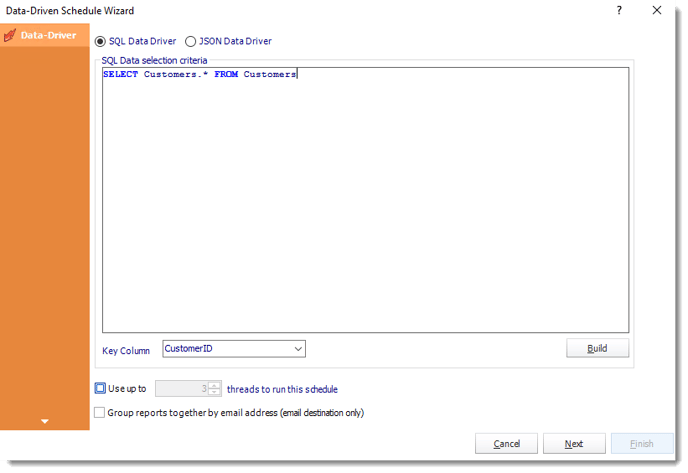
Orange ATRS Data Driver screen for configuring a database connection and reporting query.

Use the ATRS driver to select reporting records, then map each record to the intended Tableau report and destination.

Follow the ATRS Data-Driven Schedule setup guide to configure the database connection under the execution identity, inspect the query result and choose the unique Key Column. Select the linked Tableau account and report Item Path, then map the region and business date to the report’s actual supported inputs. Configure Excel output, filename and destination, using query inserts where the instructions vary by returned record. The linked Tableau account needs the appropriate access, export permissions and licensing; a recipient email address does not determine the data that account can export.

Preview the report and execute only approved sample records to a controlled destination. Check a North day with overdue orders and a completed day without them. Open the received file, reconcile the orders to the same source period and check that another region’s content is absent. If the driver selects a record but the export is unexpectedly blank, investigate the mismatch; selection alone does not prove the generated file contains the intended rows.

Before recurrence, replace the fixed sample date with the approved advancing-period rule and establish how source readiness is confirmed. Define whether continuing overdue orders warrant a fresh daily worklist and who investigates an export or delivery failure. The Tableau report bursting workflow with ATRS explains how the values, filenames and destinations remain connected as the audience changes.

Keep each worklist aligned

Selection: Include only approved region/date records in the driver.

Mapping: Apply the matching supported report inputs.

Output: Inspect both empty and populated test cases.

Recovery: Assign an owner for failed or uncertain deliveries.

  
DEVELOPER AND API WORKFLOWS

Set and verify the native API flag carefully

If an application already manages the native subscription, use the Subscriptions Methods reference to inspect and update its empty-view setting. The flag is sendIfViewEmpty: false means nothing is sent when the subscribed view is empty. Its default is true, and it applies to views only. The inverse wording matters when translating the checked UI option into a request.

First identify the exact subscription and confirm its content type is View, the source ID is correct and any intended Custom View is retained. Use an authorized API session and a version supported by your deployment. This minimal update changes the content flag on an existing subscription:

PUT /api/<api-version>/sites/<site-id>/subscriptions/<subscription-id>
X-Tableau-Auth: <authorized-session-token>
Content-Type: application/json

{
  "subscription": {
    "content": {
      "sendIfViewEmpty": false
    }
  }
}

Use the deployment-specific update contract: Tableau Server’s method is available from API 2.3, while the Cloud custom-subscription task update is available from API 3.20. Server schedules and Cloud task frequencies have different models. Keep the existing schedule and output settings when the only intended change is empty-view behavior, and use the corresponding contract for any additional changes.

The caller must be authorized to update that subscription. List and detail results are permission-scoped; a non-administrator’s list does not establish a complete site-wide inventory. After the update succeeds, query the subscription again and verify the saved View target and sendIfViewEmpty=false. Check the normal scheduled outcomes with the controlled empty and populated cases.

Record a valid suppressed result separately from an API error, a failed render or an uncertain delivery. If you are changing many subscriptions, select them by approved IDs and content rather than subject text alone. This flag controls native snapshot delivery; it does not provide an Excel export, implement an arbitrary numeric threshold or verify an ATRS file’s row count.

Preserve the existing subscription

Identity: Record the correct site, subscription and view IDs.

Flag: Set sendIfViewEmpty to false for view content.

Deployment: Use the supported Cloud or Server request contract.

Verification: Read the saved value and observe controlled outcomes.

  
CHOOSE YOUR NEXT STEP

Choose the smallest change that solves the empty emails

For North’s empty snapshot emails, start with the correct saved exception view and the native empty-view mode. Verify the empty and populated cases before making the change across more subscriptions. If the report looks blank because it failed to render, repair that cause first.

Consider Advanced Tableau Report Scheduler (ATRS) when the requirement extends to producing and routing regional worklists with maintained inputs, formats and destinations. Bring a populated sample, a genuinely empty sample and the required file so the team can check the complete outcome.

Considering ATRS for recurring exception worklists? Share the guide with the report owner and operations team to review access, deployment and the delivery requirements.

Download the ATRS Internal Evaluation Guide

Contributors:

Christian Ofori-Boateng

Christian Ofori-Boateng

CEO, ChristianSteven Software