

Why Is Export to Excel Missing in Power BI?
Export to Excel may be missing because you’re using a CSV-only view, export is blocked for your account, or the visual cannot provide the requested data. Start with the report location and the unavailable choice so you can ask for the right correction.
For the North warehouse’s weekly stock workbook, restore the authorised export first. PBRS can then retain the visual selection, XLSX output and email delivery in one schedule, saving you from preparing and sending the same workbook each week.
- THE DIRECT ANSWER Identify the Export Experience Before Changing Access
- REQUIREMENTS AND LIMITATIONS Separate Export Controls from Automation Features
- END-USER WORKFLOWS Restore an Authorized Weekly Workbook Workflow
- DEVELOPER AND API WORKFLOWS Diagnose an Embedded Export Without Inventing an Excel API
- CHOOSE YOUR NEXT STEP Choose the Smallest Repair That Meets the Need
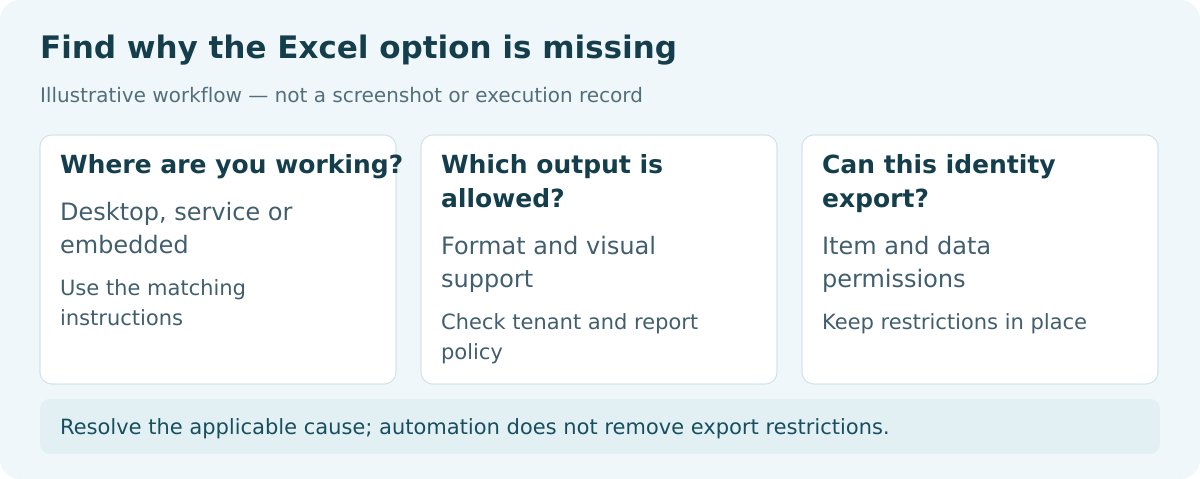
Identify the Export Experience Before Changing Access
Resolve the applicable cause; automation does not remove export restrictions.
Export to Excel can be missing because you are in a CSV-only experience, the organization or report blocks export, or the visual or data access does not allow the requested output. Start with the location and symptom. Changing several settings together makes the cause harder to identify.
Imagine preparing the North warehouse’s stock workbook for Monday. You can read the report, but the expected Excel choice is absent. Is this a Desktop CSV download, a missing menu in the service, or an unavailable Underlying data option? Naming that symptom helps the owner correct the relevant setting without changing working access.
Desktop report visuals export summarized CSV. A service dashboard tile also offers CSV; open its source report to investigate report-visual Excel choices. Opening CSV in Excel does not make it an XLSX file. Microsoft describes these visual export routes.
If a permitted manual workbook is all you need, repair that route and stop. When the same extract must arrive every week, PBRS Excel output can keep the selected visual and delivery instructions in a schedule. Fix source access first.

Name the symptom
Location: Record Desktop, a service report, dashboard or embedded application.
Choice: Separate an absent menu from an unavailable underlying-data option.
File: Distinguish a valid CSV download from the XLSX you expected.
Need: Decide whether grouped stock totals or individual stock records are required.
Separate Export Controls from Automation Features
A semantic model is the shared data model behind a report. Viewing its report and reusing its underlying rows are different permissions. Build permission is required for underlying export and Analyze in Excel. Read-only users can still export summarized data when other controls permit it. Do not ask for a broad workspace role simply to solve one missing option.
| Your requirement | Microsoft option and boundary | What PBRS adds |
|---|---|---|
| One permitted workbook | Use the service report visual’s Excel export when its settings, policy and your access allow it. Desktop visuals and dashboard tiles provide CSV. | Use the native extract for a one-off need; a separate reporting schedule may be unnecessary. |
| The same North stock workbook every week | Repeat the visual selection and export yourself, or maintain a separate query-and-workbook automation. | MS Excel Data Only retains the report page, titled visual and data mode for repeated XLSX output. |
| Consistent visual selection | Select the intended report visual and export summarized or permitted underlying data. | Save that visual and its mode in Format Options. The visual needs a title; review it after report changes. |
| Delivery after generation | Manual export leaves naming and sending to you; a maintained flow needs its own delivery actions. | Keep the Email destination, output and timing in the reporting job, then test the received workbook. |
| Refreshable Excel connection | Use an authorised connected workbook with the appropriate live-connection policy and model access. | A static scheduled XLSX extract serves a different job; it does not become a refreshable connection. |
Repair the export permission before scheduling
An allowed CSV export does not establish that Excel is allowed. Ask the report owner and administrator to review Export to Excel tenant scope and report export settings. Underlying export also depends on Build permission and the model and visual conditions; choosing it in PBRS does not grant that access.
Microsoft lists separate tenant settings for Excel, CSV and Excel live connections. Report settings cannot override a conflicting admin policy. Ask the owner to explain the approved scope rather than enabling export across the organization.
PBRS documents that visual-data limitations remain applicable. Do not treat its older combined CSV/Excel row-limit wording as the current native Excel limit. Use current Microsoft guidance and validate the installed PBRS route for the requested volume.
Keep the controls separate
Policy: An allowed CSV export does not establish that Excel export is enabled.
Permission: Ask for the specific model permission needed for the approved task.
Identity: Record both the reader and the account that an unattended schedule will use.
Format: A connected workbook and a static XLSX have different access and refresh behavior.
Restore an Authorized Weekly Workbook Workflow
Use one controlled test and keep the filters unchanged while investigating. For the North stock workbook, agree on the warehouse, reporting date, required columns and whether each row represents an item or a transaction. Retain an approved baseline for those records.
- Open the source report and identify the exact visual. Record the current filters and the missing or disabled choice.
- Ask the report owner to review its Export data setting. Ask the administrator to check the relevant tenant setting and your inclusion in its permitted scope.
- If only underlying export is missing, have the model owner review Build permission and the model/visual conditions. If model tables lack a unique key or Show items with no data is enabled, underlying export will not work. Review those conditions with the owner.
- Repeat the same export after the authorized correction. Open the actual file and compare its records with the agreed baseline.
For an administrator, the documented Desktop setting is File > Options and Settings > Options > CURRENT FILE > Report settings > Export data. The owner can also update the report setting in the service. A consumer should report the symptom and business need rather than change controls they do not own.
Once the North workbook exports correctly, you can save its weekly preparation in PBRS. Create a single-report schedule with the authorised source account, workspace and stock report. Apply the North filter and choose the weekly time after the required data is ready. Keep the schedule disabled while preparing the first delivery. The single-report guide shows the source and schedule controls.
Add an Email destination with the approved test recipient and select MS Excel Data Only (*.xlsx). In Format Options, add the stock report page and titled visual, then choose summarized or underlying data as permitted. Set the worksheet and workbook naming. Preview the output, save and execute once to the test mailbox. Open the attachment and check North’s stock records and quantities before enabling the weekly run. The Excel Data Only guide shows these options. If output fails or is incomplete, hold distribution, retain its error and correct that stage.
Validate IDs as well as totals. A workbook with the right total can still contain the wrong warehouse or duplicate items. Check business records separately from headers and added totals. Compare the schedule account’s output with its authorized baseline; it may have different access from the analyst.
Accept the actual workbook
Scope: Confirm North warehouse and the intended reporting date.
Records: Compare expected item or transaction IDs, not only the grand total.
Types: Keep identifiers intact and quantities numeric.
Failure: Retain a failed output for diagnosis and prevent unverified distribution.
Diagnose an Embedded Export Without Inventing an Excel API
This section is for developers diagnosing an embedded application. The weekly PBRS workbook route is explained below.
An embedded application can hide a visual menu or use a programmatic export. Identify which operation it calls before interpreting an Excel error. Microsoft’s visual.exportData API returns CSV text, not XLSX. Its documented row ceiling is 30,000, with a 16 MB DirectQuery limit and additional visual restrictions. This is the SDK limit, not the native service XLSX limit.
The following browser-side example assumes the application already obtained the intended VisualDescriptor through its authorized embedded report. It is a diagnostic sample, not a live execution result.
// visual is the selected, authorized VisualDescriptor.
const result = await visual.exportData(
models.ExportDataType.Summarized,
100
);
// result.data is CSV text. Keep it private during diagnosis.
// Inspect its headers and records with a CSV-aware parser.
Do not relabel the returned text as an Excel workbook. An application that requires XLSX needs an explicit conversion step and validation of field types. Requesting 100 rows deliberately bounds this diagnostic; it does not establish that a full export is complete.
The SDK does not support custom or R visual exports, and simultaneous export requests in the same session are unsupported. Its documentation also lists restrictions for certain service-principal composite-model and SSO embedding configurations. Match the actual embed configuration to those conditions before attempting another call.
Capture the operation, safe report/visual identifiers, account context, timestamp and exact error. Exclude tokens and exported business data from routine logs. If PBRS will produce the recurring workbook, configure and validate that authorized job first; an application trigger does not repair a source permission.
When the requirement is the weekly North workbook
Once the stock visual is permitted to export and its North data is correct, a developer can trigger the PBRS job configured in the previous chapter. Its data-only Excel settings create an XLSX from the selected supported visual, with the approved North scope and destination. This does not repair a blocked native export or change visual.exportData into an XLSX operation.
The backend calls POST /api/Schedule/ExecuteScheduleAsync for that tested single-report schedule and keeps the returned ExecutionId. Follow GetExecutionStatus, inspect the parsed result, then open the delivered workbook and reconcile North’s item or transaction IDs and numeric quantities. The PBRS execution guide explains monitoring and uncertain outcomes.
This route is worth considering when the team needs the same approved workbook every week. PBRS can retain its generation and delivery, while the application controls the authorised request and reporting date. It remains a different workflow from the embedded browser export diagnosed above.
Separate export diagnosis from workbook automation
Diagnosis: Name the native UI or embedded SDK operation that failed and keep its bounded scope and error.
Source access: Resolve report/model permissions before relying on either export route.
PBRS job: Trigger the tested North workbook schedule with server-side credentials and retain its execution ID.
Output: Compare the delivered XLSX’s IDs, quantities and date with the authorised baseline; an SDK CSV response is a different result.
Choose the Smallest Repair That Meets the Need
The immediate problem is resolved when you can export the intended stock workbook through the authorised route and its North records are correct. If the organization intentionally blocks that output, ask for an approved alternative deliverable. A broader access grant is not automatically the right answer.
For a one-off check, the native route may meet the need. If the same validated extract must be produced and sent every week, explore scheduled Power BI Excel delivery with PBRS. Start with that one workbook and compare the recurring work involved.
For wider choices, see Power BI Report Automation. Keep an embedded application’s export diagnosis separate from an unattended reporting schedule; choose the workflow that matches the recipient’s actual file requirement.
Technical documentation reviewed: 9 October 2026.
If you need recurring file delivery after resolving the export permissions or report restrictions, share the guide with your colleagues to review deployment, licensing, security and your reporting requirements.
Contributors:
Christian Ofori-Boateng
CEO, ChristianSteven Software
