

POWER BI QUESTIONS

How to Export Power BI Reports to PowerPoint

You can export a Power BI report to PowerPoint as static slide images, or use the Power BI add-in to present live report content. The right choice depends on whether your meeting needs a fixed set of figures or a report you can explore while presenting.

For a weekly sales meeting that needs the same dated deck, PBRS can save the report pages, PowerPoint output and delivery schedule. The presenter gets the prepared file without someone repeating the export and email routine each week.

  
THE DIRECT ANSWER

Decide what the presenter needs in the meeting

Imagine a sales manager opening the weekly meeting with Summary, Sales and Operations. The team wants to discuss the same completed week, so a dated deck is useful: its figures stay fixed even if the Power BI report changes later.

That is a good fit for a static export. The manager can add commentary around the report images and keep the deck with the meeting notes. PBRS can prepare and deliver this recurring snapshot after the weekly data is ready.

If the manager instead wants to filter by region and drill into a question during the meeting, live Power BI content is more suitable. The add-in keeps the interactive report connected to Power BI, with the presenter’s access and licensing requirements.

These are two different presentation experiences. Choose the one that supports the conversation you expect to have, then prepare the report accordingly.
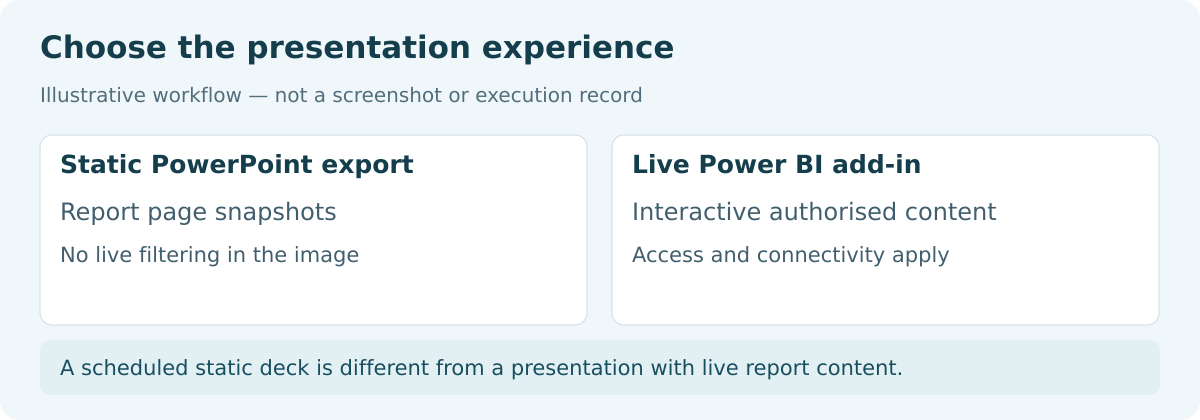
Illustrative diagram: Choose the presentation experience. Static PowerPoint export: Report page snapshots. Live Power BI add-in: Interactive authorised content.

Give the presenter time to prepare

Deliver the deck before the meeting day’s rush. The manager still needs time to add commentary and decide which questions to raise.

  
REQUIREMENTS AND LIMITATIONS

Understand what a PowerPoint export contains

For a one-off static deck, open the report in the Power BI service and choose Export → PowerPoint → Export as image. Each exported report page becomes a slide image. You can add slides and commentary in PowerPoint, but the export does not turn the report visuals into editable native PowerPoint charts.

Current values uses the current slicer and filter state; Default values uses the designer’s shared state. Review the current-page and hidden-tab options before exporting. Current values does not preserve a scrolling visual’s position, and URL filters are not respected by that option. The Microsoft export guide explains these details.

Meeting needSuitable approach
A fixed copy for an occasional presentationExport as image from the Power BI service.
The same dated deck every weekSchedule supported PPTX output and delivery in PBRS.
Live filtering and explorationUse the Power BI add-in with the presenter’s report access.
Editable PowerPoint charts or a designed narrative deckPlan separate chart creation or presentation editing; static report export does not do this automatically.

If export is missing, confirm that you are viewing a report and ask whether the administrator has disabled export. Also check your source before scheduling PPTX in PBRS: the documented route excludes on-premises paginated reports and SSRS.

Static slides keep their figures

A snapshot will not update when the underlying report changes. That is useful for a historical meeting record, provided the reporting period is clear.

  
END-USER WORKFLOWS

Prepare the weekly deck in PBRS

For the sales manager’s fixed weekly snapshot, keep the practical setup in PBRS. No application code is needed to create the recurring schedule.

  1. Choose the report and week. Select the supported report and the filters that produce the completed week’s figures.
  2. Choose PowerPoint output. In the destination, select PowerPoint (*.pptx). Use Options for the required page selection.
  3. Build the meeting pack. Include Summary, Sales and Operations and give the file a recognizable SalesMeeting name. Use a date/time suffix when you want to retain separate runs.
  4. Set the weekly timing. Allow time after the data becomes ready and before the manager needs to prepare for the meeting.
  5. Try the delivered deck. Open the received PPTX and read the charts at presentation size before enabling recurrence.

The PBRS PowerPoint output guide explains the format and selection settings. The resulting deck is report output; the presenter still adds the commentary and decisions that turn those figures into a meeting.

If the meeting needs live interaction

Use Export → PowerPoint → Embed live data, or add a report-page or visual link through the Power BI add-in in an existing deck. Follow the add-in setup instructions and test using the presenter’s work account in slideshow mode.

The add-in supports report pages and visuals, rather than dashboards or paginated reports. It needs a supported Office setup, report access and the applicable Power BI license. Prepare a deliberate static copy if the meeting must work without network access.

Read it from the back of the room

Small labels can look acceptable on a laptop and disappear on a meeting-room screen. Check the generated slides at the size the audience will see.

  
DEVELOPER AND API WORKFLOWS

Let an application request the meeting deck

If the sales application knows when the weekly figures are ready, its backend can trigger the existing PBRS deck schedule. The reporting team keeps the page selection, filters, output and destination in PBRS, while the application supplies the start signal.

Use the following pattern for a prepared single-report job, replacing the example ID and connection values:

POST {pbrsBaseUrl}/api/Schedule/ExecuteScheduleAsync
Authorization: bearer {pbrsAccessToken}
Content-Type: application/json

{
  "ScheduleType": "report",
  "uniqueid": 101,
  "RunBy": "Weekly sales meeting deck"
}

GET {pbrsBaseUrl}/api/Schedule/GetExecutionStatus?ExecutionId={ExecutionId}
Authorization: bearer {pbrsAccessToken}

Store ExecutionId with the meeting date and inspect the execution result using the PBRS execution guide. This request runs the saved PPTX configuration; it does not create a live add-in presentation or expose every PowerPoint option in the trigger itself.

A direct Microsoft export integration is another route when the report type, access and workload qualify. The application then handles submission, monitoring, retrieval and delivery. Reusing the PBRS job is useful when you want those reporting choices maintained outside the application code.
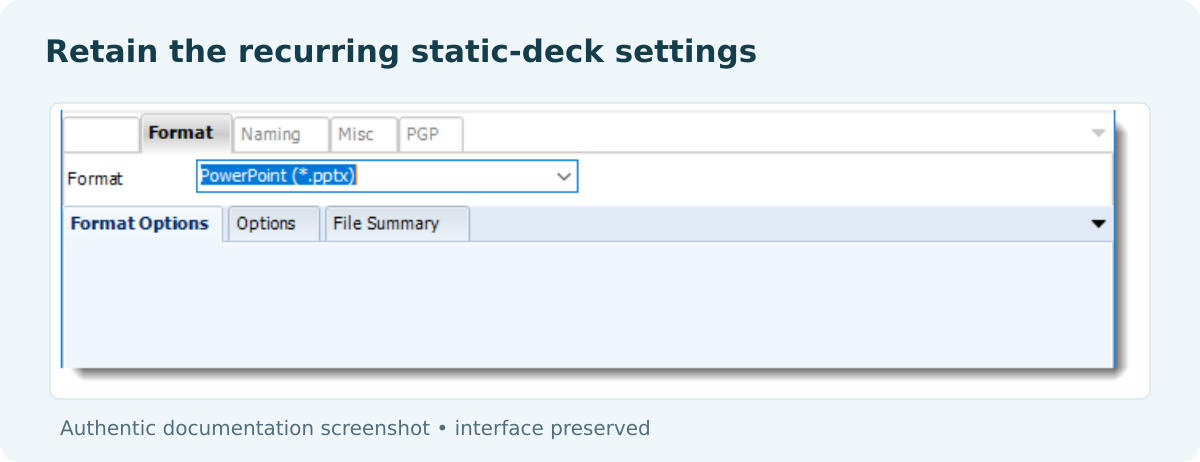

PBRS destination format set to PowerPoint.

Link the run to the meeting

Keep the meeting date beside the execution ID so the team can find the correct deck if a delivery needs investigation.

  
CHOOSE YOUR NEXT STEP

Give the presenter a file they can use confidently

For the weekly sales review, the useful result is a readable deck that arrives early enough for the manager to prepare. PBRS can remove the repeated export and delivery work, leaving the presenter time to decide what the figures mean for the team.

Choose the live add-in when the meeting needs exploration, and a static deck when it needs a fixed snapshot. For recurring slide delivery, start with the PBRS PowerPoint guide or explore Power BI Report Automation.

Download the PBRS Internal Evaluation Guide

Contributors:

Christian Ofori-Boateng

Christian Ofori-Boateng

CEO, ChristianSteven Software