

How Can I Schedule Crystal Reports to Run Automatically?
You can schedule Crystal Reports with SAP Crystal Server, a maintained script or a dedicated scheduler. The useful choice is the one that delivers the file your colleague needs.
CRD keeps the report, changing dates, exports and destinations in one recurring job, so the morning handoff can happen without another manual export.
The morning handoffGive the dispatch supervisor a report to start with
The morning handoff
Give the dispatch supervisor a report to start with
Imagine arriving at work with three things already waiting for your attention. Before tackling any of them, you open the dispatch report, enter yesterday’s dates, export the PDF and email it to the warehouse supervisor. He needs it before assigning the morning’s work.
To schedule Crystal Reports automatically, preserve that whole routine: the RPT file, the data it should select, the output and where it belongs. A timer covers the starting time. A report engine must still execute the report and prepare its file.
That distinction matters when you are away. The supervisor needs the dispatch figures, rather than a reminder that someone should generate them. CRD can save those reporting and delivery instructions together.
Keep the file people already understand
Use a recent dispatch PDF as your reference. Its date, totals and page content make the intended result tangible.
Your options
Start with the reporting tools you already have
If the report is already managed in SAP Crystal Server, try its recurring schedule first. Set the report parameters, choose PDF and the configured destination, then examine the resulting instance and delivered file. A working native routine may cover this requirement.
A developer can also maintain a report runner and have Windows Task Scheduler start it. That route suits a stable requirement when someone owns the runtime, credentials, export code and failures. Opening an RPT through its desktop file association is a different operation.
CRD becomes useful when those surrounding tasks are the recurring burden. A Single Report schedule can hold the dispatch report, its date values, PDF destination and recurrence. You can add another destination or a package of reports as the supervisor’s requirements grow. The Single Report scheduling guide shows the available controls.
Compare the actual delivery
Ask each approach to produce the dispatch PDF at the intended destination. A process starting on time establishes only the first part.
Set it up
Prepare tomorrow’s dispatch delivery in CRD
Create a Single Report schedule, choose an RPT path the reporting host can reach and name the job so a covering colleague can find it. Enter the required database access and report parameters, including the connections used by subreports.
For a report that should always cover yesterday, use the appropriate relative date constant in the date parameter. A fixed date from the first test would keep selecting that same day. Choose PDF in the Email destination, write the supervisor’s message and give the attachment a recognizable name.
Start with your own test mailbox. Open the received attachment, find a dispatch you recognize and compare its date and totals with the accepted manual output. Then let a genuinely scheduled run happen under the execution account.
Decide what an empty morning means. CRD’s exception settings can distinguish a genuine no-data result, withhold the report or run a notification action. Configure error alerts and retries separately, so a database failure does not look like a day with no dispatches.
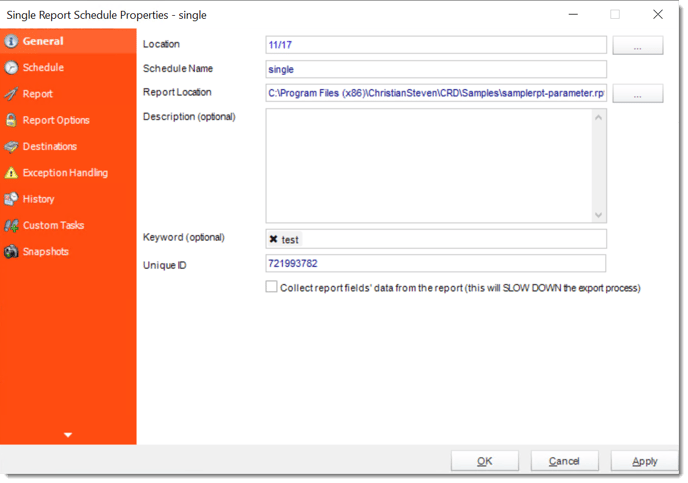
CRD documentation example. Use the report and destination settings for your own job.
Test the absence you want to cover
Include an unattended run while your normal session is logged off. Your successful desktop export does not prove the execution account has the same access.
For developers
Let the application request the same prepared job
The warehouse application may already know when the overnight import has finished. It can request a saved CRD job then, while the reporting owner maintains the document and delivery settings in CRD. For a predictable daily time, the built-in scheduler may be all you need.
Developer reference: execute and monitor the saved dispatch schedule
Install and authenticate to the CRD API using the service configuration guide. This request pattern uses an illustrative schedule ID; replace it with the authorized job.
POST {crdBaseUrl}/api/Schedule/ExecuteScheduleAsync
Authorization: Bearer {accessToken}
Content-Type: application/json
{"ScheduleType":"report","UniqueId":101,"RunBy":"Dispatch data ready"}
GET {crdBaseUrl}/api/Schedule/GetExecutionStatus?ExecutionId={ExecutionId}
Authorization: Bearer {accessToken}
Keep the returned execution identifier with the dispatch date. Monitor within a deadline and inspect the execution result and destination. An accepted request does not prove that the supervisor received the PDF.
Keep credentials on the application backend. Before retrying an uncertain request, investigate its original execution to avoid another email. The CRD developer portal documents the current contract.
Leave a useful handover
Record the reporting day, job name and expected arrival time. A colleague can then investigate the missing morning report without recreating the routine.
Your next step
Let the warehouse start with its dispatch figures
The supervisor opens the PDF and begins assigning work. Your own morning can begin with the tasks waiting for you, while the reporting routine has an owner and an agreed response when something fails.
Choose one report you currently export by hand. Keep an existing native schedule if it delivers everything required. If the export and handoff still depend on you, explore CRD scheduling with that real delivery. The Crystal Reports automation page explains how the routine can grow.
