How to Attach the Full Power BI Report to a Subscription Email
Turn on Attach full report when your Power BI subscription supports the PDF or PowerPoint you need. It gives the reader a document to keep, alongside any email preview or report link.
For a recurring PDF job, PBRS can maintain the report output, filename and email destination together. Start with the pages the manager needs, then check the delivered file against that requirement.
- THE DIRECT ANSWER Know Whether the Recipient Needs a Preview or a File
- REQUIREMENTS AND LIMITATIONS Check Attachment Eligibility Before Scheduling
- END-USER WORKFLOWS Create and Check a Native Full-Report Subscription
- DEVELOPER AND API WORKFLOWS Validate an Automated Attachment Against a Manifest
- CHOOSE YOUR NEXT STEP Choose the Delivery Route for the Required Document
Know Whether the Recipient Needs a Preview or a File
Use Attach full report to email an eligible standard report as PDF or PowerPoint. Choose PBRS when the recurring job needs its exported document, naming and destination maintained together.
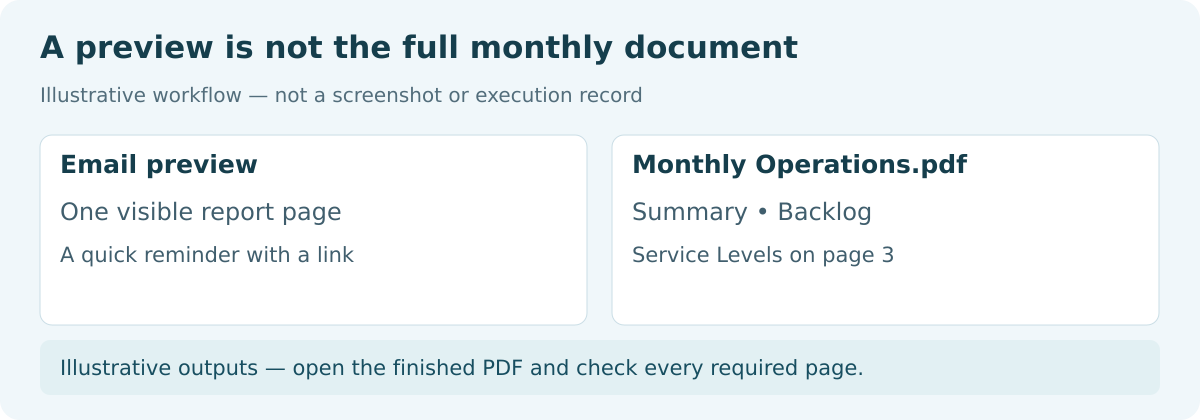
Illustrative outputs — open the finished PDF and check every required page.
Imagine a manager preparing for the monthly operations review. They need Summary, Backlog and Service Levels in one PDF to read offline. A preview of Summary is useful for a quick glance, but the three-page document is the real deliverable.
Picture what arrives
The preview is one report-page image in the email body. The full PDF is a rendered document containing the intended visible pages. The full PowerPoint contains rendered report pages as slides; it does not supply an editable chart dataset.
An interactive report link can accompany those outputs. Its reader needs independent permission and the appropriate licence or capacity access. Microsoft explains the preview and attachment controls.
Define the document before choosing the route
For this illustrative report, the expected PDF contains Summary, Backlog and Service Levels in that order, with the correct reporting period. These are expected outputs, not files produced by a live subscription.
A full rendered report does not expand every row behind a scrolling visual. If the manager needs every underlying row, choose a data export or paginated design and check row completeness separately.
Identify the report type
Standard reports use the eligible PDF or PowerPoint attachment route. Paginated reports render a document from parameters and offer more attachment formats. Dashboards do not have the same native full-report attachment control.
That distinction helps you choose a workflow that produces the manager’s document, rather than applying a standard-report recipe to every type of content.
Choose the deliverable
A preview supports a quick glance. A full attachment gives the manager a document to keep and review offline.
Review the actual pages
For the example, identify Summary, Backlog and Service Levels in the delivered file.
Check the interactive link
Confirm the recipient can open the report when a link is part of the reporting requirement.
Decide whether rows are required
Rendered report pages and a complete data export serve different tasks. Choose a data or paginated workflow for all rows.
Check Attachment Eligibility Before Scheduling
Check the route’s eligibility once, then use the same required-page list to review the output. PBRS’s file settings help maintain the recurring document; they still require suitable source access and a verified result.
| Document requirement | Native Power BI subscription | PBRS reporting job |
|---|---|---|
| Standard report as a file | Eligible Premium or PPU workspace; full attachment as PDF or PPTX. | Select a supported export format and Email destination for the selected report route. |
| Required pages | Full-report attachment contains intended visible pages. Hidden pages can still affect eligibility. | Configure the required report output and check page identity and order in the generated file. |
| Page and file-size boundary | Attachment under 25 MB. Microsoft’s guides use different wording around the 20-page boundary; verify the actual report. | Verify the produced file and the destination’s mail-size limits. Native subscription limits do not establish limits for every export route. |
| Recognisable recurring file | Choose the native attachment format in the subscription. | Maintain Acrobat PDF output and file naming with the destination. |
| Paginated document | Parameter-based PDF, PPTX, XLSX, DOCX, CSV or XML, subject to tenant permissions. | Use the selected paginated report’s supported output and parameter workflow. |
| Audience and data view | Approve the owner’s rendered data. Labels apply to the attachment, not email text or preview. | Approve the exported data for the intended audience and verify the delivered file. |
Handle the native page boundary carefully
The subscription guide says no more than 20 pages; the troubleshooting guide says fewer than 20 and counts hidden pages. For a report near that boundary, verify that Attach full report is available and inspect a controlled delivery.
Keep an inventory showing page visibility and whether each page is needed in the document. A hidden page may affect eligibility without appearing in the attachment. If you need that page delivered, choose an export route that includes it and verify the result.
Review the data and file size
Check the generated attachment’s size, rather than the PBIX source file. Choose PDF for a fixed review document or PowerPoint for a presentation handoff, then inspect the rendered visuals.
A native attachment reflects the subscription owner’s permissions. Recipient row-level security, the rules controlling their interactive data view, cannot retract data already placed in the file. Review that view for the whole audience.
Sensitivity labels protect eligible attachments, not the email text or preview image. Disable the preview if it would disclose information outside the protected file. For paginated subscriptions, verify actual parameters and permitted formats; the standard-report page ceiling is not a universal paginated-document limit.
Check the actual report
Confirm workspace and attachment eligibility before relying on the recurring subscription.
Keep two page checks
Count hidden pages for eligibility, then check required page identities in the delivered document.
Measure the generated file
Use the attachment’s size. The report’s source-file size does not establish whether the email file fits.
Approve the rendered data
Review what the owner’s output reveals to every recipient, including any email preview.
Create and Check the Monthly Report Email
Use the three-page Monthly Operations report to work through both routes. The steps describe a controlled implementation, not a test performed on a customer installation.
Create the native full-report subscription
- Open the report as its authorised subscription owner. Review the required pages, reporting period and intended audience.
- Add the file. Create or edit the subscription, turn on Attach full report where eligible, and choose PDF or PowerPoint.
- Choose any preview separately. In More options, select the page for the email body if a preview is useful and appropriate.
- Set the recurring delivery. Enter the approved recipient, subject, cadence, time zone and duration, then save.
- Inspect a controlled result. Run now does not refresh the model, so confirm data readiness first. Open the received attachment and review each required page.
- Confirm the recurring job. Record page or slide count, file size and recipient result. Observe a scheduled delivery.
Maintain the PDF job in PBRS
- Select the Monthly Operations report in the PBRS schedule using its approved source account.
- In Destinations, add or edit Email, then enter the controlled recipient and useful subject.
- Choose Acrobat PDF for the report output. Configure Naming so the manager can recognise and retain the monthly document. Use documented date/time naming values if needed.
- Keep normal report attachment delivery for this file requirement. Embed report controls body presentation and serves a separate purpose.
- Save the schedule and execute a controlled run. Open the received PDF, compare its pages and period with the required list, and check the next scheduled delivery.
The PBRS PDF output guide documents format and naming; the Email destination guide covers attachment delivery. PBRS keeps these recurring settings together instead of requiring a new manual export and prepared email each month.
Check page identity as well as count
The example passes only when Summary, Backlog and Service Levels appear in the intended order. A three-page file still needs correction if one page is duplicated, cropped or shows a visual error. Review labels, reporting period and approved filters on each page.
If only the preview arrives, review attachment availability, hidden-page eligibility, generated size and the exact error. For a paginated job, check parameter values and expected document sections; a standard-report preview cannot establish that file’s completeness.
Open the attachment
Inspect the file received by one known recipient, alongside any preview or link.
Match page identities
Confirm required names, content and order. A correct count alone can hide a duplicate or missing page.
Inspect visual quality
Check rendering errors, cropping and label readability on every required page.
Observe the recurring result
After the controlled check, verify a scheduled delivery before relying on the monthly obligation.
Validate an Automated Attachment Against a Manifest
An application can ask PBRS to send the complete Monthly Operations PDF when the reporting period closes. The developer’s task is to call the approved job and follow its result; the saved PBRS schedule holds the report selection and email delivery.
Describe the document the recipient needs
Use the three required pages—Summary, Backlog and Service Levels—as an acceptance checklist. Keep the reporting period and readable output in that checklist too. A three-page file can still contain the wrong pages.
Illustrative attachment checklist
report: Monthly Operations
format: PDF
required pages: Summary, Backlog, Service Levels
order: Summary, Backlog, Service Levels
checks: correct period, readable labels, no render errors
delivery: intended recipient received this document
Configure and call the PBRS job
For a supported Power BI report, select Acrobat Format (*.pdf) in the Email destination and keep EmbedReport false for normal attachment delivery. The PBRS destination-settings guide documents those fields. In RenderingSettings, an empty PagesToRender selects all report pages; a selection uses one-based page numbers. Use the PBRS rendering guide and compare the actual PDF with the required page list.
Once that schedule passes a controlled delivery test, the backend can call ExecuteScheduleAsync for its ID. Retain the returned ExecutionId, monitor GetExecutionStatus, and inspect ResultJson as well as status. The execution guide gives the full workflow. Keep credentials and recipient authorisation on the server.
Check the received attachment against the manifest before approving recurring use. Recheck after pages are renamed, removed or reordered. Your application’s validation design should hold an incomplete file out of further distribution; do not assume a non-empty PDF establishes completeness.
When using Microsoft’s export API directly
Microsoft’s Export to File API is another route, with its own eligibility and asynchronous start, status and retrieval steps. Its selected-page requests use internal page names from the Pages API. Those are different from PBRS’s page-number configuration. A direct implementation also needs its delivery and recovery stages; PBRS can keep those report instructions in the saved job.
Check the attachment the reader receives
Document: List required page identities, order, reporting period and readability checks.
Configuration: Use the PBRS PDF destination and its page-selection contract.
Execution: Track the PBRS run and inspect its result before claiming the job succeeded.
Acceptance: Inspect the destination copy and retest after report-page changes.
Choose the Delivery Route for the Required Document
Use a native full-report attachment when its report type, format, page boundary, size and audience rules fit the document the reader needs.
Choose PBRS when the recurring file’s format, naming and destination need to stay together in a maintained reporting job. For the monthly manager, that means receiving the recognisable PDF without another round of manual export and email preparation.
Start with the same required-page list for either route. Verify the received file and period, then retain the result as the baseline for future report changes. If every data row is the requirement, move to the appropriate data or paginated output workflow.
Explore Power BI Report Automation.
Technical sources reviewed: 8 October 2026.
Considering PBRS for sending complete reports as attachments? Share the guide with your colleagues to review deployment, licensing, security and your reporting requirements.
Contributors:
Christian Ofori-Boateng
CEO, ChristianSteven Software