POWER BI QUESTIONS

How to Send Power BI Reports After Data Refresh

Generate and send the report after its required data refresh completes successfully. A native Power BI subscription can do this once daily; PBRS can coordinate refresh, report generation and delivery in one configured job.

For a morning sales email, that means checking the intended day’s figures before the file goes out. Configure and test the failure path so a missed refresh does not turn into a stale report.

  
THE DIRECT ANSWER

Separate Once-Daily Subscriptions from Refresh-Gated Delivery

Use After data refresh in a native subscription if one daily email meets your need. For a reporting job that must follow a particular completed update, PBRS can coordinate the refresh, report generation and delivery.

Imagine a morning sales email that should contain yesterday’s final figures. Starting a refresh updates the report’s data, but the request alone does not establish that the update finished. The useful sequence is: update the data, confirm it is ready, generate the report, then send it.

Understand the native once-daily option

Power BI sends the After data refresh subscription after the first scheduled refresh of the UTC day. It does not send after every refresh. Microsoft’s subscription guide describes that rule.

If a model refreshes at 06:00 and 14:00 UTC, this subscription does not request both outputs. Use it for one daily update; plan a separate coordinated job if the afternoon run also needs delivery.

Let PBRS manage the sequence

PBRS, ChristianSteven’s report automation software, can include dataset refresh in a report schedule and continue into output generation and email. Put the required data updates, report output and destination together instead of maintaining separate refresh and email routines.

Configure the refresh failure and exception behaviour for your job. The Refresh Datasets setup explains the queue, notifications and failure setting. Test that a required failed refresh stops stale delivery; the setting alone is not proof of the outcome.

Keep three questions in view: did the intended update finish, does the file show the right reporting date, and has this run already been delivered? A successful refresh can still load source data that missed the agreed cutoff.

Paginated subscriptions do not offer the native After Data Refresh frequency. Their query-based output and parameters use a separate reporting route.

Know which daily refresh counts

The native rule uses the UTC day. Confirm which scheduled update is first, especially when your reporting day uses another time zone.

Follow the intended update

Tie delivery to the required run. A later or unrelated successful refresh is not necessarily the one your report needs.

Agree on the source cutoff

Confirm when upstream data must be complete. Refreshing an incomplete source does not make its missing records appear.

Show the reporting date

Keep the intended period visible in the generated file. It helps readers recognise whether they received the right update.

  
REQUIREMENTS AND LIMITATIONS

Choose a Trigger and a Completion Rule

Choose how the job starts and how you will know the data is ready. Those are two separate decisions.

Your reporting need Microsoft or application route What PBRS adds and what remains
One daily email after refresh Native After data refresh follows the first scheduled refresh of the UTC day. A dedicated reporting job may be unnecessary when that daily behaviour fits.
Refresh before each reporting job An application can identify an approved refresh and wait for its completion before requesting delivery. A report schedule can include required datasets, output and delivery. Configure and test failure handling.
Delivery after a business event Your application can record a confirmed reporting event, with its job identity and completion evidence. An event-based schedule can monitor configured conditions. Define what the event means and how it is marked handled.
Current data across several sources Use readiness evidence appropriate to the model’s connection and all required dependencies. Coordinating refreshes does not establish upstream freshness or remove access requirements. Keep the output-period check.

Match the readiness check to the data connection

An import model stores a copy of the data, so record the intended refresh request and completion. If the report needs several models, identify every required dependency.

DirectQuery and live connections obtain data through a different connection path. Use a source-readiness rule suited to that path; an import refresh does not control all data in every report.

For example, send the operations report only after its required import refresh succeeds and its BusinessDate equals the approved reporting date. Name who owns the source cutoff and who responds when it is late.

Give an event a clear meaning

PBRS event-based schedules can poll conditions such as a database record. The record should mean that the reporting event has been confirmed, rather than that someone submitted a refresh request.

Define how the event is marked handled after the reporting job. Otherwise a matching condition can be found again. The event-based schedule guide explains condition and polling choices; it is not a universal Power BI completion trigger.

List every required model

Identify the dependencies that must be ready before this report can be generated. Do not stop at the first successful update if more data is needed.

Use the right connection rule

Import, DirectQuery and live-connected reports need different readiness evidence. Match the check to the report you actually use.

Distinguish request from completion

A submitted refresh request means work has been requested. A confirmed successful result is the evidence needed before delivery.

Mark an event handled

Decide how a completed reporting job updates its event record. Keep that action consistent with the retry and recovery policy.

  
END-USER WORKFLOWS

Configure and Test the Refresh-to-Email Sequence

Use your morning sales report and an approved test mailbox for this illustrative setup. Keep recurring delivery disabled while you test the success and failure paths.

  1. Create the report job. Choose the correct report and add the test Email destination.
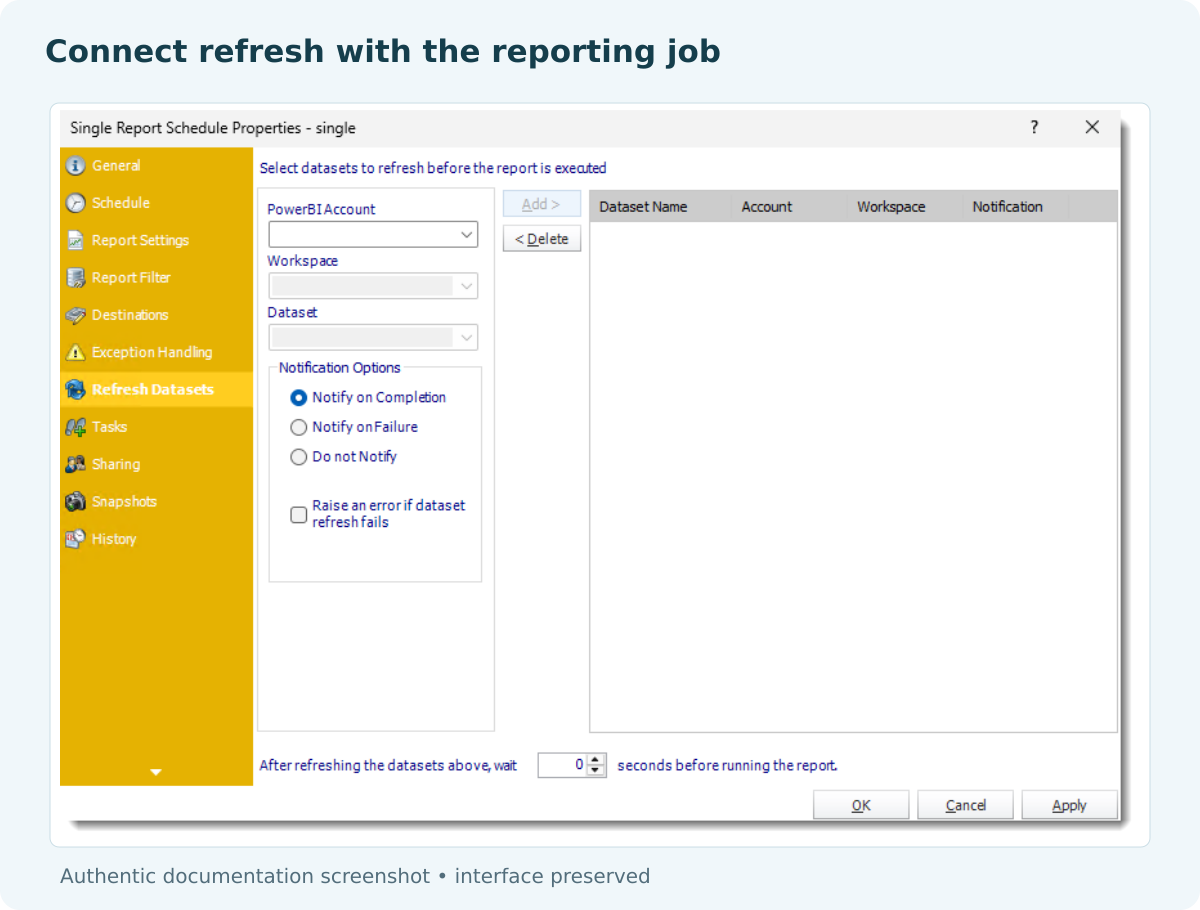
  2. Add the data update. Open Refresh Datasets, choose the authorised Power BI account, workspace and dataset, and add it to the refresh queue. Add other datasets only if this output needs them.

    PBRS Refresh Datasets panel showing account, workspace, dataset and notification controls.

    Knowledgebase example. Select the intended model and review failure handling before delivery.

  3. Set the failure response. Configure notifications and Raise an error if dataset refresh fails. Review exception handling so a required failed refresh cannot continue into stale delivery.
  4. Set any additional wait. Use the post-refresh wait required by the documented workflow. A fixed wait is an extra setting, rather than evidence that the refresh succeeded.
  5. Test the successful sequence. Check the refresh result, then the generated report’s BusinessDate and figures, then the received attachment. Record the order and run identifiers.
  6. Test a failure outside production. Confirm that the failed refresh is recorded, the owner receives the configured notice and no stale file is delivered.
  7. Test a repeated request. Submit the same reporting-run request in the controlled test and verify your chosen duplicate-prevention policy. Enable recurrence only when success, failure and retry handling meet the requirement.

The repeated-request policy may belong to your application or operating process; do not assume PBRS automatically prevents duplicate emails. These are tests for your installation, not live results claimed by this article.

Keep a short record of the report job, intended period, refresh request ID, start and end times, generation result and delivered file. It helps you tell a late source from an export failure or an email problem.

If the after-refresh email is missing

For a native subscription, confirm its frequency and whether the UTC day’s first scheduled refresh already sent the email. Then check refresh success and connection mode. Microsoft’s subscription troubleshooting guide covers the live-connection behaviour. For an Analysis Services live connection, Power BI checks hourly for changes and runs the subscription the first time it detects a model change. Once generation is confirmed, investigate mailbox delivery separately.

Verify the successful order

Keep evidence that the required refresh completed before report generation and receipt. Check the reporting date in the delivered file too.

Test the failed-refresh path

In a controlled environment, confirm that a required failed update does not deliver stale output. Revisit the configuration if it does.

Name the alert recipient

Choose the person who acts on a failed reporting run. A notification is useful only when someone knows how to respond.

Test the same run twice

Confirm how your chosen policy handles a repeated business job or refresh request. Record the result before enabling automatic delivery.

  
DEVELOPER AND API WORKFLOWS

Correlate Refresh Completion Before Requesting Delivery

When the application knows the data is ready, it can ask PBRS to prepare and send the approved report. For a month-end job, that means releasing the reporting step after the intended refresh has succeeded—not simply after the clock reaches the delivery time.

Give PBRS the reporting job

First test the report, period, audience and destination in a PBRS schedule. If PBRS will also initiate the refresh, configure that in its Refresh Datasets setup and test how a failed refresh affects the report. Check the source period too; a fixed wait is not proof that the required data has arrived.

If your application owns the refresh instead, retain its request ID. The Microsoft refresh-history endpoint helps you find that specific run. Continue only when its outcome and the report’s source period meet the readiness requirement. Do not assume the newest history entry belongs to your request.

Start the approved delivery

The following illustrative requests execute an existing single-report schedule. Replace 101, the base address and token with your installation’s values; keep the token on your server. If PBRS owns the refresh, start the configured refresh-and-report job when its upstream source load is ready. Otherwise, start the delivery job after the application’s refresh check passes.

POST {pbrsBaseUrl}/api/Schedule/ExecuteScheduleAsync
Authorization: bearer {pbrsAccessToken}
Content-Type: application/json

{
  "ScheduleType": "report",
  "uniqueid": 101,
  "RunBy": "Month-end data ready"
}

GET {pbrsBaseUrl}/api/Schedule/GetExecutionStatus?ExecutionId={ExecutionId}
Authorization: bearer {pbrsAccessToken}

Keep ExecutionId with the business period and, where applicable, the Microsoft refresh request ID. Poll with a deadline. When PBRS returns Completed, parse the string-valued ResultJson and inspect Result and any error. Then confirm the intended report reached its destination. The PBRS execution guide explains these checks.

Reserve the delivery in your application before starting it, so two workers cannot both release the same period. If submission or monitoring times out, reconcile that run before sending again. Neither a timeout nor a successful status request proves that no email was sent.

PBRS handles the configured reporting work; the application supplies the business readiness decision. This uses API execution of an existing job. It does not assume that the public schedule-creation schema exposes every refresh setting or replaces Microsoft’s focused refresh-history operation.

Release the report when its data is ready

Readiness: Check the intended refresh and source period, whether refresh is owned by the application or configured in PBRS.

Reporting job: Map the approved report, audience and destination to the saved schedule.

Run record: Keep the business period, refresh ID when available, and PBRS execution ID together.

Recovery: Use a polling deadline and investigate an uncertain delivery before starting another copy.

  
CHOOSE YOUR NEXT STEP

Make Successful Refresh the Reporting Gate

Use the native once-daily subscription when it matches the report’s timing. Keep an application workflow when refresh matching and delivery tracking are already part of a maintained business process.

Choose PBRS when the morning report needs refresh, output, email and failure handling coordinated in one reporting schedule. The useful result is a file generated from the intended completed update, with a defined response if that update fails.

Start with one dependency and one test destination. Confirm successful delivery, failed-refresh suppression and the repeated-request policy before extending the job to more reports.

See PBRS refresh-to-report automation. Explore Power BI Report Automation.

Technical sources reviewed: 8 October 2026.

Considering PBRS for report delivery after refresh? Share the guide with your colleagues to review deployment, licensing, security and your reporting requirements.

Download the PBRS Internal Evaluation Guide

Contributors:

Christian Ofori-Boateng

Christian Ofori-Boateng

CEO, ChristianSteven Software