

How to Export Power BI Exploration Data to Excel
To move Power BI Exploration data into Excel, save the Exploration as a report, open that report and export from its visual. Saving as a report requires Build permission on the semantic model. Check the saved visual and filters before choosing Export data and an available Excel format.
This two-stage route preserves a useful ad hoc analysis. If the same workbook becomes a regular request, turn the checked result into a maintained report; PBRS can then repeat a supported report export and delivery. Saving an Exploration alone does not create a scheduled job.
- THE DIRECT ANSWER Keep the Exploration, Saved Report and Workbook Distinct
- REQUIREMENTS AND LIMITATIONS Check Access at Each Stage
- END-USER WORKFLOWS Save the Exploration as a Report, Then Export Its Visual
- DEVELOPER AND API WORKFLOWS Reconcile the Workbook with the Exploration Question
- CHOOSE YOUR NEXT STEP Retain the Accepted Question and Its Output
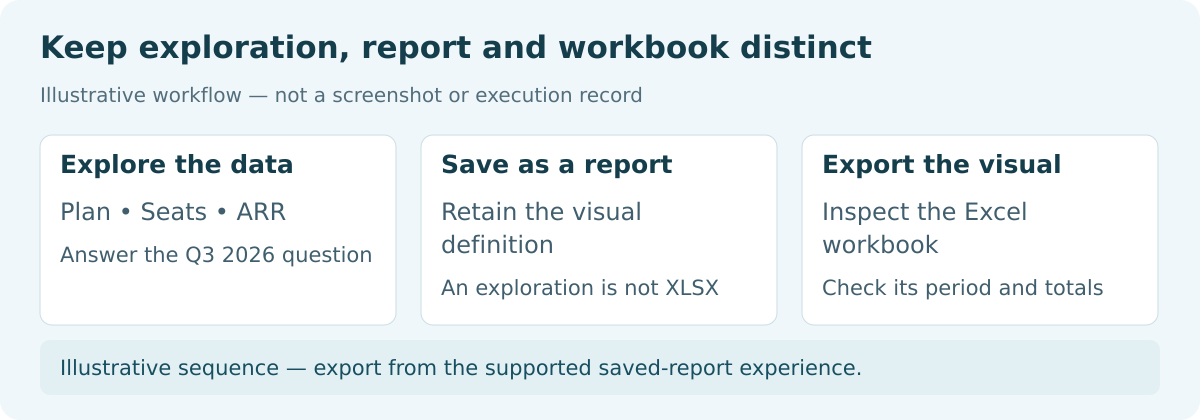
Keep the Exploration, Saved Report and Workbook Distinct
Suppose you are comparing licensed seats and annual recurring revenue by plan for the third quarter of 2026. Keep that grouped question intact as you move from analysis to a workbook. Transaction-level rows answer a different question, even when the grand total agrees.
| Stage | What to retain | What to inspect |
|---|---|---|
| Exploration | Question, selected fields and filters | Grouping and calculations |
| Saved report | Report created from the current layout | Visual, fields, filter context and access |
| Excel workbook | Data returned by the chosen export mode | Columns, groups, totals and file behavior |
Explore is a focused Power BI Service experience, still documented as preview. Its guide describes saving the current layout as a one-page report. It does not document a direct Excel-export command. This workflow combines that save step with the normal report-visual export.
Saving the Exploration does not create a workbook or necessarily change the original report. Retain the new report’s name and identifier so the second stage uses the intended report.
Track all three stages
Exploration: Keep the question and selected fields.
Report: Inspect the newly saved visual and filters.
Workbook: Check the actual groups and totals.
Detail: Choose grouped or record-level output deliberately.
Check Access at Each Stage
Explore access and permission to save a report are separate. View access permits Explore by default, but tenant or model settings can restrict it to Build users. Lake House exploration always requires Build. Saving as a report also requires Build on the underlying semantic model.
Ask the owner to confirm the model and approved workspace destination. Build-permission guidance explains the reuse actions that viewing alone does not establish. Tie the request to the analysis and export you need.
The saved report has separate report and tenant export controls. Creating a report does not bypass those restrictions. If the required Excel option is unavailable, give the owner the saved report, visual, account and requested output.
Establish expected groups and totals for the actual export identity. An account that can see more data is not a suitable baseline for a restricted account. Record the model, saved report and identity together.
Check access at each stage
Explore: Review tenant and model conditions.
Save: Confirm Build permission for Save as report.
Export: Check report and tenant policies.
Identity: Use controls for the account’s authorized data.
Save the Exploration as a Report, Then Export Its Visual
Illustrative sequence — export from the supported saved-report experience.
- Open the intended Exploration in Power BI Service. Review its fields and filter pills.
- For the example, group by Plan and use the agreed Seats and AnnualRecurringRevenue values. Select third-quarter 2026 and record the aggregation.
- Choose Save, then Save as report. Use a name that identifies the question and period, in an approved location.
- Open the resulting report and compare its visual, fields and filters with the Exploration record. Resolve material differences before exporting.
- On the intended report visual, choose More options > Export data. Select the available Excel option appropriate to the grouped task.
- Open the workbook and check business rows, columns, groups and totals. Retain the original file and export context.
Excel format choices belong to the report stage. Static XLSX provides a snapshot. A live-connected option, when available, supports refreshable analysis with its own access requirements. Choose based on whether the recipient needs a fixed result or a continuing connection.
Connected-workbook guidance describes live-connected report exports and their filter information. A refreshed workbook may no longer represent the original snapshot. Keep the accepted file and baseline separately when reproducibility matters.
This workflow stays in Power BI Service; Desktop table exports are a separate task. Resolve an unavailable report export at that stage rather than treating a different output as proof that the Exploration was reproduced.

Carry the question into Excel
Before saving: Record fields, filters and aggregation.
After saving: Inspect the actual report visual.
Format: Choose a snapshot or permitted live connection.
Evidence: Retain the original file before further analysis.
Reconcile the Workbook with the Exploration Question
Use these synthetic groups as a small acceptance example for third-quarter 2026. Seats and AnnualRecurringRevenue are numeric, with aggregation defined by the model. These are proposed controls with local arithmetic checks, not a captured tenant export.
Synthetic grouped results Plan | Seats | AnnualRecurringRevenue Standard | 40 | 4800 Plus | 15 | 4500 Illustrative acceptance record Question: seats and annual recurring revenue by plan Period: third quarter of 2026 Expected plan groups: Standard, Plus Expected business rows: 2 Expected Seats total: 55 Expected AnnualRecurringRevenue total: 9300 Compare across all three stages: Exploration fields and filters saved report fields, aggregation and filters workbook groups, numeric values and totals Retain: semantic model and saved report identifiers export identity, mode and time original file and agreed baseline
Count two business rows, excluding headers, metadata and any grand-total row. Check that the cells are numeric and can be summed. A grand total is not a third plan.
Check the group set as well as totals. Two Standard rows could total 9,300 while omitting Plus. The local example check detected that constructed equal-total mismatch; apply both checks to the actual workbook.
If the saved report differs from the Exploration, first inspect fields, aggregation and filters. If the report agrees but Excel differs, inspect export mode, returned columns and omission warnings. A spreadsheet adjustment should not conceal a changed analytical question.
Static visual XLSX has a 150,000-row ceiling, with actual output potentially lower. Current-layout matrices use a data-intersection limit rather than just a row count. Our two-row example avoids those ceilings; larger analyses need a route-specific completeness check.
Reconcile the grouped output
Business rows: Exclude headers, metadata and totals.
Group set: Require both Standard and Plus.
Numbers: Reconcile 55 seats and 9,300 revenue.
Diagnosis: Locate the change in report state or export output.
Retain the Accepted Question and Its Output
Accept the workbook when its two plan groups, numeric values and totals match the authorized third-quarter baseline. Retain the Exploration question, saved report and original file together. That helps distinguish later refreshes from changed fields or filters.
The native save-and-export workflow can be sufficient for a one-off analysis. For recurring delivery, maintain the report design and test the scheduling route separately. PBRS report automation can help with the repeated export and delivery work once that report is established.
If saving or exporting fails, tell the owner which stage failed and include the artifact, account, required output and policy message. Return to Power BI Questions for related workflows.
If you want to turn the agreed report view into a recurring file delivery, share the guide with your colleagues to review deployment, licensing, security and your reporting requirements.
Contributors:
Christian Ofori-Boateng
CEO, ChristianSteven Software
