POWER BI QUESTIONS

Power BI Email Subscription Limits and Delivery Options

A Power BI subscription can send a regular preview, report link or eligible attachment. Choose the output and audience first, then check the limits for that report type and workspace.

If the job needs a different file or a more coordinated reporting routine, PBRS can maintain report generation and delivery together. Compare the requirement that matters to your recipient rather than assuming every limit applies to every method.

  
THE DIRECT ANSWER

Match the Subscription to the Required Delivery

Use a native Power BI subscription when its preview, link or eligible attachment meets the reporting need. If the recipient needs a different file, audience or routine, compare that requirement with a PBRS delivery schedule.

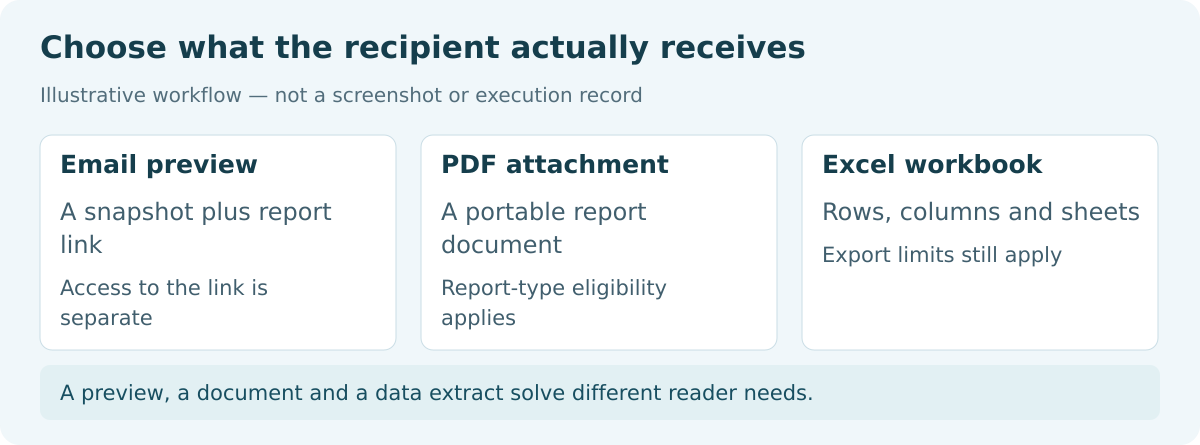
Examples of a Power BI email preview, a PDF attachment and an Excel workbook as different reporting outputs.

A preview, a document and a data extract solve different reader needs.

For example, an operations manager may be happy with a weekly preview and a link. Later, a customer asks for a PDF to keep with their records. The report may be the same, but the output, access and recipient rules now matter in different ways.

Choose what the recipient receives

A standard report subscription can include a report-page image and an interactive link. Its eligible full-report attachments are PDF or PowerPoint. A paginated report, designed around a fixed page layout, attaches rendered output and also offers formats such as XLSX and CSV.

A dashboard subscription sends a dashboard view; it is not an interchangeable report-file export. Microsoft’s subscription guide explains these report-type differences.

Match the file and the audience

A report link still needs the recipient’s licence and access to the report and underlying model. Confirm both, rather than relying on a diamond icon beside one workspace. Microsoft’s business-user licensing guide explains shared-content access.

An attachment contains the subscription owner’s rendered view. Confirm that every recipient may see that information; their interactive access does not remove data already sent in a file.

PBRS, ChristianSteven’s report automation software, can prepare an exported file and send it through a configured destination. That gives you a maintained file-delivery job when a preview subscription no longer fits. The source account, rendering setup and mail rules still apply.

Allow time for the report to arrive

The scheduled time starts processing; it does not guarantee the inbox arrival time. Allow for generation and mail handling, and agree on a realistic delivery window. The subscription troubleshooting guide covers queueing and delayed messages.

Use a preview for a quick view

A page image helps the manager see the headline figures. It is not an editable dataset.

Test the live link as its reader

Use the intended recipient’s account to confirm that the interactive report opens. Email receipt alone does not establish report access.

Choose a file for a retained copy

Open the attachment and verify the required pages or data. Select the file format around what the reader needs to do with it.

Agree on an arrival window

Distinguish the processing start from inbox receipt. Record the delivery window that the reporting job needs to meet.

  
REQUIREMENTS AND LIMITATIONS

Check the Limits That Affect This Job

Use the limits below to identify what changes for your reporting job. PBRS adds another delivery route; it does not remove every source, export or mail restriction.

Requirement Native subscription boundary PBRS delivery decision
Subscription count Up to 24 per standard report or dashboard; paginated reports allow unlimited subscriptions. Maintain a configured reporting job around the required outputs instead of scattering duplicate subscriptions.
Frequency Hourly, daily, weekly, monthly or after-refresh once daily. A 15-minute offset is not a 15-minute recurrence. Choose a reporting schedule suited to the required timing and test its completion and arrival window.
Standard full attachment Premium capacity or PPU; PDF/PPTX; no more than 20 pages and less than 25 MB in the main guide. Hidden pages count. Select the actual export route and output. Confirm its rendering, licensing and file limits rather than assuming a universal exemption.
Paginated attachment Rendered formats include XLSX and CSV; maximum attachment size is 25 MB. Parameters and allowed tenant export formats matter. Maintain the report output and destination together, using settings appropriate to the report type.
Subscribing others Pro or PPU owner, Contributor/Member/Admin workspace role, organisation membership and enabled tenant subscriptions. Use the approved source and delivery accounts. Confirm the file audience separately from native subscription ownership.
External or group audience External recipients need paid non-PPU capacity; trial and PPU do not qualify. Group aliases need Premium capacity and eligible group types. A configured Email destination can address the approved audience. Source access and mail acceptance remain requirements.
Run now tests Instant sends per user per hour: trial 10; default 15; PPU 20; Premium/Fabric capacity 25. Run now does not refresh data. Use an approved reporting job for production delivery rather than repeated native test sends. PBRS workflows have their own operational limits.

See the subscription guide for current count, frequency, attachment and Run now rules. The troubleshooting guide covers hidden-page counting and external delivery suppression.

The main guide says “no more than 20 pages”; troubleshooting uses “fewer than 20.” Test the actual report in its subscription editor when it approaches that boundary, including hidden pages.

For group aliases, distribution groups, dynamic distribution groups and mail-enabled security groups are eligible; Microsoft 365 and ordinary security groups are not. PPU does not support group aliases. Use the distribution-list guide for the full setup.

An editable workbook, recipient-specific files or a SharePoint delivery should be designed around that result. Saved filters and dynamic recipient mapping belong to their specialist workflows, rather than a collection of copied preview subscriptions.

Apply the right report rule

Standard reports, dashboards and paginated reports have different outputs and limits. Start with the content type you use.

Check the proposed audience

Internal recipients, outside recipients and group aliases have different conditions. Confirm the actual audience before treating a missing email as an outage.

Read the cadence literally

An hourly run starting at 15 minutes past the hour is still hourly. Confirm that the recurrence matches the reporting need.

Test a near-limit attachment

Include hidden pages in the count and inspect the rendered file size. Keep the actual result when the report is close to a boundary.

  
END-USER WORKFLOWS

Configure One Subscription Against a Written Requirement

For this illustrative setup, the operations manager needs an internal weekly preview and a link to Operations Summary. No attachment or personalised output is required.

  1. Confirm access. Check the report type, recipient access and owner’s subscription rights. Ask the administrator to confirm tenant subscriptions are enabled.
  2. Create the subscription. Open the report, select Subscribe and create a subscription with a meaningful job name. Add the approved test recipient.
  3. Select the view and timing. Choose the report page, weekly recurrence, weekday and time zone. Include the preview and report link.
  4. Review the dates. Check start and end dates and name who will extend or change the subscription.
  5. Test the email. Save and use Run now. This sends a test; it does not refresh the semantic model, the report’s data source.
  6. Try the recipient experience. Inspect the preview and reporting period, then open the link using the intended recipient’s account.
  7. Keep the job record. Record the name, owner, output, cadence and test result. Recheck after a report-page or account change.

Move to a file job when the request changes

If the customer needs a full PDF, reassess workspace eligibility, page count, size and external-recipient rules. If finance needs XLSX rows, choose a paginated or data-export route.

For a recurring PBRS file job, select the report and output, add an Email destination and approved recipient, then set its timing. Keep automatic delivery disabled while testing. Execute the schedule to a test mailbox and open the received file before enabling recurrence.

The PBRS Email destination guide documents the destination fields and attachment delivery. Source access and rendering prerequisites remain; changing schedulers does not make every file or recipient available automatically.

Write down the requested result

Choose preview, link or file before adjusting settings. That gives the test a clear purpose.

Use an approved test audience

Limit the initial send to recipients authorised for the report. Widen delivery once the output is correct.

Prepare data separately from Run now

The test send does not refresh the model. Confirm the expected data period before interpreting the preview.

Review after a report change

Recheck the selected page and owner when either changes. A previously correct subscription can need updating.

  
DEVELOPER AND API WORKFLOWS

Design Automation Around the Output Contract

If the manager needs a workbook or full document rather than a preview and link, give the application a reporting job that describes that result. The job should say which report to produce, which period it covers and who may receive it.

Map the request to a PBRS schedule

For example, an authorised manager’s “Send weekly operations report” action can call a tested PBRS schedule. Configure the source, required output and approved destination first. The schedule create-and-update guide covers the source-specific definitions; the destination guide explains output and recipient settings.

Illustrative application record — not a PBRS request schema
action: Send weekly operations report
period: approved reporting week
approvedScheduleId: ID from your PBRS installation
output: agreed PDF or workbook
audience: approved operations managers
acceptance: correct period, required content, received output

Keep that record beside the application request. Authorise the manager on your backend, then execute the selected job with POST /api/Schedule/ExecuteScheduleAsync. Store its ExecutionId and use GetExecutionStatus to follow the run. Inspect the parsed execution result and the actual delivered file before reporting success. Follow the PBRS execution guide for the complete request.

When formats or audiences change, review the saved job before the next run. Use the correct source-specific update contract, preserving the settings and destination IDs you still need. Keep simultaneous users’ configurations separate, and reconcile a timeout before retrying.

Compare the native and custom routes

A native subscription can remain the simplest choice for a permitted preview or attachment. Run now is a subscription test, not a high-frequency reporting service. If you build directly on Microsoft’s standard-report Export to File API, check its supported formats and hosting requirements; it is not a general XLSX data-export endpoint. Microsoft’s export documentation explains that route.

PBRS is relevant when the application needs the configured reporting and delivery job, rather than its own export-and-email implementation. It still needs suitable report access and a supported output configuration. Test the actual result the manager will use.

Keep the application request useful

Business result: Choose the report, output, reporting period and approved audience together.

PBRS configuration: Test the saved job before adding its application trigger.

Outcome: Connect the application request to its execution ID, result and delivered output.

Changes: Review new recipients or formats and preserve unrelated settings when updating the job.

  
CHOOSE YOUR NEXT STEP

Choose Native Email or a Dedicated Reporting Job

Keep the native subscription for the manager’s weekly preview and link when the timing and access rules fit. An eligible attachment can also be sufficient for a retained document.

Choose PBRS when the request becomes a recurring file-generation and delivery job. Maintain the report output, destination, timing and operational handling together, rather than repeating manual exports or collecting separate send steps.

Use one representative report to make the decision. Verify the received file and recipient experience before enabling wider delivery. Test again when the format or audience changes.

See the PBRS report distribution workflow. Explore Power BI Report Automation.

Technical sources reviewed: 8 October 2026.

If subscription limits are holding up your report delivery, share the guide with your colleagues to review deployment, licensing, security and your reporting requirements.

Download the PBRS Internal Evaluation Guide

Contributors:

Christian Ofori-Boateng

Christian Ofori-Boateng

CEO, ChristianSteven Software