How to Send Power BI Subscription Emails with Saved Filters
Choose Include my changes to save the filtered view for a standard Power BI subscription. Your weekly email can then show the region and work the reader actually needs.
For a recurring filtered file, PBRS keeps the selection, output and destination together in one schedule. Follow a North-region manager’s Monday report to see how both routes work.
- THE DIRECT ANSWER Capture a Saved View Rather Than a Browser Session
- REQUIREMENTS AND LIMITATIONS Know Which State the Subscription Will Use
- END-USER WORKFLOWS Save and Update the North Region Subscription
- DEVELOPER AND API WORKFLOWS Keep Filter Specifications Reviewable in Automation
- CHOOSE YOUR NEXT STEP Choose a Saved View or Recipient Mapping
Capture a Saved View Rather Than a Browser Session
For a standard Power BI report, choose Include my changes when you want the subscription to remember your filters. For a recurring filtered file, PBRS lets you keep the filters, output format and delivery settings together in one schedule.
Picture the North operations manager opening Monday’s email before the team meeting. They want open work in the North region, rather than a national overview. The useful result is simple: the Regional Operations page shows Region = North and Status = Open, with the right reporting period.
Save the view you want to receive
Changing a filter in your browser changes what you see now. Include my changes saves that report-page view for the subscription. A slicer is the on-page control used to choose values such as North; Power BI can capture those selections as well as filters.
If you leave the option unchecked, the subscription uses the report as its author published it. The option appears after you change a report shared with you. Microsoft explains the saved-view controls.
Keep the recurring file in PBRS
PBRS is ChristianSteven’s report automation software. In a single-report schedule, you can set the North and Open filters explicitly, preview the report, choose the file and maintain its destination. The manager gets the prepared output each week without someone reselecting the filters and exporting it again.
Everyone on this ordinary saved-view subscription receives the same selected view. When each manager needs a different region, use a dynamic subscription or data-driven delivery job.
Choose the view and approve the audience
A filter chooses what the report displays. Permissions and row-level security—the rules that control which data an account may access—serve a different purpose. Native static email shows the owner’s permitted data; opening an interactive link uses the recipient’s own access. Approve the emailed or exported view for everyone receiving it.
This walkthrough covers one maintained view. File-export API syntax and different filters for each recipient belong in their specialist workflows.
Start with the manager’s view
Name the page and selected values. “North open work” is a clearer requirement than “use filters.”
Save the selection
Include my changes captures the native view. PBRS keeps explicit filters in its reporting schedule.
Choose one audience view
Use this workflow when all recipients need the same selection. Different regional views need recipient mapping.
Approve the data
Review what the sending account can export for the audience. Filters select a view; access rules control permission.
Know Which State the Subscription Will Use
The main choice is whether the manager needs a saved email preview or a maintained filtered file. Keep these details beside that choice so the Monday report stays predictable.
| Reporting need | Native subscription | PBRS schedule |
|---|---|---|
| Remember North and Open | Check Include my changes to capture the selected report-page view. Unchecked uses the author’s published view. | Set the actual report or slicer filters and preview the output. |
| Update an existing view | Compare the old Preview with the current page before choosing Update. | Edit the schedule’s filter values and check the new report and delivered file. |
| Use a bookmark | When the report is opened through a bookmark, its saved view governs the subscription rather than later browser filters. | Configure the supported filter controls explicitly; do not assume a native saved bookmark transfers. |
| Cover other report types | Include my changes is unavailable for dashboards and paginated reports. Paginated reports use parameters. | Use the selected report type’s supported filter or parameter workflow. |
| Maintain the report | A renamed page requires recreating its subscription. Deleting the page also removes its subscriptions. | Review the selected report, fields and output when the report changes. |
| Choose the reporting period | A fixed date stays fixed; a relative date selection can advance. | Choose the intended date behavior and verify the period in the file. |
Know what Update captures
Native Update captures the current report page. Review another subscribed page separately, and check each required page in a full attachment. A change on Regional Operations does not establish that every other tab has changed.
A bookmark is a saved report view. If you enter through one, check which view the subscription actually uses. Microsoft’s subscription guide covers bookmarks, page names and current-page updates.
Make the period part of the request
For the North manager, record the page, fields, values and reason: open North work for the weekly meeting. Add the required period. The correct region can still contain last month’s figures.
Choose a fixed month when that month must remain unchanged, or a relative period when the selection should move with time. Check the received result after refresh. Review saved settings whenever a report page or filter field is maintained.
Know the starting view
Check whether the native subscription uses your saved changes, the published report or a bookmark.
Review each required page
Update captures the current page. Check other subscribed pages and the actual full attachment separately.
Choose the date behavior
Decide whether the period should stay fixed or move. Confirm its caption and figures in the received output.
Include schedules in maintenance
When a page or field changes, review the reporting job that depends on it.
Set Up the North Manager’s Weekly Report
Let’s prepare the North manager’s Monday report. The following example uses illustrative field labels; select the actual fields in your report.
Save a native filtered preview
- Open the right page. On Regional Operations, select Region = North and Status = Open. Review the visible work and reporting period.
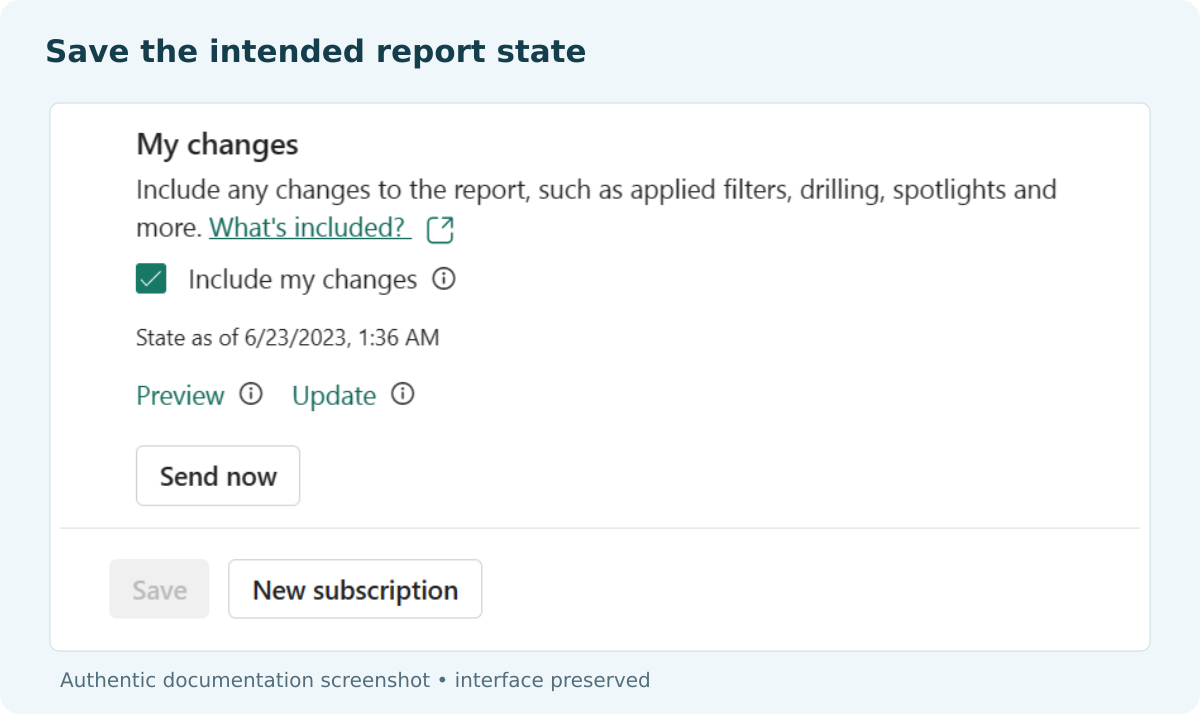
- Capture that selection. Open Subscribe and create or edit the subscription for that page. Choose Include my changes where available.
Microsoft documentation example: capture and check the North/Open view used in this article.
- Set the delivery. Review the selected page, recipient and schedule, then save. The audience must be appropriate for the owner’s emailed view.
- Read the received preview. Use a controlled test. Confirm North and Open, and check that an accidental highlight or drill selection has not changed the result. Run now sends the subscription; it does not refresh the data behind the report.
Update it when the manager’s needs change
First set the new view on the report page. Reopen Subscribe and select the pencil icon for the existing job. Choose More options > Include my changes > Preview to see the old saved view.
Compare it with the new selection. Return to the subscription, select the pencil icon, choose Include my changes > Update, and save. Check the newly received email and record the approved values. Review any other required pages separately.
Prepare the same recurring file in PBRS
- Select the report. In the single-report schedule, open Filters, choose Add, then Basic.
- Choose the real field. Select the actual Table.Column for Region and its text data type (String). Choose the matching operator, enter North and select Add to place it in the Values list, then select OK. Table.Column means the column and the table it belongs to; use the field shown by the model, rather than guessing from its display label.
- Add the status. Add the Open criterion separately. On Filter Level, choose Report or Slicer. For a slicer, identify it by Visual Title or Filter Field and select the required control. Save the filter, then use Preview to inspect the selection.
- Choose what the manager receives. Maintain the required supported file format and destination in the schedule. Save and run a controlled delivery, then open the received file.
PBRS’s single-report guide explains the filter controls and levels. The recurring job keeps the North/Open selection with the file and destination, so those choices do not need to be repeated every Monday.
Look for an included item and an excluded one
Choose a known North/Open item that should appear and a South item that should stay out. If the report shows only a total, compare it with the approved filtered view and check its caption.
If the email shows all regions, inspect Include my changes, its saved Preview and any bookmark. If North is correct but the month is wrong, check the date selection and data readiness. In PBRS, inspect the configured filters and Preview. Correct the selection before changing the delivery time.
Compare before Update
Read the old native Preview before replacing it with the current report-page view.
Find an expected item
Confirm a known North/Open item appears, or compare the expected filtered total.
Check what stays out
Look for an excluded region or record. This checks the selection without replacing the required access controls.
Read the received output
After saving, inspect the email or PBRS file and its period. A correct browser view alone is not the delivered result.
Keep Filter Specifications Reviewable in Automation
This chapter is optional. You can configure the native subscription or PBRS schedule in the preceding walkthrough without writing code. For an application or support team, a short saved-view record makes changes easier to review.
Keep the reporting request readable
Use the actual fields when configuring the job, but describe the intended result in ordinary language. Keep raw PDF Export to File filter syntax in the dedicated filtered-export workflow.
Illustrative saved-view specification
reportPage: Regional Operations
entryPoint: direct report page, or verified required bookmark
Region: North
Status: Open
dateBehavior: documented fixed or relative period
positiveCheck: approved North/Open record appears
negativeCheck: known South record is absent
changeGate: compare old stored preview before Update
acceptance: received view matches approved scope and period
Keep this record with the job when its page or fields change. It gives the next owner a clear answer to “What should this manager receive?”
Decide what an empty filter means
PBRS provides Ignore filter when insert values are blank. An Insert supplies a value to a field. When a value is empty, ignoring that filter could produce a broader report than the manager expects.
Decide how the job should handle the missing value. Where delivery must stop, configure and test that behavior instead of assuming the blank-value setting blocks it automatically. Include a controlled empty-value case before enabling the recurring job.
Keep access rules separate from view choices
PBRS documents report filters as presentation controls, rather than data security. Apply the appropriate model-level access rules and review what the sending account can export. A failed selection must not disclose data outside the approved audience.
The record and checks here are illustrative. They describe configuration and review; they are not a claim that a live subscription, PBRS run or recipient security test was performed.
Keep a readable record
Record the approved page, values, date behavior and expected result beside the job.
Use the actual field
Choose the model’s Table.Column and correct data type rather than a guessed display caption.
Test an empty value
Check how blank Inserts affect the output and any configured stop-delivery behavior.
Review source access
Use the sending account’s permitted data and the required model access rules alongside presentation filters.
Choose a Saved View or Recipient Mapping
Keep a native saved-view subscription when one report-page preview serves the audience. Maintain its page, bookmark and saved selection when the report changes.
Choose PBRS when the same filtered file needs to be prepared and delivered repeatedly. Its schedule keeps the view, output and destination together, so the North manager’s Monday report becomes a maintained job.
If each recipient needs a different region, move to the dynamic subscription or data-driven delivery workflow. That is a different reporting requirement from one saved view for everyone.
Explore Power BI Report Automation.
Technical sources reviewed: 8 October 2026.
Considering PBRS for recipient-specific report files? Share the guide with your colleagues to review deployment, licensing, security and your reporting requirements.
Contributors:
Christian Ofori-Boateng
CEO, ChristianSteven Software