How to Customize Power BI Subscription Emails
A useful report email tells people what has arrived and what to do next. A native subscription can provide a subject, message, preview and report link.
When the same job needs a formatted message, an approved sending account and a prepared attachment, PBRS can maintain those pieces in one schedule. Start with the words your reader needs, then build the email around them.
- THE DIRECT ANSWER Choose the Email Elements You Need to Change
- REQUIREMENTS AND LIMITATIONS Compare Native Customization with a PBRS Email
- END-USER WORKFLOWS Work Through a Weekly Operations Email
- DEVELOPER AND API WORKFLOWS Prepare and Test a PBRS HTML Message
- CHOOSE YOUR NEXT STEP Choose the Smallest Customization That Meets the Brief
Choose the Email Elements You Need to Change
Use the native subscription’s subject and message for a straightforward report email. Choose PBRS when you need a formatted body and a configured sending account alongside the recurring report output.
Imagine the Operations Summary arriving before Monday’s meeting. The manager should recognise the report, know which sections to review and find the detail easily. A helpful two-sentence message can do more for that reader than a large decorative header.
Write for the next action
Give the email a recognisable subject and one clear instruction. “Please review the backlog and service-level sections before the meeting” tells the manager why the report is in the inbox.
In a native subscription, More options contains the subject and message controls, report-page preview and report link. For a report, the message appears above the preview; for a dashboard, it appears below. Microsoft documents these options.
Decide which part needs branding
A logo inside the report preview comes from the report design. It does not change the surrounding email layout. Edit the report for a better preview; use the subscription message for better accompanying words.
The native message field is not an unrestricted HTML template editor. PBRS provides HTML or plain-text body controls with formatting, links and images, plus the report delivery settings. That lets you maintain the accompanying message as part of the reporting job.
Choose a sending identity you can maintain
For a PBRS job, select an authorised configured email account or mail server. Keep its identity consistent with the reporting team so recipients know where the report comes from. The native sender’s current migration behaviour is explained in the comparison below.
Identify the report
Use a subject the reader can recognise each week. Let the report show its actual reporting period.
Give one useful instruction
Tell the recipient what to review or do next. Courteous, specific wording is easier to act on.
Put branding in the right place
Report design controls the preview. The accompanying email body has its own formatting controls.
Use the maintained sending account
Choose a configured account approved for the reporting job. Check the sender in the received message.
Compare Native Customization with a PBRS Email
Compare what the manager will receive, then choose the controls that produce it. Keep the accompanying body, report in the body and attached file as three separate settings.
| What the reader needs | Native subscription | PBRS email destination |
|---|---|---|
| Recognisable subject | Set the subject in More options. | Set the subject; insert documented constants for supported dynamic values. |
| Clear instructions | Add a message alongside the preview. | Compose a formatted HTML or plain-text body. |
| Approved branding and links | Brand the report preview through report design; the message is not a full email-template editor. | Use the body toolbar for images and links; keep essential meaning when images are blocked. |
| Report visible in the body | Include the selected report-page preview. | Use Embed report with a format supported for that report type. Service reports and Service paginated reports use Image. |
| Report as an attachment | Use the eligible report-type and workspace attachment options. | Set exported Format and Naming independently of the body. |
| Sending identity | Owner or previous/fallback sender during the phased migration. | Select the authorised configured email account or SMTP server. |
Know the current native sender patterns
During Microsoft’s phased email-platform migration, a successful send through the updated method shows the subscription owner as sender. The previous method or a fallback can use no-reply-powerbi@microsoft.com.
Microsoft’s sender guidance says existing subscriptions move automatically. You do not need to recreate them. Accommodate both patterns in relevant mail rules; the migration icon does not establish which method handled every individual message.
Keep the message suitable for email
Native sensitivity labels apply to attachments, not to the email text or preview image. If values should stay protected, keep them out of the message and consider disabling the preview. Microsoft explains this label boundary.
For PBRS, approved branding is still a presentation choice. Its sender-details option remains subject to mail-server anti-spoofing rules. The Email destination guide recommends selecting the proper configured account or SMTP server rather than changing security to make a From address work.
Set the body format
HTML or Text controls the accompanying message. Choose the simplest format that serves the reader.
Set the embedded report
Embed report has report-type-specific formats. A report image is a preview, not editable data.
Set the attached file
Exported Format and Naming determine the report file. Changing body formatting does not change that file.
Review the disclosed data
Check the text and preview as well as the attachment. A branded footer does not protect report values.
Work Through a Weekly Operations Email
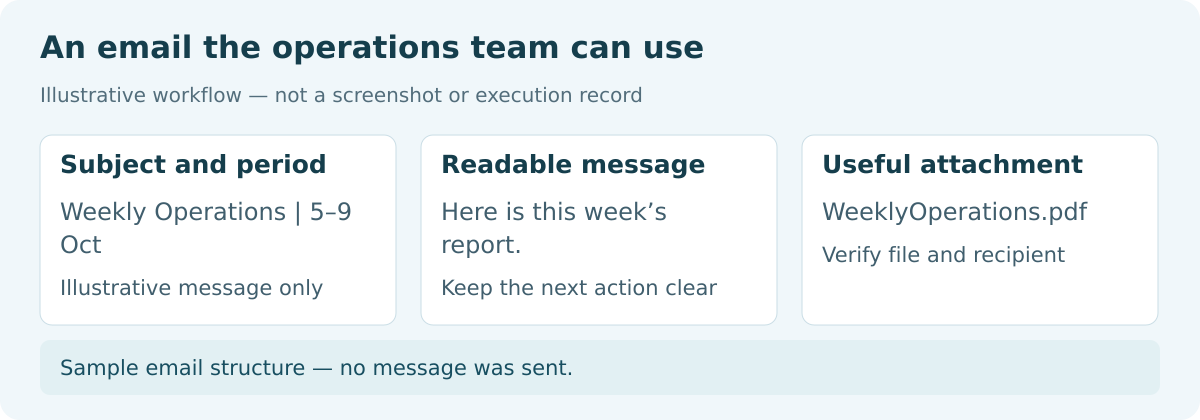
Sample email structure — no message was sent.
Here is illustrative copy for the Monday meeting. Adapt it to your report and audience; this is sample wording, not a message sent from a live installation.
Subject: Weekly operations report — review before the Monday meeting
The Operations Summary is ready for review.
Please check the backlog and service-level sections before the meeting.
Open the report for detail and confirm the period shown in it.
For questions about a figure, contact the reporting owner named in the report.
Build the straightforward native email
- Open the intended report page. Edit the existing subscription in the Power BI service. Keep the approved audience and cadence.
- Add the words. Expand More options and enter the adapted subject and message.
- Choose the useful preview. Select Report page and enable Report page preview if the content is suitable for email. Include the report link for interactive detail.
- Check the result. Save and use a controlled Run now test. It does not refresh the underlying model. Check message placement, preview legibility, recipient link access and actual sender.
Build the formatted PBRS version
Use the same instruction so the comparison remains about the email’s presentation and delivery. A restrained brand heading, a readable link and the prepared attachment give the manager a complete message without extra decoration.
- In the schedule’s Destinations step, add or edit Email. Enter the controlled recipient and adapted subject.
- Select the authorised configured sending account. Choose HTML for the body and use the toolbar for approved text, links and images.
- Add the actual approved report link. Set the exported report’s Format and Naming separately. Use Embed report only when the required report type supports the selected format.
- Save the destination and schedule, then perform a controlled execution. Review the received body, attachment, report period and links on desktop and mobile.
The PBRS Email destination workflow documents these settings. Once approved, the schedule keeps the message and report delivery together for recurring runs.
Keep recurring wording accurate
A static subject saying “week ending 7 October” becomes stale the following week. Prefer a stable subject and let the report show its period. For a dynamic date, insert a documented field and verify its evaluated value.
Record the approved copy and test result with the job. On a narrow mobile screen, the reader should still understand the instruction without opening the attachment to decipher it.
Adapt the example
Keep the report name and requested action true to the actual meeting. The sample provides a starting point.
Avoid stale dates
Use a stable recurring subject unless a documented dynamic value has been verified.
Open the recipient’s link
Check access as the intended reader. Receiving the email does not automatically grant interactive report access.
Approve the received message
Review the words, preview and attachment together on desktop and mobile before extending the audience.
Prepare and Test a PBRS HTML Message
A developer preparing the PBRS body can start with the small HTML example below. For composition without code, use the toolbar workflow in the previous chapter.
Keep the markup small
This illustrative body uses a presentation table and inline styles for the Monday message. Add your approved report URL and branding asset before use.
<table role="presentation" style="width:100%;max-width:600px;border-collapse:collapse">
<tr><td style="padding:16px;font-family:Arial,sans-serif;color:#143447">
<p style="font-weight:bold">Operations reporting</p>
<p>The Operations Summary is ready for review.</p>
<p>Please review the backlog and service-level sections before the meeting.</p>
<p>Confirm the reporting period in the report before making a decision.</p>
</td></tr>
</table>
If you add a logo, give it a text alternative. Keep the report name and instruction in text so the email still makes sense with images blocked. Replace every ordinary placeholder with the actual approved value.
For dynamic values, insert documented constants through PBRS and inspect their evaluated values in a controlled execution. A literal placeholder left in the received message needs correction.
Configure the report alongside the body
PBRS attaches exported output by default. Embed report uses the formats available for the selected report type. Power BI Service reports, dashboards and Service paginated reports use Image.
SSRS and on-premises paginated reports support Text, HTML, Image and Web Archive. HTML report embedding requires SMTP, a mail-sending protocol. MAPI, the messaging interface, permits Text embedding only. For a Service report, plan an image preview alongside the separately prepared file.
Set exported Format and Naming separately from the body and embedded format. Open the resulting attachment and confirm its report period.
Review the actual mailbox
Check the desktop and mobile clients recipients use, including images blocked. Confirm that the subject remains recognisable, links are readable and the instructions work without the logo. Mail clients can alter styling, so the received email is the useful final check.
These are acceptance steps for your implementation. The sample was not executed against a live PBRS installation.
Keep the HTML readable
Use restrained formatting around clear text. A simple message is easier to maintain and test.
Write for blocked images
Put the report identity and action in text, with a useful alternative for any logo.
Verify dynamic values
Use documented constants and inspect the result. Do not invent tokens or leave placeholders in the email.
Check the received output
Review the mailbox, links and attachment. An editor preview cannot establish the final email layout.
Choose the Smallest Customization That Meets the Brief
Keep the native subscription when a subject, short message, preview and link meet the reader’s needs. The Monday example can work well with those controls.
Choose PBRS when that recurring job needs an approved formatted body, a configured sending account and a prepared attachment maintained together. It replaces repeated email composition and file preparation with one reporting schedule.
Start with the useful instruction, then approve the received words and output together. The manager should know what has arrived, which period to check and where to ask about a figure.
Explore Power BI Report Automation.
Technical sources reviewed: 8 October 2026.
Considering PBRS for personalized report emails? Share the guide with your colleagues to review deployment, licensing, security and your reporting requirements.
Contributors:
Christian Ofori-Boateng
CEO, ChristianSteven Software