

Tableau Excel Report Automation
Tableau Excel Report Automation and Template Workbooks

Give your team a recurring workbook in the layout they need. Use ATRS to place Tableau data into a prepared Excel template, then check the completed file before making the job recurring.
Populate a prepared Excel template at the worksheet, row and column you choose.
Add row and column totals, header styling and column formats to data-only exports.
Use MS Excel Data Only for template placement, totals and detailed styling.
Review the completed workbook against the required columns, formulas and editable areas.

The Excel Reporting Challenge
Build the Workbook Your Team Already Uses
A downloaded crosstab may be enough for a quick analysis. For recurring work, start with the workbook your colleague needs: where the data belongs, which totals matter and which cells they will use.
Use the Familiar Layout
Finance and operations often have a workbook they already use. Place fresh data in that template instead of starting with an unrelated layout.
Make the Values Readable
Headers, number formats and selected totals help colleagues review the exported figures.
Leave Room for Review Notes and Formulas
Identify the formulas and editable cells around the exported table. Check them in a representative completed workbook.
Native Tableau or ATRS?
Choose the Right Approach for Recurring Excel Reports
Tableau supports Excel crosstab downloads for selected sheets, subject to permissions. Native subscriptions send image or PDF snapshots. Choose ATRS Tableau report scheduler when your Tableau Excel report automation also needs template placement, workbook preparation and delivery.
Native Tableau downloads
A Good Fit for One-Off Analysis
A selected sheet’s crosstab contains the information you need.
You want to download a file for an immediate analysis.
The current filters and parameters define the required output.
The authorized user has the necessary download permissions.
Your team can handle any workbook preparation after downloading.
You can manually name and share the finished file.
ATRS
A Better Fit for Repeatable Workbook Delivery
Produce Excel files on recurring schedules or business calendars.
Insert data-only exports into an existing workbook template.
Add totals only to the rows and columns that need them.
Choose the worksheet and starting cell for the inserted data.
Apply column formats by their matching header names.
Protect the workbook, then choose its file delivery destination.
Choose the Excel output for the job. Both MS Excel and MS Excel Data Only produce XLSX files. Use MS Excel for a straightforward workbook export. Choose MS Excel Data Only when you need the template, totals and detailed styling controls below; its name does not mean the file must be unformatted.
Tableau’s REST API can download authorized XLSX crosstabs, and tabcmd can export view data as CSV. An owned script can schedule and process those files with the required permissions. The REST XLSX method returns summary crosstab data; a dashboard request returns its first view, and story-dashboard downloads are unsupported. Native sources: REST API · tabcmd
Put Fresh Tableau Data into a Familiar Excel Template
Select MS Excel Data Only to place the exported table in an existing workbook. Advanced Excel output needs the required Microsoft Office installation on the ATRS host; check the current Office and host prerequisites before configuring it.
Prepare Your Template
Select the existing template workbook, then choose the worksheet where ATRS will insert or append the Tableau data.
Choose Exactly Where Data Starts
Select a starting row and column, or use the next available row or column to append the export.
Check the Space Around the Export
Leave room for the largest expected export. Test a longer and a shorter sample to see whether data overlaps formulas or review areas, or leaves values from an earlier run.
Explore the Excel export setup guide and released data-only Excel controls.
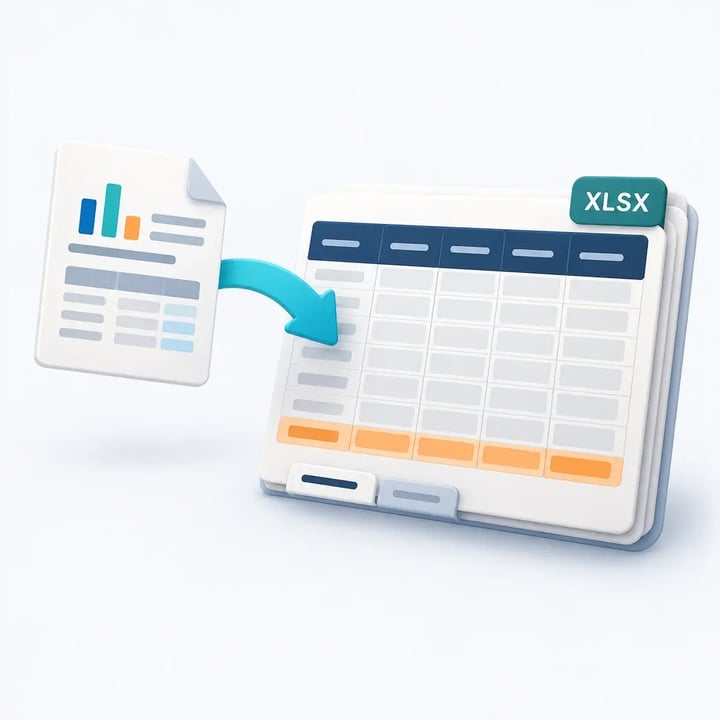
Prepare Excel Data for the People Who Use It
These MS Excel Data Only controls help turn exported data into a workbook that is easier to read and work with.
Row and Column Totals
Add totals across rows or down columns. Choose all rows and columns, or specify the row and column numbers that need totals.
Workbook Properties
Add a title, author, company, subject and keywords or comments so the workbook carries the context your team needs.
Headers, Totals and Alternating Rows
Style headers and totals with font weight, text colors and background colors. Set odd and even rows separately to make longer tables easier to follow.
Column Formats
Identify a column by its header name, then set its data type and custom format string for dates, currencies or other values.
Reusable Style Settings
Import and export style settings so recurring data-only outputs can share the same formatting choices.
Data Validation
Evaluate the Validate data prior to delivery option in your installed build. Separately check required columns, record counts, data types and the agreed total; confirm the option’s behavior before relying on it to stop an incorrect file.
Worked example
Place the Operations Data at B3
For example, an operations analyst needs the weekly sales table inside an existing workbook, with a title above it and space for review notes. Use this specification to evaluate a representative export.
| Setting | Sample check |
|---|---|
| Source and period | Use the approved Weekly Store Sales Tableau view for 5–11 October 2026. Confirm its selected data contains the required stores and dates. |
| Output and template | Select MS Excel Data Only and the prepared operations-template.xlsx workbook. |
| Worksheet and start | Choose Operations, starting row 3 and column 2 — cell B3. |
| Required layout | Require headers in B3:D3 and data beneath them from row 4. Keep the title above the table and review notes in columns F:H, outside the insertion area. Verify this placement in the sample. |
| Columns and types | Require Store, SalesDate and NetSales, in that order. Check identifiers, dates and numeric values against the source. |
| Readable values | Match column formats by header name. Require SalesDate to display as yyyy-mm-dd and NetSales with two decimal places. |
| Rows and total | Record the approved source row count and NetSales total before export. Match both in the completed workbook. Add a total for NetSales after the data; leave store identifiers and dates out of the totals. |
| Formulas and review areas | Keep required template formulas outside the planned data area. Check their results and the editable notes after insertion, including any required outline grouping. |
| Changing export size | Run longer and shorter samples and repeat a run. Check for overwritten cells, stale values and formula-range changes before making the job recurring. |
These are illustrative acceptance requirements, not a completed export result. Verify the actual header position, inserted area and template behavior in your sample. Do not assume old cells are cleared, formulas expand or each run appends to the previous file. Template insertion does not recreate the dashboard’s visual layout.
Bring the Workbook Specification to the Trial
Use an example of the workbook your colleague wants to receive. Its worksheets, starting cell, columns and number formats make the requirement concrete.
Review the Spreadsheet as a Whole
Open the completed XLSX in the intended spreadsheet application. Compare it with the agreed source and workbook specification. Required formulas, editable areas and outline grouping must work in that sample; template insertion does not establish that they will be created or preserved automatically.
Choose Any File Protection
Set a workbook password, ZIP or configured PGP when required, and include opening or unpacking the file in the acceptance check. ATRS connects to Tableau Cloud. It does not connect to Tableau Server. The Tableau export account needs the appropriate access and licensing. Follow the current Office and installation prerequisites for advanced Excel output. For a text-file handoff, explore CSV specifications; for a fixed-layout reading copy, see PDF output.
Trusted Report Automation for More Than 20 Years
ChristianSteven Software has helped organizations automate business intelligence reporting and delivery for more than two decades.
Questions About Tableau Excel Report Automation
Answers about XLSX output modes, template placement, workbook formatting and sample requirements.
Yes. ATRS can schedule Tableau exports in MS Excel and MS Excel Data Only formats, then deliver the resulting files by email or to configured file destinations.
MS Excel Data Only offers template placement, selected row and column totals, styling, header-based column formats and reusable styles. It also provides a validation option. Check that option in your installed build, and separately verify required columns, record counts, data types and the agreed total.
Yes. MS Excel Data Only can insert or append Tableau data into a selected template worksheet at a specified row and column, or the next available row and column.
Not automatically. Data-only template insertion prepares tabular output; it does not recreate a dashboard’s visual layout or automatically include every worksheet or underlying data row.
Yes. A package schedule can merge compatible Excel report outputs. See the package schedule guide for selecting and assembling several reports.
Yes. ATRS can merge existing Excel files. Password and file-summary controls are documented for that task; read-only handling is documented separately under Manipulate Excel. See the Excel file-task guide.
Yes. Set an Excel workbook password, compress outputs into a password-protected ZIP, or use PGP encryption with your configured PGP UserID.
Native downloads provide authorized crosstab exports. Tableau’s REST API can also provide supported XLSX exports for an owned script. ATRS adds configured recurring production, data-only template placement, totals, styling and delivery.
Yes. Use CSV output for a text-file handoff, and Excel when the recipient needs worksheets or workbook formatting.
Bring the Tableau report and an example of the desired workbook. Identify the reporting period, expected rows and total, worksheet, insertion cell, columns and formats. Show any required formulas, review areas or outline grouping so they can be checked in the completed sample; their presence is not guaranteed by template insertion alone.
Give Your Team the Workbook They Need

Bring your template and spreadsheet specification to a free 30-day trial or demonstration. Review where the data lands and how the completed workbook behaves.