Dynamic Subscriptions and Parameters for Power BI Paginated Reports
Yes. A dynamic subscription can send each recipient a paginated report with different parameter values, provided the report is in a supported capacity-backed workspace. Map the value the report expects, such as department ID 101, rather than its display label, “Operations.”
Native Power BI can handle parameterized email delivery. PBRS data-driven schedules can also read the recipient records, fill parameters and choose formats and destinations for a recurring reporting job. Start with two departments and inspect both received files before adding more managers.
- THE DIRECT ANSWER Map Recipients to Parameter Values, Not Display Labels
- REQUIREMENTS AND LIMITATIONS Match Types, Defaults and Available Values
- END-USER WORKFLOWS Configure and Test Two Different Department Outputs
- DEVELOPER AND API WORKFLOWS Review Parameter Bindings and PBRS Driver Records
- CHOOSE YOUR NEXT STEP Choose Parameterized Email or a Data-Driven Reporting Job
Map Recipients to Parameter Values, Not Display Labels
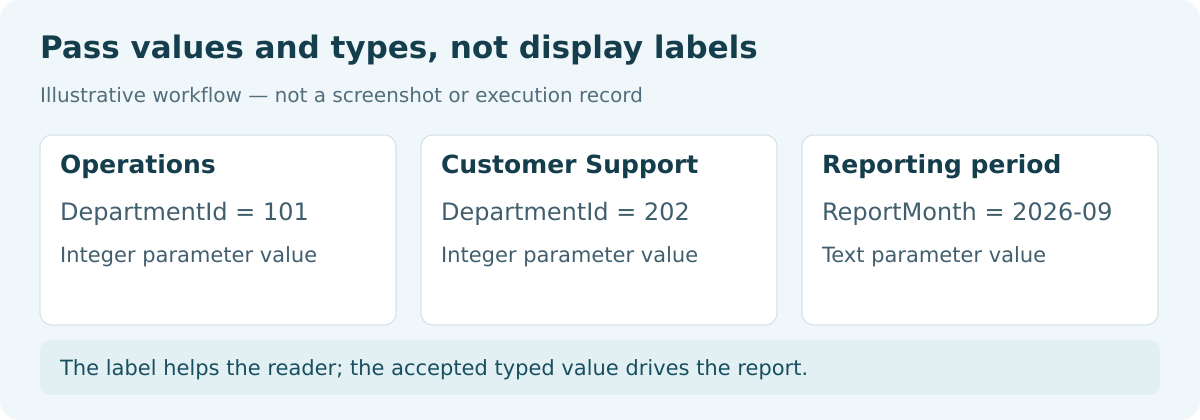
Suppose you send a monthly Training Completion report to Operations and Customer Support. The report’s DepartmentId parameter is Integer: Operations displays as a label for 101, and Customer Support for 202. The recipient mapping must supply those numbers.
For a controlled September test, map operations.manager@example.com to DepartmentId = 101 and ReportMonth = 2026-09. Map support.manager@example.com to department 202 and the same month. These are example addresses; replace them with approved real mailboxes when testing delivery.
The native subscription reads a recipient semantic model—the data containing addresses and each person’s parameter values. PBRS uses a data driver, which supplies records for the reporting job. Both approaches let you maintain the mapping instead of manually preparing every department’s file.
Microsoft’s paginated dynamic subscription guide explains this recipient-to-parameter workflow. Standard-report slicers and Power Automate export payloads use different setup steps.
Send the underlying value
The subscription maps parameter values, not dropdown labels. Sending “Operations” to an Integer DepartmentId does not replace sending 101. Confirm the published report’s accepted value before building the recipient mapping.
Vary only what needs to change
DepartmentId changes for each manager. The test month can stay fixed, and another parameter may use the author’s default. Make these choices deliberately so a later run does not inherit an unintended month or view.
Check that the parameter restricts data
A parameter can change presentation as well as data. If DepartmentId changes only a caption, it will not keep another department’s detail out. Confirm the intended query or filter behavior with the report author.
Approve the recipient’s scope
A valid parameter is not proof of data entitlement. Approve each manager’s department and review source access separately. Receiving a subscription email does not independently grant interactive report access.
Match Types, Defaults and Available Values
The published report needs parameters and a supported capacity workspace: Power BI Premium, Fabric capacity or a Fabric trial. The creator needs Build permission on the recipient semantic model and a Contributor, Member or Admin role in the report workspace. Native attachments must be smaller than 25 MB; the dynamic subscription has a 10-minute timeout and a 1,000-recipient-row limit.
Review the native prerequisites and limits for the actual workspace and audience. Trial support here concerns this paginated feature’s prerequisites; external email delivery still needs a separate review of the general subscription rules.
| Requirement | Native Power BI | PBRS data-driven schedule |
|---|---|---|
| Different department files | Maps recipient-model columns to report parameters. | Inserts driver values into the Parameters wizard. |
| Parameter choices | Current, Default or Get from data for each parameter. | Use actual parameter names, types and fixed or driver-supplied values. |
| Format and delivery | Email with attachment choices and subject that can come from data. | Driver-based formats, messaging and destinations such as email, disk or FTP. |
| Operating checks | Capacity and permissions, less than 25 MB, 1,000 rows and 10-minute timeout. | Verify source access, licensing, driver records and the chosen exception behavior. |
Use native delivery when these limits fit. Consider PBRS data-driven paginated delivery when parameters and destinations need to be managed together. Include its license and running environment in that decision.
Match the parameter type
Report Builder supports Boolean, DateTime, Integer, Float and Text. An Integer department ID is a whole number; a Text month code such as 2026-09 differs from a DateTime boundary. Boolean can control a detail section, while Float can supply a numeric threshold. Check the published parameter properties instead of treating every value as interchangeable text.
Choose Current, Default or Get from data
Current takes the selected rendered report’s value. To change it, render with the new value, reopen the wizard and choose Current again. Default uses the author’s value, including an expression that can evaluate at run time. Get from data selects a recipient-model column for values that vary by person.
Handle empty and dependent values
Blank text and null are different. Check whether each is allowed and included in the available-value list. Multivalue parameters do not allow null; verify how your delivery route accepts multiple values rather than assuming a comma-separated label string. If one parameter controls another’s available values, test that dependency too.
Stay within the delivery limits
If the native recipient list exceeds 1,000 rows, only the first 1,000 get email and the creator receives an error. Reconcile the audience before the run, and test rendering time and attachment size with representative detail. Valid parameter values alone do not ensure delivery.
Configure and Test Two Different Department Outputs
First render the report manually for DepartmentId 101 and the approved month. Check Operations detail, then repeat for 202 and check Customer Support. Resolve a report-definition problem before scheduling it.
- Prepare the published recipient model with two approved rows: email, DepartmentId and ReportMonth. Check the field types and values.
- Open Subscribe to report > Create a subscription > Dynamic per recipient and select the recipient model.
- In Select and filter data, choose the relevant fields and inspect the resulting table. Keep the test audience to two approved real mailboxes, and check that aggregation preserves the intended rows.
- In Email details, use Get from data for the recipient email and choose the attachment format. Subject and attachment choices can also come from data. Review any preview: it shows the first page with the recipient’s parameters applied.
- In Parameters, set DepartmentId to Get from data and choose its column. Set a deliberate Current, Default or data-supplied value for ReportMonth and every other parameter.
- Review cadence, time zone, start and end dates and active status, then save. Run the controlled delivery test and open both received attachments.
In PBRS, choose a Data-Driven schedule for Power BI Service Paginated Reports. Build and inspect the driver, select a stable key and choose the report. In the Parameters wizard, enter the actual Parameter Name and Parameter Type, insert the matching driver field into Parameter Value, then click Add. Preview both departments.
For this example, supply the integer department value and the approved Text month. Add an Email destination and use the corresponding recipient field through Data-Driven Inserts. The PBRS paginated wizard guide shows the setup; use your real fields rather than a guessed token.
Inspect both department files
One correct Operations file does not prove the Customer Support mapping works. Check the department, month and required detail sections in each attachment. Confirm the other department’s detail is absent.
Keep evidence with the mapping
Retain both received files and the mapping version used to generate them. The report should identify the department and period clearly enough that a reviewer can spot an incorrect parameter.
Repair values before changing delivery
If rendering fails, compare the supplied value with the published type and available values. If the wrong department renders, inspect the mapping and query binding. When the right file renders but never reaches the mailbox, investigate delivery rather than repeatedly changing DepartmentId.
Review the next reporting month
A fixed September value will not become October automatically. Decide whether the next run uses refreshed driver data, a newly captured Current value or an intentional default expression, then verify the month in the generated file.
Review Parameter Bindings and PBRS Driver Records
The label helps the reader; the accepted typed value drives the report.
Optional technical section. Keep a parameter specification with the report and recipient driver. Record the internal name, type, accepted values, source column and effect on the output. Here is the specification for the two-department example:
Illustrative parameter contract
DepartmentId
reportType: Integer
approvedValues: 101, 202
recipientColumn: DepartmentId
labelOnly: Operations, Customer Support
acceptance: department detail restricted to the mapped ID
ReportMonth
reportType: Text
exampleValue: 2026-09
decision: fixed controlled period or intentional dynamic/default period
acceptance: received report identifies the required month
This describes the intended configuration; it is not an executable subscription or a record of a completed delivery. No live subscription or PBRS delivery has been run for these example recipients.
Repair query bindings after a rename
If a report parameter bound to a query parameter is renamed, reassociate the binding. In Report Builder, open the dataset’s Dataset Properties > Parameters and check that Parameter Value references the right report parameter. Microsoft documents this reassociation; changing a subscription name will not repair it.
Check the published definition
Review the parameter name, type and available values in the actual published report. A prompt or display label is a separate property. If the mapping supplies a valid value but the output is too broad, inspect how the report query or filter uses it.
Configure and test empty-output handling
PBRS exposes actions for blank or failed exports. Choose the blank-report check and intended delivery action, then test a controlled empty case. A file-size threshold is a heuristic: a small file cannot prove correct department scope or complete data.
Investigate each result before retrying
Keep the driver key, parameter values, expected recipient and execution evidence together. Reconcile the two required files and actual receipt. For an uncertain delivery, investigate first so a retry does not create an unnoticed duplicate.
Choose Parameterized Email or a Data-Driven Reporting Job
Use native paginated dynamic subscriptions when the capacity, parameter mapping, recipient limit and timeout fit your job. Keep the recipient model and the published report’s parameter settings aligned.
Choose PBRS when recurring delivery needs to drive parameters, formats and destinations together, with configured handling for empty or failed exports. Use the paginated Parameters wizard for this work.
Before expanding the training report audience, approve both department files and their receipt. Check parameter validity, excluded data and delivery separately so success at one stage does not hide a problem at another.
Explore Power BI Report Automation. Technical sources reviewed: 9 October 2026.
Considering PBRS for parameter-based paginated report delivery? Share the guide with your colleagues to review deployment, licensing, security and your reporting requirements.
Contributors:
Christian Ofori-Boateng
CEO, ChristianSteven Software