

How to Export Power BI Report Builder Reports to PDF
In Power BI Report Builder, run or preview the report, choose Export → PDF, and save the file. If the report is already published, you can also export it from the paginated report viewer in the Power BI service.
That handles a one-off copy. When colleagues need the same document every month, PBRS can save the published report, its parameters, PDF settings and delivery schedule. For an accounts team preparing a monthly invoice register, that removes the repeated work of selecting the month, exporting the file and sending it around.
- THE PROBLEM AND ANSWER Turn the invoice register into a useful PDF
- YOUR OPTIONS Give the report enough room on the page
- PRACTICAL SETUP Schedule the finished register with PBRS
- DEVELOPER AND API WORKFLOWS Let your application request the monthly register
- YOUR NEXT STEP Move from preparing PDFs to using them
Turn the invoice register into a useful PDF
Suppose the accounts team needs a register of the month’s invoices, with readable columns and totals at the end. This is a natural use for a paginated report: its layout is designed to continue across printed pages as the detail grows.
Report Builder creates .rdl files. These are different from the .pbix reports created in Power BI Desktop, so use Report Builder’s export controls or the service’s paginated report viewer for this task.
While designing the register, open the .rdl in Report Builder, supply the month parameters, and run or preview it. Choose Export → PDF and save a copy. You do not need to publish the report to make this local export.
For a published register, open it in the service, select the month, and use the viewer’s Export menu. Open the saved PDF rather than judging the result only by the screen preview. PDF follows physical paper dimensions, which can reveal a wide table or an unexpected page break that was less obvious on screen.
Introduce the month clearly
Put the reporting month in the register’s heading. Colleagues should not have to infer it from the date they received the email.
Give the report enough room on the page
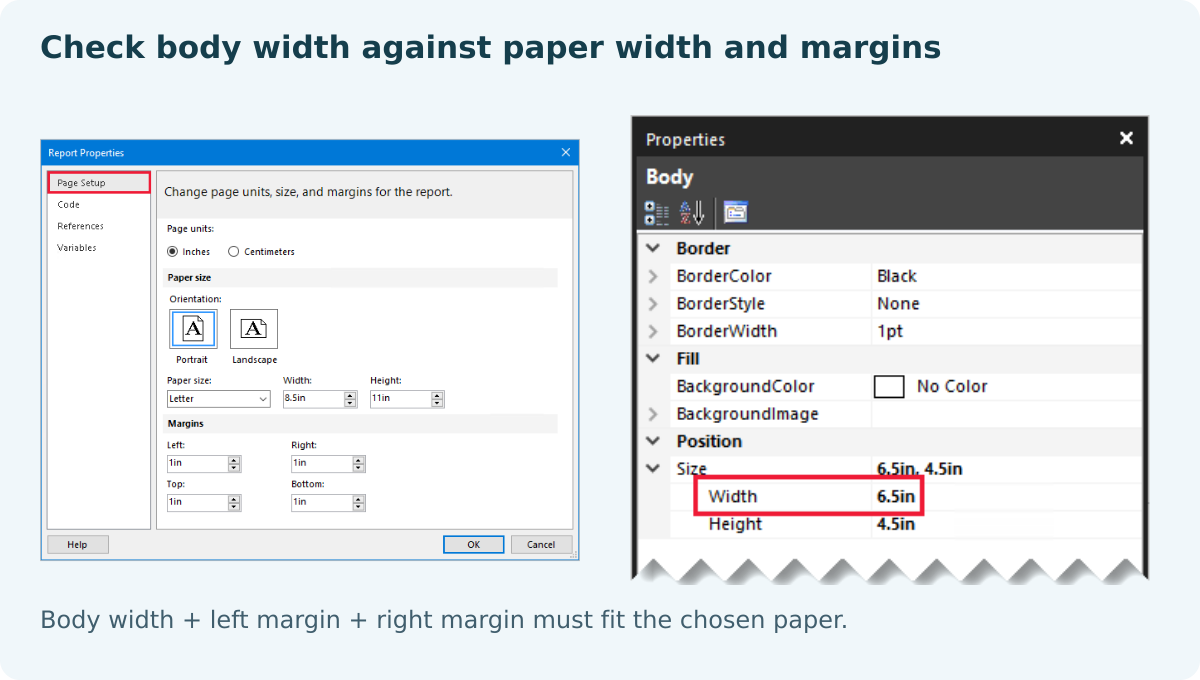
If the register produces blank pages or clipped columns, check the report’s paper size, orientation and margins. PDF uses hard page breaks; the normal HTML preview uses softer page breaks that can make the same layout look different.
The report body needs to fit between the margins. For example, an 8.5-inch-wide page with a half-inch margin on each side leaves 7.5 inches for the body. A table, rectangle or other object extending beyond that width can push content onto another page.
Look for objects near the right edge before trying to reduce the body width. Also check trailing whitespace and deliberate page breaks between groups. A blank page usually calls for a layout adjustment; missing invoices call for a separate look at the query, parameters and data access.
| What you see | Where to look first |
|---|---|
| An extra blank page | Body width, margins, objects beyond the edge and unnecessary page breaks. |
| Columns that are hard to read | Column widths, font size and whether landscape paper would suit the register. |
| Invoices missing from the file | The query, month parameters and account used to access the data. |
| A hosted copy that differs from the local copy | The published report version and its service data-source settings. |
PBRS distributes the configured report. Fixing the layout in Report Builder first means every later scheduled copy benefits from that improvement.
For the detailed requirements and controls, see Microsoft’s paginated blank-page troubleshooting guide.

Use one set of units
Calculate the paper width, margins and report body in the same units. Mixing inches and centimeters makes a simple layout problem harder to spot.
Schedule the finished register with PBRS
When the invoice register looks right, publish it and use that hosted report for recurring delivery. The PBRS paginated schedule guide walks through the setup.
- Choose the register. Create a Single schedule for Power BI Service → Paginated Reports, select the account and find the published invoice report.
- Set the reporting month. Enter the report’s actual parameter names, values and types, then Preview the result. For a recurring job, plan how those values will move to the next reporting month.
- Choose the PDF destination. Add Email or Disk, select Acrobat Format (*.pdf), and use a name that helps the accounts team recognize the register.
- Set the monthly timing. Run after the invoice data is ready, then Test to a suitable destination before turning on automatic execution.
For that first delivered register, check a known invoice, the final invoice and the total for the month. Read across a page transition to make sure headings still make sense and rows remain readable. This gives you a useful first copy without turning every monthly run into a lengthy manual approval exercise.
A native subscription may be enough for a straightforward eligible delivery. PBRS is useful when the team wants to maintain the report’s parameter selection, PDF output and destinations in one reporting schedule.
Think beyond page one
A register can look excellent at the top and become difficult to follow later. Repeated column headings help readers stay oriented as they work through the invoices.
Let your application request the monthly register
Your billing application can ask PBRS to run the published invoice register once the month is closed. The report author continues to maintain the query and layout in the .rdl, while PBRS keeps the report’s output and delivery instructions.
For a Power BI Service paginated report, the source-specific creation endpoint is:
POST /api/SingleSchedule/CreatePaginatedUse the complete request in the schedule API guide, including the hosted report, account, parameters and destination. Parameter entries use ParameterName, a string ParameterValue, an integer ParameterType and IsNull. Use GetPaginated to read an existing job and the parameter update guide when changing the month.
Once configured, call ExecuteScheduleAsync for the saved single-report schedule. Keep the returned ExecutionId with the billing month and follow the execution guide to monitor the result. That record helps the support team find the right run if someone asks about a missing register.
SSRS and Power BI Report Server have different source contracts. A local Report Builder export also remains a separate authoring task; this hosted workflow does not export an unsaved report on someone’s desktop.
A direct Microsoft paginated export integration is another option, with its own access, asynchronous export and delivery handling. Reusing the PBRS job is convenient when the application should request the document without owning all of that reporting code.
Keep the report author involved
When a published register differs from the local design, compare the report versions and data-source settings before changing the delivery schedule.
Move from preparing PDFs to using them
The accounts team should be able to open the monthly register and work with its invoices, rather than spend time producing the file. A readable paginated layout solves the document problem; a saved PBRS schedule takes care of the recurring preparation and delivery.
Begin with the register you already use, get its PDF layout right, and schedule that published version. The paginated scheduling guide provides the detailed controls, while Power BI Report Automation explains the wider delivery options.
Contributors:
Christian Ofori-Boateng
CEO, ChristianSteven Software
