POWER BI QUESTIONS

Data Driven Subscriptions in Power BI Report Server and SSRS

Native data-driven subscriptions in Report Server and SSRS use a query to choose recipients, delivery settings and parameter values for a paginated RDL report. You need a supported edition and a report that can run without interactive sign-in. Native email subscriptions do not support PBIX reports.

For a monthly department report, two approved query rows can drive two different deliveries. PBRS can read a maintained driver and apply the report values, formats and destinations, including an applicable on-premises PBIX route. Check the report type and returned records before choosing the wizard.

  
THE DIRECT ANSWER

Match the Report Type to the Query-Driven Route

For an RDL report, use a native data-driven subscription when your deployed edition and unattended access meet its requirements. For a PBIX report on Report Server, use the separate PBRS query-driven route; native email subscriptions do not support PBIX.

Suppose two managers need their own department’s monthly figures. Each subscriber record supplies an email address, department value and reporting month. The native subscription runs its query when processing begins and uses the returned columns for the settings you map.

It belongs to one report and one delivery extension, such as email or file share. The report, subscriber source and query stay defined in the subscription; approved data returned by that query can change for the next run. The native overview explains these fixed and variable parts.

The Report Server comparison confirms the PBIX boundary. “Reports & Dashboards” is a PBRS menu label, not an added native Report Server dashboard feature.

Define what one row means

For this example, one row means one recipient, one department and one month. Each returned row creates a delivery attempt, so duplicate rows can create extra deliveries. Review the complete row set first.

Review current subscriber values

The next run uses the query’s current result set. Approve recipient and department changes in the data process, then check what the query actually returns before enabling delivery.

Keep native and cloud rules separate

SSRS data-driven subscriptions are not Power BI Service dynamic subscriptions. Do not import the cloud feature’s recipient limits or wizard labels into this on-premises setup.

Use approved test recipients

The names, addresses and tables below are synthetic. No SQL Server, Report Server or PBRS job has been run for them. Adapt the example to reviewed records and controlled mailboxes before testing.

  
REQUIREMENTS AND LIMITATIONS

Check Edition, Credentials and Subscriber Data

The two managers need different department figures for the same month. Compare how each route maintains that mapping, then check the edition and access requirements below. This keeps the delivery decision together before you start either wizard.

Report source Native route PBRS route
RDL on Report Server or SSRS Data-driven subscription when edition, permissions and unattended requirements are met. Data-Driven > For SSRS or Paginated Reports; map parameters and destinations.
PBIX on Report Server No native PBIX email subscription. Data-Driven > For Power BI on Premise > Reports & Dashboards; map filters and destinations.
Power BI Service report Cloud dynamic subscriptions have separate rules. Use the relevant Service schedule for a cloud source.
Recurring recipient and report values Maintain the subscription query and column mappings; the next run uses its current approved records. Maintain a parsed driver with a unique key, then map inserts into the RDL parameters or PBIX filters and destination.
Chosen delivery extension One native subscription uses one delivery extension; values may vary within that extension. Configure the required PBRS destinations and output settings for the reporting job. Each still needs its own authorised connection.
Unattended operation The native report and subscriber source need unattended credentials, with SQL Server Agent running. The PBRS scheduler identity needs access to the driver, report and destination. The source permissions remain yours to maintain.

Microsoft’s edition table lists data-driven report subscriptions for Enterprise and Developer, with no support shown for Standard. It separately lists Report Server availability for SQL Server 2025 Enterprise and Standard. Having the server does not establish that every subscription feature is included: check the deployed edition and version. Developer availability does not grant production use rights.

The native report must use stored or no credentials. Impersonated or delegated source credentials are unsupported for this subscription type, and a report containing User!UserID cannot use it. The author needs Manage reports and Manage all subscriptions, plus access to the subscriber data source. Check the native creation requirements.

Confirm SQL Server Agent is running and the delivery extension is configured. Under default security, the data-driven option is unavailable in My Reports. The portal guide covers these operating requirements.

A native RDL subscription can fit this two-manager job well. PBRS is worth considering when the same driver must feed an on-premises PBIX report or maintain additional destination controls. Neither route can infer which department a recipient is authorised to see.

Prepare both data connections

The subscriber source supplies recipients and parameter values; the report source supplies the figures being rendered. Test unattended access to each. A working connection to one does not establish access to the other.

Use a source that supplies column metadata

Native subscriber data needs a supported, installed data-processing extension that can return the column information used for mapping. Review the subscriber-source requirements for the chosen source.

Match column types and lengths

The recipient columns must be compatible with the report parameters. Map the actual Integer department value rather than its display label, and use the appropriate Text month mapping. A mismatch may appear during processing even after the columns are available in the wizard.

Recheck changed columns

Removing or renaming a referenced column, changing its type or altering the table structure can break the subscription. Update and recheck the mapping when that data changes.

  
END-USER WORKFLOWS

Set Up and Test Two Department Deliveries

Assume the RDL report accepts an Integer DepartmentId and a Text ReportMonth. This sample query selects approved September records; it does not create the table or send reports:

-- Illustrative schema and values; review before use.
SELECT DeliveryId, EmailAddress, DepartmentId, ReportMonth
FROM dbo.DepartmentDeliveries
WHERE Approved = 1
  AND ReportMonth = '2026-09';

-- Expected illustrative row set:
-- 101 | north@example.invalid | 10 | 2026-09
-- 102 | south@example.invalid | 20 | 2026-09

The example.invalid addresses are documentation placeholders. Substitute approved mailboxes while keeping the two department values distinct.

  1. Run the adapted query in SQL Server Management Studio and inspect every returned recipient, department and month.
  2. Open the RDL report’s Manage > Subscriptions > + New Subscription. Choose Data-driven and the configured email extension.
  3. Use Edit Dataset to configure the subscriber source and query. Validate it to make its columns available for mapping.
  4. Map To to EmailAddress, DepartmentId to the numeric column and ReportMonth to its Text column. For this test, choose fixed PDF rendering and Include Report.
  5. Set the schedule, save and use Run now. Read Result and inspect both received attachments.

For an RDL job in PBRS, choose Data-Driven > For SSRS or Paginated Reports. Build and Parse the driver, select its unique Key Column and connect to the report. Insert the department and month values into the report parameters, then use the address insert for an Email destination. Follow the PBRS RDL guide.

For on-premises PBIX, choose Data-Driven > For Power BI on Premise > Reports & Dashboards. Build the driver, select the report and rendering settings, then use the department insert in Filters with the actual Table/Column target and compatible type. In Pages To Render, separate actual page titles with |; blank means the current page. Add the recipient insert and output format to Email, then test both records before enabling recurrence. The PBIX guide documents this separate route.

Understand what validation proves

Native query validation obtains column information for the wizard. It does not prove the runtime query, rendering or delivery succeeded. The creation guide distinguishes validation from processing.

Inspect both department outputs

Record the identifiers expected for departments 10 and 20. Compare each attachment with its own set and required month. The right address paired with the wrong parameter still produces an incorrect delivery.

Check PBRS parameter detection

For the documented RDL workflow, the parameter must be used in the report, visible and prompted at run time for PBRS to detect it. Resolve the report definition when an expected parameter is missing.

Choose grouping with its tradeoff

PBRS can group reports by email address, but enabling that option disables embedding reports in the email body. Test the resulting attachments when one mailbox has several approved records.

  
DEVELOPER AND API WORKFLOWS

Validate the Driver and Keep Per-Record Evidence

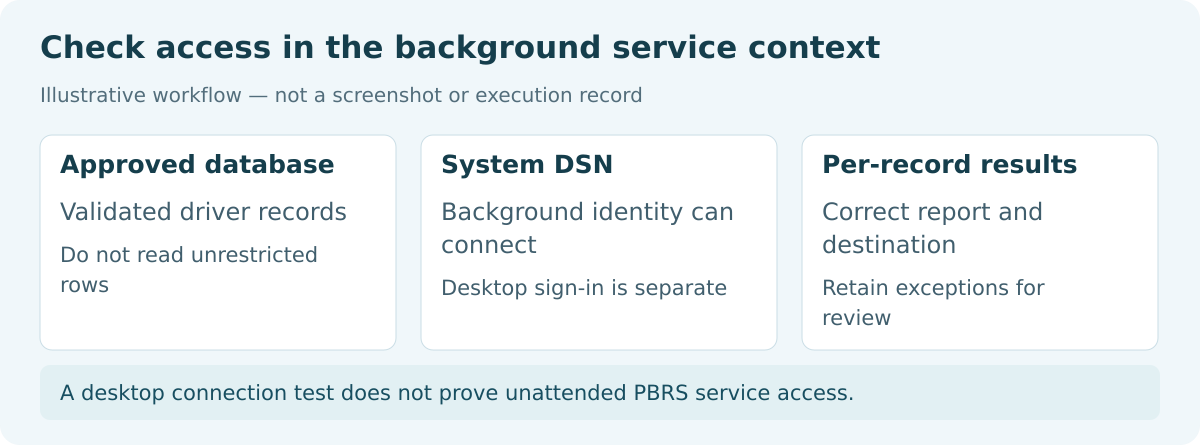
PBRS background service reading approved driver records through a System DSN for unattended report delivery.

A desktop connection test does not prove unattended PBRS service access.

Optional technical section. Keep the driver-to-output mapping as part of the reporting configuration. Retain the approved row set, selected report path, expected department and month, output file and destination result together.

For PBRS database access, use the documented System DSN arrangement and confirm the background service identity can read the database. A signed-in desktop test does not establish that an unattended job has the same access.

Validate each driver record

Check for unapproved or missing recipients, null department values, duplicate keys and unexpected types before the run. Implement the intended rejection or review process explicitly; do not assume every installation blocks invalid rows automatically.

Keep report-specific mappings

RDL jobs use parameters, while on-premises PBIX jobs use the relevant filters and pages. Retain their actual names and compatible types so a report change can be checked against the driver.

Reconcile generation and delivery

Match every approved row with its generated file and destination result. Inspect department scope, month and expected identifiers, then compare the attachment received by the controlled mailbox.

Retest mapping changes

A renamed driver column or report field can change the output even when the schedule is untouched. Recheck the mapping and representative files, retaining the unique driver key for any failed record.

  
CHOOSE YOUR NEXT STEP

Choose the Smallest Route That Meets the Delivery Requirement

Use a native data-driven subscription when a supported RDL report and one configured delivery extension meet the requirement. One native subscription cannot combine email and file-share extensions, although mapped values can vary within the chosen route.

Use PBRS when you need an applicable query-driven on-premises PBIX route or additional destination controls. Keep RDL parameters and PBIX filters distinct.

Before enabling the recurring job, check the complete approved row set and retain a verified file and delivery result for each representative record. That gives you a practical baseline for later recipient or scope changes.

Explore Power BI Report Automation. Technical sources reviewed: 9 October 2026.

Considering PBRS for data-driven SSRS or Report Server delivery? Share the guide with your colleagues to review deployment, licensing, security and your reporting requirements.

Download the PBRS Internal Evaluation Guide

Contributors:

Christian Ofori-Boateng

Christian Ofori-Boateng

CEO, ChristianSteven Software