

LEARN CRYSTAL REPORTS

How to Create Crystal Reports Excel Workbooks with Separate, Named Worksheets

To create separate, named worksheets from a Crystal Report, use an export workflow that understands the report’s groups.

CRD’s Excel Group Bursting can place each group on its own worksheet. Choose the Excel output mode carefully, because a readable report layout and a workbook for analysis serve different needs.

  
Your reporting task

Give the analyst a workbook worth opening

Imagine an operations analyst receiving one long spreadsheet for every branch. The figures are present, but finding a branch means scrolling through repeated report headings. What she wants is one workbook with a recognizable tab for each branch.

That is a workbook requirement, rather than a request to reproduce the printed page. Decide whether the analyst needs the report’s appearance or a cleaner data structure for sorting and analysis. The answer affects the export mode and the report design you start with.

Use a report with a small number of obvious branch groups for the first attempt. You can compare each worksheet with the corresponding section of the original report.

Define the working file

Agree the columns, branch grouping and total the analyst will use. A file that opens in Excel is not necessarily ready for analysis.

  
Your options

Separate report layout from worksheet structure

Crystal Reports provides Excel export options, including data-oriented output. A report designed for printed pages can still produce spacing or repeated headings that do not suit a spreadsheet. Review the exported workbook before adding another automated step.

CRD adds worksheet-oriented controls to its documented Excel workflow: a worksheet name, Excel Group Bursting, a workbook password and freeze panes. These help turn the recurring export into the file the analyst expects.

Group Bursting creates separate worksheets from groups in one report. Combining several different reports into one workbook is a package workflow, which is a different decision.

The CRD Excel export guide lists the output formats and worksheet controls.

Check the exact Excel mode

CRD documents both legacy XLS choices and MS Excel Workbook — Data Only XLSX. Do not assume every advanced option behaves identically in every mode.

  
Put it into practice

Build the branch worksheets

Select the branch report and its required period, then choose the appropriate Excel format in the destination. Enable Excel Group Bursting and identify the database column or Crystal formula on which the report is grouped.

The documented prerequisite is that the group values appear in the report’s Group Header. CRD uses those values as the separate worksheet tabs. Check that the resulting names remain understandable to the analyst and are valid for Excel.

Apply a workbook password if the delivered file requires one, and choose freeze panes where keeping the heading row or first column visible will help. Open the finished workbook and check the branch values, tab names, identifiers and totals. This is also the time to spot a leading zero that Excel has interpreted as a number.
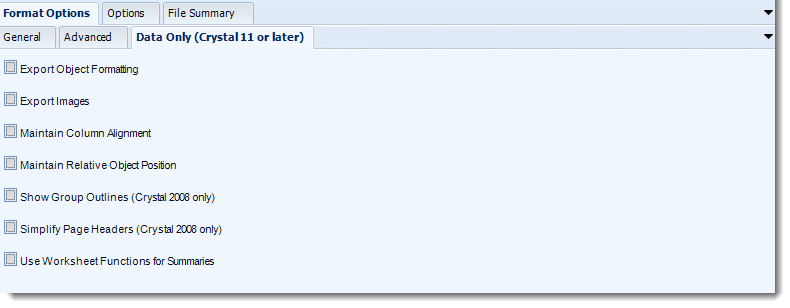

Crystal Reports: MS Excel output format options in CRD.

Try more than the first group

Inspect a middle and final branch as well as the first. That makes a missed group or unexpected duplicate much easier to see.

  
Keep it dependable

Keep the spreadsheet usable as the report changes

A new branch should become an intentional part of the reporting job. Check its group value and worksheet result rather than assuming a renamed group will always produce the desired tab.

If an application starts the schedule, keep the workbook layout in the configured report job. The application does not need to reimplement the export simply to request the next run.

Technical reference: prerequisites and output boundaries

Choose a supported Excel format and check its requirements against the CRD build, Crystal runtime and Office installation on the reporting host.

Group Bursting is not recipient bursting. Separate tabs in one workbook do not isolate customers if you send that entire workbook to every customer. Filling an Excel template from a database query is a separate Custom Task workflow; it does not mean any RPT can be placed automatically in an existing template.

Keep the recipient’s task in view

Ask the analyst to find one branch and work with its rows. That is a more useful acceptance check than judging only the workbook’s first screen.

  
Your next step

Deliver the workbook the analyst asked for

The result should be a file the analyst can navigate by branch, with the values and worksheet structure she needs. Once that file is right, schedule its delivery and review the next run after a report-design change.

Explore Crystal Reports Excel automation for the available workbook controls.

Contributors:

Christian Ofori-Boateng

Christian Ofori-Boateng

CEO, ChristianSteven Software