

How to Export Power BI Reports to PDF Programmatically
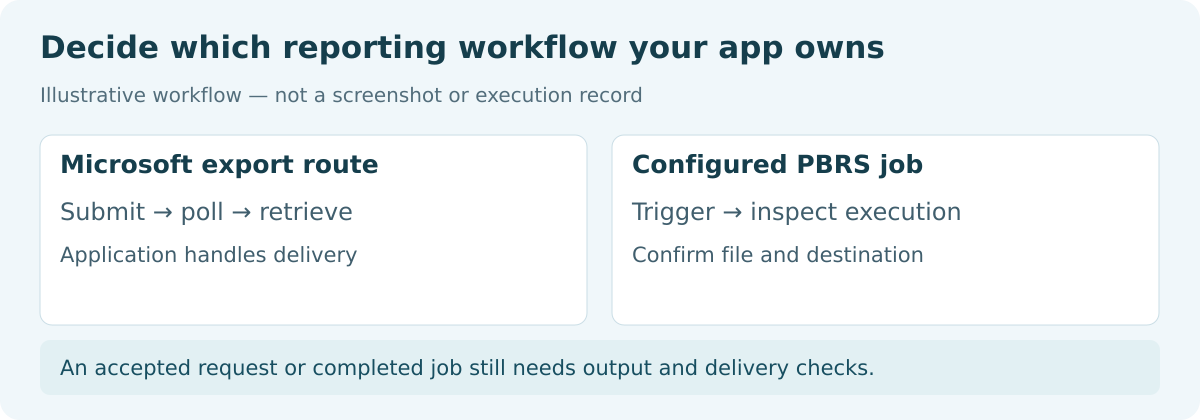
To export a Power BI report to PDF programmatically, you can call Microsoft’s ExportTo API, wait for the export and retrieve the file. If your application also needs to send or save the report, PBRS lets you trigger a reporting job that already contains those instructions.
For example, a billing application can ask PBRS to prepare and deliver the management summary when a billing run finishes. The application decides when the report is needed; PBRS keeps the report settings and destination together.
- THE PROBLEM AND ANSWER Start with what the billing operator needs
- YOUR OPTIONS Choose who will manage export and delivery
- PRACTICAL SETUP Prepare the billing PDF before connecting the application
- DEVELOPER AND API WORKFLOWS Call PBRS or build the Microsoft export sequence
- YOUR NEXT STEP Make the report part of the billing routine
Start with what the billing operator needs
Imagine an operator finishing the month’s billing run. She needs a management-summary PDF in the shared folder before the finance review. A response saying “request accepted” is helpful progress, but she still needs to know when the document is ready.
Build the integration around that outcome. Keep the billing month with the report request, and make it possible to distinguish a report still being generated from a file that failed to reach its destination.
With PBRS, prepare a schedule that produces the summary PDF and delivers it to the folder. Your application can then start that job through the API. When reporting requirements change, the report selection and delivery settings remain in the reporting tool.
With Microsoft’s ExportTo API, the application owns the individual stages: start the export, monitor it, retrieve the PDF and save or send it. That can be a good fit when your application specifically needs that control and your team is prepared to maintain it.
Keep the operator informed
“The report is still being prepared” and “The folder connection failed” call for different responses. Make that distinction visible in your application.
Choose who will manage export and delivery
| Work to be done | Direct Microsoft export | PBRS job |
|---|---|---|
| Choose the report and its state | Maintain the export request in application code. | Keep the report and supported filter/rendering choices in the saved schedule. |
| Produce the PDF | Start, poll and retrieve the export. | Execute and monitor the configured report job. |
| Send or save the file | Implement the destination step after retrieval. | Use the schedule’s configured destination. |
| Explain the result to the operator | Track the export and your separate delivery operation. | Track the PBRS execution and inspect its result. |
Microsoft’s standard-report ExportTo route requires supported Premium, Embedded or Fabric capacity for the report and related semantic models; PPU is not supported. Its documented limits include 50 page/visual exports per request and a 250 MB output. Check the export guidance for report features and tenant settings that affect eligibility.
Authentication also depends on the approach. Delegated export requires the applicable report and dataset scopes as well as content access. A service principal uses the required tenant setup and workspace access; adding delegated permissions is not an equivalent configuration. Microsoft also restricts service-principal PDF/PPTX exports of sensitivity-labeled reports.
A PBRS integration needs a working PBRS installation, its API service, an authorized source account and access to the destination. The application must still decide which users may request which reports.
Check the report’s hosting
A user’s license alone does not tell you whether Microsoft’s standard ExportTo operation is supported. Check the workspace and related models before implementing it.
Prepare the billing PDF before connecting the application
Before wiring up the billing button, produce the management summary with the intended reporting month and pages. Ask the report owner which total confirms that the completed billing run is included. This gives you a concrete document to compare with the application’s first result.
For PBRS, configure the report, PDF output and destination in a saved schedule and run it from PBRS first. Confirm that the delivered copy is the one finance expects. Then connect the application to that known job.
If the reporting month changes for each request, make that selection explicit through the supported schedule configuration. An unattended job does not inherit whichever month happens to be selected in someone’s open browser.
Give the application a useful progress message, such as “Preparing the billing summary” followed by “Saved to the finance folder.” Keep errors specific enough for the support team to tell whether to investigate the report or the destination. Store request identifiers without putting access tokens or confidential report contents into ordinary logs.
Use a familiar figure
A known billing total helps the report owner recognize whether the PDF contains the intended run, without inspecting every line.
Call PBRS or build the Microsoft export sequence
Run the prepared PBRS job
Use the following pattern for an existing single-report schedule. Replace the example ID and connection values with the authorized billing job.
POST {pbrsBaseUrl}/api/Schedule/ExecuteScheduleAsync
Authorization: bearer {pbrsAccessToken}
Content-Type: application/json
{"ScheduleType":"report","uniqueid":101,"RunBy":"Billing batch"}
GET {pbrsBaseUrl}/api/Schedule/GetExecutionStatus?ExecutionId={ExecutionId}
Authorization: bearer {pbrsAccessToken}Save the returned ExecutionId with the billing month. The uniqueid identifies the schedule; ExecutionId identifies this particular run. RunBy is a descriptive label, not an authorization control.
Waiting and Executing indicate progress. When the execution is Completed, parse the string-valued ResultJson and inspect Result, ErrorMessage and ErrorNumber: a completed execution record can still report a failure. The execution guide explains the response and monitoring behavior.
Use a polling deadline and check an uncertain execution before starting another. A local timeout does not cancel the PBRS job, so an immediate retry could produce another delivery.
Build a direct Microsoft export
If the application owns the export sequence, the basic HTTP outline is:
POST https://api.powerbi.com/v1.0/myorg/groups/{groupId}/reports/{reportId}/ExportTo
Authorization: Bearer {accessToken}
Content-Type: application/json
{"format":"PDF"}
GET https://api.powerbi.com/v1.0/myorg/groups/{groupId}/reports/{reportId}/exports/{exportId}
GET https://api.powerbi.com/v1.0/myorg/groups/{groupId}/reports/{reportId}/exports/{exportId}/fileStore the export ID, respect Retry-After when supplied, and retrieve the file after Succeeded and before it expires. Confirm that the response is the PDF, then perform your destination step. These requests are an implementation outline; your backend also needs authentication, error handling and recovery.
Keep the identifiers separate
The billing batch, saved schedule and individual execution each identify something different. Keeping them together in your job record makes troubleshooting easier.
Make the report part of the billing routine
For the billing operator, the result is a management summary ready for the finance review. Choose direct Microsoft export when your application needs to own each stage. Choose PBRS when you want the application to request a reporting job whose output and delivery are maintained together.
Explore the PBRS report automation API for that approach, or see Power BI Report Automation for the wider scheduling options.
Contributors:
Christian Ofori-Boateng
CEO, ChristianSteven Software
