

- The monthly customer pack When every customer asks for something different
- Let the data decide Personalize the whole delivery with PBRS Inserts
- Bring the reports together Build a complete package for each recipient
- For developers Connect your application to the reporting process
- Your next step Test the delivery your customers actually need
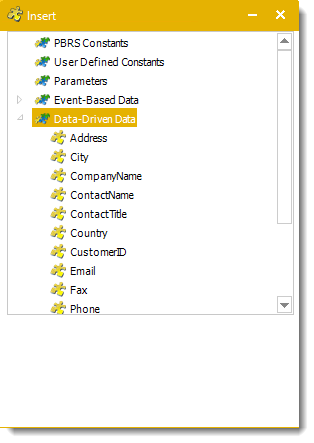
Imagine a customer record that contains an account number, the finance contact, the reporting month and an agreed delivery location. In PBRS, Inserts lets you place those values into the relevant schedule fields. You choose the field from the Inserts panel rather than writing a separate script to substitute it each time.
The same customer number can filter the report, appear in the filename and identify the destination folder. The contact’s name can turn a generic notification into a helpful message: “Hello Sam, your September service pack is attached, including the open jobs we discussed.”
What the data driver can control
- The report and its contents. Supply report selections, Power BI filters and supported paginated-report parameters, so each customer receives the information intended for them.
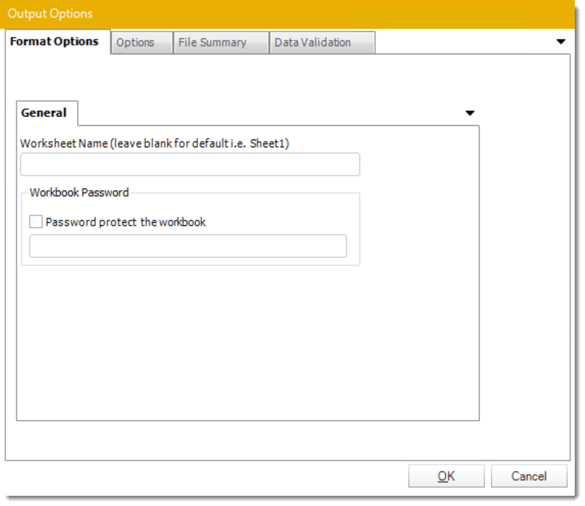
- The files people open. Drive filenames, supported output formats and Excel worksheet tab names. A workbook can arrive with meaningful tabs rather than names someone has to tidy up afterward.
- The conversation around the report. Populate To, CC and BCC separately, along with the subject, greeting and email body. The customer’s finance team can receive the file while their account manager gets the appropriate copy.
- The delivery route. Use the records to drive configured destination types and their final locations: email for one customer, an FTP or SFTP folder for another, or an agreed storage location.
- The connection behind that route. Supported insert-enabled fields can take mail-server details and credentials, FTP/SFTP credentials and destination paths from the driving data. A customer-specific connection can therefore be part of the delivery instructions, not an extra script maintained elsewhere.
- The protection applied to the output. Use recipient-specific passwords and supported security settings where the selected format allows them. The customer’s workbook or PDF can be protected before delivery.
These are configured PBRS capabilities. Inserts works across supported fields throughout the scheduling workflow; it is not confined to replacing an email address. Set up the destinations and their mappings first, and check the available Inserts options for each field and report type.
Inserts can supply more than a customer record
The PBRS Inserts guide also covers built-in dates and schedule values, user-defined constants, database lookups through Data Items, and reusable message or signature defaults. Supported report-parameter values and event data are available in their relevant schedule types. Custom constants can include formulas and optional JavaScript when a calculated value is needed.
For the monthly pack, that means you can combine the customer’s account number with the reporting period and a consistent signature. Routine personalization does not require custom code. Keep connection credentials in a restricted source and out of filenames, messages and diagnostic output.
Now the customer asks for the service summary, outstanding jobs and invoice detail together. Three separate emails leave them to decide whether the pack is complete. A PBRS data-driven package lets you define the reports as one delivery process.
The driver can determine which reports belong in an individual recipient’s package and supply the filters or parameters for each. PBRS generates the selected reports, collates the results and sends the customer their package. The next customer can receive a different combination, with their own data and delivery instructions.
Choose how the pack should arrive
For a customer who wants to read the results, combine the PDF outputs into one ordered document. For a finance team that needs to work with the numbers, merge compatible Excel outputs into one workbook with named tabs. You can also deliver separate attachments or a ZIP package when keeping the original files is more useful.
PBRS includes options to protect the resulting files. Apply password protection to the final merged workbook or configure the supported PDF security settings for the finished document. This keeps assembly and protection within the reporting job rather than leaving someone to complete them manually.
When several driver records belong to the same email recipient, PBRS can group their reports. Grouping can also merge supported PDF or Excel outputs. That grouping option disables embedding reports in the email body, so choose deliberately between a grouped attachment delivery and an embedded report presentation.
Why Power Automate becomes harder here
A native Power BI dynamic subscription does not provide this recipient-specific, multi-report package assembly. You can build a broader process in Power Automate, but you must design the recipient loop, generate the right reports, wait for their exports, keep each customer’s files together and assemble the final delivery.
Then come the less visible requirements: what happens if the second report fails, how to avoid sending an incomplete pack, how to merge or protect files, and how to retry without duplicating deliveries. Those requirements add actions, expressions, connectors or scripts that someone must maintain as reports and customer instructions change.
PBRS is the better fit when that reporting work is the main job. Data-driven packages, output merging and delivery settings are built into the product. For standard Power BI reports, Power Automate’s Export to File route also inherits the native API’s capacity requirement; using a flow does not make that export available to a Pro-only workspace.
The PBRS report packages overview shows the available package approaches. PBRS works with reports published to Power BI Service, Power BI Report Server and SSRS; it does not schedule exports directly from Power BI Desktop.

Christian Ofori-Boateng
CEO, ChristianSteven Software